Lab - Construct a Basic Python Script
Objectives
- Part 1: Explore the Python Interpreter
- Part 2: Explore Data Types, Variables, and Conversions
- Part 3: Explore Lists and Dictionaries
- Part 4: Explore User Input
- Part 5: Explore If Functions and Loops
- Part 6: Explore File Access
Background / Scenario
In this lab, you will learn basic programming concepts using the Python programming language. You will create a variety of Python scripts. The lab culminates in a challenge activity in which you use many of the skills learned in this lab to construct a Python script.
Required Resources
- 1 PC (Choice of operating system with Python and IDLE installed)
- Internet access (Optional)
Instructions
Part 1: Explore the Python Interpreter
In Part 1, you will start Python 3, use the interactive interpreter, open IDLE, and use IDLE to run your first script.
Step 1: Start Python 3
- If necessary, download Python from www.python.org
- Start python3 from CMD (should previously been added to PATH).


Step 2: Use the interactive interpreter as a calculator
From here, you can do a variety of basic programming tasks including math operations. The table shows the Python syntax to use for the most common math operators.
OperationMathSyntaxAdditiona+ba+bSubtractiona-ba-bMultiplicationaxba*bDivisiona÷ba/bExponentsa^ba**b
| Operation | Math | Syntax |
| Addition | a+b | a+b |
| Subtraction | a-b | a-b |
| Multiplication | axb | a*b |
| Division | a÷b | a/b |
| Exponents | a^b | a**b |
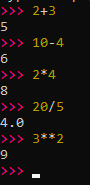
Enter some math operations using the Python syntax, as shown below.
Step 3: Use the interpreter to print a string
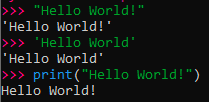
A string is any sequence of characters such as letters, numbers, symbols, or punctuation marks. The interactive interpreter will directly output text that you enter as a string provided you enclose the string in either single quotes (') or double quotes (").
The print command can be used in a script to output a string. Enter the following in the interpreter:
Step 4: Open the IDLE interactive interpreter.
There are many development environments available for programmers to manage their coding projects. However, the labs in this course use Python's Integrated Development Environment (IDLE).
IDLE has two main windows
- IDLE Shell
- IDLE Editor
The IDLE Shell provides an interactive interpreter with colorizing of code input, output, and error messages. It also includes a popup that provides syntactical help for the command you are currently using, as shown in the figure.
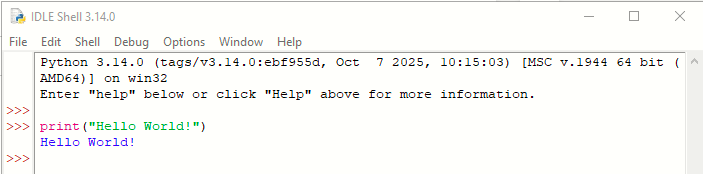
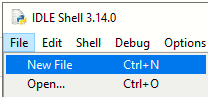
The IDLE Editor provides a text editor with code colorization and syntactical help for writing python scripts. To open the IDLE Editor, in the IDLE Shell, click File > New File
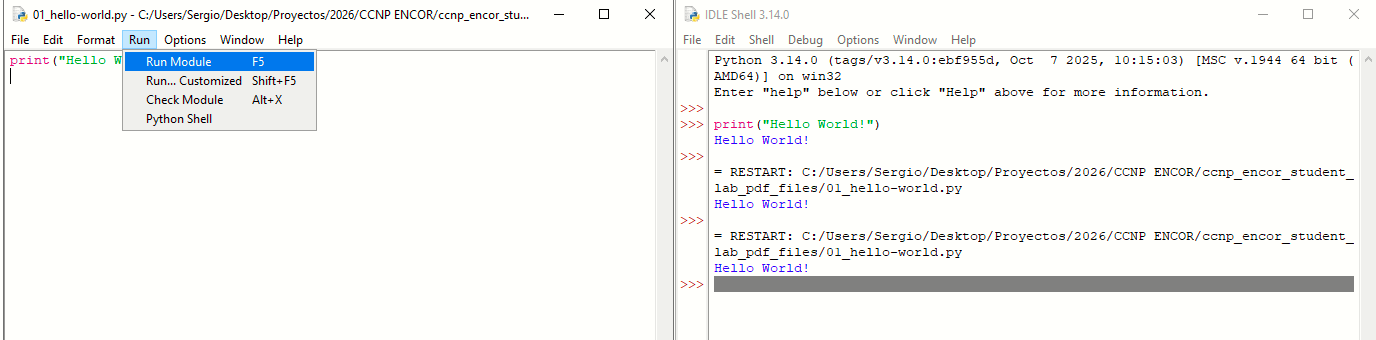
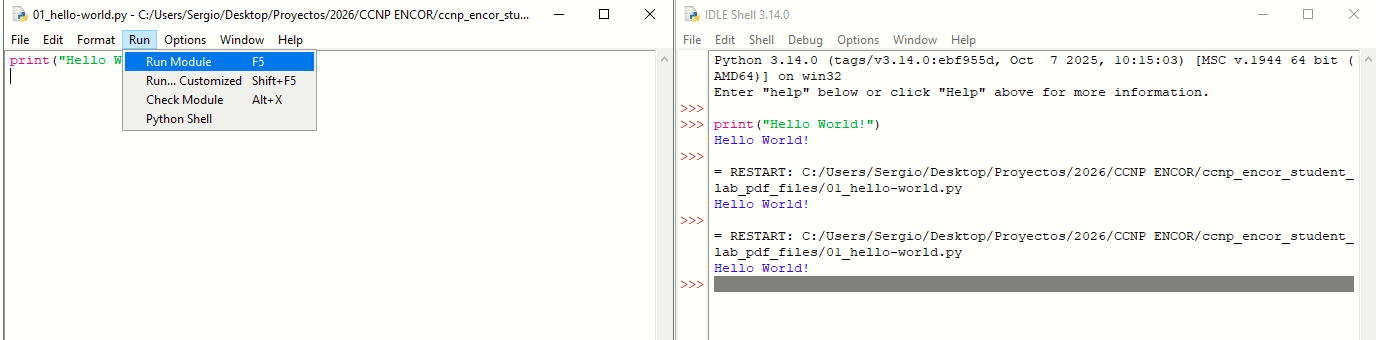
The IDLE Editor includes the ability to immediately test a script in the shell by using the Run Module (F5) command.
Step 5: Use IDLE to write, save, and run your first program.
Complete the following steps in IDLE:
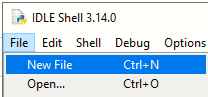
- In IDLE shell, click File > New File (Ctrl+N) to open an Untitled script file.
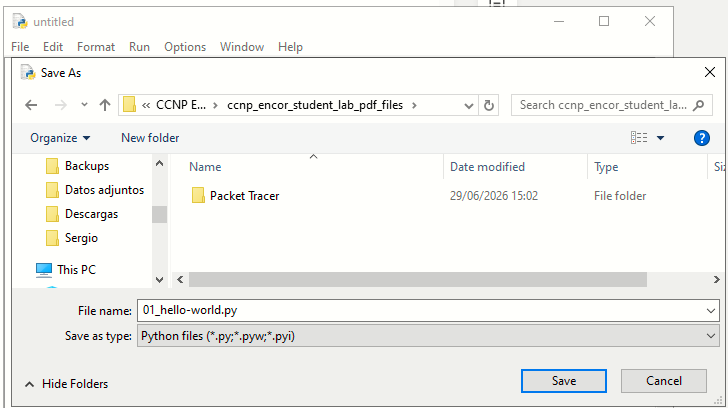
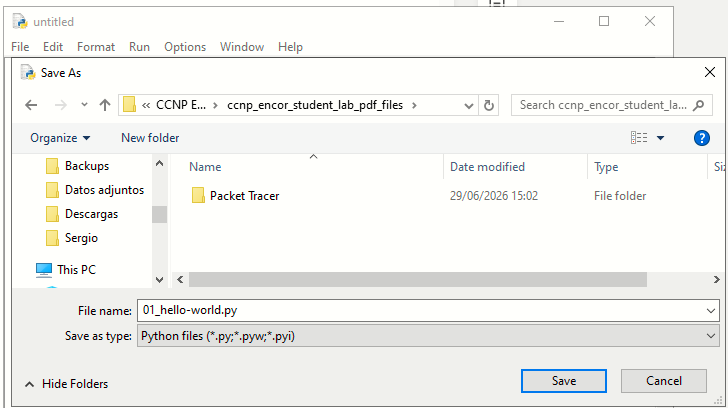
- Save the file as 01_hello-world.py
- Enter the following in the script: print("Hello World!").

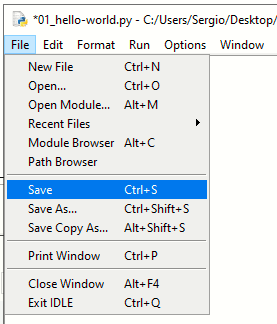
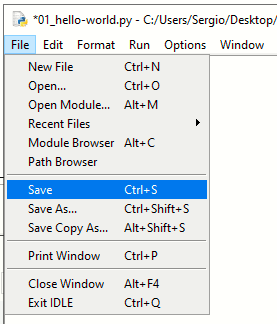
- Save the script; click File > Save (Ctrl+S)
- Run the script; click Run > Run Module (F5)

Part 2: Explore Data Types, Variables, and Conversions
In Part 2, you will learn about different data types, work with variables, and convert one data type to another data type.
Step 1: Determine the basic data types.
In programming, data types are a classification which tells the interpreter how the programmer intends to use the data. For example, the interpreter needs to know if the data the programmer entered is a number or a string. Although there are several different data types, we will focus only on the following:
- Integer - used to specify whole numbers (no decimals), such as 1, 2, 3, etc.. If an integer is entered with a decimal, the interpreter ignores the decimal. For example, 3.75 is interpreted as 3.
- Float - used to specify numbers that need a decimal value, such as 3.14159.
- String - any sequence of characters such as letters, numbers, symbols, or punctuation marks.
- Boolean - any data type that has a value of either “True” or “False”.
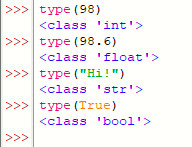
Use the type() function to determine the data type.
Step 2: Use Boolean operators.
The Boolean data type makes use of the operators shown in the table.
| Operator | Meaning |
| > | Greater than |
| < | Less than |
| == | Equal to |
| != | Not equal to |
| >= | Greater than or equal to |
| <= | Less than or equal to |
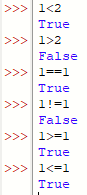
In the IDLE shell, try out the different Boolean operators. The following are a few examples.
Step 3: Create and use a variable.
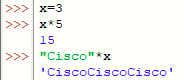
The Boolean operator for determining whether two values are equal is the double equal sign (==). A single equal sign (=) is used to assign a value to a variable. The variable can then be used in other commands to recall the assigned value, as shown in the following example. Try creating and using your own variables.
Step 4: Concatenate multiple string variables.
Concatenation is the process of combining multiple strings into one string. For example, the concatenation of "foot" and "ball" is "football". In the following example, four variables are concatenated together in a print() statement with the plus sign (+). Notice that the space variable was defined for use as white space between the words.
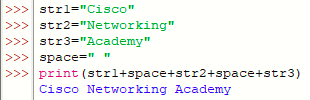
Challenge: Try writing a print() statement with a space between the words without using a variable to create the space
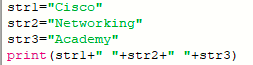
Step 5: Convert one data type to another data type.
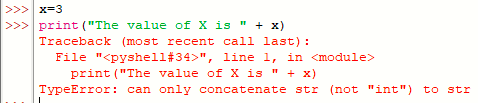
- Concatenation does not work for joining different data types, as shown in the following example:
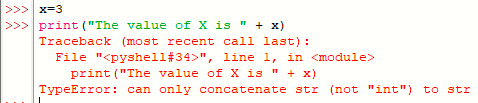
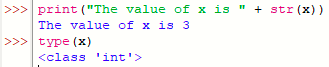
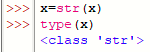
- Use the str() function to convert the value of a variable to a string, as shown in the following example:
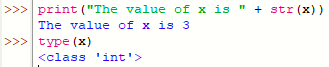
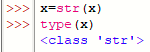
- Notice that the data type for the variable x is still an integer, as confirmed using the type() function. To convert the data type,
reassign the variable to the new data type, as shown in following example:
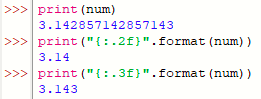
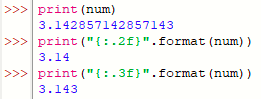
- You may want to display a float to a specific number of decimal places instead of the full number. To do this, use the "{:.2f}".format function, as shown in the following example:
Part 3: Explore Lists and Dictionaries
In Part 3, you will work with list variables and dictionaries. You will then troubleshoot a program that has some errors.
Step 1: Create, use, and modify a list variable.
- In programming, a list variable is used to store multiple pieces of ordered information. The following example shows how to create a list and then use the type() and len() functions.
- Create a list using brackets [ ] and enclosing each item in the list with quotes. Separate the items with a comma.

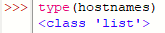
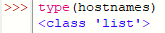
- Use the type() command to verify the data type.
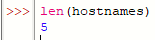
- Use the len() command return the number of items in a list.
- Call the list variable name to display the list contents.

- Create a list using brackets [ ] and enclosing each item in the list with quotes. Separate the items with a comma.
- In some programming environments, an item list is also called an array. Any item within a list can be referenced and manipulated using its index, as shown below.
- The first item in a list is indexed as zero, the second is indexed as one, and so on.
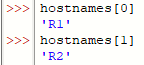
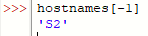
- The last item can be referenced with index [-1].
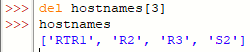
- Replace an item by assigning a new value to the index.

- Use the del command to remove an item from a list.
- The first item in a list is indexed as zero, the second is indexed as one, and so on.

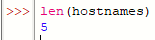

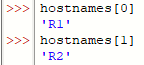
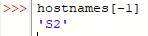

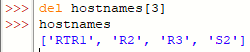
Step 2: Create, use, and modify a dictionary.
- Dictionaries are unordered lists of objects. Each object contains a key/value pair. In the following example, a dictionary ipAddress is created with three key/value pairs to specify the IP address values for three routers.
- Create a dictionary using the braces { }. Each dictionary entry includes a key and a value. Separate a key and its value with a colon. Use quotes for keys and values that are strings.

- Create a dictionary using the braces { }. Each dictionary entry includes a key and a value. Separate a key and its value with a colon. Use quotes for keys and values that are strings.
- Unlike list items, objects inside a dictionary cannot be referenced by their sequence number. Instead, you reference a dictionary object using its key, as shown in the following example:
- The key is enclosed with brackets [ ].
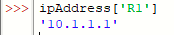
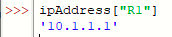
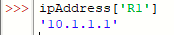
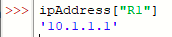
- Keys that are strings can be referenced using single or double quotes.
- Add a key/value pair by setting the new key equal to a value.

- Use a key in dictionary statement to verify if a key exists in the dictionary.

- The key is enclosed with brackets [ ].
- Values in a key/value pair can be any other data type including lists and dictionaries. For example, if R3 has more than one IP address, how would you represent that inside the ipAddress dictionary? Create a list for the value of the R3 key, as shown in the following example:





Step 3: Challenge: Troubleshoot a list and dictionary program.
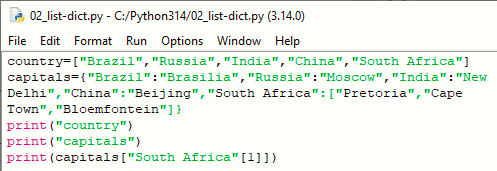
The script creates a list of the BRICS countries (Brazil, Russia, India, China, and South Africa). It then creates a dictionary for each country's capital(s). A list is used for South Africa's three capitals. The script is then supposed to print the country list, capital dictionary, and the 2nd listed capital for the value of South Africa. However, there are errors in the script.
- Open a new file in the IDLE editor and save it as 02_list-dict.py. Enter the following code into the file.
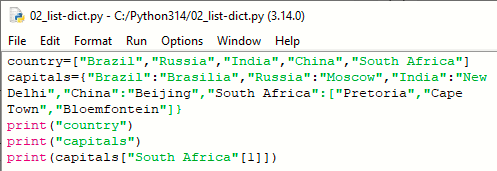
- Save 02_list-dict.py and run the script. Each print statement has an error. Troubleshoot the print statements to resolve the issues. The output of a corrected script should look like the following:

Fixed:





Part 4: Explore User Input
In Part 4, you will create a program to ask for user input and use that information for data output.
Step 1: Create and use the input function.
Most programs require some type of input either from a database, another computer, mouse clicks, or keyboard input. For keyboard input, use the function input() which includes an optional parameter to provide a prompt string.
If the input function is called, the program will stop until the user provides input and hits the Enter key, as shown in the following example:

Step 2: Create a script to collect personal information.
Open a blank script file and save it as 03_personal-info.py. Create a script that asks for four pieces of information such as: first name, last name, location, and age. Create a variable for a space. Add a print statement that combines all the information in one sentence. Your script should run without any errors, as shown in the following output:


Part 5: Explore If Functions and Loops
In programming, conditional statements check if something is true and then carry out instructions based on the evaluation. If the evaluation is false, different instructions may be carried out. In Part 5, you will explore conditional statements that include If/Else, If/Elif/Else, For loops, and While loops.
Step 1: Create an If/Else conditional statement.
The following example demonstrates the if/else function in a simple script:
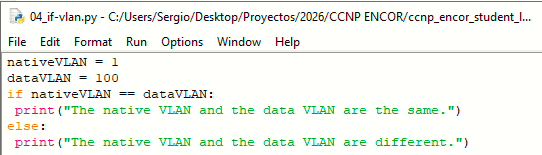
Modify the variables so that nativeVLAN and dataVLAN have the same value. Save and run the script again. Your output should look like:

Step 2: Create an If/Elif/Else conditional statement
What if we have more than two conditional statements to consider? In this case, we can use elif statements in the middle of the if/else function. An elif statement is evaluated if the if statement is false and before the else statement. You can have as many elif statements as you would like. However, the first one matched will be executed and none of the remaining elif statements will be checked. Nor will the else statement.
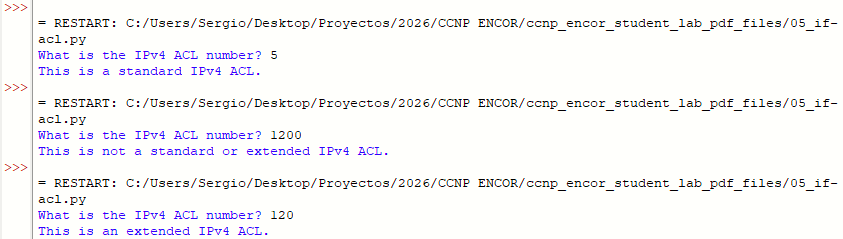
The script in the following example asks the user to input the number of an IPv4 ACL and then checks whether that number is a standard IPv4 ACL, extended IPv4 ACL, or neither standard or extended IPv4 ACL.
Note: The data type for the input function is changed from the default string to an integer so that the if and elif evaluations will work.
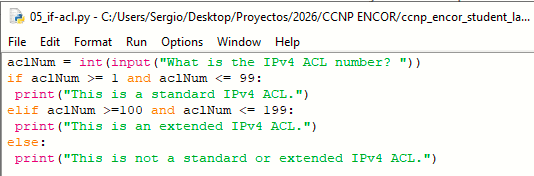
Run multiple times to test each statement. Troubleshoot any errors. Your output should look similar to the following:
Step 3: Create an For loop.
The Python for command is used to loop or iterate through the elements in a list, or perform an operation on a series of values.
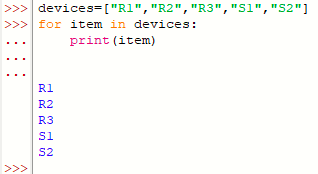
- Enter the following example in your interactive interpreter. The example demonstrates how a for loop can be used to print the elements in a list. The variable name item is arbitrary and can be anything the programmer chooses.
Note: After the last statement in a for loop, press the Enter key twice to end the for loop statement and run it.
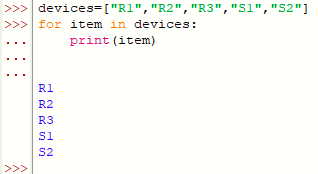
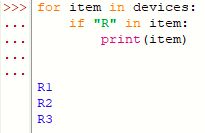
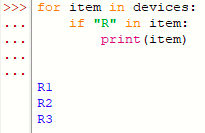
- What if you only want to list the items that begin with the letter R? An if statement can be embedded in a for loop to achieve this. Enter the following example in your interactive interpreter:
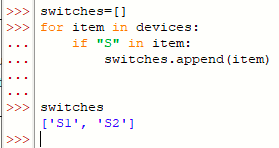
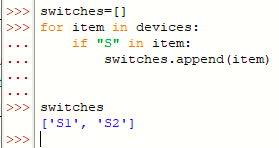
- You can also use a combination of the for loop and if statement to create a new list. The following shows how to use the append() method to create a new list called switches. In your interactive interpreter, create an empty list variable for switches. Then iterate through devices to find and add any device that begin with an “S” to the switches list.
Step 4: Create a While loop
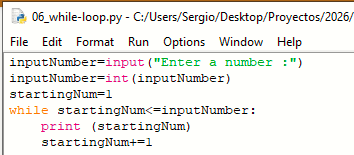
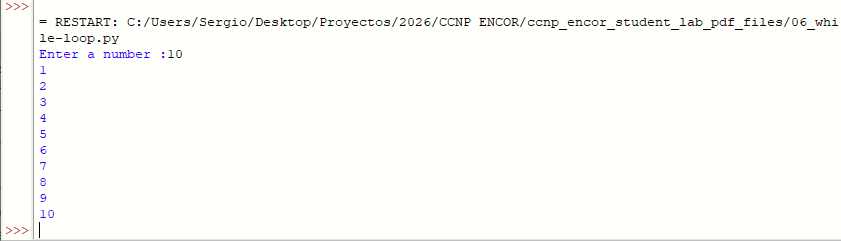
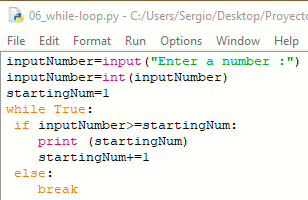
Instead of running a block of code once, as in an if statement, you can use a while loop. A while loop keeps executing a code block as long as a boolean expression remains true. This can cause a program to run endlessly if you do not make sure your script includes a condition for the while loop to stop. While loops will not stop until the boolean expression evaluates as false.
Note: If you need to interrupt an endless loop, you can press Ctrl-C, Ctrl-F6, or Shell > Restart Shell from the Shell.
Code for this section:
Another variation using a break statement:
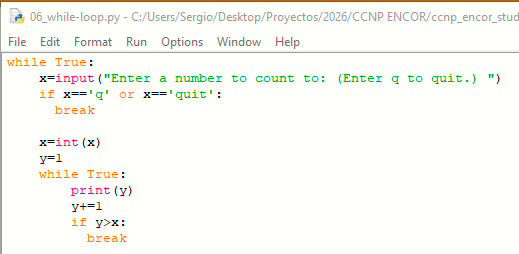
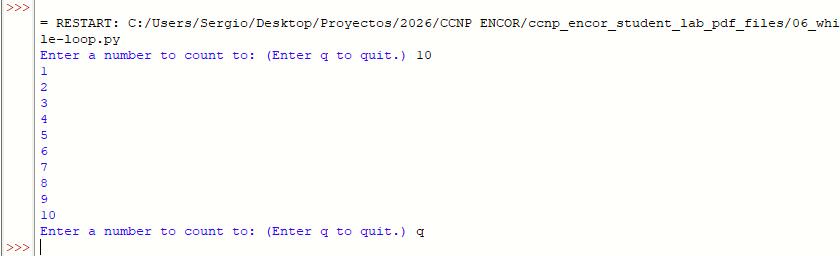
Step 5: Create a while loop that checks for a user quit command
What if we want the program to run as many times as the user wants until the user quits the program? To do this, we can embed the program in a while loop that checks if the user enters a quit command, such as q or quit.
Part 6: Explore File Access
In addition to user input, you can access a database, another computer program, or a file to provide input to your program. In Part 6, you will write a program to read an external file. You will then construct a program based on a set of requirements.
Step 1: Create a program to access an external file
The open() function can be used to access a file using the following syntax:
- open(name, [mode])
The name parameter is the name of the file to be opened. If the file is in a different directory than your script, you will also need to provide path information. For our purposes, we are only interested in three mode parameters:
- r - read the file (default mode if mode is omitted).
- w - write over the file, replacing the content of the file.
- a - append to the file.
- Complete the following steps to read and print a file:
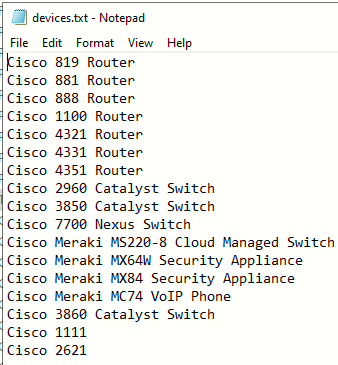
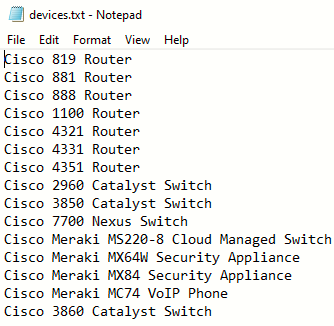
- Create a text file called devices.txt. Save the file in the same directory as your Python scripts. On each line of the text file, add a Cisco model. Here is a list you can use:
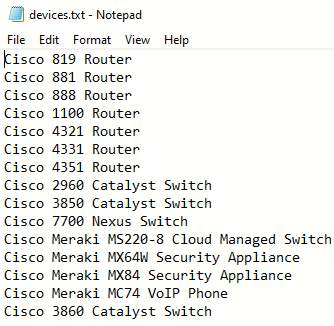
- Create a text file called devices.txt. Save the file in the same directory as your Python scripts. On each line of the text file, add a Cisco model. Here is a list you can use:
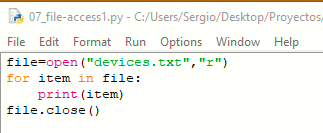
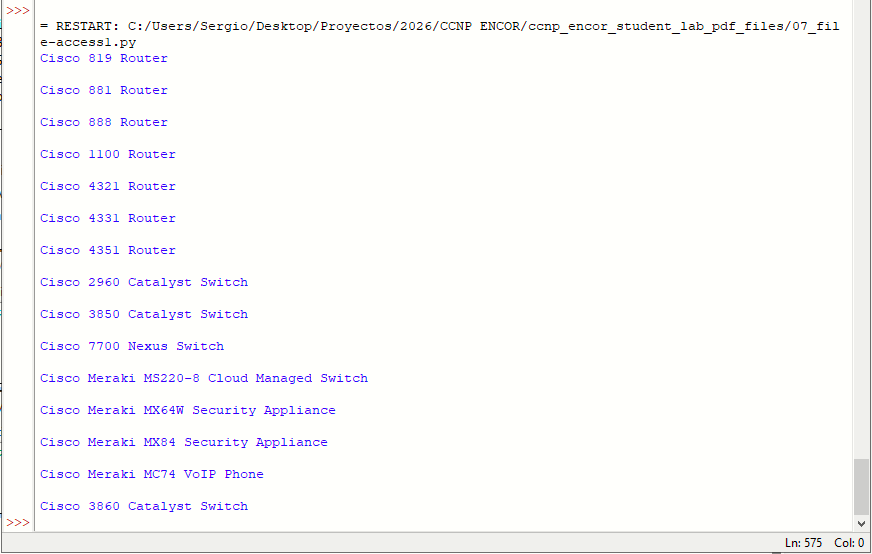
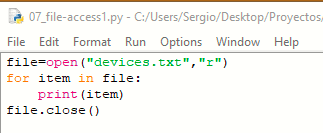
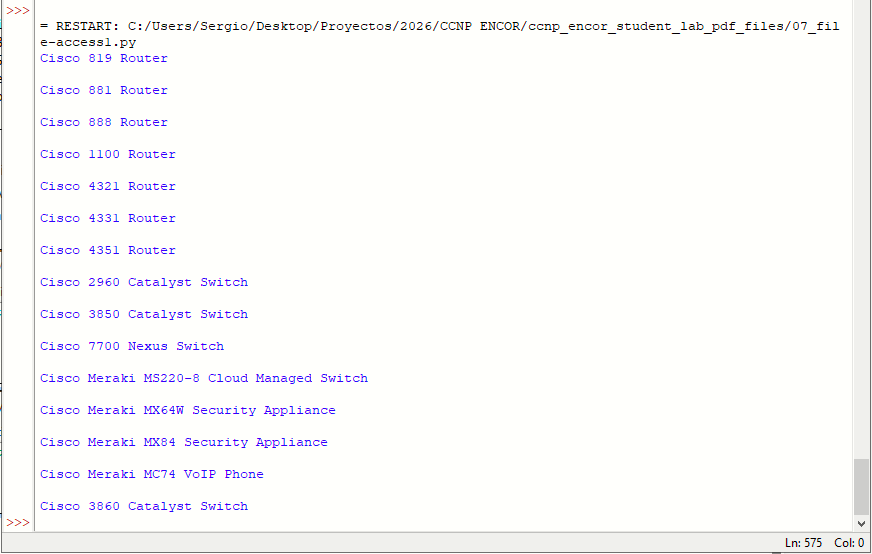
- Open a blank script and save it as 07_file-access1.py in the same directory as devices.txt. Create a script to read and print the contents of devices.txt. After printing the contents of the file, use the close() function to remove it from the computer's memory. The close() function should not be indented, as shown.
Step 2: Remove the blank lines from the output
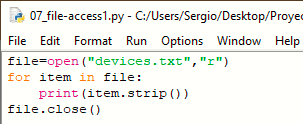
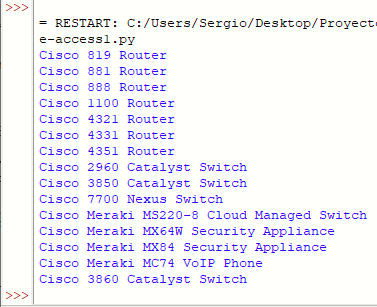
You may have noticed that Python added a blank line after each entry. Remove this blank line using the strip() method. This method is available to strings type variables. Edit your 07_file-access1.py script as shown in the following example:
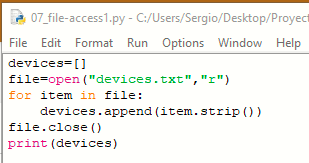
Step 3: Copy a file into a list variable.
Most of the time when programmers access an external resource such as a database or file, they want to copy that content into a local variable that can then be referenced and manipulated without impacting the original resource.

Step 4: CHALLENGE: Create a script to allow a user to add devices to an external file.
What if you want to add more devices to the devices.txt file? You can open the file in append mode and then ask the user to provide the name of the new devices. Complete the following steps to create a script:
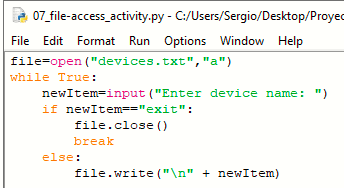
- Open a new file and save it as 07_file-access_activity.py.
- For the open() function use the mode a, which will allow you to append an item to the devices.txt
file. - Inside a while True: loop, embed an input() function command that asks the user for the new device.
- Set the value of the user's input to a variable named newItem.
- Use an if statement that breaks the loop if the user types exit and prints the statement "All done!".
- Use the command file.write(newItem + “\n”) to add the new user provided device. The “\n” will add a new line to the file for the next entry.