
Lab 5-4: Examine VoIP Protocols
Scenario
JRI ran into problems, with some phones not registering, and wants to examine both the phone registration process and the protocols used for digital voice. Wireshark is well suited for this task.
Equipment Required
- Cisco 2821 router
- Cisco 3560 switch
- Lab configuration from Lab 5-3
Objectives
- Understand Skinny Client Control Protocol (SCCP) for phone signaling
- Real-Time Transport Protocol (RTP) used for digital voice.
Task 1: Load Prior Configurations
This lab is based on the configuration from Lab 5-3. You will need to have two or more IP Phones registered. Troubleshoot if necessary.
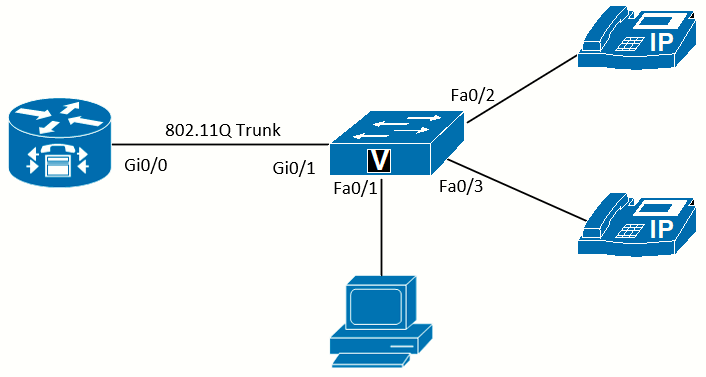
Topology used for this lab
Task 2: Establish Packet Capture
To capture the traffic of a physical IP Phone, it is necessary to establish the packet capture and forward the packets to the computer where Wireshark is running.
Configure the Switch for Packet Capture
Cisco switches support the monitor session (SPAN) command to forward traffic for packet capture. For this task, the IP Phone to be captured is in Fa0/3 and the PC with Wireshark is in Fa0/1.
We need to tell the switch which port is the source of the packet capture (Fa0/3) and which one is the destination:
SwPod1(config)# config t
SwPod1(config)# monitor session 1 source interface fa0/3
SwPod1(config)#monitor session 1 destination interface fa0/1
To verify the session is working we can use the show monitor session command:
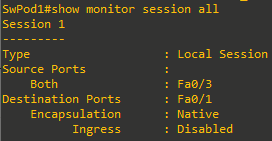
Task 3: Start Wireshark Capture
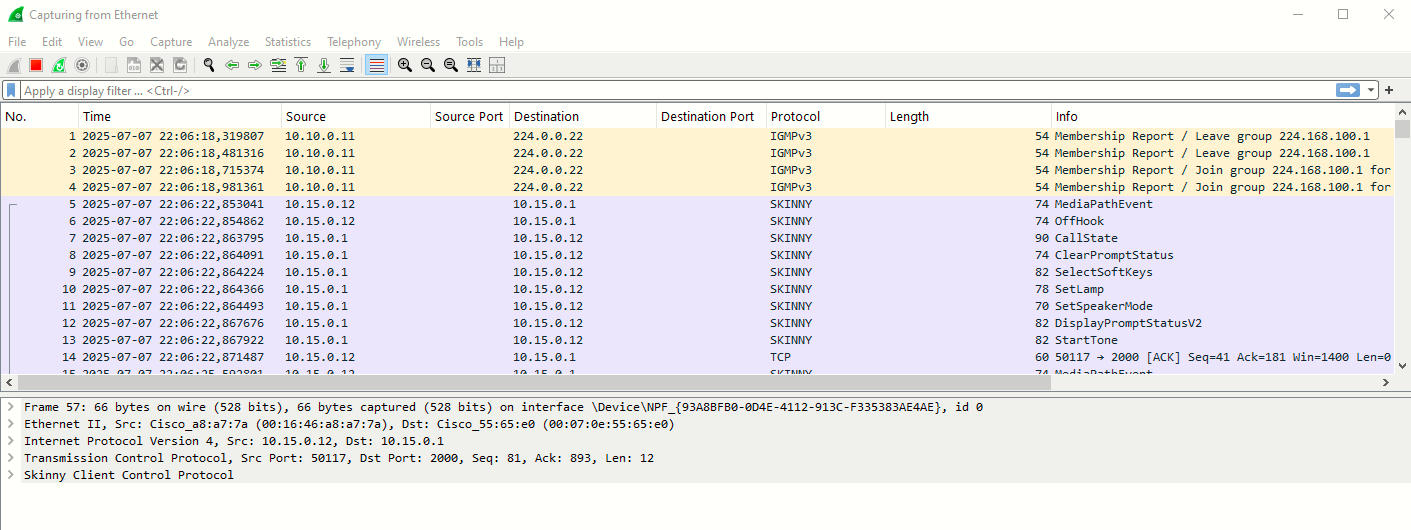
Start the Wireshark application and set it to capture traffic from the Ethernet interface connected to the switch:
Examine Phone Boot in Wireshark
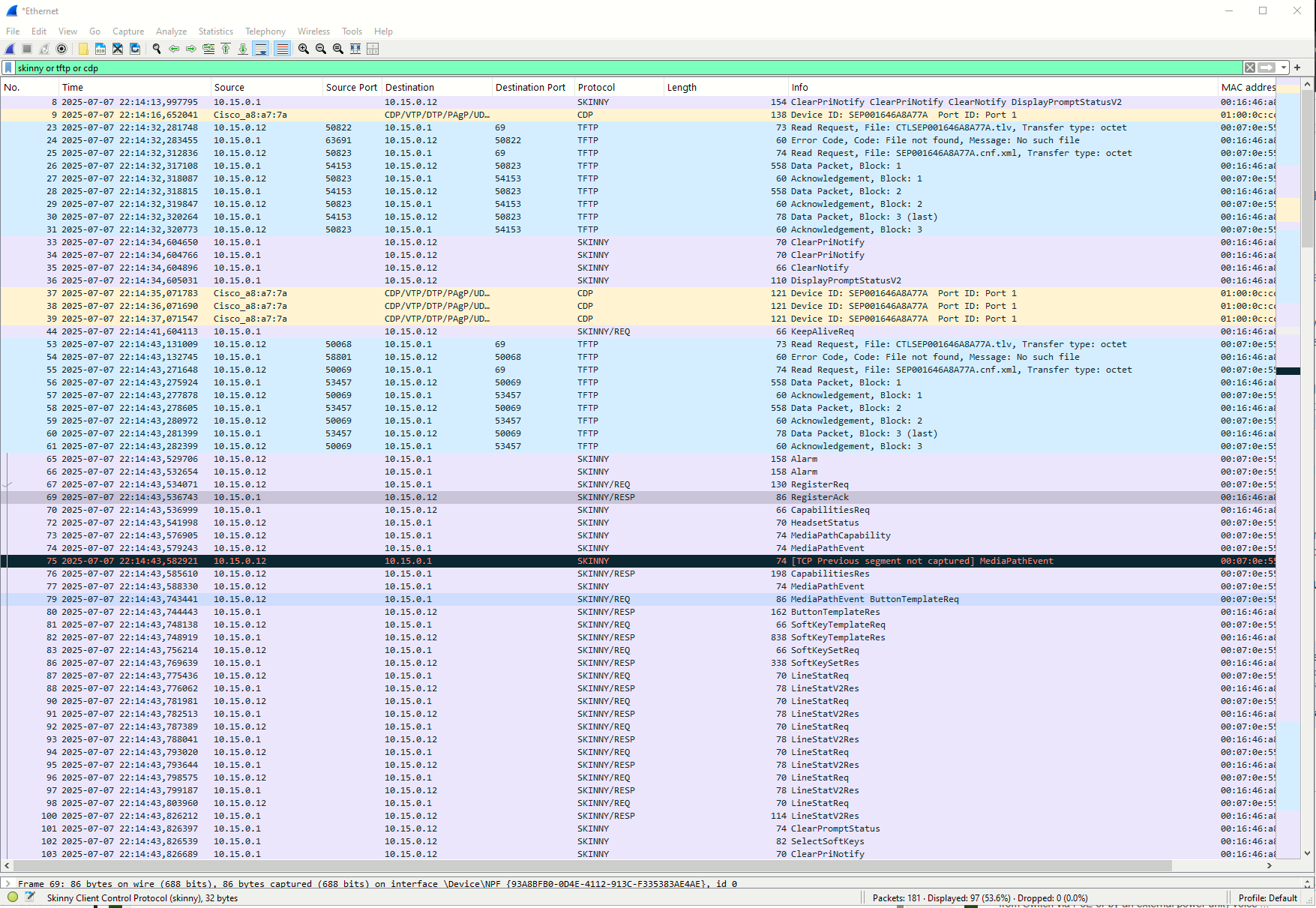
To see the phone bootup process, unplug the phone, and connect it back, without exiting the Wireshark capture:
Packet #9: The phone sends CDP message to learn VLAN.
Packet #18: Sends DHCP Request (broadcast).
Packet #19: Received DHCP Ack with the IP information.
Packets #20-22: ARP process.
Packets #23-31: TFTP process. The phone contacts the IP address learned from the DHCP option 150 to download files using TFTP. In this example the phone first asks for the file CTLSEP001646A8A77A.tlv. The TFTP server then responds with an File not found Error code. Then the phone asks for the file SEP001646A8A77A.cnf.xml which the TFTP server founds and sends.
Packets #65 and beyond: Show the phone getting information about the button and softkey templated.
After the phone has registered, you see periodic SCCP keep-alive messages. The phone keeps checking every 30 seconds (by default) to verify the Call Agent is active and responding.
Examine a Phone Call in Wirehsark
With the Wireshark capture running, go off-hook on the monitored phone. Then after a few seconds, hang up. We see clearly differentiated the messages generated both at the moment the phone goes off-hook (Packet #5: OffHook) and on-hook (Packet #24: OnHook).
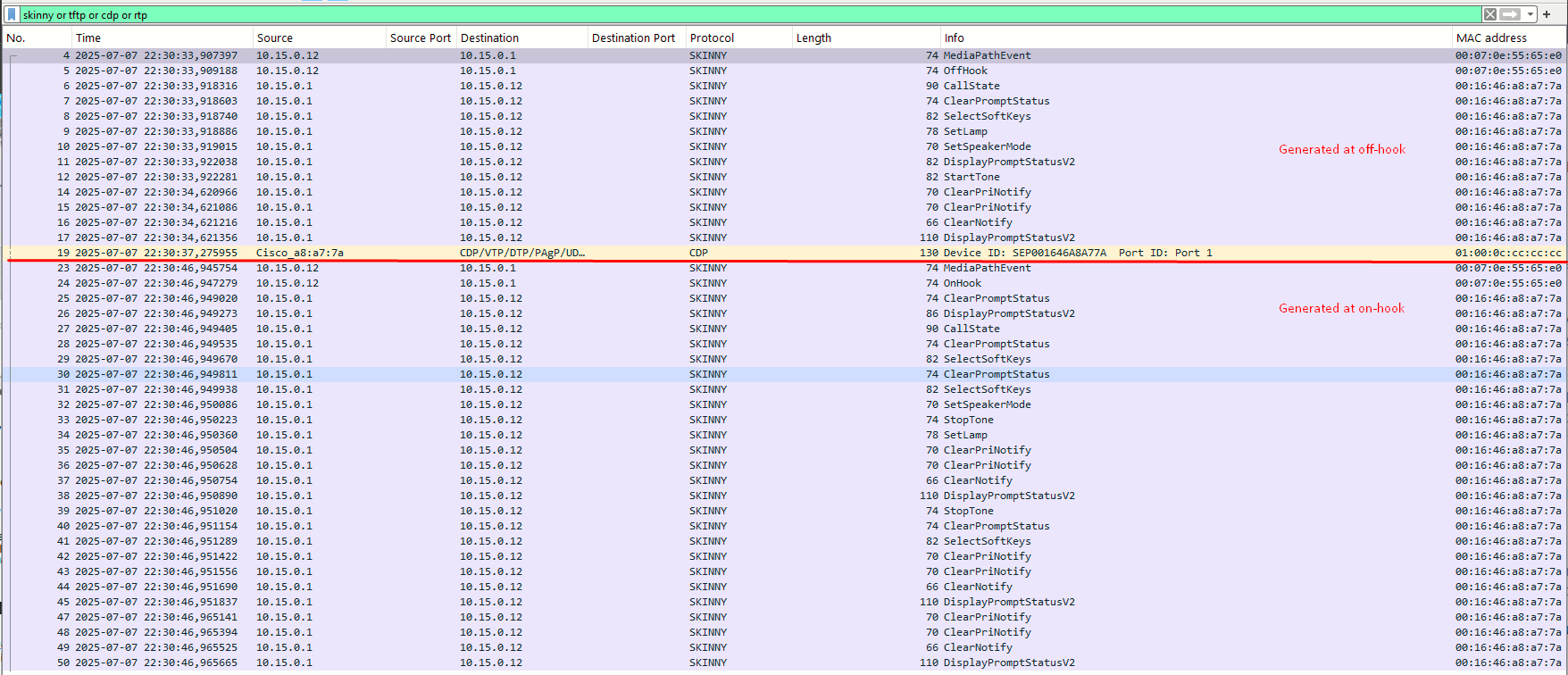
Now go off-hook and dial the other IP phone. Answer the other phone and talk for a few seconds; then hang up both phones.
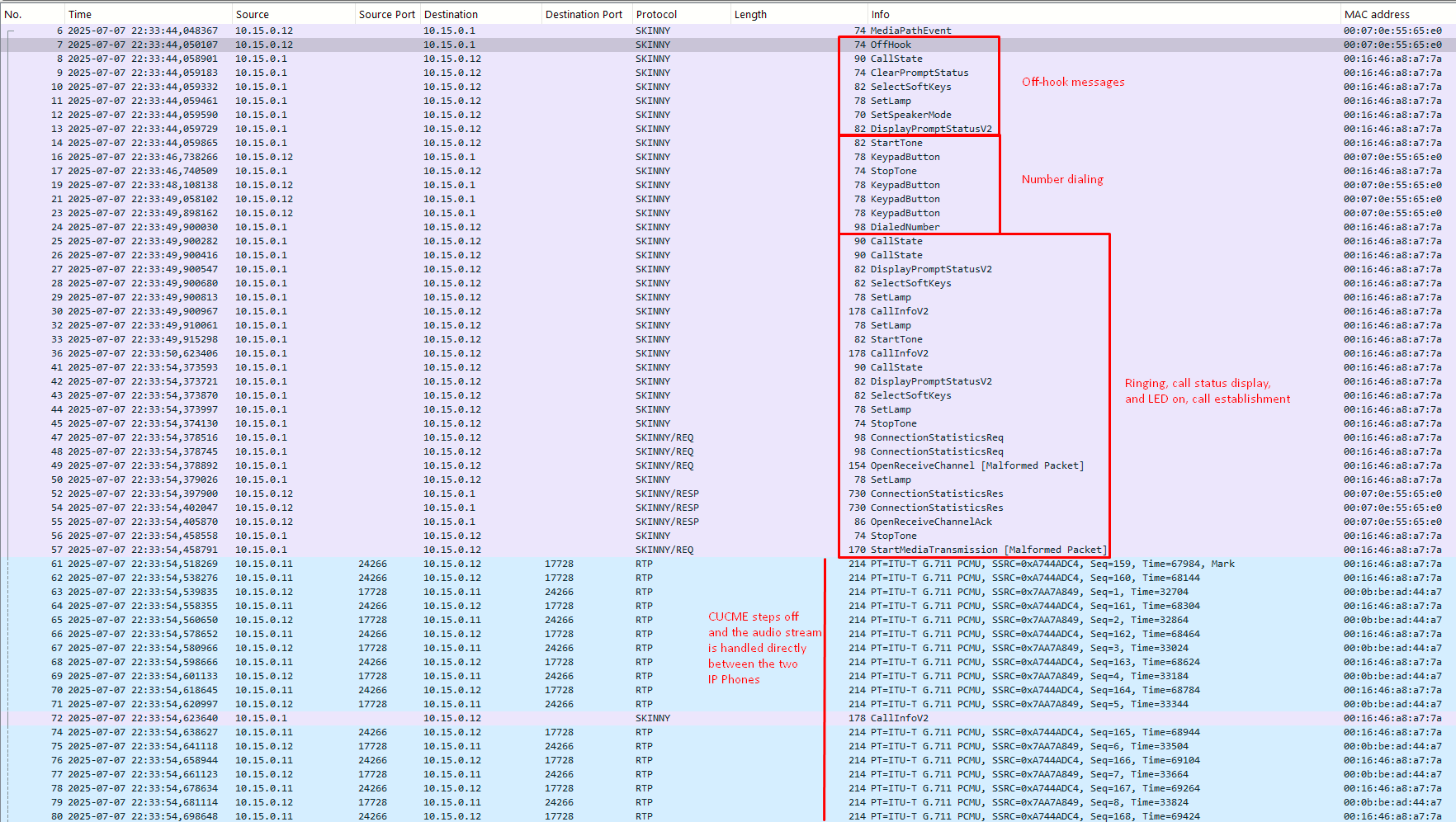
On the previous capture we can see the start of the SCCP messages for the phone call. First is the message from the phone to CUCME that the phone is now off-hook. Because the SCCP phones are essentially dumb terminals, they have to be told by CUCME to clear the display prompt message (packet #9); to light the line button lamp green (packet #11), showing that the line is in use; and to start playing a dial tone (packet #14). As the phone numbers are dialed, the phone sends an SCCP message for each digit (packet #16).
In the Packet Detail pane (when selecting the packet), you can see that packet #16 sent the message to CUCME that 5 was dialed:
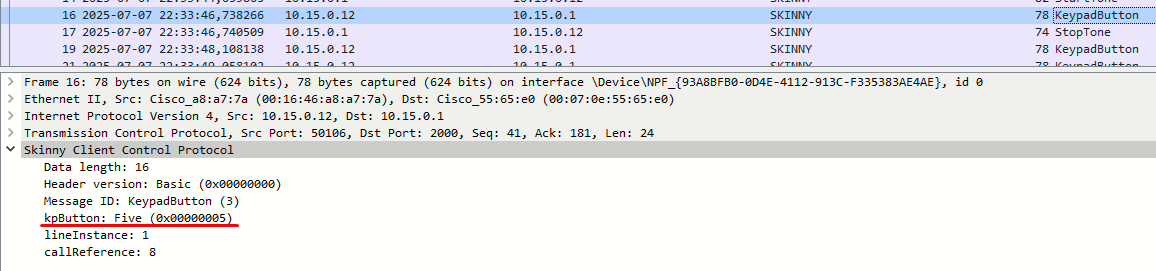
The phone was then told to stop playing the dial tone (packet #17). After all the digits are sent to CUCME (packets #16, 19, 21, 23), CUCME starts routing the call to the other phone and sends a dialed number confirmation (packet #24). CUCME informs the phone to play the call ring-out sound (packets #25 and 26).
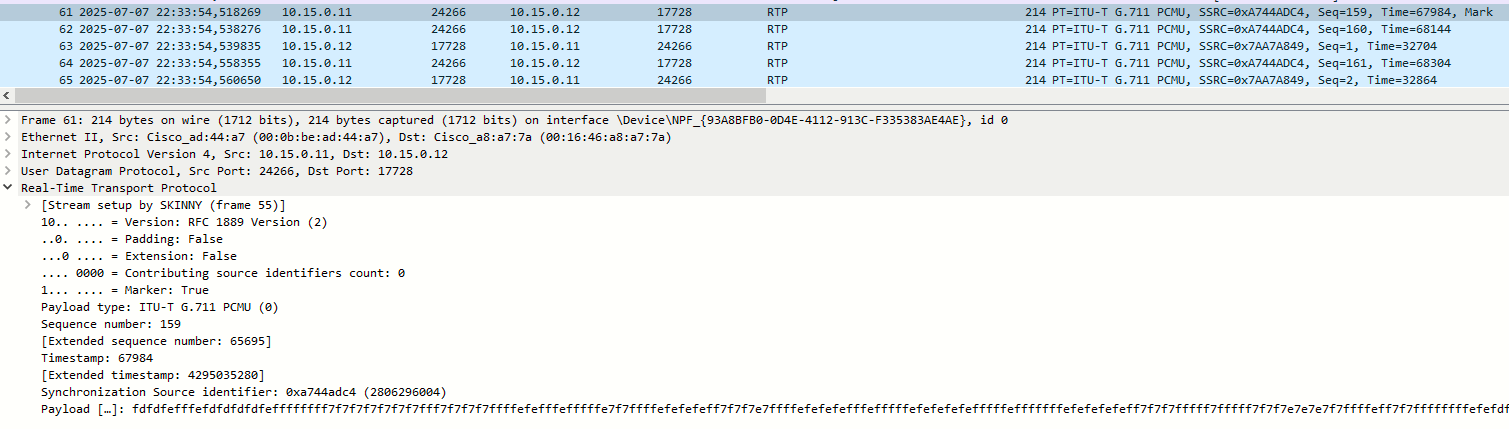
Before the RTP stream starts, packet #45 tells the phone to stop playing the callback (the other phone was answered) and start monitoring call statistics (packets #47 and 48). The call is two one-way audio streams, so packet #49 is the start of receiving audio from the other phone while packet #57 starts the sending audio. In the Packet Detail pane, you see that packet 57 has selected the G.711 codec with u-law encoding for the audio:
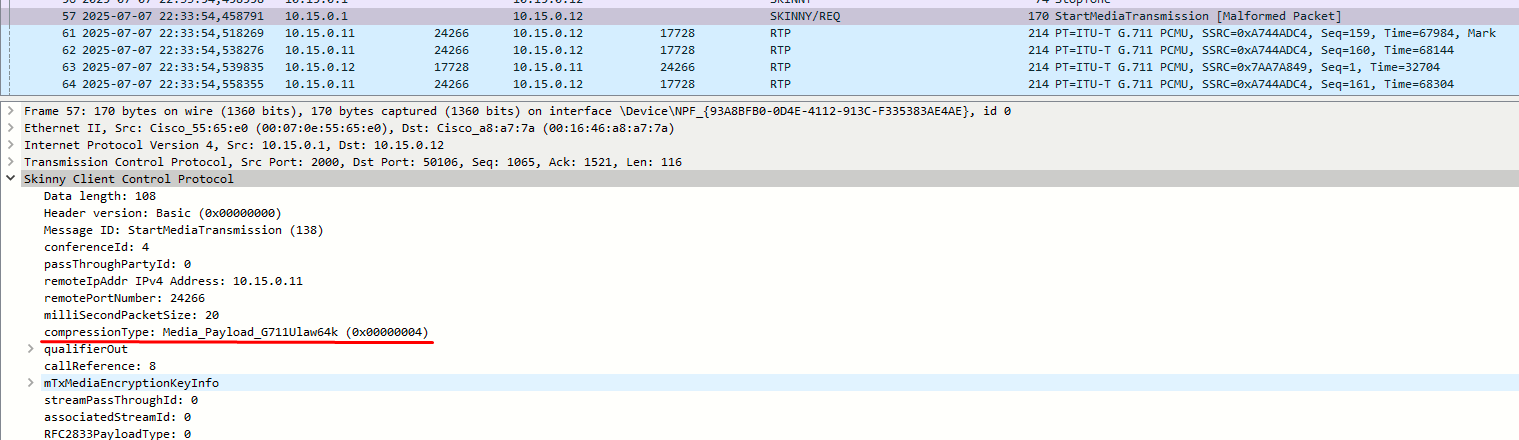
From packets #61 and on, the audio is carried inside RTP packets. In the Info column for the RTP packets, you can see that the audio is G.711 and see the RTP sequence numbers (one for each one-way audio stream) that allow the audio to be reassembled in sequence (because RTP is carried over UDP). There are a lot of these packets! Standard RTP settings send 20ms of audio per packet, which equals 50 packets per second (times 2 for the other audio stream).
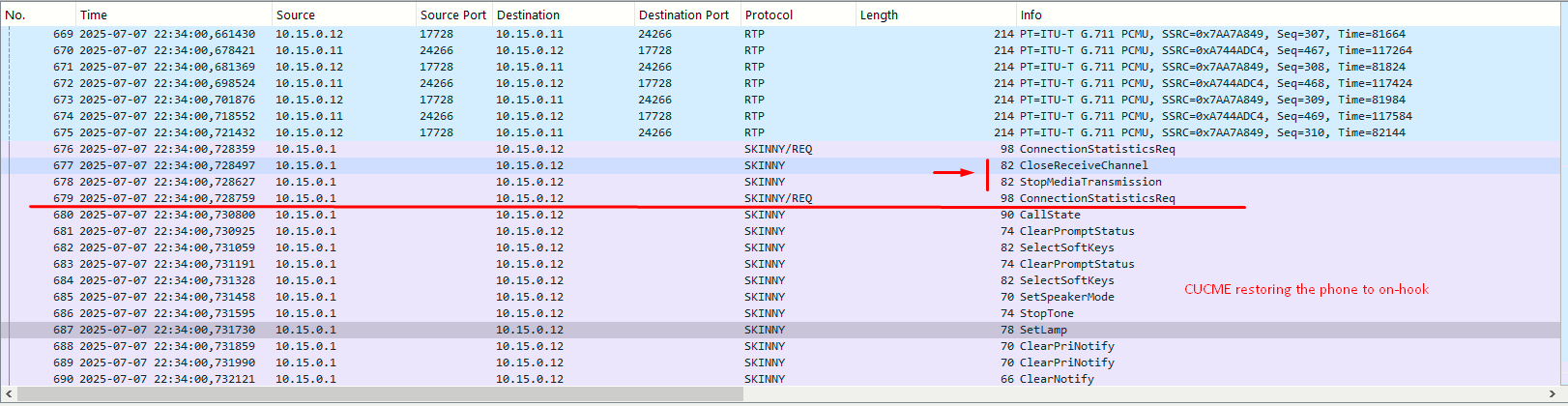
If we scroll down in the capture to the packets just after the end of the RTP stream, packet #677 shows the ending of the conversatin with the request to close the receiving audio channel, while packet #678 signals the end of sending audio. Packets from 680 to 687 involve CUCME telling the phone to restore the phone state back to on-hook.
Task 4: Play Captured Audio
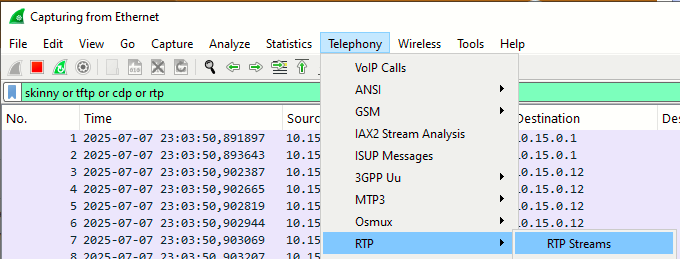
Wireshark has built-in analysis tools for voice traffic. Make another capture of a phone conversation, and make sure to speak into both handsets before you hang up. Stop the capture. Go to Telephony > RTP > RTP Streams. Both streams (each in one direction) will appear:
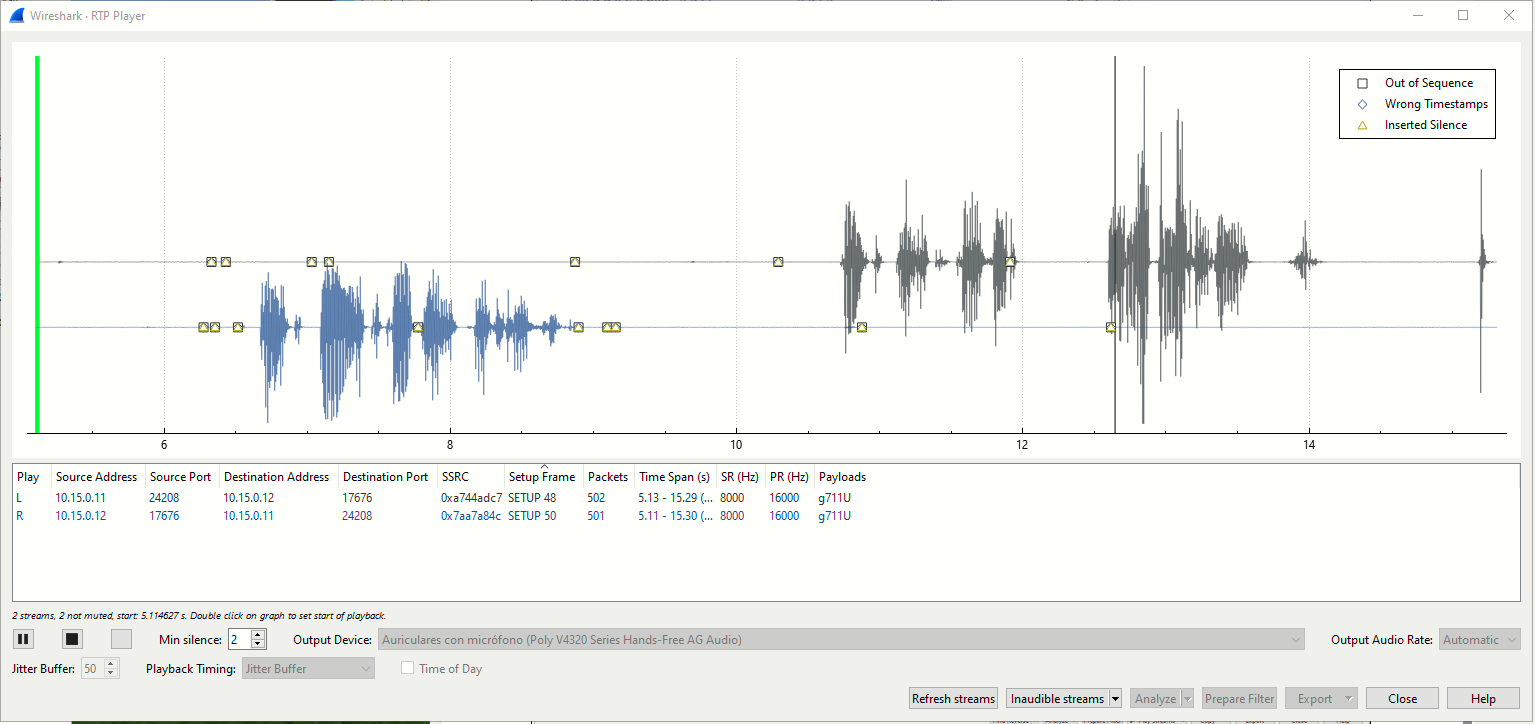
With both of them selected, click Play Streams:

The RTP Player opens, click Play to listen to the conversation:
Task 5: Clean Up
There is no need to save the configurations from this lab, but if you do, make sure to remove the monitor session commands from the switch before reusing the config. Monitor sessions that are not needed waste CPU resources, and captured traffic is sent to the destination port, which can make troubleshooting difficult if left active.