Appendix D: Configuring the Cisco Unified Communications Manager Express Router
The very first step to following the CCNA Voice Lab Manual is to have the main router with the correct IOS ready. This router should also have the proper CUCME support files. This lab walks through the configuration of the router with a certain IOS image and the CUCME support files.
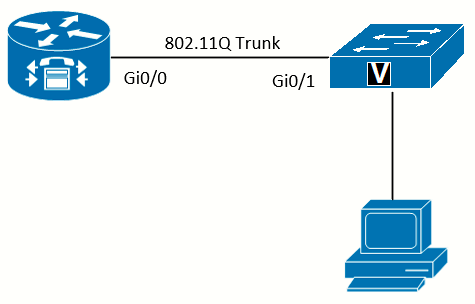 Topology
Hardware Used
- Cisco 2821 router
- Cisco 3560 switch
- PC with TFTP client software
Learning Objectives
- Install the correct Cisco IOS to support CUCME on the Cisco 2821
- Install the CUCME support files
- Upgrade or downgrade the firmware on the IP phone
Task 1: Obtain the Desired Version of the IOS and CUCME Support Files
Step 1: Get IOS and the compatible CUCME support files
These are hard to get. I won't post any link to download the files but if you know how to search then you can get them. I will be using:
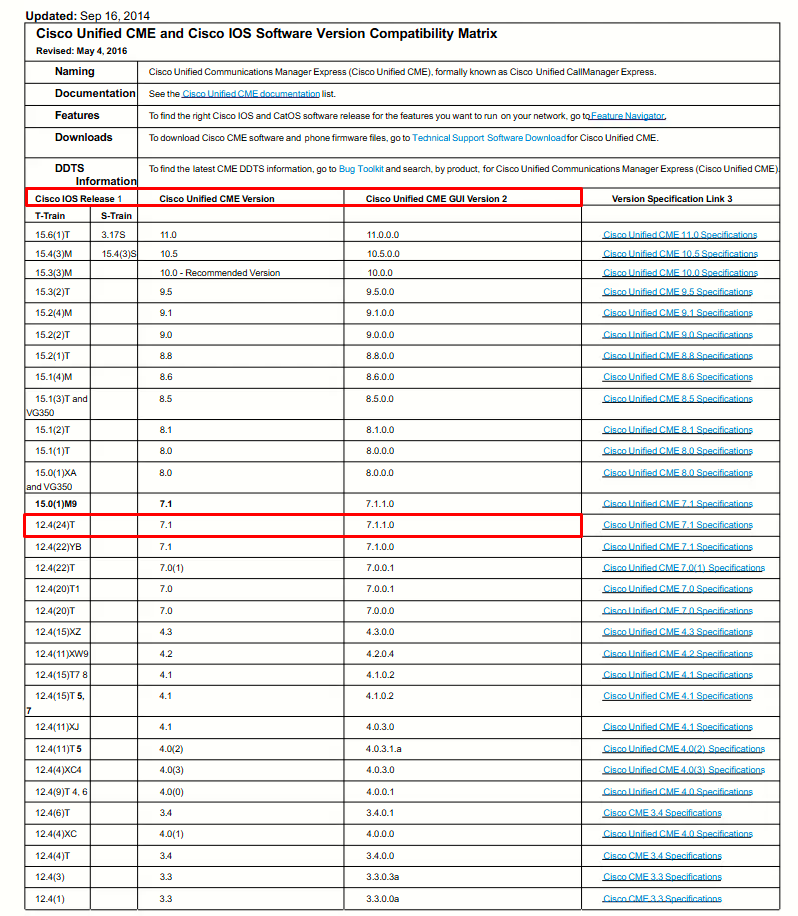
- c2800nm-adventerprisek9_ivs-mz.124-24.T2.bin -> IOS
- cme-full-7.1.0.1.tar -> CUCME Support Files
Why those exact files? This is according to the Cisco Unified CME and Cisco IOS Software Version Compatibility Matrix (see below). Also because the Lab Manual is based on that IOS version.
CUCME is included in (built into) IOS. There is no need to download or install CUCME as a separate entity, at least for the ISR1 routers. It is important to remark that CUCME itself is different from CUCME support files.
Support files can include:
- Phone firmware
- CUCME GUI files
- Ringtones
- Background images for phones that support pictures on the display
- Auto-attendant files
Currently, Cisco provides a single .zip file that contains all the support files for the CUCME version (i.e cme-151-2Tv1.zip). For some previous versions, the support files came as a single compressed .tar file (with names like cme-full.tar or cme-basic.tar) that could be uploaded to the router (like we will do in this lab with the file shown above, cme-full-7.1.0.1.tar). However, with the introduction of more phone models, the size of the .tar file when uncompressed grew to the point that it would no longer fit on the flash file system of most routers (or Compact Flash cards, usually 64 or 128MB in size).
Step 2: Determine and Download Phone Firmware Files
As per the Lab Manual and the required hardware, we will need the firmware for Cisco 7960 IP Phones (also the phones I have at home), and more precisely, the recommended files for the CUCME we will be using (7.1.0.1).
The complete information is on the Cisco Unified CME 7.1 Supported Firmware, Platforms, Memory, and Voice Products document, but basically what we will need is the SCCP firmware files for the Cisco 7960G IP Phones:
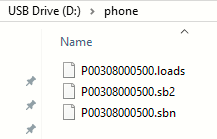
- P00308000500.loads*
- P00308000500.sb2
- P00308000500.sbn
There are SCCP and SIP versions of the files. We will be using the SCCP ones as per the manual which correspond to the ones just listed above.
In most cases, the correct phone firmware is included with the support files for CUCME, in this case the cme-full-7.1.0.1.tar file. But that is not the case for the 7940G/7960G IP Phones.
Task 2: Upload the Files to to the Router
Since the flash storage for the Cisco 2821 is a Compact Flash (CF) card, I will be using a CF-to-USB adapter to easily copy the files from the PC:
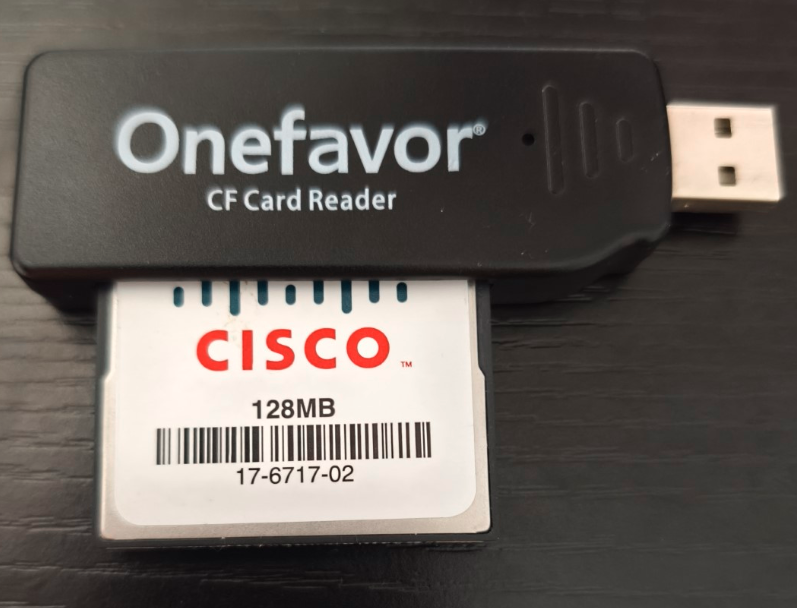 The CF-to-USB adapter I will be using
However, the card should be formatted first. The best way to do this is from the router itself. But since IOS is needed to perform the formatting, we need to first boot into IOS, then format the flash, and finally connect it to the PC to copy the files.
The CF card cannot be formatted from the ROMMON mode.
To format the card:
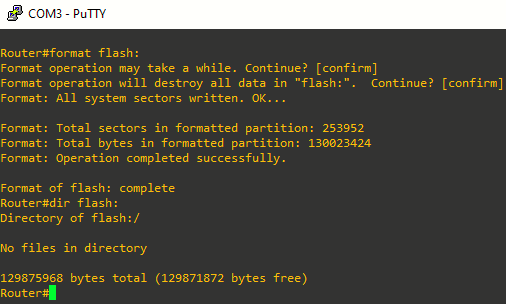
Then, from Windows, copy the IOS file:

For the support files, let's have a look at the full uncompressed cme-full-7.1.0.1.tar file:
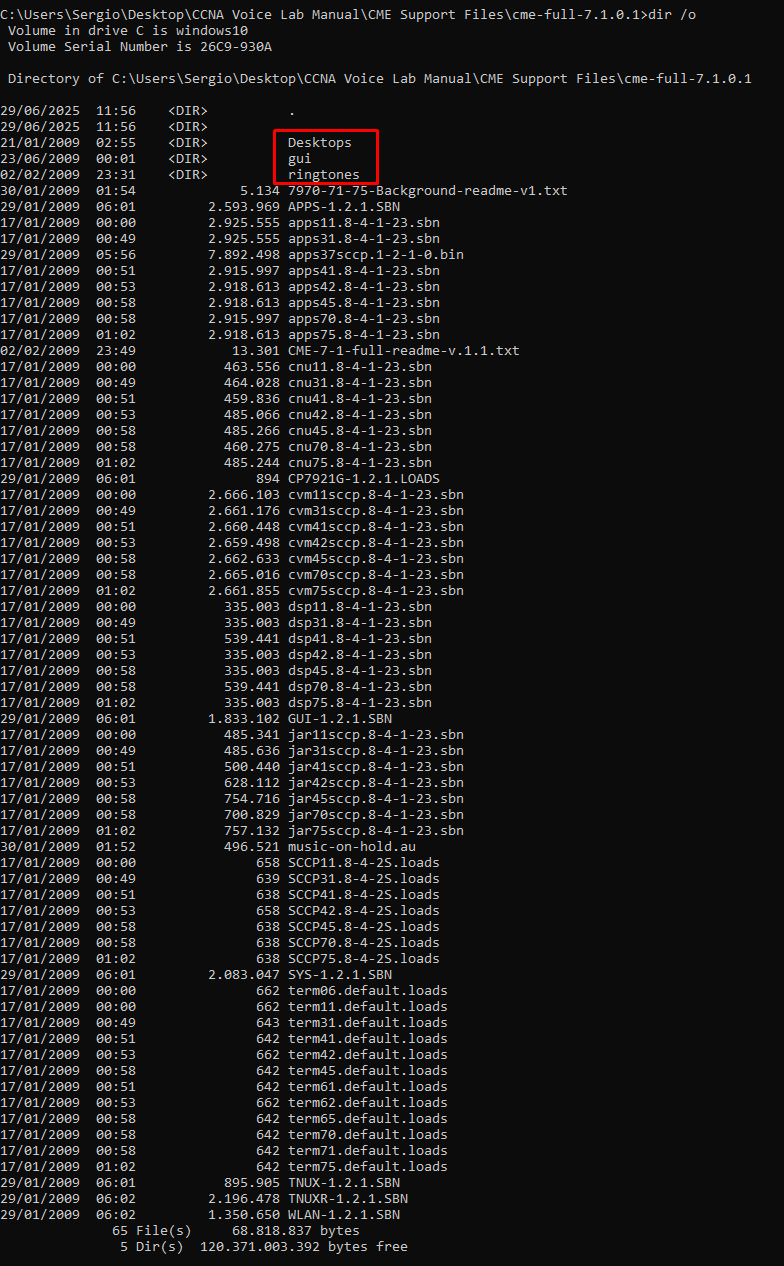
We have a bunch of files (the various phone firmwares), the desktop, GUI, and ringtones folders. Since we know that this package does not include the phone firmware files for the 7960G, we will only copy the folders (shown in the image above) and the following list of files to the CF:
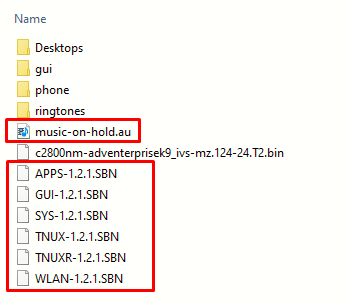
As per the phone firmware loads for the 7960G, we will make a folder named "phone" and will just copy there the firmware files: