
Lab 4-1: Exploring the CLI and Cisco Configuration Professional
The following labs explore the three ways to administer CUCME.
Equipment Required
- Cisco 2821 router
- Cisco 3560 switch
- PC with Cisco Configuration Professional (CCP) installed
Objectives
- Determine the version of CUCME on the router.
- Connect to CUCME with CCP.
Task 1: Load Prior Configurations
This lab is based on the configuration from Lab 3-2. If necessary, load the configuration for both switch and router, and cable the devices as the topology shown on Lab 3-2:
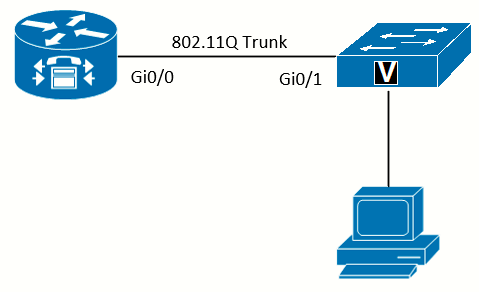 Topology
Task 2: Explore Telephony Services
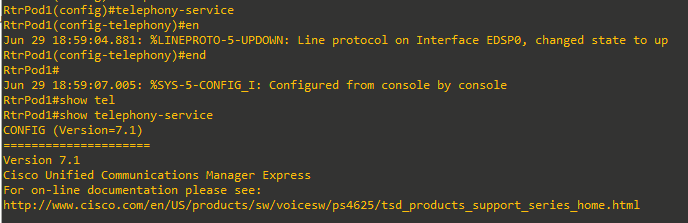
It is difficult to determine whether CUCME is available on the router, and what version it is, without knowing specific information about the IOS versions. The best way to determine whether CUCME is available, and the version, is to use the show telephony-service command.
The command telephony-service configures system-level settings for Cisco IP Phone that use SCCP. SIP commands are configured elsewhere.
Enter the telephony-service command in EXEC mode. After the service is enabled, you can use the show telephony-service command to see the version (7.1 in this case):
Task 3: Exploring CUCME using CCP
At this moment (2025) it's not possible to install CCP 2.8 (latest version, 2014) on Windows 10 or Windows 11. The best way to install it is spin up a Windows XP VM, install an old JRE and Flash (compatible with CCP) and run it there.
Previous to this task I spun up an XP VM and installed the following files:
- jre-7u80-windows-i586.exe
- install_flash_player_11_active_x_32bit_11.2.202.233.exe
- cisco-config-pro-k9-pkg-2_8-en.exe
The VM itself has a bridged adapter to the Ethernet-to-USB physical adapter on the host, which connects to the 3560 switch. The XP VM has an IP (obtained via DHCP server on the 2821 router) of 10.10.1.12:
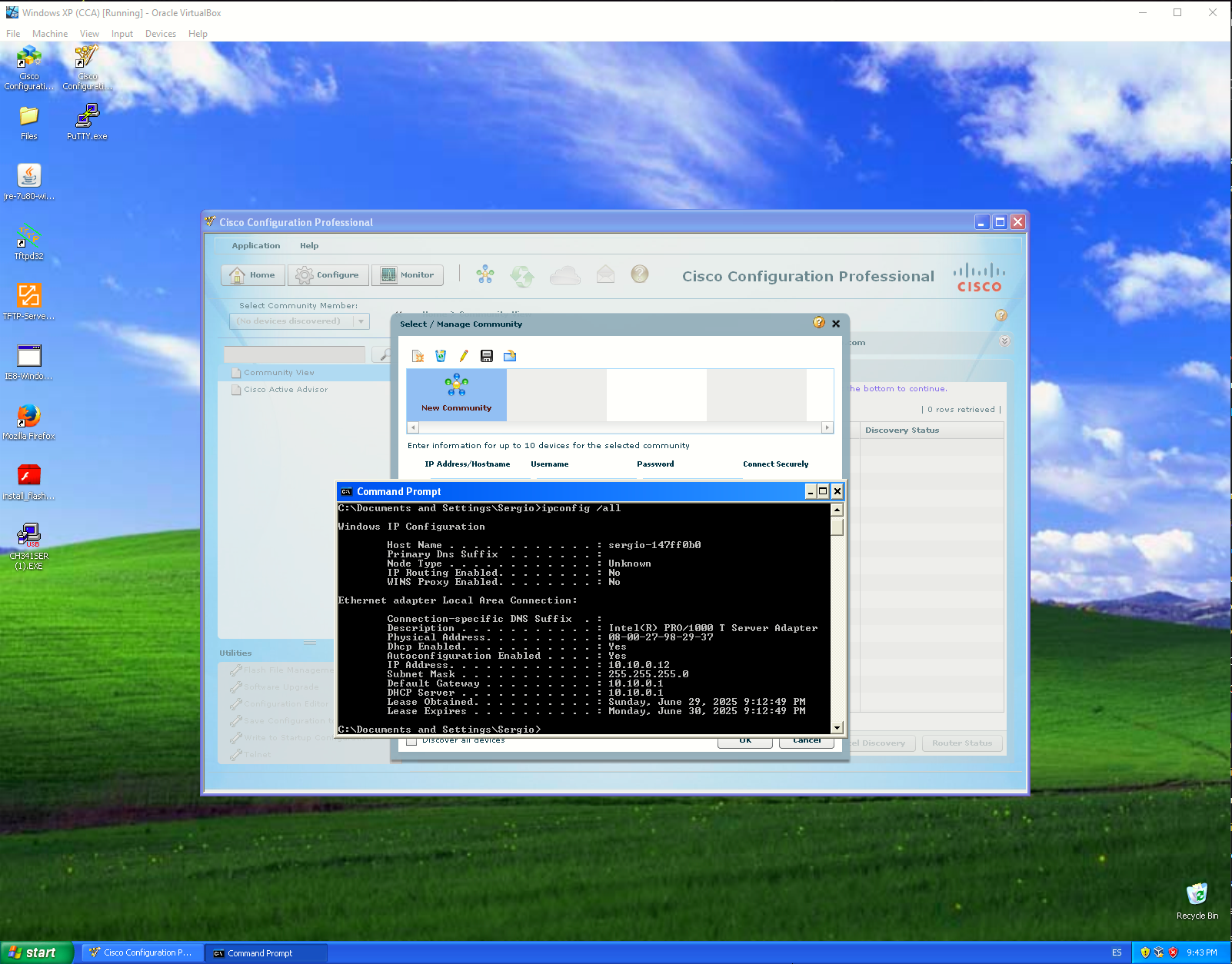
Now, the router needs the following four things before CCP can connect:
- IP address reachable from the PC (the 10.10.0.1 Data VLAN L3, reachable from the 10.10.0.12 XP VM)
- A username with privilege level 15 (privileged EXEC access) used to log in from CCP.
- HTTP (and if available, HTTPS) service for CCP to use during discovery.
- Ability to connect to the router's VTY lines using Telnet (and if available, SSH).
The configuration on the router to achieve this is as follows:
RtrPod1(config)#username sergio privilege 15 secret cisco
RtrPod1(config)#ip http server
RtrPod1(config)#ip http authentication local
RtrPod1(config)#line vty 0 15
RtrPod1(config-line)#login local
Don't confuse CCP with CCP Express which is a lightweight version preinstalled on newer Cisco devices and does not support telephony features.
Open the CCP and fill up the following fields:
- IP Address/Hostname: 10.11.0.1
- Username: sergio
- Password: cisco
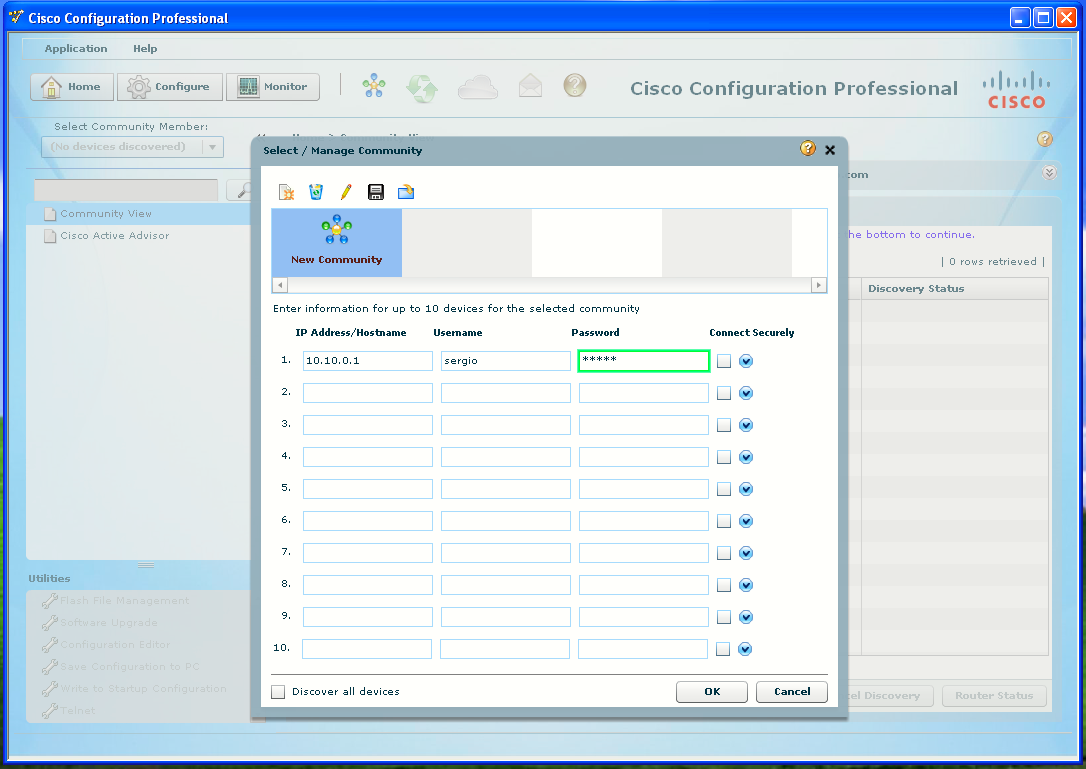 Connecting CCP to the RtxPod1 router
Then click on Discover. While CCP is discovering the device, we can click on Discovery Details to see the process:
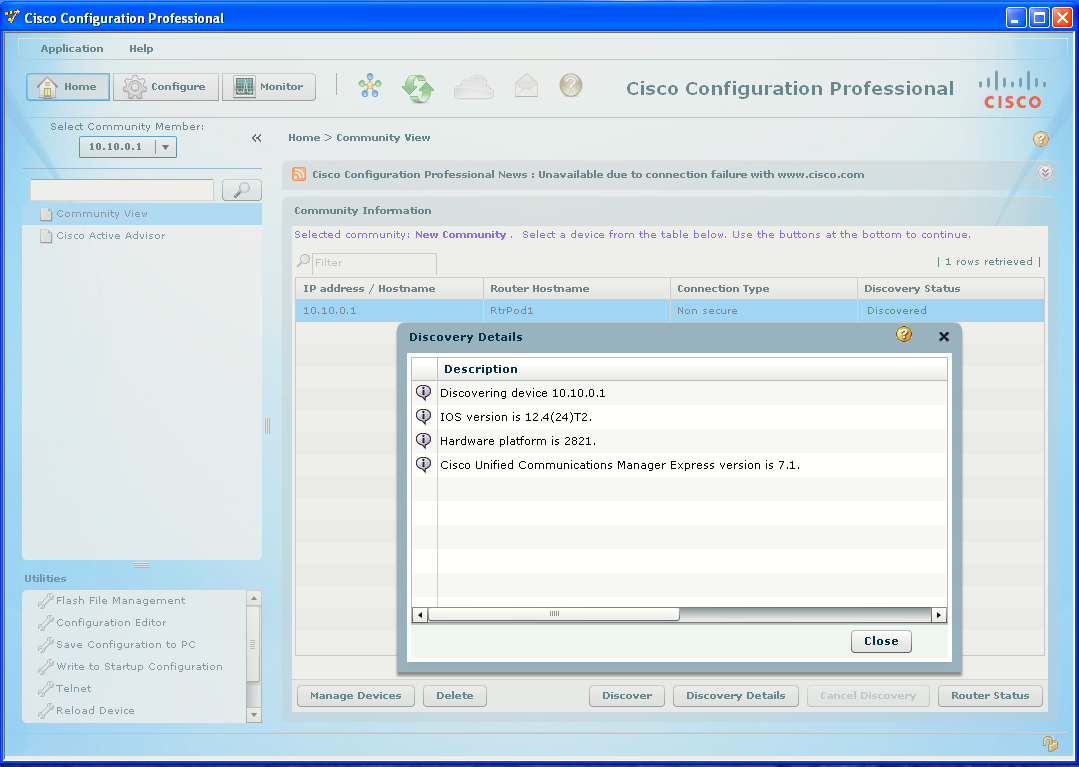
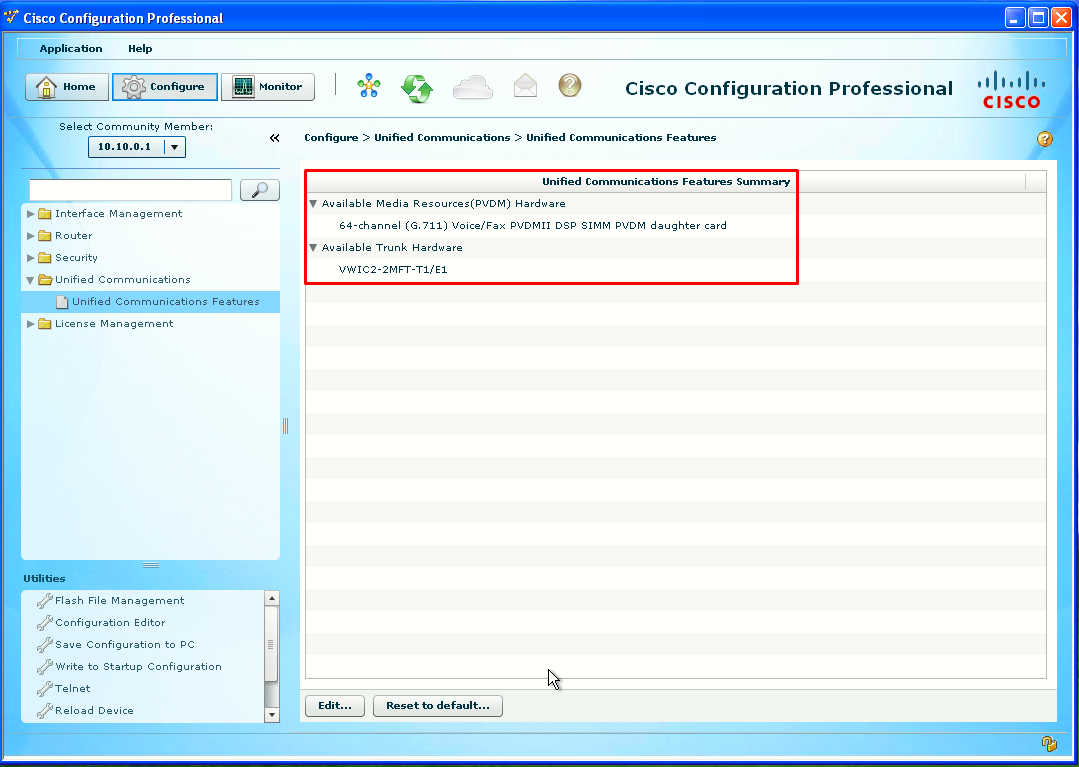
Click on Edit...
Check the IP Telephony checkbox and then click the CUCME radio button:
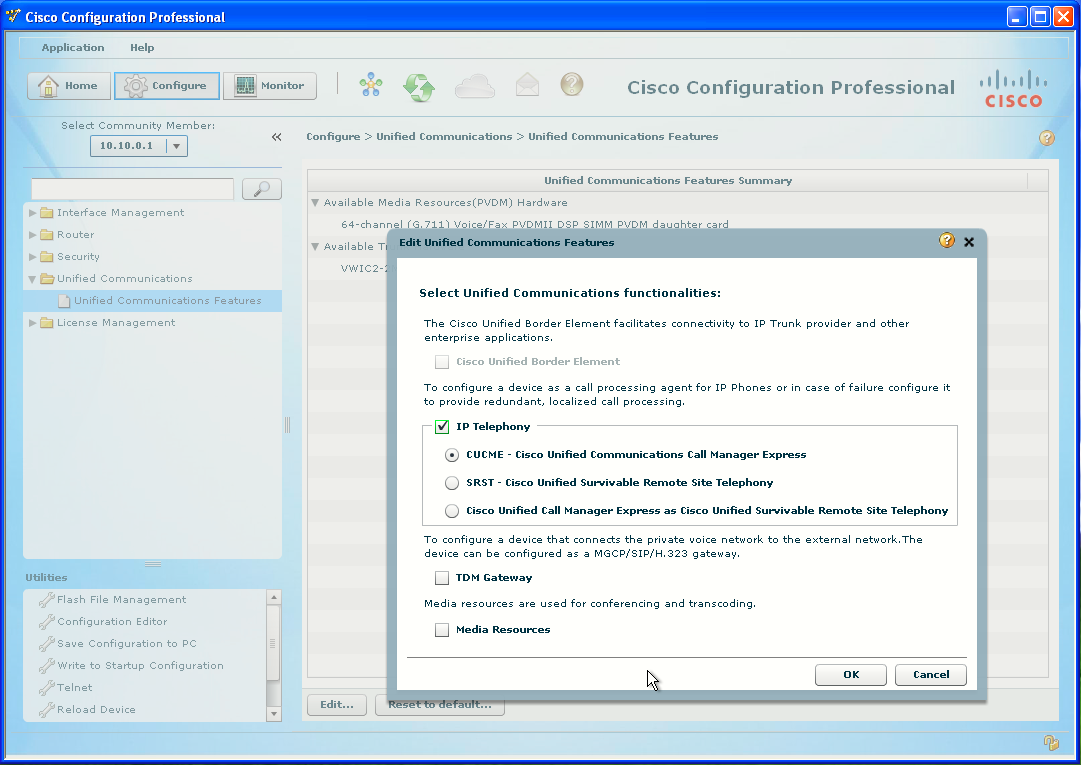
The Deliver Configuration to Device dialog box opens. CCP has a very handy feature in which it displays the commands before it delivers them to the router.
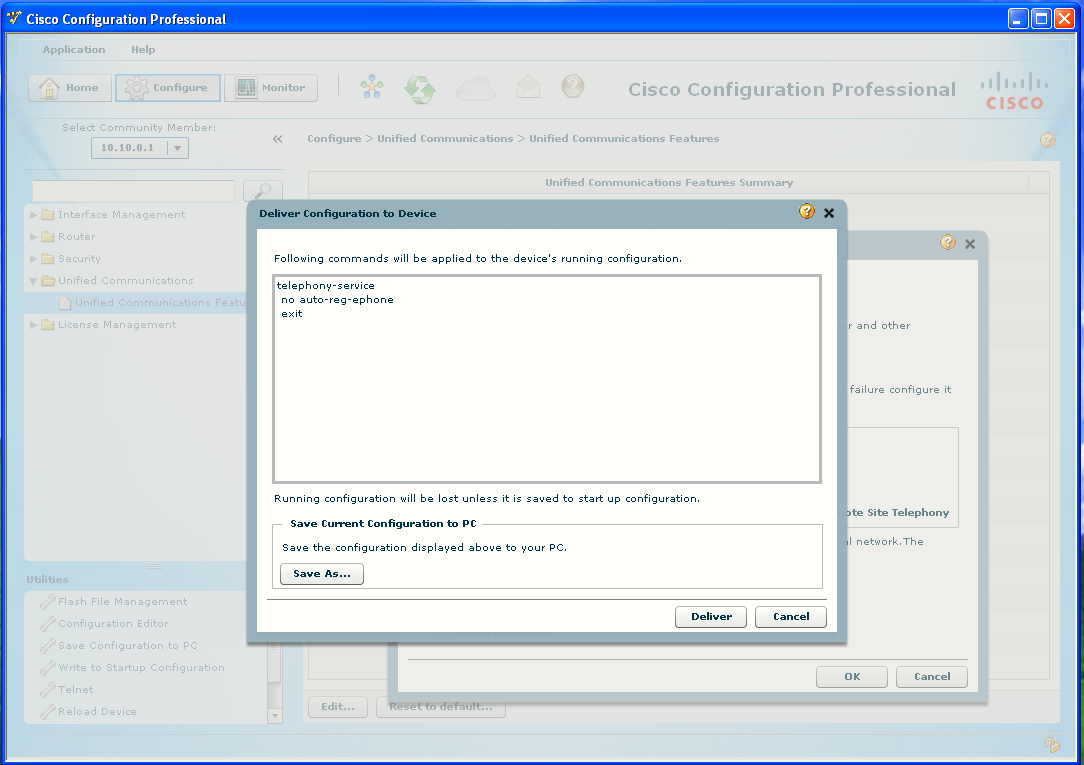
The main window now displays an updated Unified Communications Features Summary pane. You should see CUCME is now active and the version is listed:
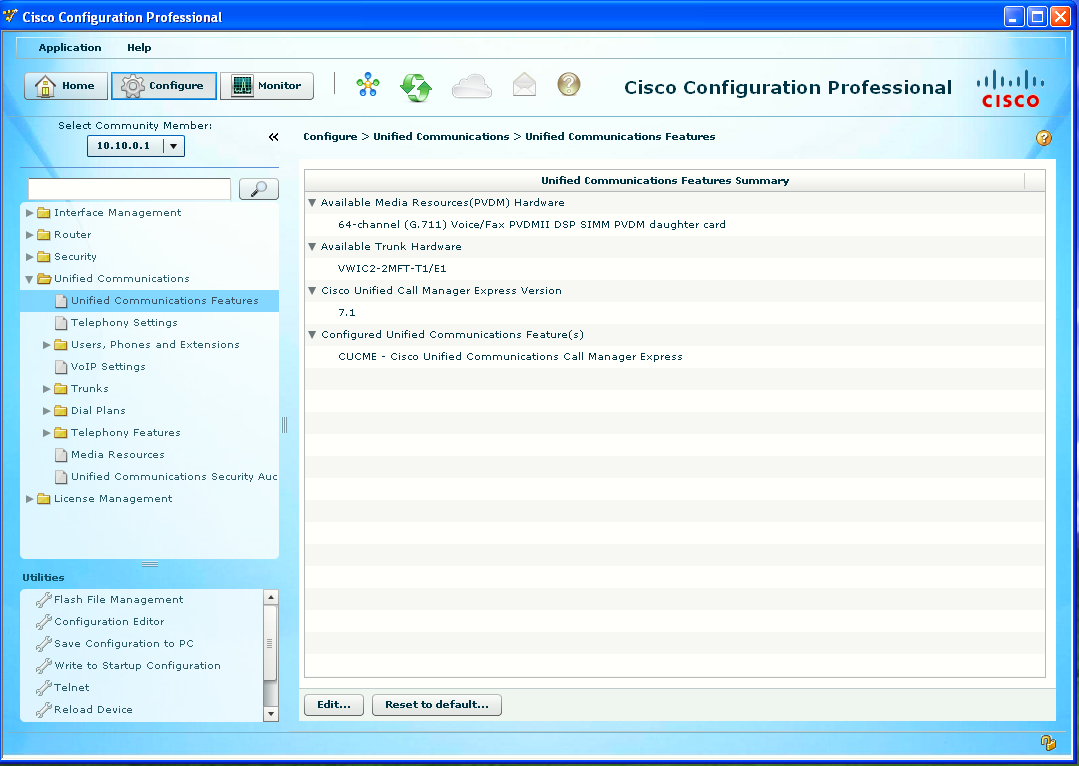
Click on Write to Startup Configuration (left lower corner) to do a copy run start from CCP.
Sources
Cisco Configuration Professional and Adobe Flash Player
https://community.spiceworks.com/t/cisco-configuration-professional-and-adobe-flash-player/789814/1
CISCO Configuration Professional (CPP) Revival
https://just.graphica.com.au/tips/cisco-configuration-professional/