
Lab 9-1: Cisco Prime Infrastructure
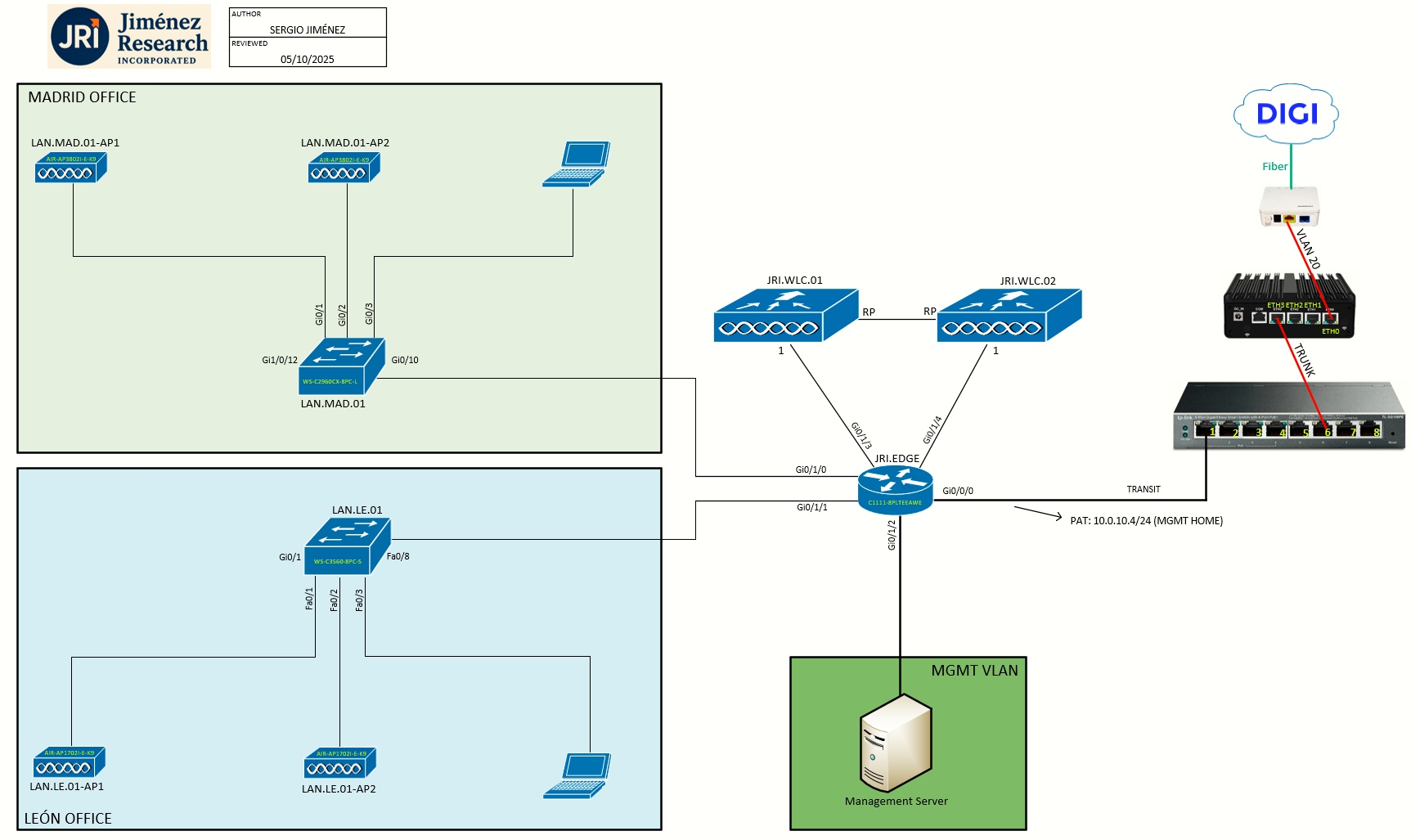
Topology
Task 1: Downloading Cisco Prime Infrastructure 3.10
As of may 2026, the latest and final version of Cisco PI is 3.10. The file for the virtual appliance is:
PI-VA-3.10.0.0.205.ova
Task 2: Installing Cisco PI on VMware Workstation
I will follow the instructions on the Quick Start Guide.
Prime Infrastructure provides a single integrated solution for comprehensive lifecycle management of the wired or wireless access, campus, and branch networks, and rich visibility into end-user connectivity and application performance assurance issues. Prime Infrastructure accelerates the rollout of new services, secure access and management of mobile devices, making “Bring Your Own Device” (BYOD) a reality for corporate IT. Tightly coupling client awareness with application performance visibility and network control, Prime Infrastructure helps ensure uncompromised end-user quality of experience. Deep integration with the Cisco Identity Services Engine (ISE) further extends this visibility across security and policy-related problems, presenting a complete view of client access issues with a clear path to solving them.
I will install the Virtual appliance form:
The Prime Infrastructure virtual appliance is packaged as an Open Virtualization Archive (OVA) file, which must be installed on a user-supplied, qualified server running VMware ESXi. This form allows you to run on the server hardware of your choice. You can also install the virtual appliance in any of four configurations, each optimized for a different size of enterprise network. For hardware requirements and capacities for each of the virtual appliance’s size options, see Virtual Appliance Options .
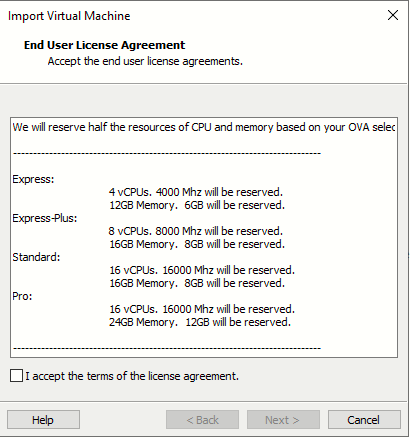
Opened the OVA file with Workstation:
 |
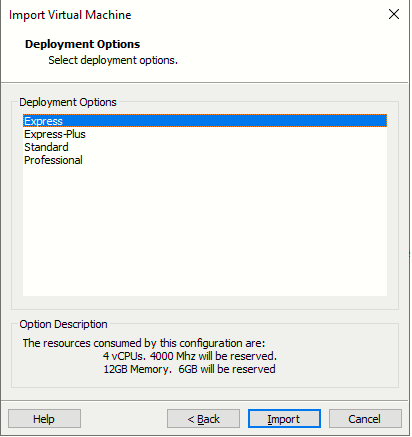 |
Based on the following table, I will continue with the Express setup which is enough for this lab:
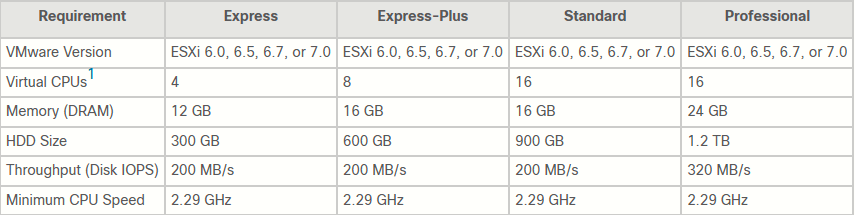
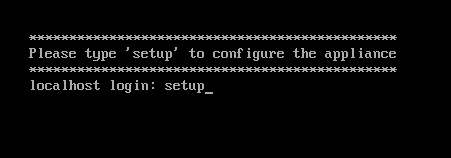
After the import finishes, power on the VM. At the localhost login prompt, enter setup:
- Hostname: pi
- IP Address: 172.20.10.11
- IP default netmask: 255.255.255.0
- IP default gateway: 172.20.10.1
- Default DNS domain: jri.net
- Primary nameserver: 10.0.30.10
- Primary NTP server: hora.rediris.es
- High Availability Role Selection: No
- Advance Security option: Yes
After entering all the required setup parameters, the installation will begin:
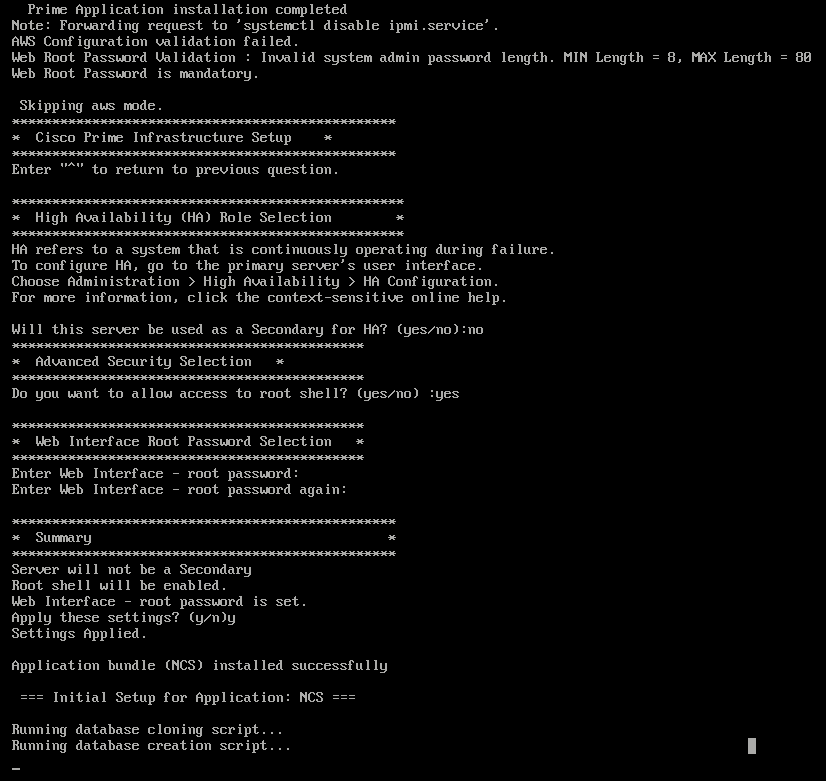
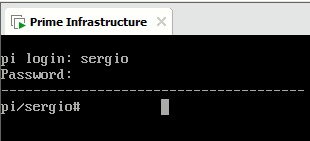
When the installation is complete, the appliance reboots and you are presented with a login prompt.
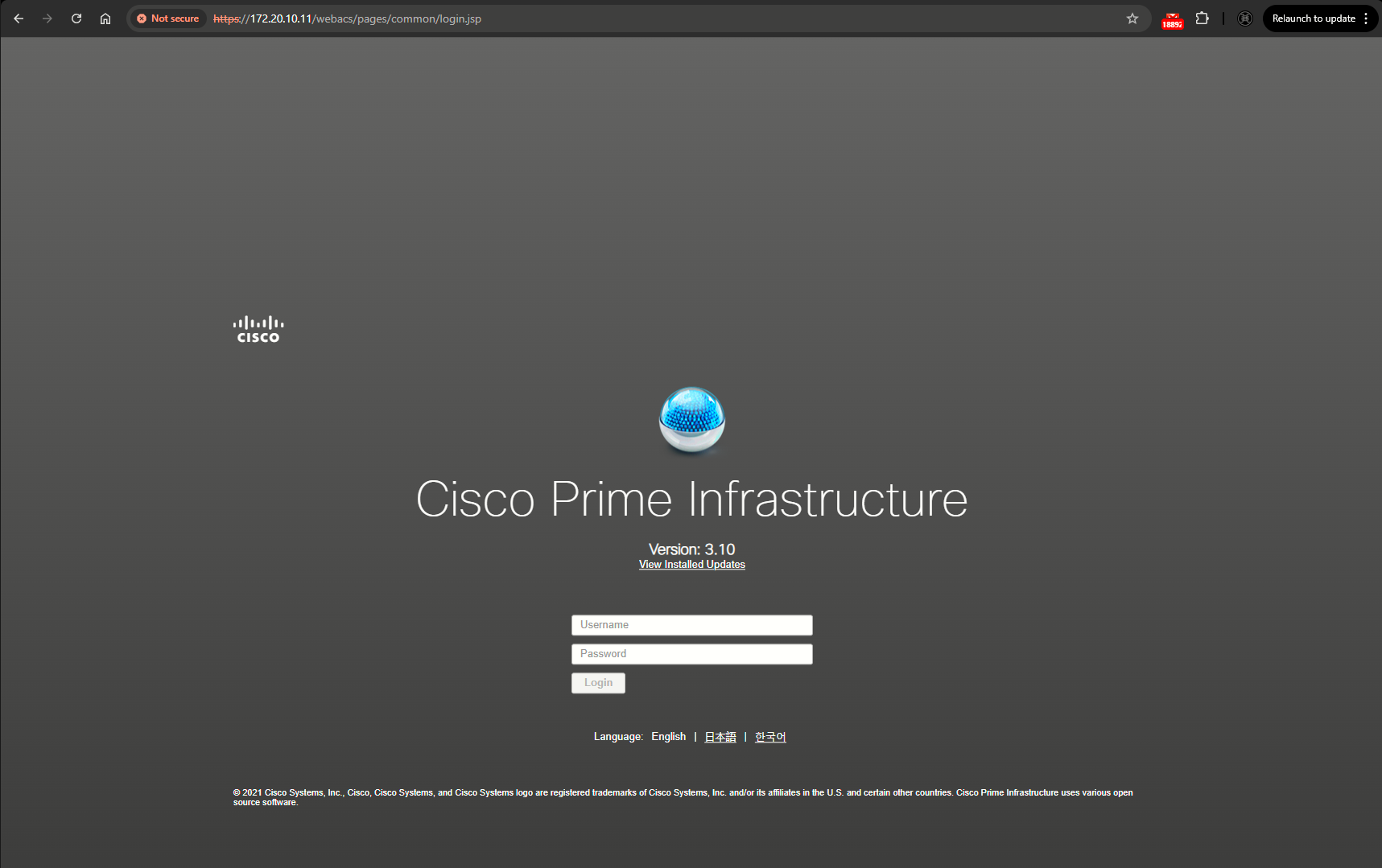
The web login:
Task 3: Licensing Cisco Primer Infrastructure
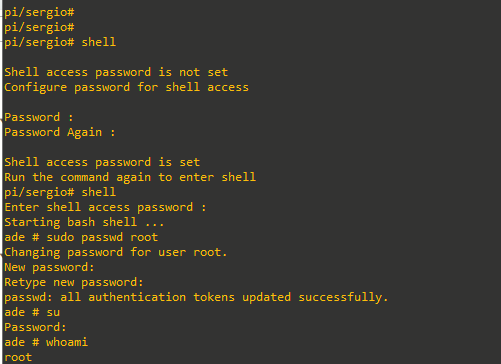
First step is login via SSH to 172.20.10.11. Once logged in, gain access to root shell:
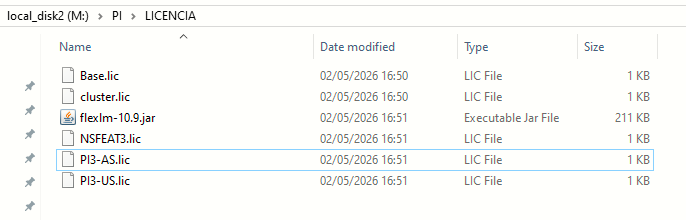
With the appropriate license files on this folder, start a simple web server:

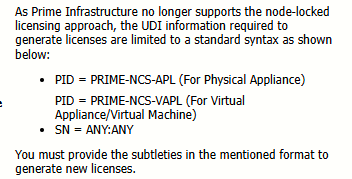
Then using wget from the PI, download the file:

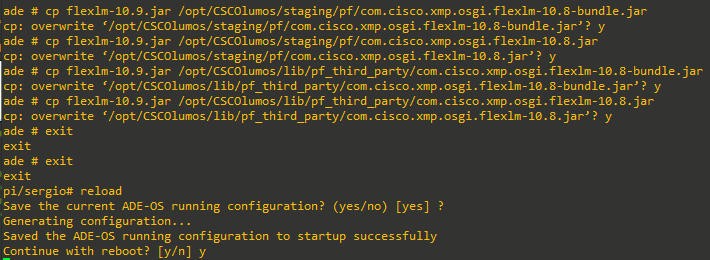
And then enter the following commands (important to enter y when asked to overwrite existing file each time):
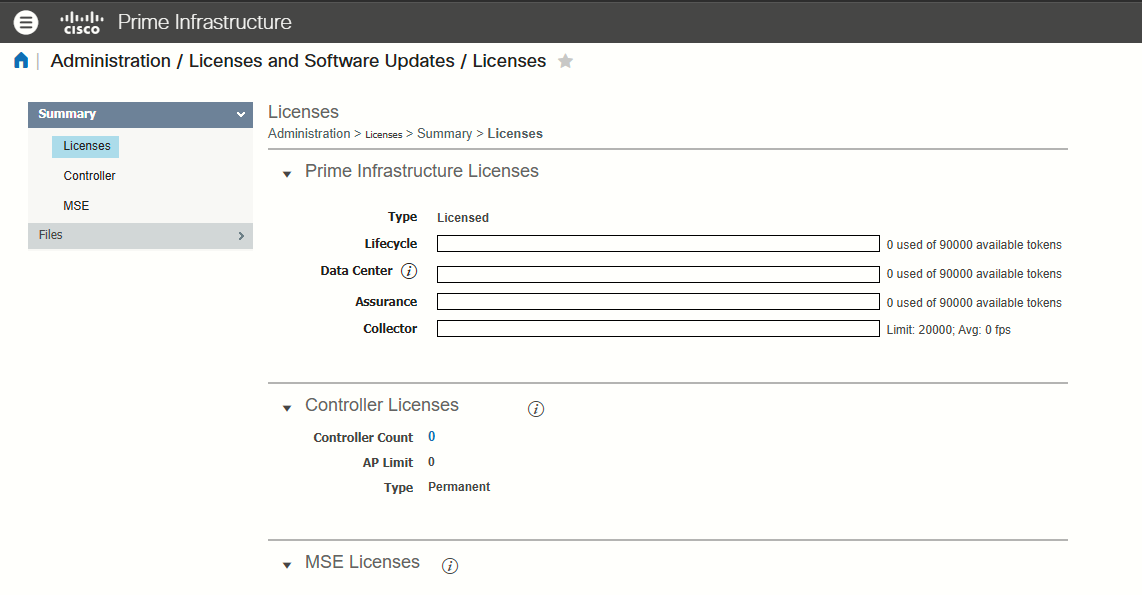
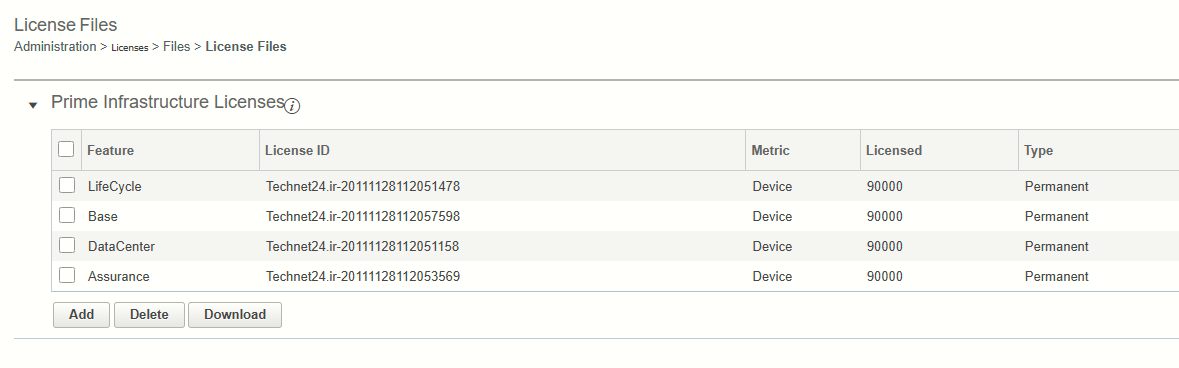
After uploading the licenses, the PI is fully unlocked:
| Base.lic | Base |
| cluster.lic | Operations Center |
| NSFEAT3.lic | LifeCycle |
|
PI3-AS.lic |
Assurance |
|
PI3-US.lic |
DataCenter |
|
|
|
Task 4: Adding Devices to Prime Infrastructure
It can be done via Discovery. To do this we should add SNMPv2c configuration. I did that on:
- JRI.WLC.01
- LAN.MAD.01
- LAN.LE.01
conf t
snmp-server community JRI-LAB RO
snmp-server community JRI-ADMIN RW
exit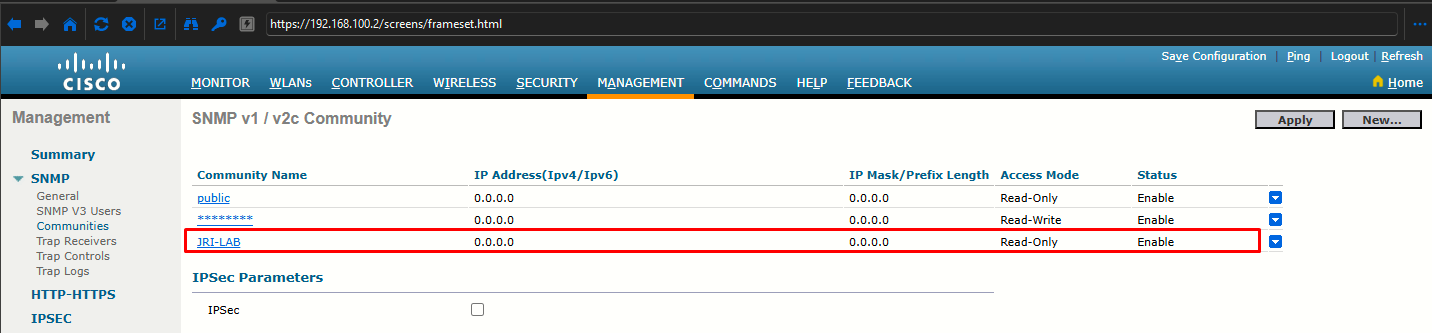
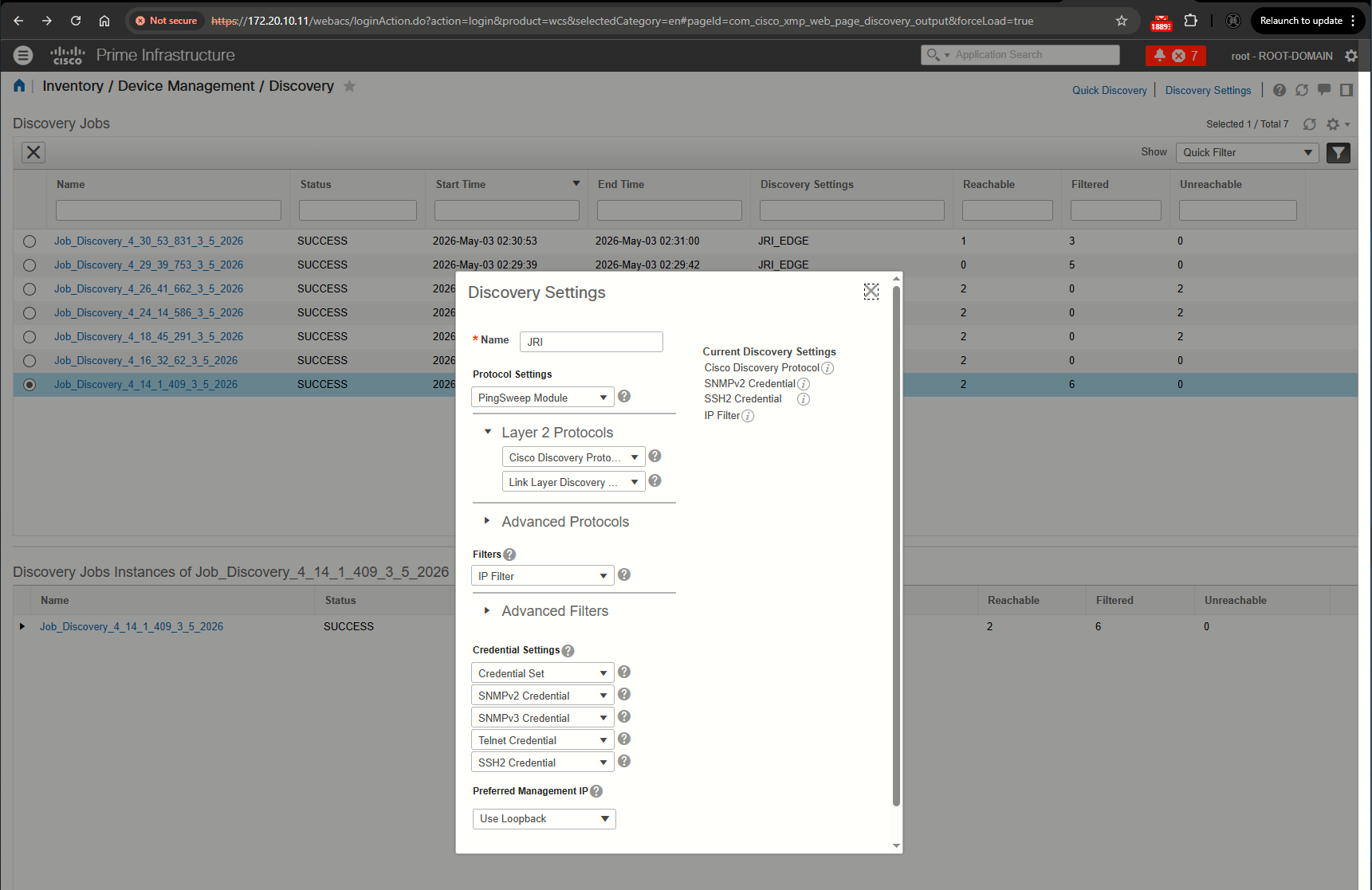
Initial discovery settings:
Devices discovered:

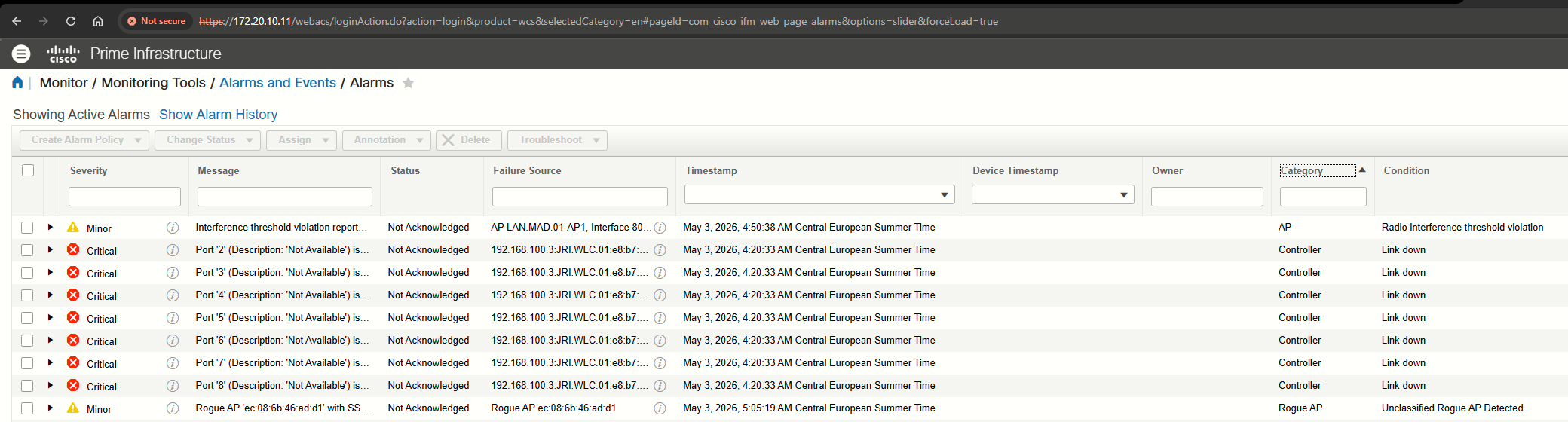
Active alarms:
Task 5: Monitoring a Wireless Network with PI
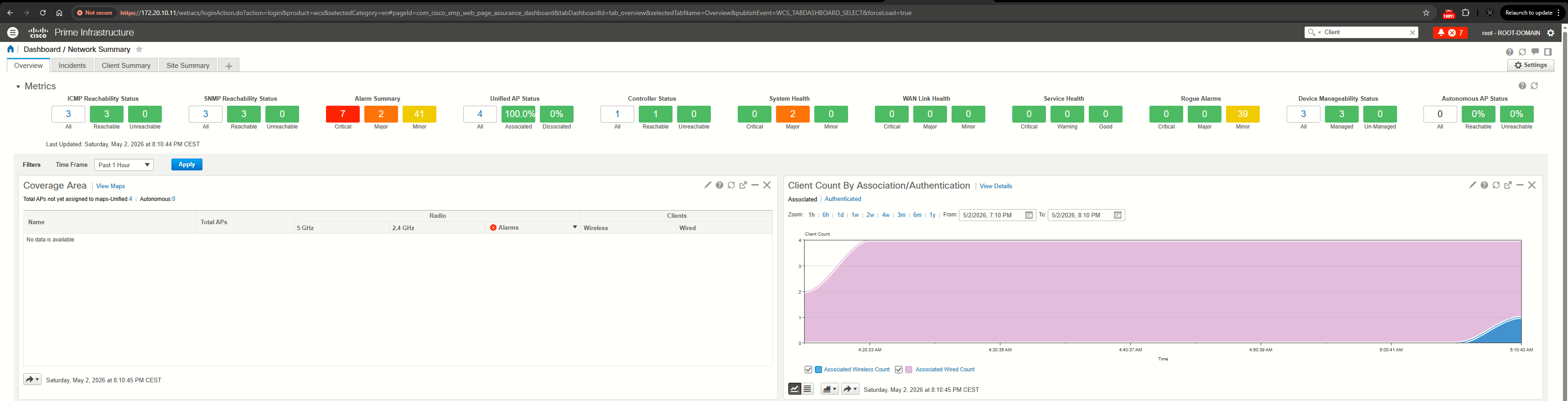
Aside from dealing with alarms as they arrive, there are many other aspects of a wireless network that you can monitor with Prime Infrastructure. For example, you might need to know the number of APs and wireless clients that are live on the network. The number of APs can be an important factor in a department’s budget, plans for future network growth, for sizing wireless controller platforms, and for gauging the AP load across your controllers. You can do that through two dashlets that are displayed on the Dashboard > Overview > General menu
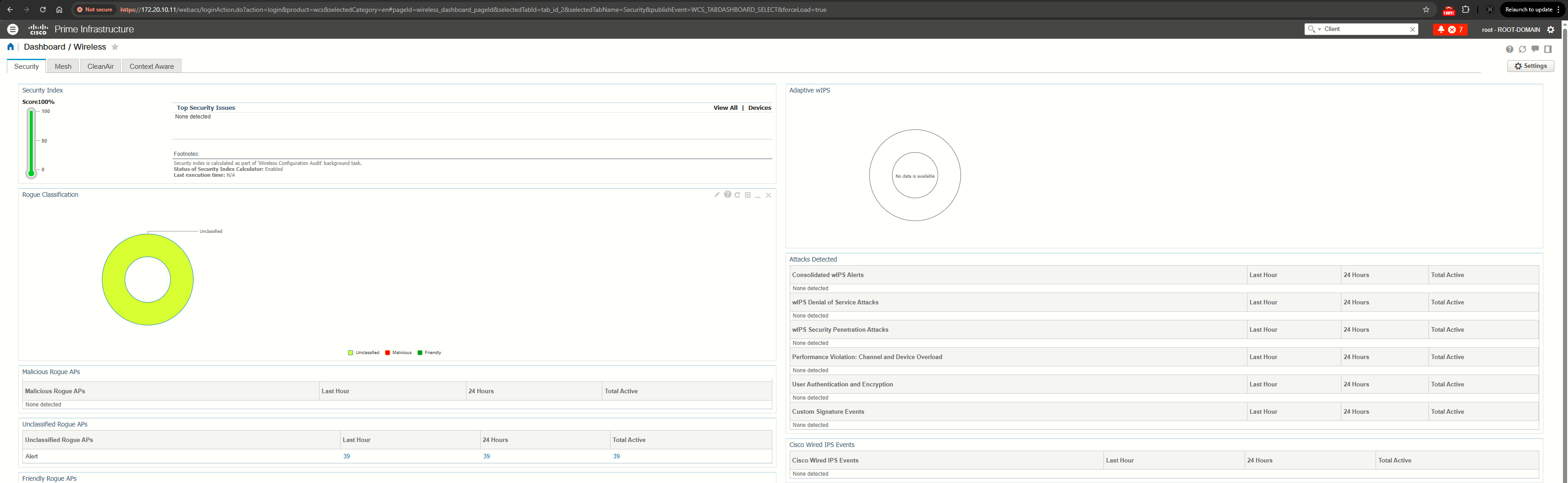
Other interesting dashboards: Dashboard > Wireless > Security (for security score and top issues, and security attacks detected):
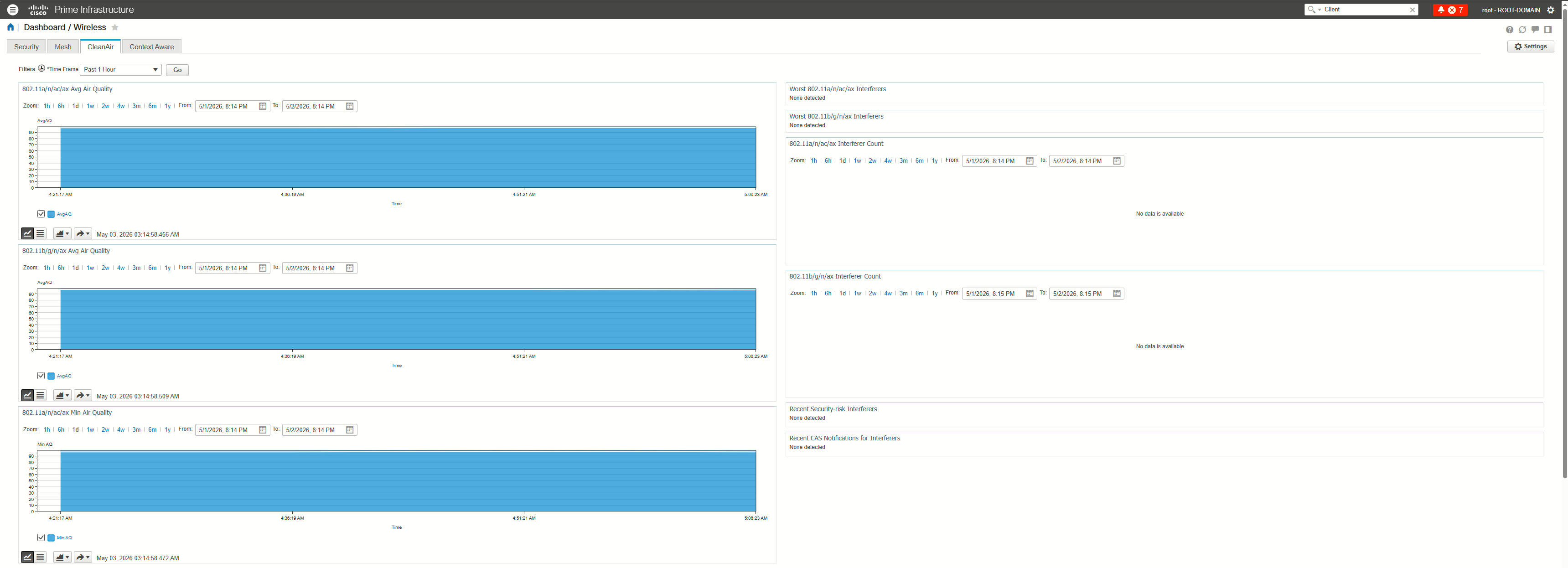
Dashboard > Wireless > CleanAir (for non-Wi-Fi interference sources, interference profile violations, air quality index):
Client information:
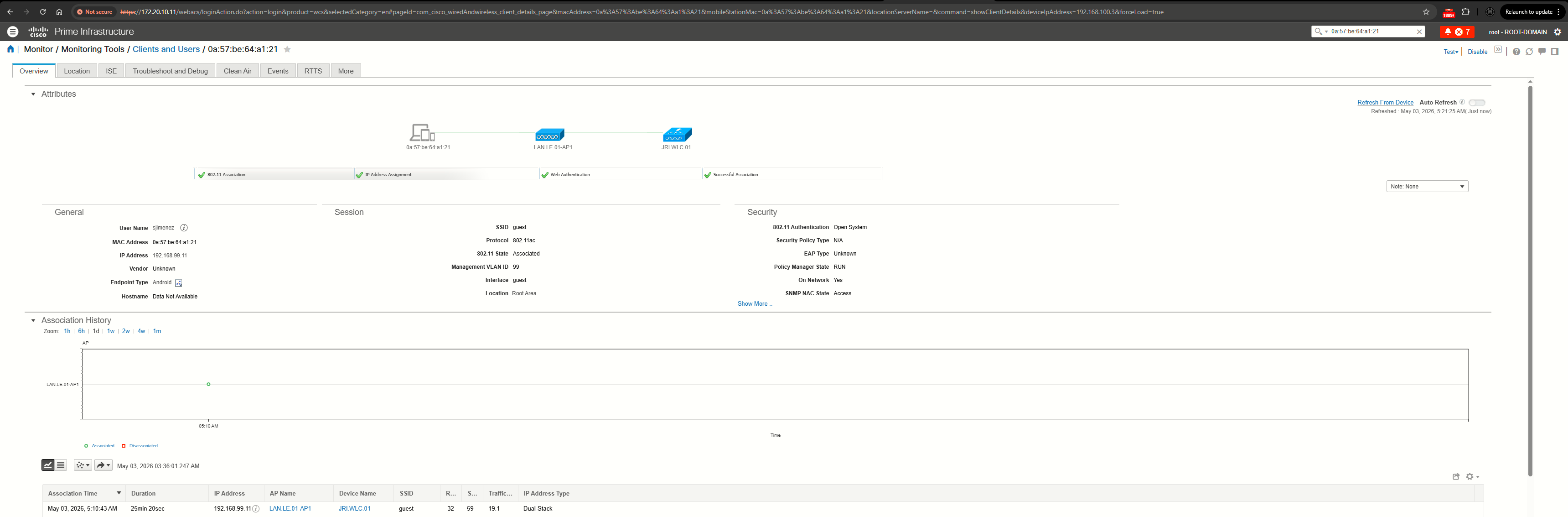
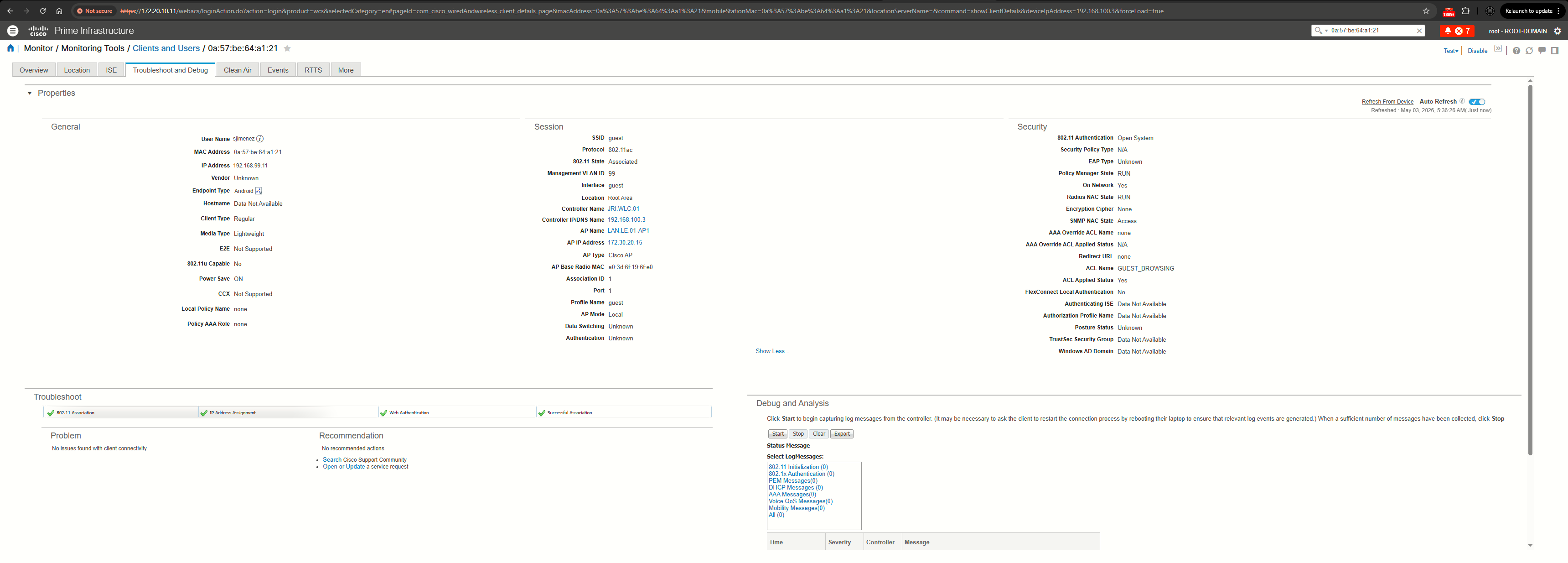

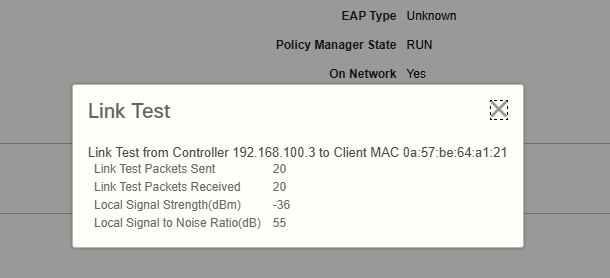
It is possible to perform link tests (Android device must disable W-Fi Acceleration, double-band):
Sources
Cisco Prime Infrastructure
https://www.cisco.com/c/en/us/support/cloud-systems-management/prime-infrastructure/series.html#Configuration
Cisco Prime Infrastructure 3.10 Quick Start Guide
https://www.cisco.com/c/en/us/td/docs/net_mgmt/prime/infrastructure/3-10/quick_start/guide/cisco_prime_infrastructure_3_10_quick_start_guide.html
Cisco Prime Infrastructure 3.10 Administrator Guide
https://www.cisco.com/c/en/us/td/docs/net_mgmt/prime/infrastructure/3-10/admin/cisco_prime_infrastructure_3_10_admin_guide.html
Cisco Prime Infrastructure 3.10 User Guide
https://www.cisco.com/c/en/us/td/docs/net_mgmt/prime/infrastructure/3-10/user/guide/ciscoprimeinfrastructure_3_10_userguide.html
Default shell root password Cisco prime Infrastructure 3.1
https://community.cisco.com/t5/network-management/default-shell-root-password-cisco-prime-infrastructure-3-1/td-p/3060002
Prime 2.2 virtual "Wrong PID in Licence file"
https://community.cisco.com/t5/network-management/prime-2-2-virtual-quot-wrong-pid-in-licence-file-quot/td-p/2619873
Cisco Prime Infrastructure 3.10 – Download Cisco Prime + License
https://web.archive.org/web/20250430040439/https://technet24.ir/download-cisco-prime-infrastructure-1033
Pi 1.3 with 1.2 licenses
https://community.cisco.com/t5/network-management/pi-1-3-with-1-2-licenses/m-p/2328906
Cisco prime infrastructure virtual appliance UDI
https://community.cisco.com/t5/wireless/cisco-prime-infrastructure-virtual-appliance-udi/td-p/2738000
Cisco Prime 3.10 Installation for beginners
https://www.youtube.com/watch?v=akZTwZ1aj9A
Cisco Enterprise Management 3.X: Prime Infra. 3.x Ordering and Licensing Guide (Incl. Smart Licensing update)
https://www.cisco.com/c/dam/en/us/products/collateral/cloud-systems-management/prime-infrastructure/presentation-c97-735996.pdf