Resolving Split-Brain DNS, SSL Certificate Expiry, and Active Directory Domain Conflicts
PART 1: The Initial Dilemma & Network Layout
The Infrastructure
-
Public Domain:
sergio-jimenez.net(Managed externally via Cloudflare). -
Internal Web Server: Bookstack wiki hosted on a Raspberry Pi (
10.0.40.25). -
Reverse Proxy: Nginx Proxy Manager (NPM) acting as the network gateway (
10.0.30.13), handling Let's Encrypt SSL certificates. -
Upstream DNS Forwarder: Technitium DNS (
10.0.30.11) handling external internet queries, sitting behind the Windows Server.
The Problem: The "Split-Brain" DNS & Expired Certificate
Originally, my internal Active Directory (AD) domain was named exactly the same as my public web domain: sergio-jimenez.net. This created two critical failures:
-
The Expired Certificate: Before deploying NPM, the Raspberry Pi handled its own SSL certificates. Once NPM took over the public edge, the Pi was hidden from the internet. Because Let's Encrypt HTTP validation challenges couldn't reach the Pi directly anymore, its internal certificate expired. When internal users hit the Pi directly, browsers threw a dead certificate error.
-
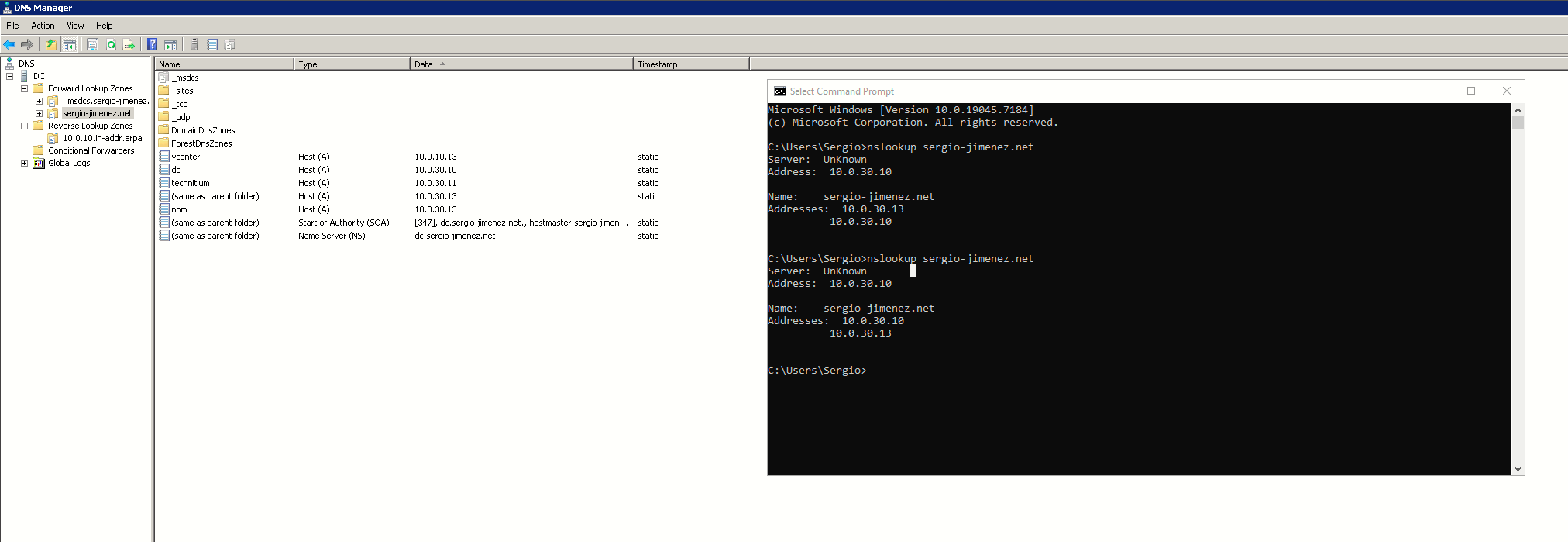
The Internal Lag / "Double IP" Loop: Because Active Directory owns the root domain string, the Windows Server automatically registered its own IP (
10.0.30.10) alongside the NPM IP (10.0.30.13) under the(same as parent folder)root record. Windows 10 clients inside the10.0.40.xnetwork were subjected to DNS Round Robin. Half the time, the PC tried connecting to.10(the DC) for the website. Since the DC isn't a web server, the browser spun infinitely (causing massive lag) until timing out and falling back to the working.13NPM address.
PART 2: The Core Architectural Fix (The Subdomain Migration)
To fix this according to enterprise best practices, the internal Active Directory identity had to be completely decoupled from the root web domain by migrating it to a dedicated subdomain: home.sergio-jimenez.net.
Step A: Wiping the Old Domain
Windows blocks simple deletions of AD to protect the server structure.
-
The
dcpromocommand was executed via the Run dialog (Win + R). -
This forced Windows Server 2008 R2 to demote itself, stripping away the conflicting
sergio-jimenez.netActive Directory identity. -
The server rebooted into a clean, standalone workgroup machine.
Step B: Building the New Domain
-
dcpromowas executed a second time. -
A brand-new forest and domain were established under the clean subdomain:
home.sergio-jimenez.net. -
Active Directory, DNS, and DHCP were successfully re-provisioned under this isolated namespace.
Step C: Resolving the Profile Nightmare (.000 Folders)
Upon logging back in as "Administrator", Windows generated a fresh user profile directory named Administrator.DC.000 inside C:\Users.
This happened because even though the username was identical, the new domain Administrator possessed a completely different Security Identifier (SID) than the old domain user. Windows saw the original C:\Users\Administrator.DC folder, recognized it belonged to a "dead" SID, and locked it down to protect data integrity, spinning up the .000 duplicate.
The Fix:
-
Registry Path Correction: Open
regeditand navigate to:HKEY_LOCAL_MACHINE\SOFTWARE\Microsoft\Windows NT\CurrentVersion\ProfileListLocate the Profile Guid pointing to the
.000folder and change theProfileImagePathstring to point back to the original directory:C:\Users\Administrator.DC. -
Taking Ownership: Right-click the original
Administrator.DCfolder -> Properties -> Security -> Advanced -> Owner. Set the owner to the newHOME\Administratorsgroup and check "Replace owner on subcontainers and objects". -
Permissions Override: Grant Full Control explicitly to the
HOME\Administratorsgroup. -
Following a system reboot, Windows successfully mapped the environment back into the true home profile.
PART 3: Engineering the Pinpoint Local Web Access
With the local domain safely tucked away under home.sergio-jimenez.net, I still needed to type sergio-jimenez.net (without www) into your browser on your local Windows 10 PC and have it route instantly to your internal Bookstack wiki via NPM, using a valid certificate, and with zero latency.
Here is how the Windows Server 2008 R2 DNS engine was configured to accomplish this without breaking the new domain architecture or routing out to the open internet:
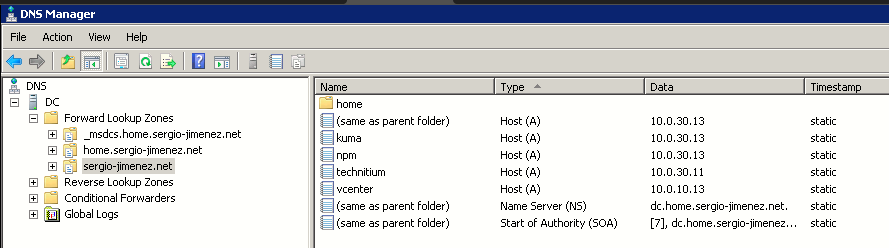
1. The Isolated "Pinpoint" DNS Zone
-
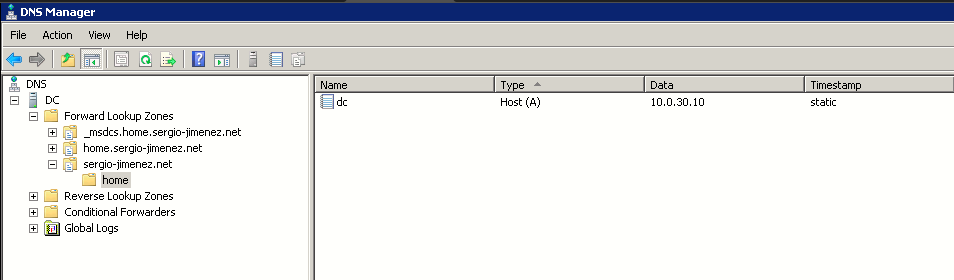
In DNS Manager, a completely separate Primary Forward Lookup Zone was created, named exactly:
sergio-jimenez.net. -
Inside this zone, a blank Host (A) record—represented as
(same as parent folder)—was created pointing explicitly to the NPM proxy:10.0.30.13.
2. Downstream Proxy Clean-up (NPM to Pi)
To bypass the expired certificate error on the Raspberry Pi permanently, NPM was configured to offload SSL handling:
-
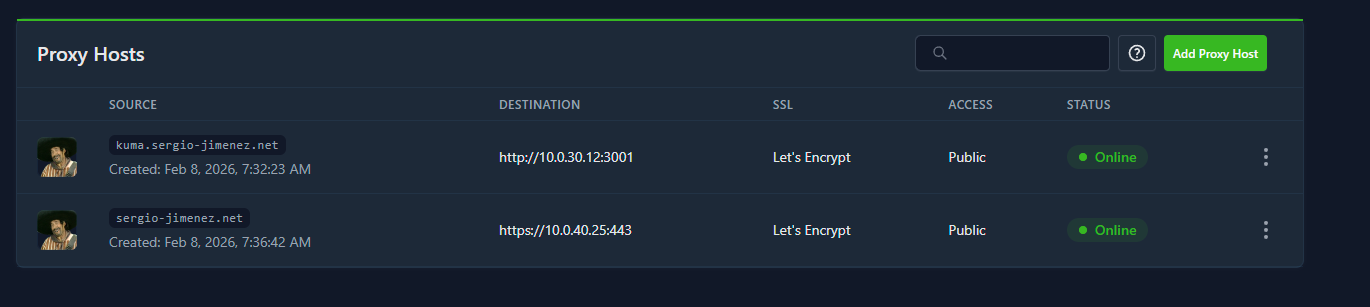
Source Entry:
sergio-jimenez.net(presents the valid Let's Encrypt certificate generated by NPM to local and remote browsers). -
Destination Settings: Scheme set to
httpsover Port 443 directed at10.0.40.25. -
Result: The communication from my local PC to NPM is fully encrypted and secure via HTTPS.
3. Integration with Technitium DNS
Because my local machines reference the Windows Server as their primary DNS authority:
-
Local lookups for
home.sergio-jimenez.netresolve internally via AD. -
Local lookups for
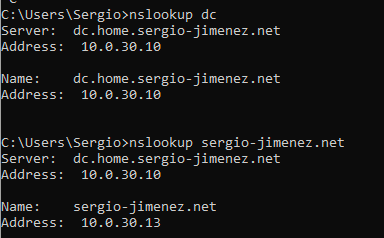
sergio-jimenez.nethit the custom pinpoint zone and route immediately to NPM (10.0.30.13) with zero round-robin delay. -
External lookups (like
google.com) are dropped by the Windows Server (since it doesn't own them) and handed straight to your Technitium Forwarder (10.0.30.11), maintaining custom network filtering, privacy blocklists, and internet resolution.
|
|
|