
9800-CL - Upgrade from 17.18.1 to 17.18.2 via GUI
Before you begin
You must use the .bin file to upgrade or downgrade your software. Use the .iso and .ova files for first-time installation only.
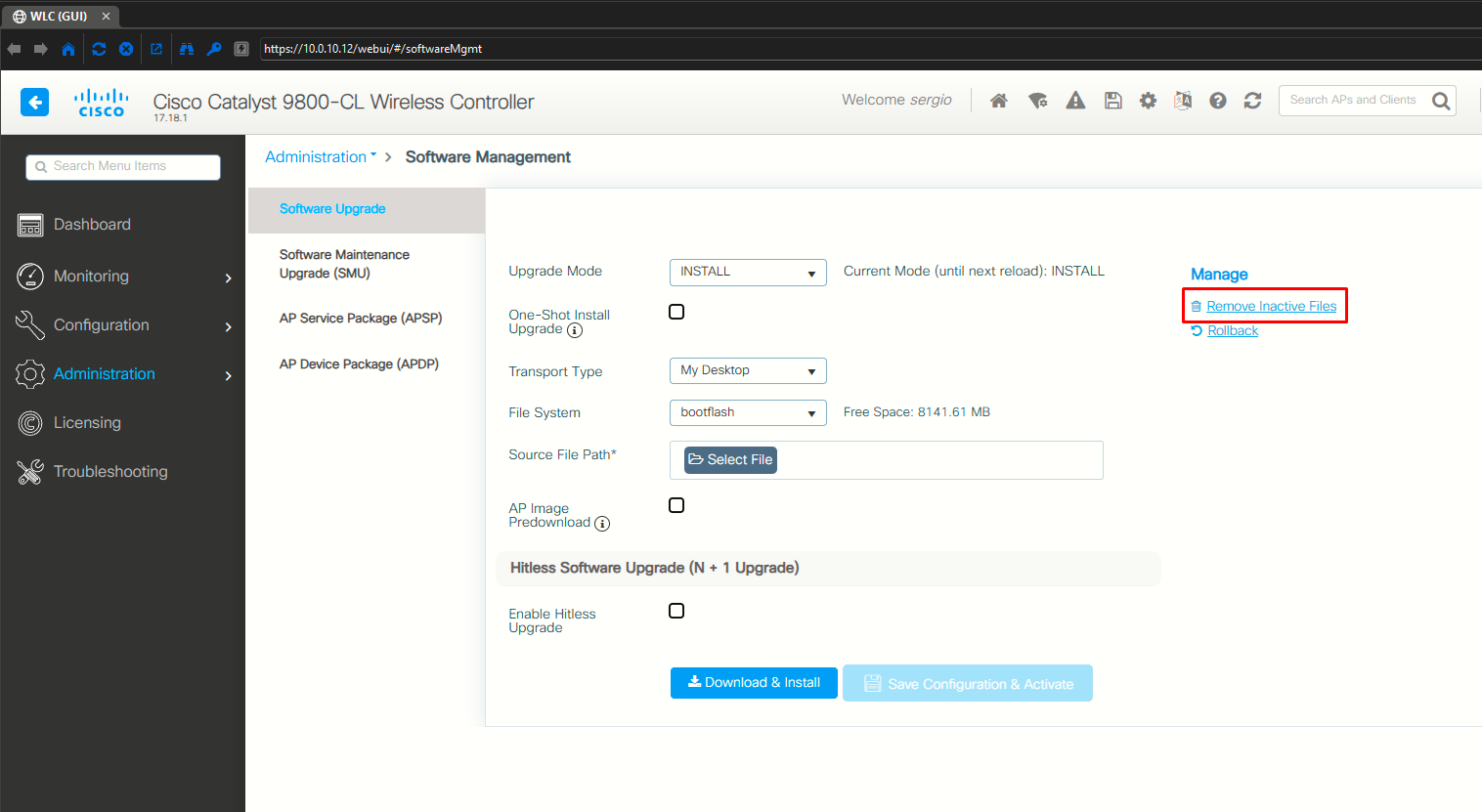
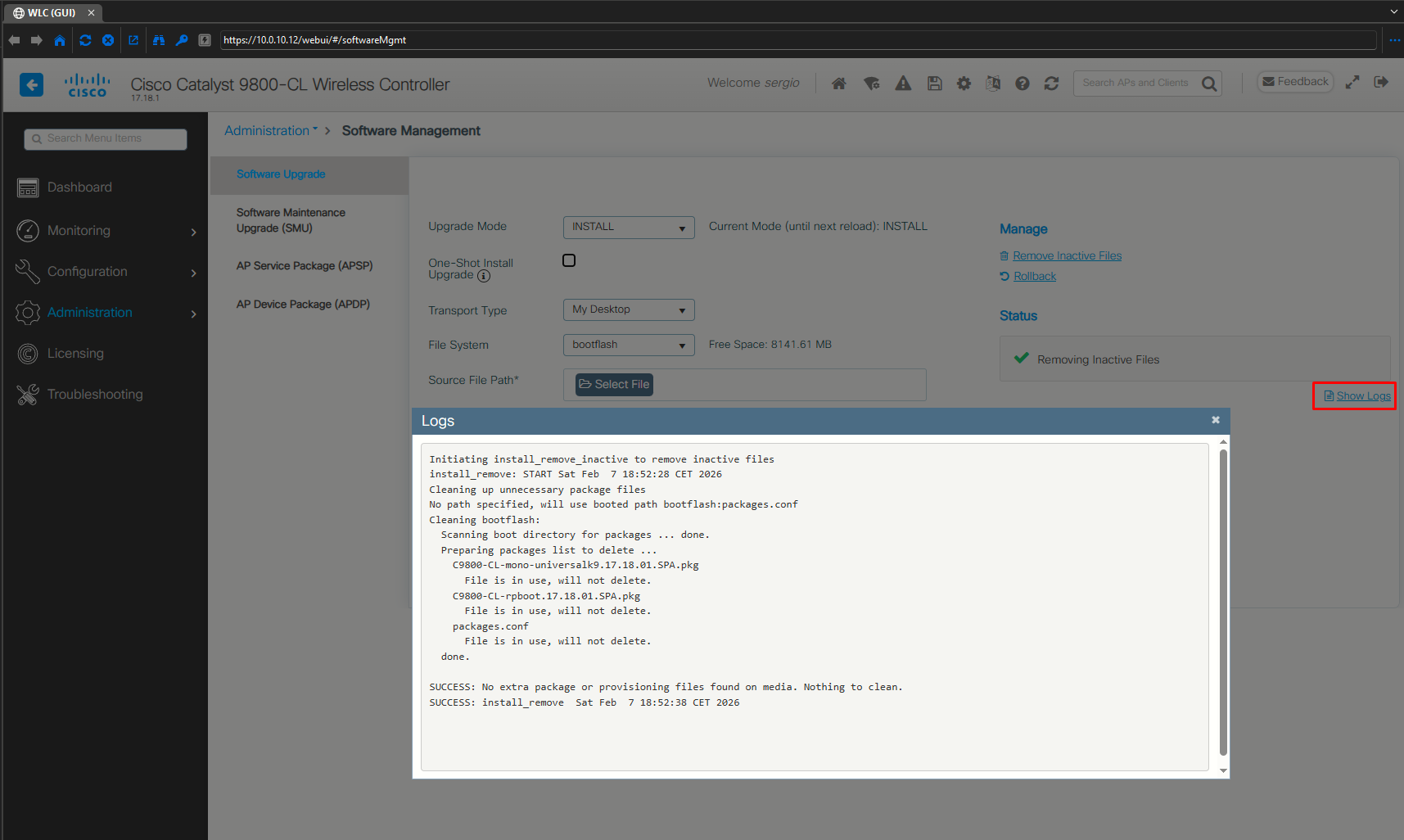
Clean up the old installation files using the Remove Inactive Files link.
Procedure
Step 1: Choose Administration > Software Management
Step 2: Choose an option from the Upgrade Mode drop-down list:
-
INSTALL: The Install mode uses a package-provisioning file named packages.conf in order to boot a device.
-
BUNDLE: The Bundle mode uses monolithic Cisco IOS images to boot a device. The Bundle mode consumes more memory than the Install mode because the packages are extracted from the bundle and copied to RAM.
We'll go with INSTALL mode (default).
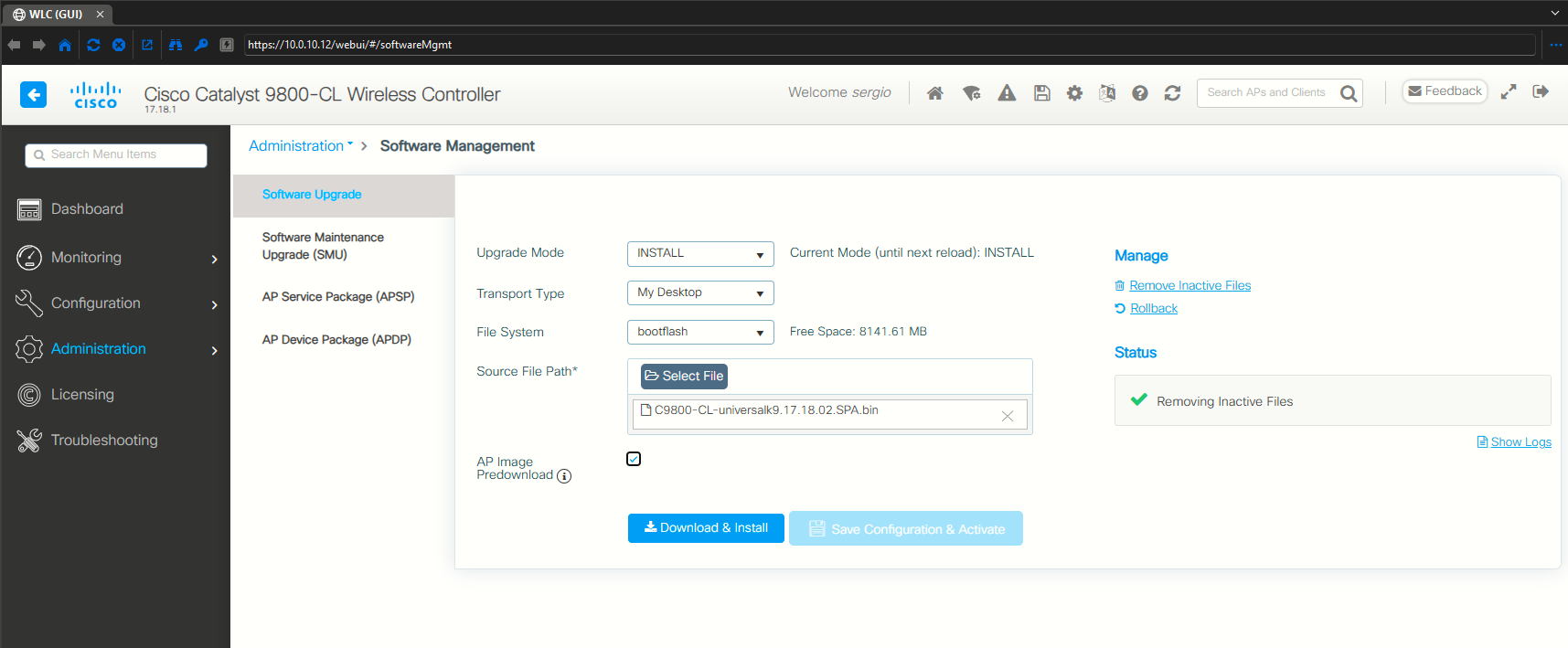
Step 3: From the Transport Type drop-down list, choose the transfer type to transfer the software image to your device as TFTP, SFTP, FTP, Device, or Desktop (HTTP).
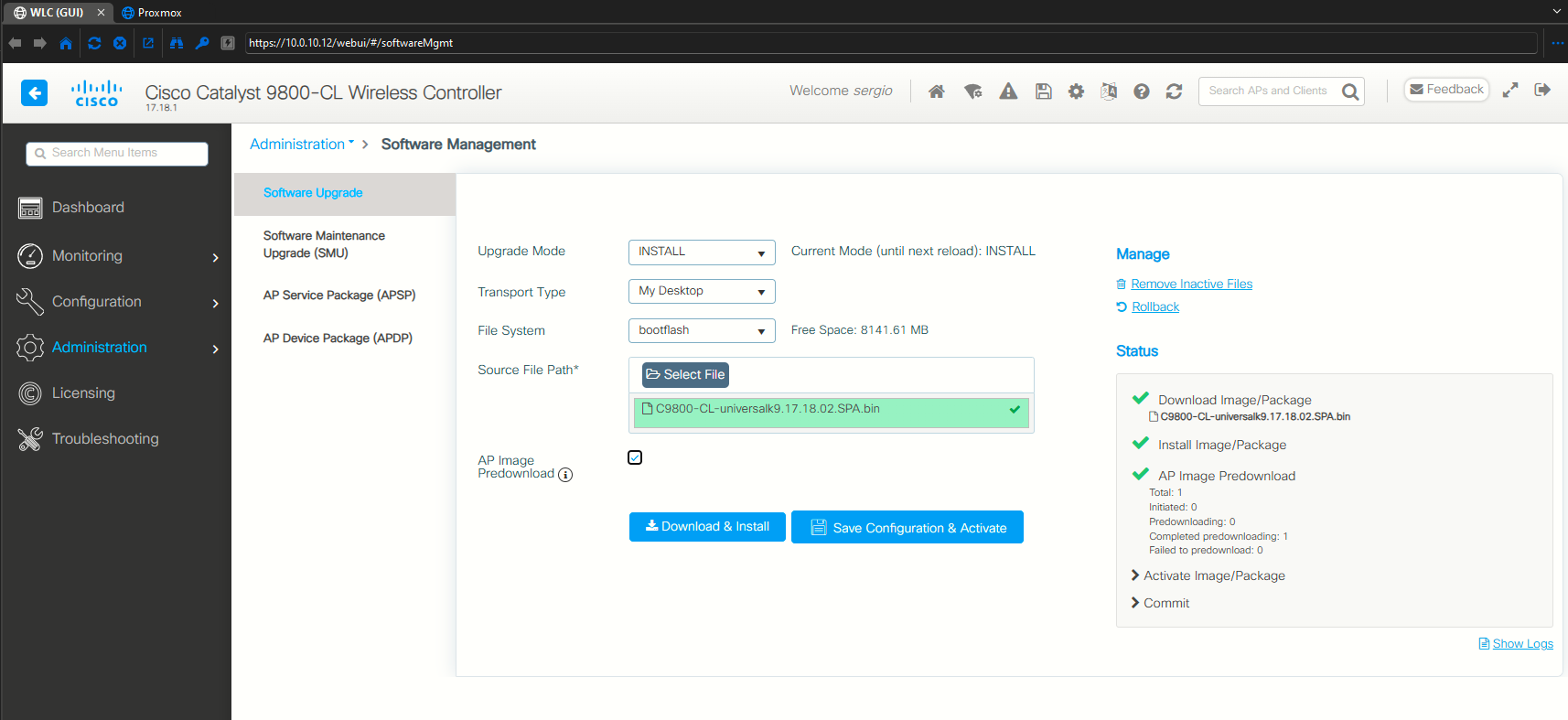
We'll go with Desktop:
-
If you choose Desktop (HTTPS) as the Transport Type, choose the File System from the drop-down list. In the Source File Path field, click Select File to select the file, and click Open.
Step 4: Click Download & Install
We will also enable AP image predownload. An image pre-download is a software distribution process that:
-
downloads an upgrade image to an AP from the device,
-
minimizes network outages and allows continuous connectivity during the image download process, and
-
ensures the AP can join and register with the controller immediately after the upgrade
Previously, you could download an upgrade image to the device and reset it. This AP then entered discovery mode. After discovering the controller with the new image, the AP downloads the new image, resets itself, enters discovery mode, and rejoins the device.
You can now download the upgrade image to the controller. When the controller is operational with the upgrade image, the AP joins the controller and moves to Registered state, because the AP image has been predownloaded to the AP.
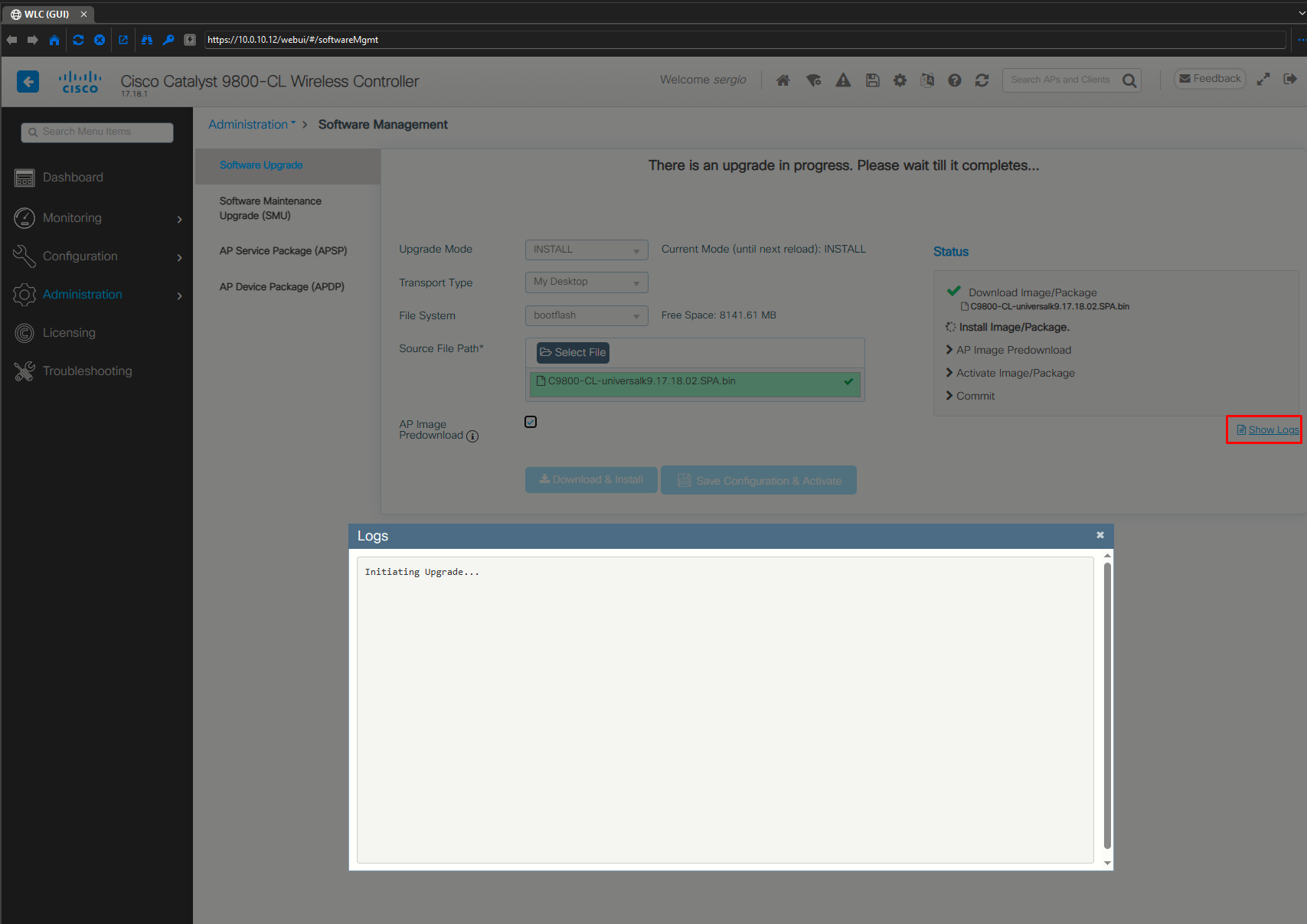
install_add: START Sat Feb  7 19:04:13 CET 2026
install_add: Adding PACKAGE
install_add: Checking whether new add is allowed ....

--- Starting initial file syncing ---
Info: Finished copying bootflash:C9800-CL-universalk9.17.18.02.SPA.bin to the selected chassis
Finished initial file syncing

--- Starting Add ---
Performing Add on all members
  [1] Add package(s) on chassis 1/R0
  [1] Finished Add on chassis 1/R0
Checking status of Add on [1/R0]
Add: Passed on [1/R0]
Finished Add

Image added. Version: 17.18.02.0.4112
SUCCESS: install_add  Sat Feb  7 19:12:30 CET 2026

Starting AP Image Predownload..
AP Image Predownload started successfully.
Above is the full log up to the point where the AP image predownload has finished succesfully. Once this is done we can proceed to step 5.
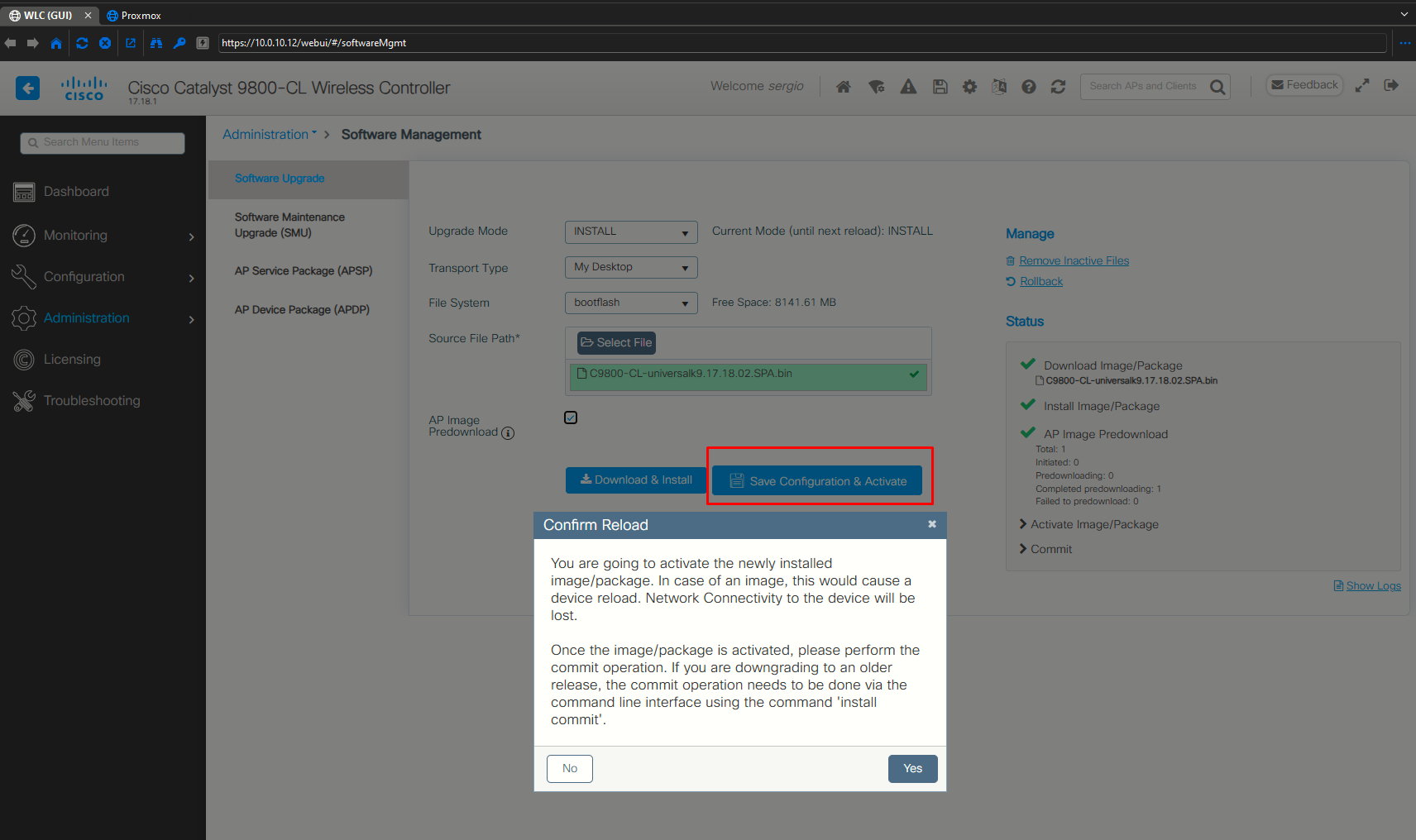
Step 5: To boot your device with the new software image, click Save Configuration & Activate
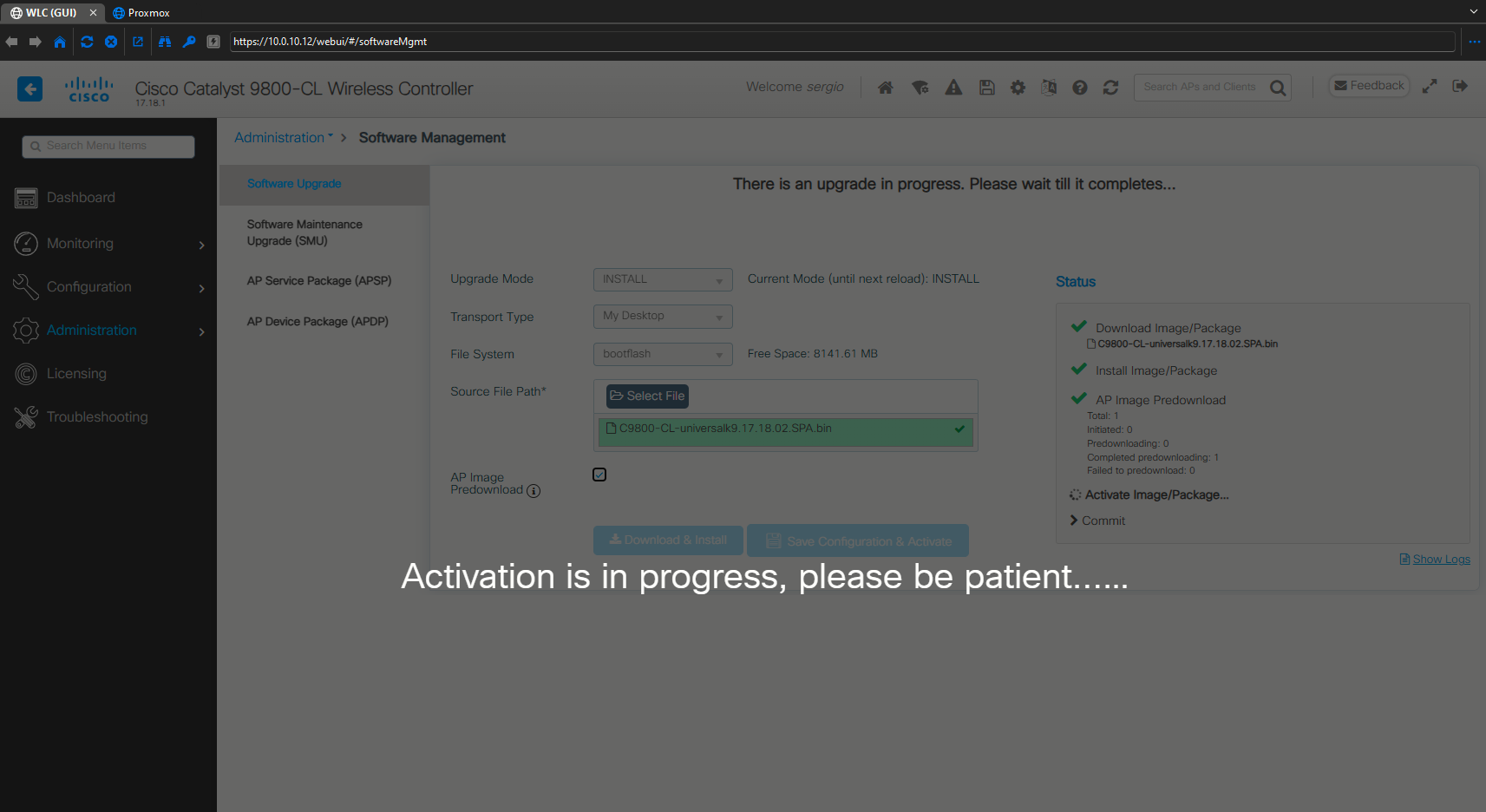
After 10 minutes I reloaded the page and the GUI showed the activation went successfully. At no moment did I lose the WiFi connection to my AP. (monitored from my smartphone).
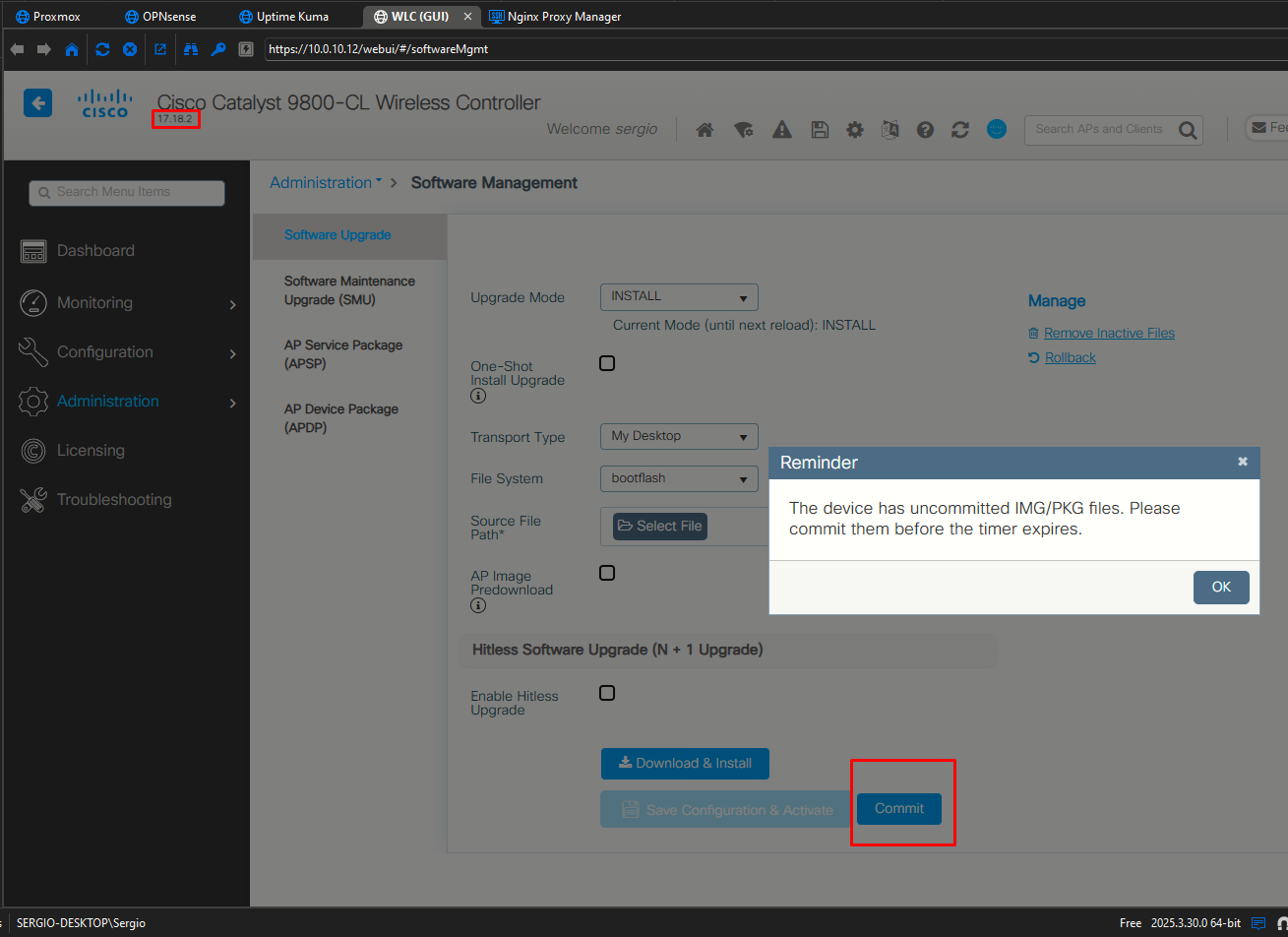
Step 6: Click Commit after the device reboots to make the activation changes persisten across reloads.
For 17.4 and later releases, this step is mandatory for the upgrade to be persistent. If you do not click Commit, the auto-timer terminates the upgrade operation after 6 hours, and the controller reverts back to the previous image.
Starting Install Commit Operation...
install_commit: START Sun Feb  8 13:25:26 CET 2026
install_commit: Committing PACKAGE

--- Starting Commit ---
Performing Commit on all members
  [1] Commit package(s) on chassis 1/R0
  [1] Finished Commit on chassis 1/R0
Checking status of Commit on [1/R0]
Commit: Passed on [1/R0]
Finished Commit

SUCCESS: install_commit  Sun Feb  8 13:25:40 CET 2026
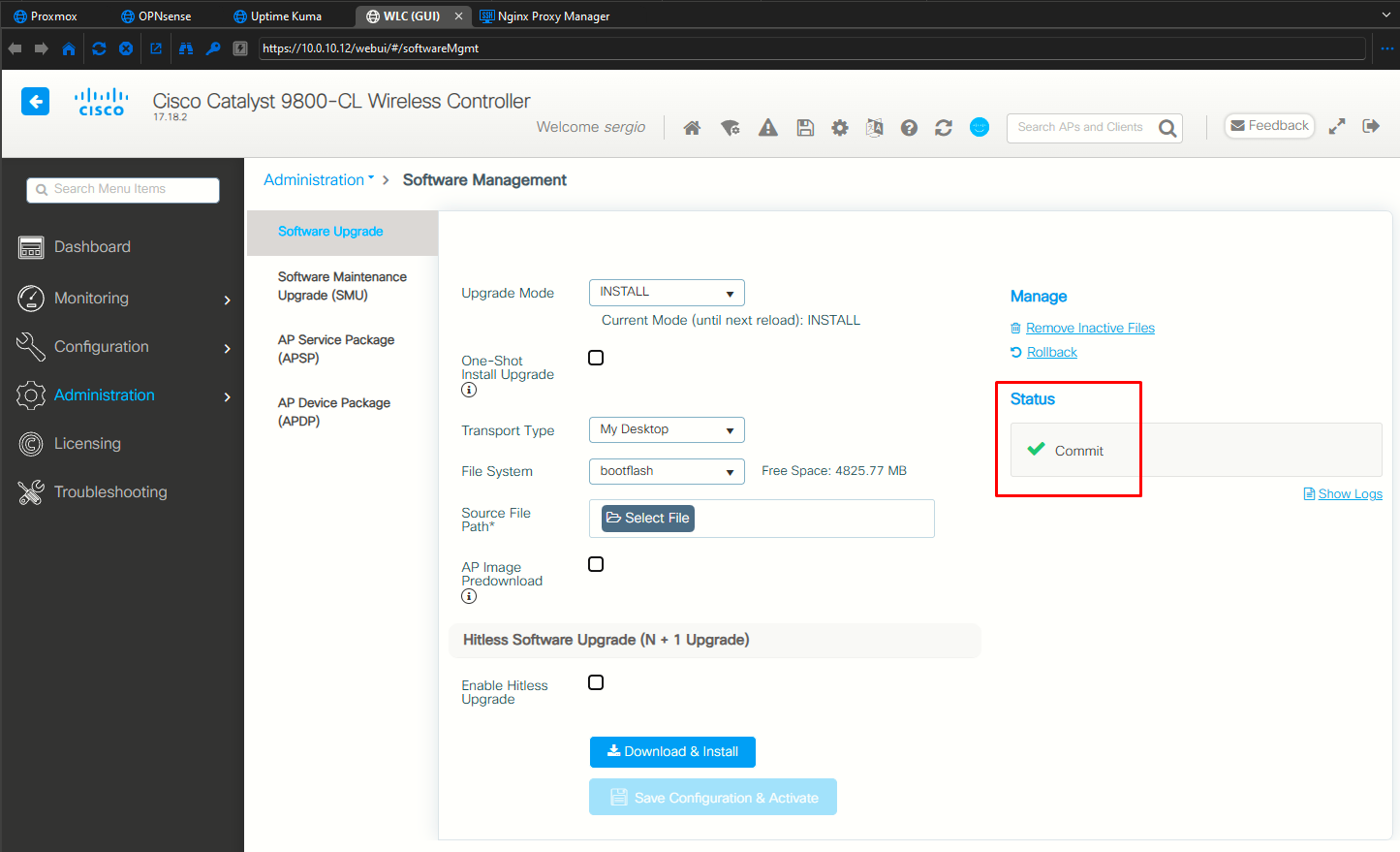
Step 7: Remove Inactive Files
Initiating install_remove_inactive to remove inactive files
install_remove: START Sun Feb  8 13:26:46 CET 2026
Cleaning up unnecessary package files
No path specified, will use booted path bootflash:packages.conf
Cleaning bootflash:
  Scanning boot directory for packages ... done.
  Preparing packages list to delete ...
    C9800-CL-mono-universalk9.17.18.02.SPA.pkg
      File is in use, will not delete.
    C9800-CL-rpboot.17.18.02.SPA.pkg
      File is in use, will not delete.
    packages.conf
      File is in use, will not delete.
  done.

The following files will be deleted:
[chassis 1/R0]:
/bootflash/C9800-CL-mono-universalk9.17.18.01.SPA.pkg
/bootflash/C9800-CL-rpboot.17.18.01.SPA.pkg
/bootflash/C9800-CL-universalk9.17.18.02.SPA.bin
/bootflash/C9800-CL-universalk9.17.18.02.SPA.conf
[chassis 1/R0]:
Deleting file bootflash:C9800-CL-mono-universalk9.17.18.01.SPA.pkg ... done.
Deleting file bootflash:C9800-CL-rpboot.17.18.01.SPA.pkg ... done.
Deleting file bootflash:C9800-CL-universalk9.17.18.02.SPA.bin ... done.
Deleting file bootflash:C9800-CL-universalk9.17.18.02.SPA.conf ... done.
SUCCESS: Files deleted.
--- Starting Post_Remove_Cleanup ---
Performing Post_Remove_Cleanup on all members
  [1] Post_Remove_Cleanup package(s) on chassis 1/R0
  [1] Finished Post_Remove_Cleanup on chassis 1/R0
Checking status of Post_Remove_Cleanup on [1/R0]
Post_Remove_Cleanup: Passed on [1/R0]
Finished Post_Remove_Cleanup

SUCCESS: install_remove  Sun Feb  8 13:29:21 CET 2026
Sources
Cisco Catalyst 9800-CL Cloud Wireless Controller Installation Guide
https://www.cisco.com/c/en/us/td/docs/wireless/controller/9800/9800-cloud/installation/b-c9800-cl-install-guide/upgrading_the_software.html#upgrade-gui
Upgrade the Catalyst 9800 WLC | Quick Start Guide
https://www.cisco.com/c/en/us/support/docs/wireless/catalyst-9800-series-wireless-controllers/222431-upgrade-the-catalyst-9800-wlc-quick-st.html#toc-hId-24522175