
9800-CL - Network Configuration and AP Join
Introduction
In the previous page I installed the WLC 9800 VM on a Proxmox node. Now, I will configure it to make an 9120AXI AP usable.
Network Configuration
First of all, we will take a look at the following topology and considerations:
|
|
|
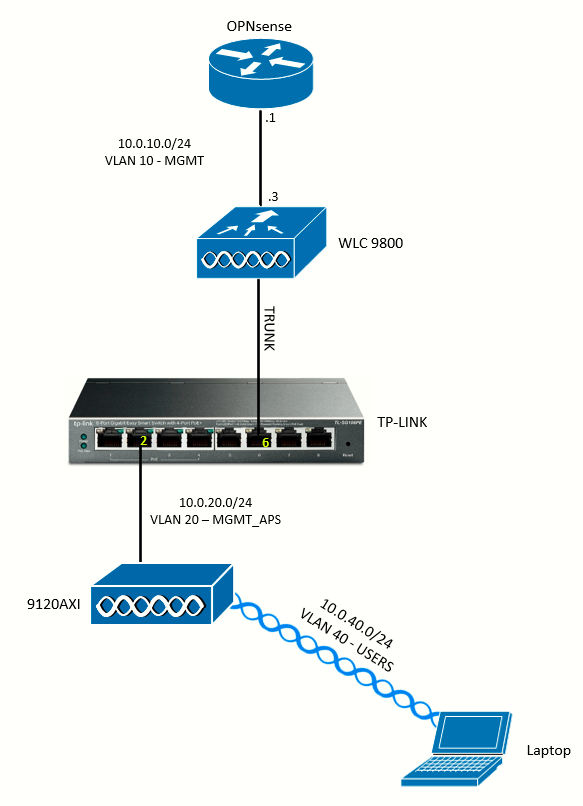
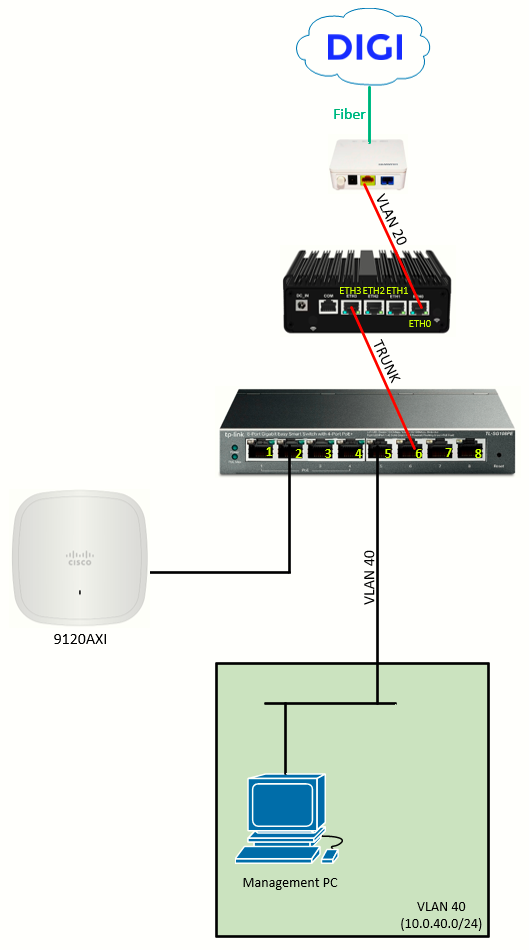
DHCP configuration for MGMT_APs Network in OPNsense
Step one will be setting up the DHCP server on the OPNsense for the MGMT_APs network, in order for the 9120 AP to get an IP and also DHCP option 43 (which will allow the AP to discover the WLC, which sits on another network).
I will go to Services > ISC DHCPv4 > [MGMT_APs] and I will edit the options as follows:
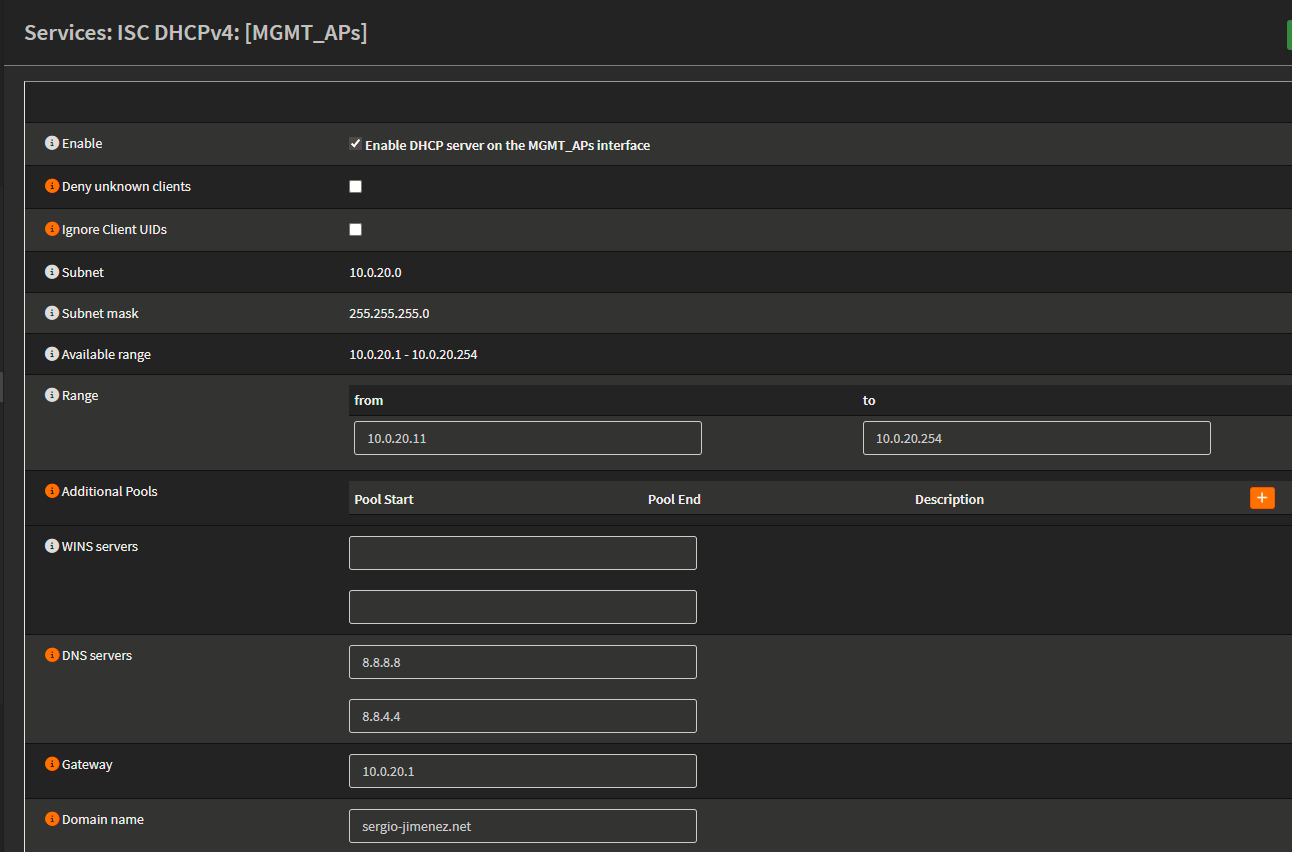
For the delivery of option 43 I want to add an item at Additional Options as follow:

Breakdown of the value:
- f1: Vendor-specific sub-option code. f1 is Cisco’s Vendor ID for WLC discovery
- 04: Length of the data that follows (in bytes). Just a single IP address follows (4 bytes = 32 bits = 1 IP address)
-
(10) 0a (0) 00 (10) 0a (3) 03
Network Configuration at the WLC
I want to make sure the trunk is configured properly. So I will move to Configuration > Interface > Ethernet
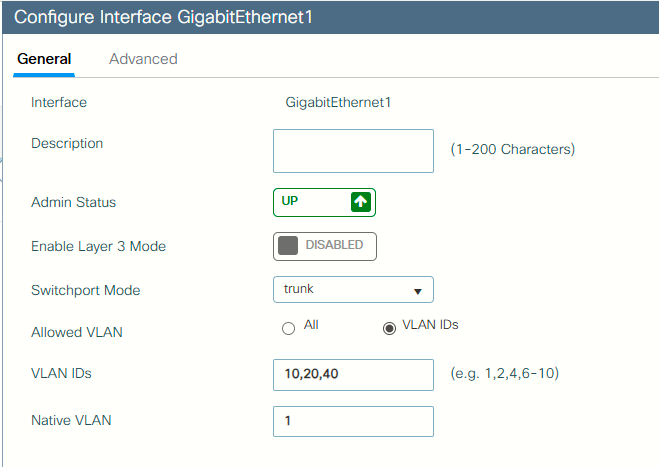
VLAN IDs for the MGMT, MGMT_APs and USERS network should be allowed on the trunk.
At the SVI level (Configuration > Layer2 > VLAN), I will disable the Vlan1 SVI, and edit the Vlan10 SVI:
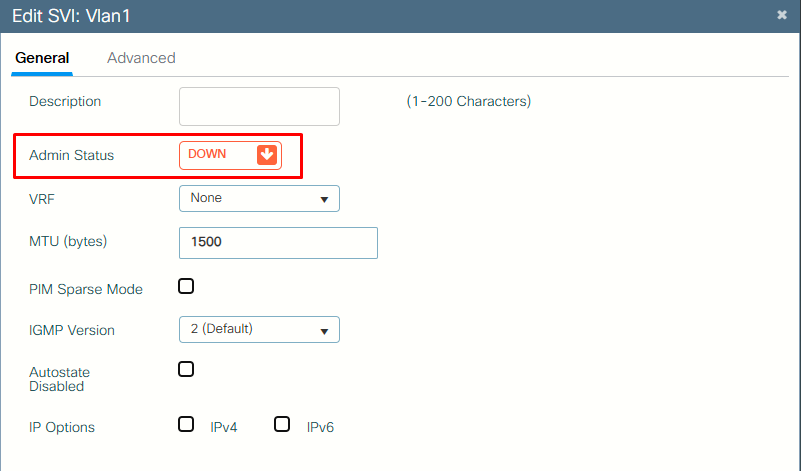
I have added an IPv4 Helper Address for the 10.0.40.1 IP (OPNsense IP on the VLAN 40 - USERS). This will allow wireless clients to obtain a DHCP address from the VLAN 40.
Also, I want to make sure the VLANs are created at the L2 level:
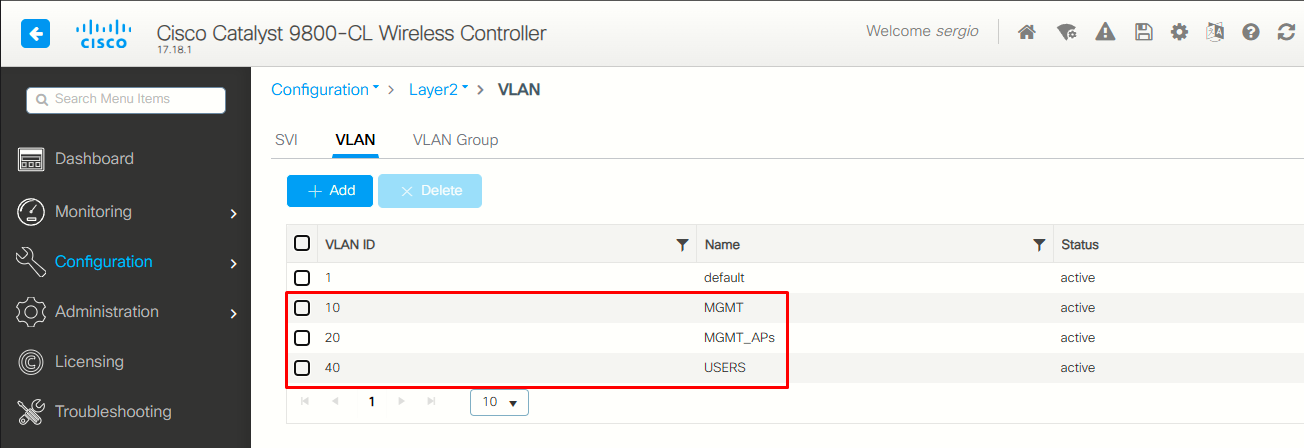
Tags & Profiles Configuration
I will begin adding a Policy called USERS with the following options, and associate it to VLAN 40:
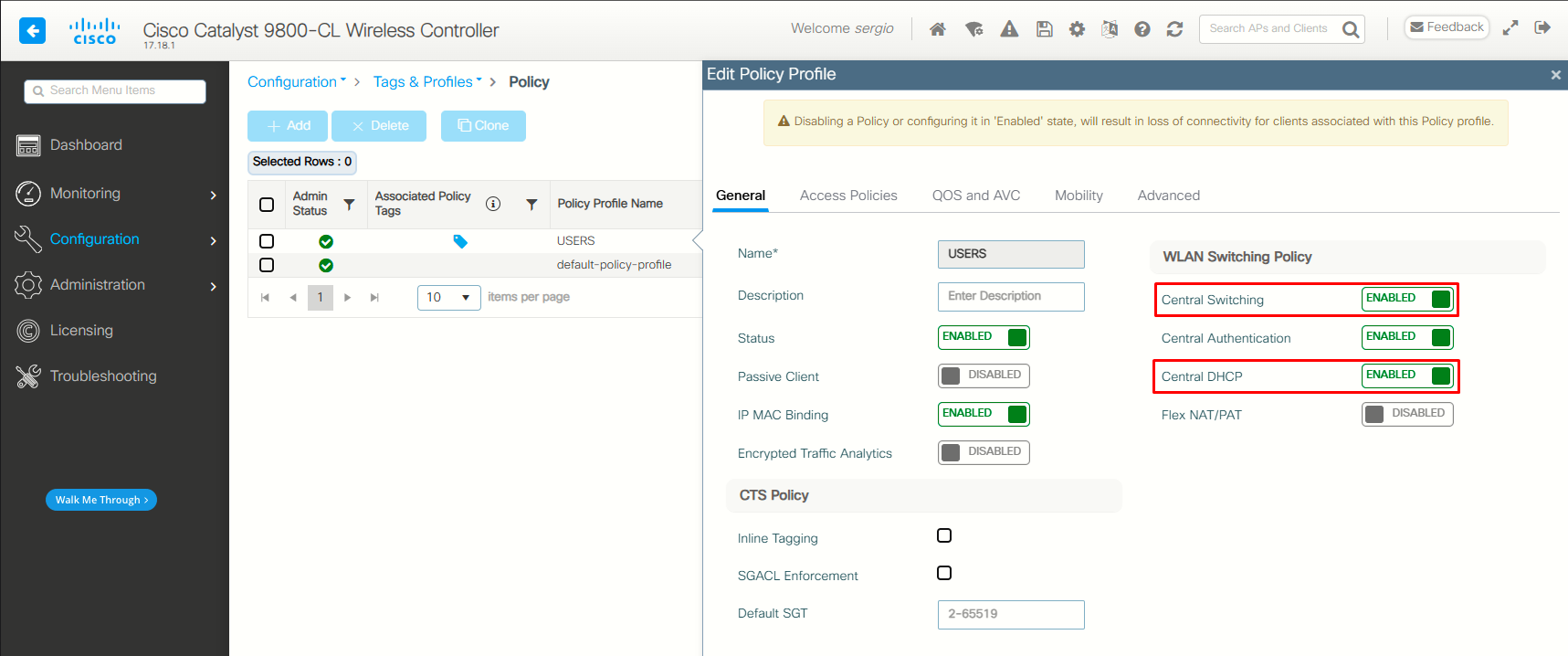
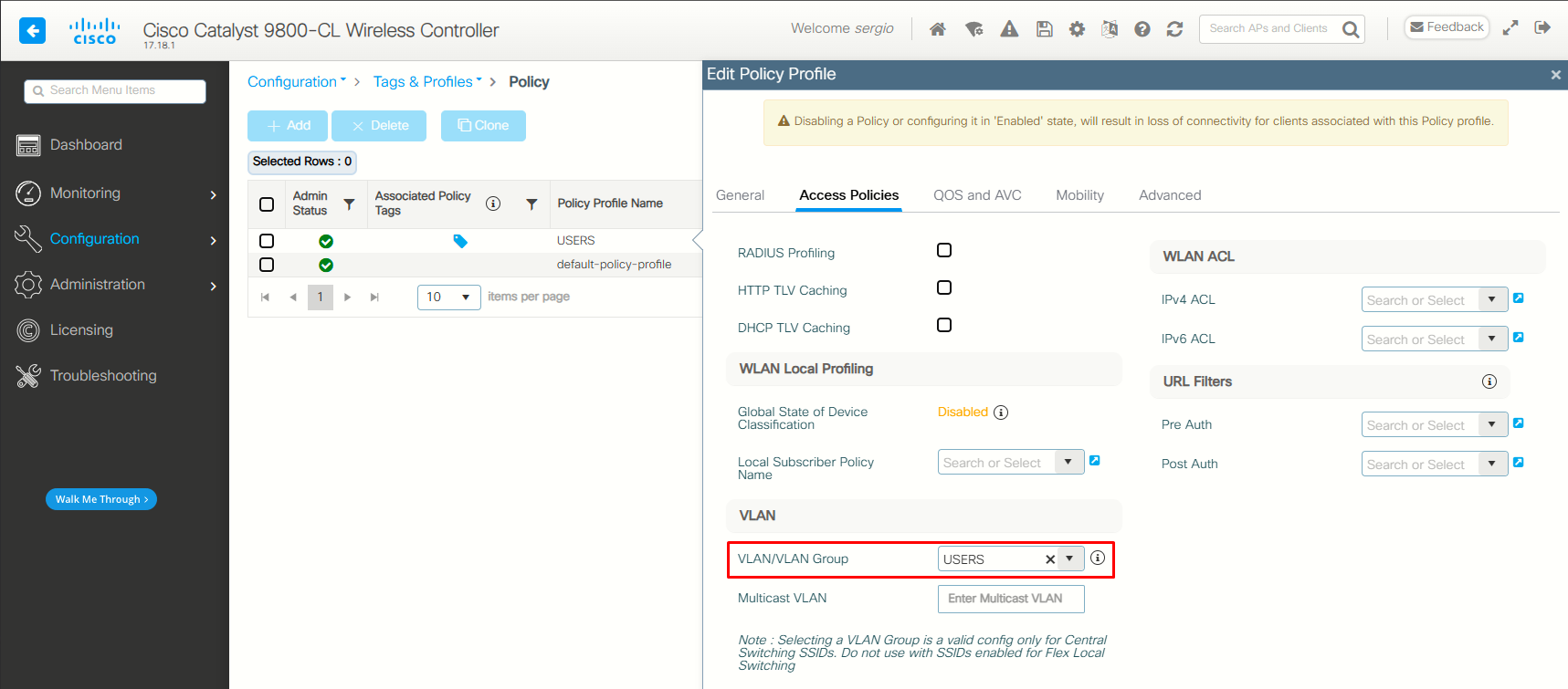
It is important to enable Central Switching and Central DHCP for the wireless clients to work correctly with the current setup.
Then, I'll add a Flex profiled with the same name (USERS), binding it to VLAN 40.
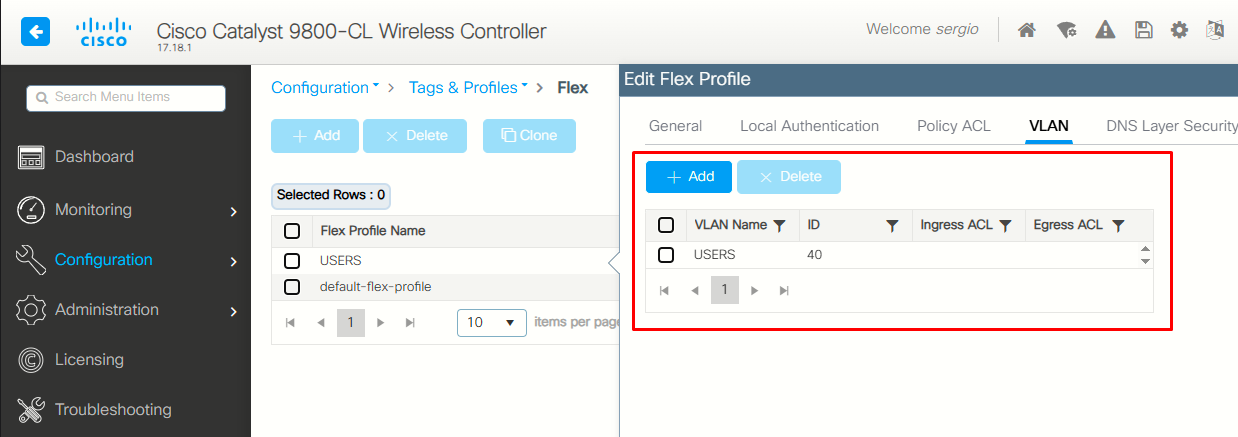
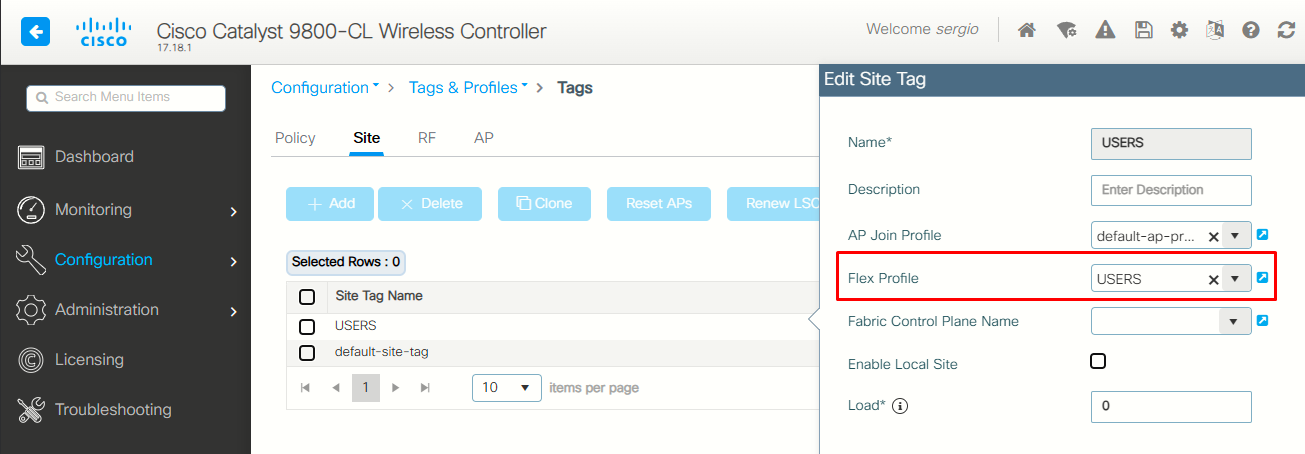
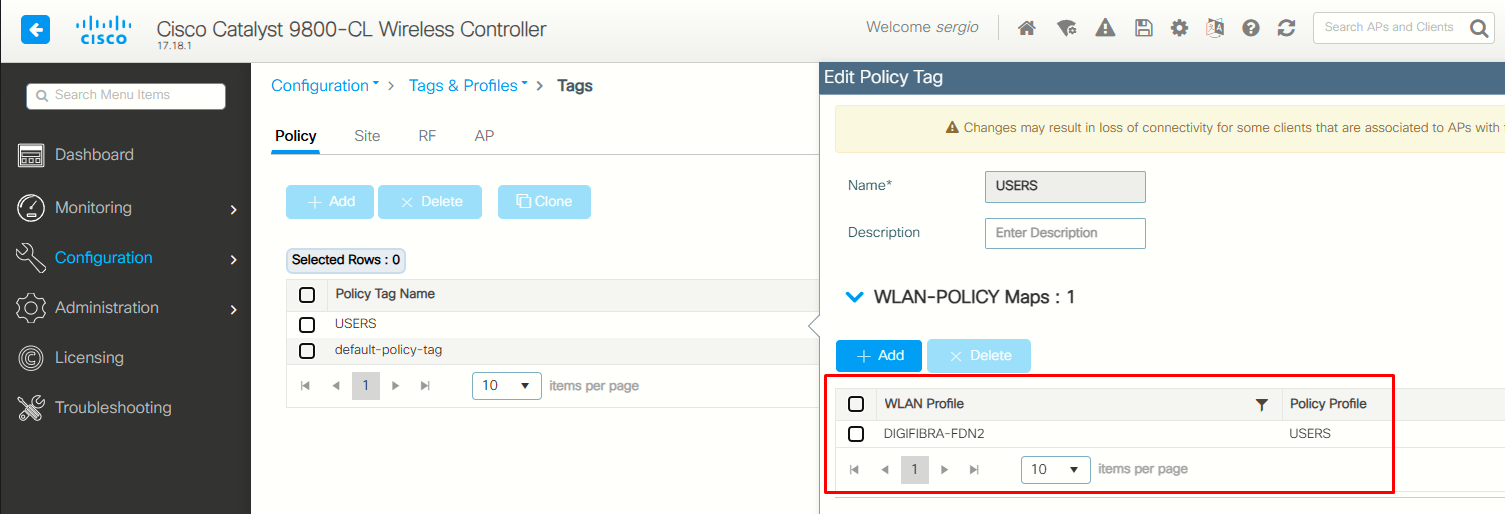
Finally, I'll bind the policy USERS to the WLAN DIGIFIBRA_FDN2 I created at the initial setup:
Trustpoint Issue, AP Join and Final Configuration
A certificate is a unique document which identifies a device, for example, to ensure that it is legitimate. A certificate must be verified by a CA to validate said identity. APs and the WLC need some sort of way to validate each other’s identity. Whenever a new AP joins the WLC the AP validates the WLC’s certificate to ensure that it is not only legitimate but that it is still valid. This way, APs can trust the appliance they are joining for the first time ever. For the virtual instance of the controller, the 9800-CL, there is no factory-installed certificate. But rather, it uses a self-signed certificate that can be generated automatically through the Day 0 wizard, or through a script in which the certificate is manually created. In virtual instances of the 9800, the SSC is used mainly for AP join but also for all HTTP(s), SSH and NETCONF services. Physical appliances also contain a SSC, but as stated before, it is not used for AP join, but for the services instead.
To verify this: show wireless management trustpoint
If the command above shows no trustpoint, you must create one with the following command: wireless config vwlc-ssc key-size 2048 signature-algo sha256 password 0 <password>, otherwise the APs won't join with DTLS teardown error.
Then, if everything was correctly configured, the AP would be connected at this point. It should discover the WLC establish a CAPWAP tunnel and begin downloading the matching firmware version (17.18.1).
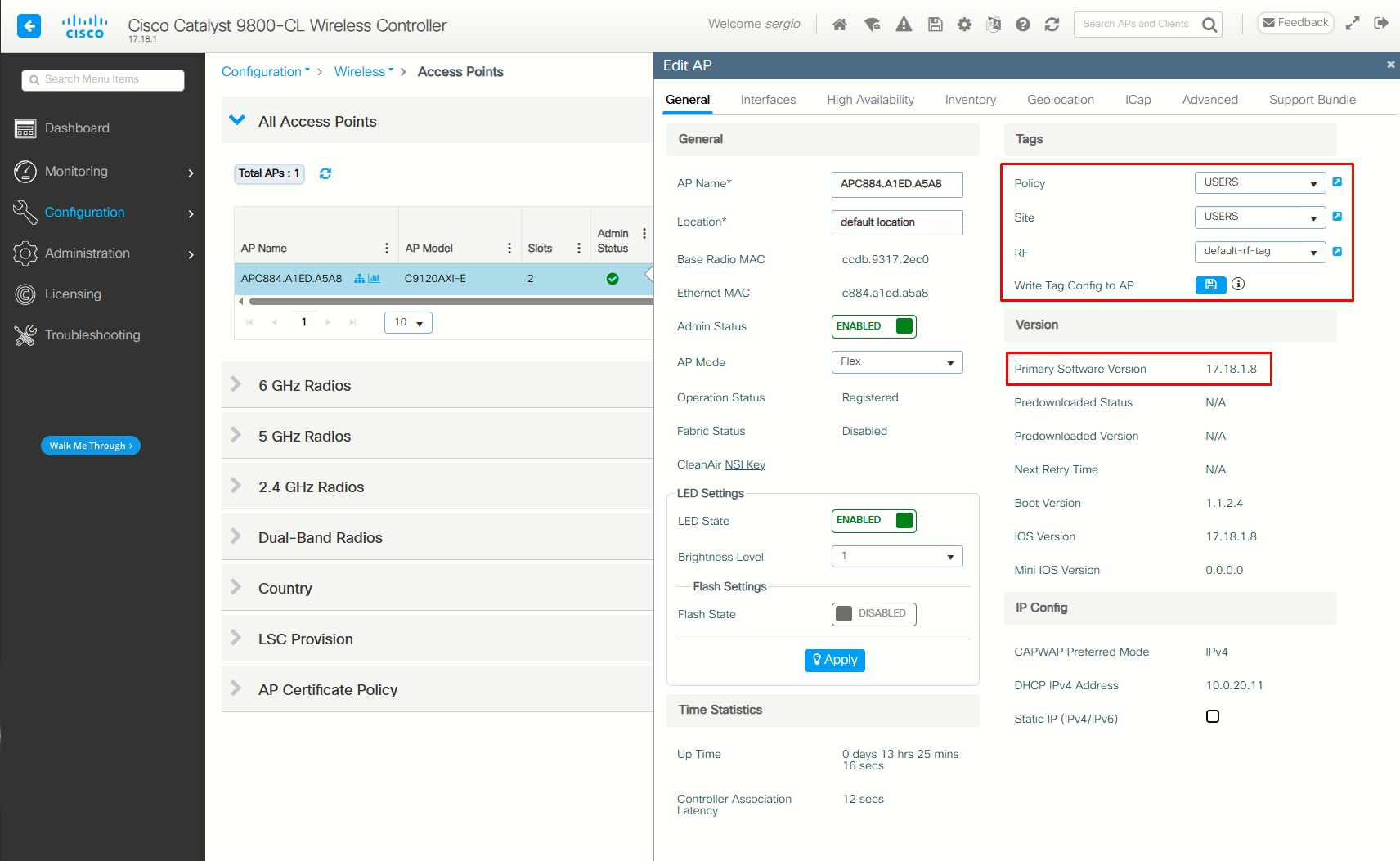
Finally, after the AP is successfully joined, I want to configure it with the correct tags:
Verification
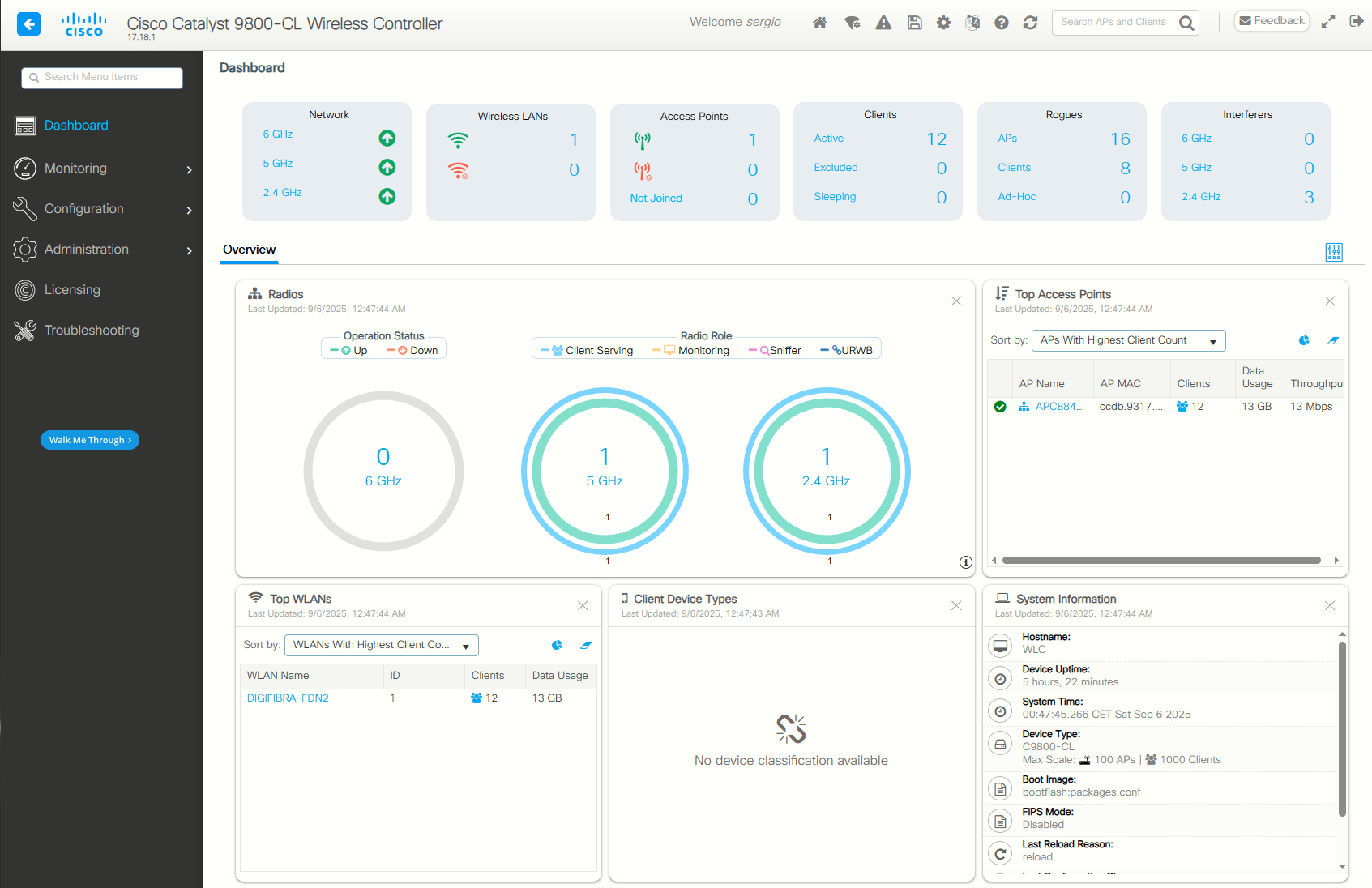
At the dashboard page I can see the WLAN is up, the AP is up, and that there are clients already connected to the AP:
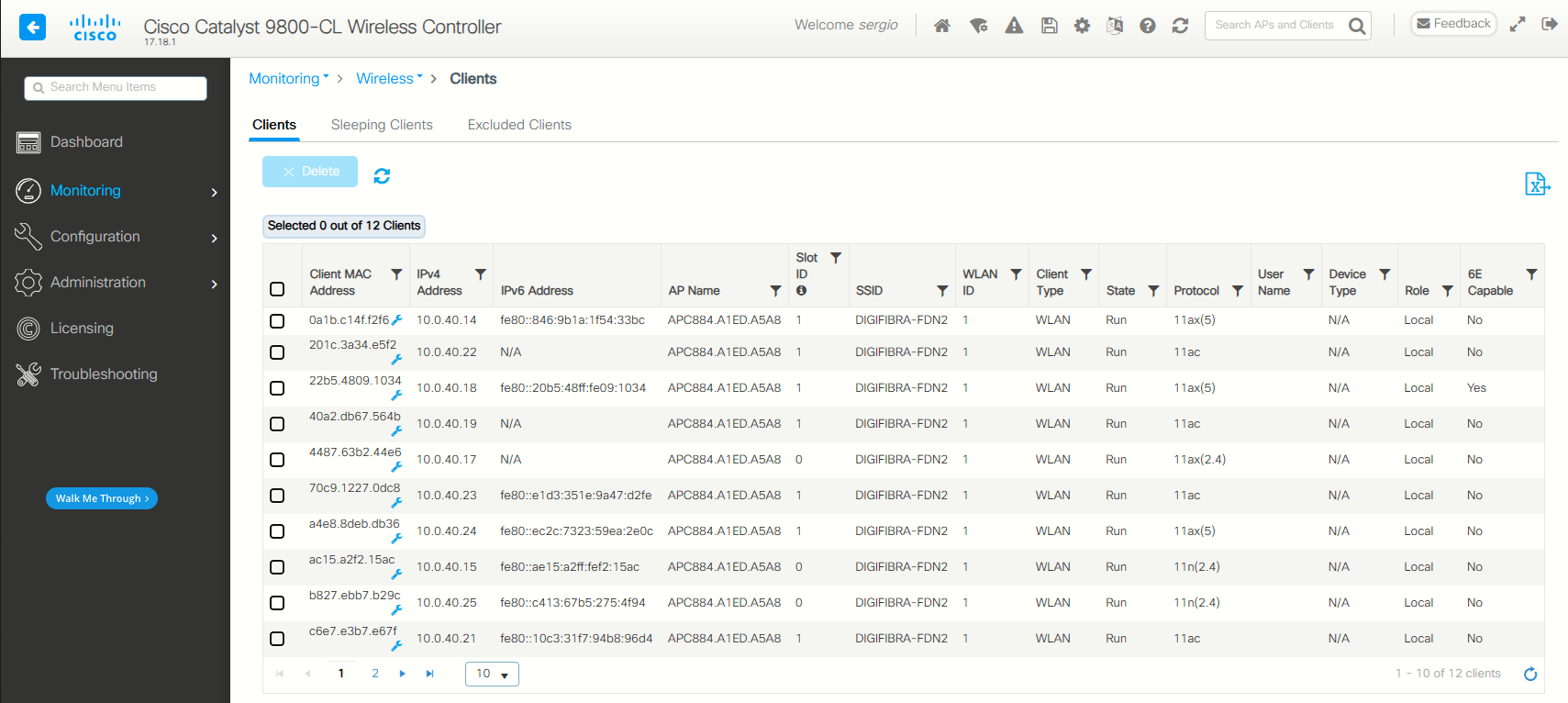
All the clients have an IP on the USERS network:
I will further tune this whole configuration in the future.
Sources
Configure DHCP OPTION 43 for Lightweight Access Points
https://www.cisco.com/c/en/us/support/docs/wireless-mobility/wireless-lan-wlan/97066-dhcp-option-43-00.html#toc-hId-686659161
Overview of Cisco Catalyst 9800 Wireless Controller for Cloud
https://www.cisco.com/c/en/us/td/docs/wireless/controller/9800/9800-cloud/installation/b-c9800-cl-install-guide/controller_overview.html
9800-CL WLC - No valid AP manager found for controller
https://community.cisco.com/t5/wireless/9800-cl-wlc-no-valid-ap-manager-found-for-controller/td-p/3985577
AP does not connect to the controller
https://community.cisco.com/t5/wireless/ap-does-not-connect-to-the-controller/td-p/4529464
Understand Certificate and Trustpoint Types on the 9800 WLC
https://www.cisco.com/c/en/us/support/docs/wireless/catalyst-9800-series-wireless-controllers/221047-understand-certificate-and-trustpoint-ty.html
Cisco Catalyst 9800 Series Wireless Controller Software Configuration Guide, Cisco IOS XE 17.18.x
https://www.cisco.com/c/en/us/td/docs/wireless/controller/9800/17-18/config-guide/b_wl_17_18_cg/m_overview_controller.html
Setup your LAB with Catalyst 9800-CL
https://gblogs.cisco.com/ch-tech/setup-your-lab-with-catalyst-9800-cl/
Cisco Catalyst 9120AX Series Access Point Getting Started Guide
https://www.cisco.com/c/en/us/td/docs/wireless/access_point/9120ax/quick/guide/ap9120ax-getstart.html
AP Connectivity to Controller
https://www.cisco.com/c/en/us/td/docs/wireless/controller/8-5/config-guide/b_cg85/ap_connectivity_to_cisco_wlc.html