
Proxmox VE 9.0 - Installation
Proxmox VE is based on Debian.
The installer will guide you through the setup, allowing you to partition the local disk(s), apply basic system configurations (for example, timezone, language, network) and install all required packages.
Installing with the provided ISO is the recommended method.
Prepare Installation Media
Download the installer ISO image from: https://www.proxmox.com/en/downloads/proxmox-virtual-environment/iso
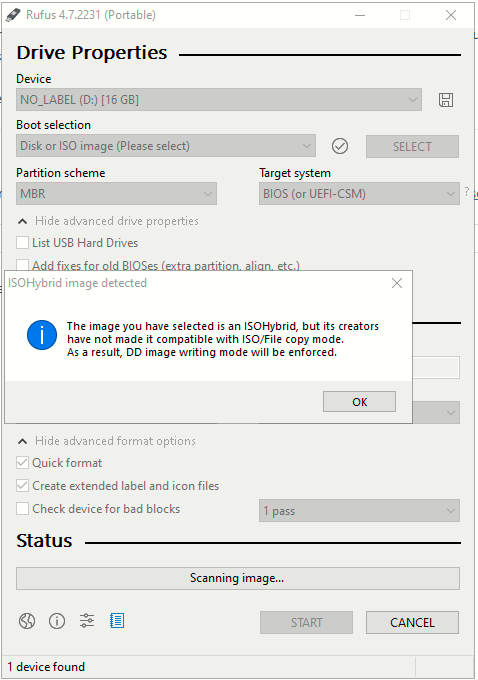
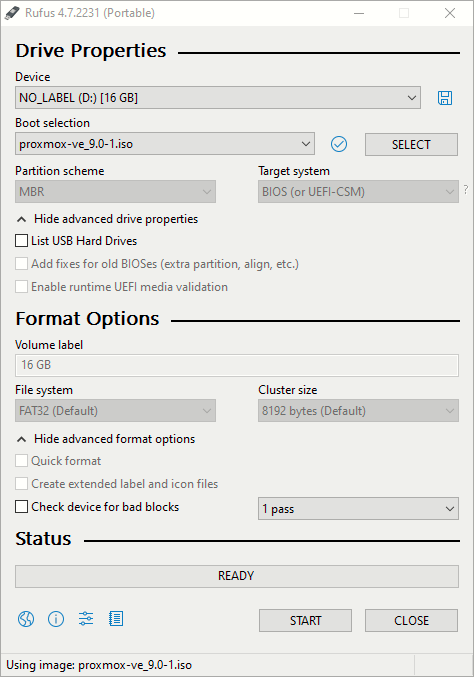
proxmox-ve_9.0-1.isoI will use Rufus to burn the image to an USB stick:
|
|
|
Using the Proxmox VE Installer
The BIOS of the Topton is accessed and the USB is moved to first option in the Boot menu. After this changed is made and saved, the Topton is rebooted onto the Proxmox VE Installer:

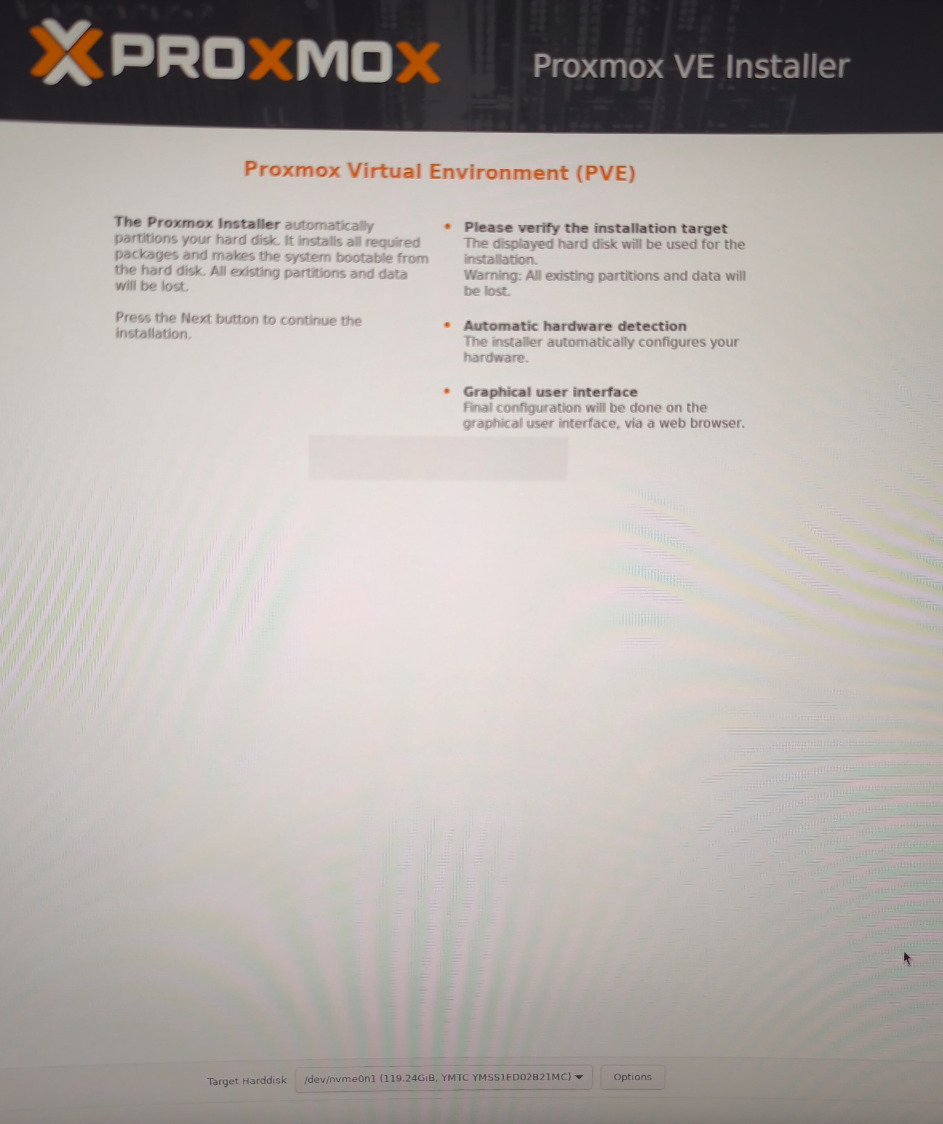
The option Install Proxmox VE (Graphical) is selected.
Device where to install Proxmox is selected (the 128GB M.2 NVME in my case). The disk will be formatted.
Management network configuration options:
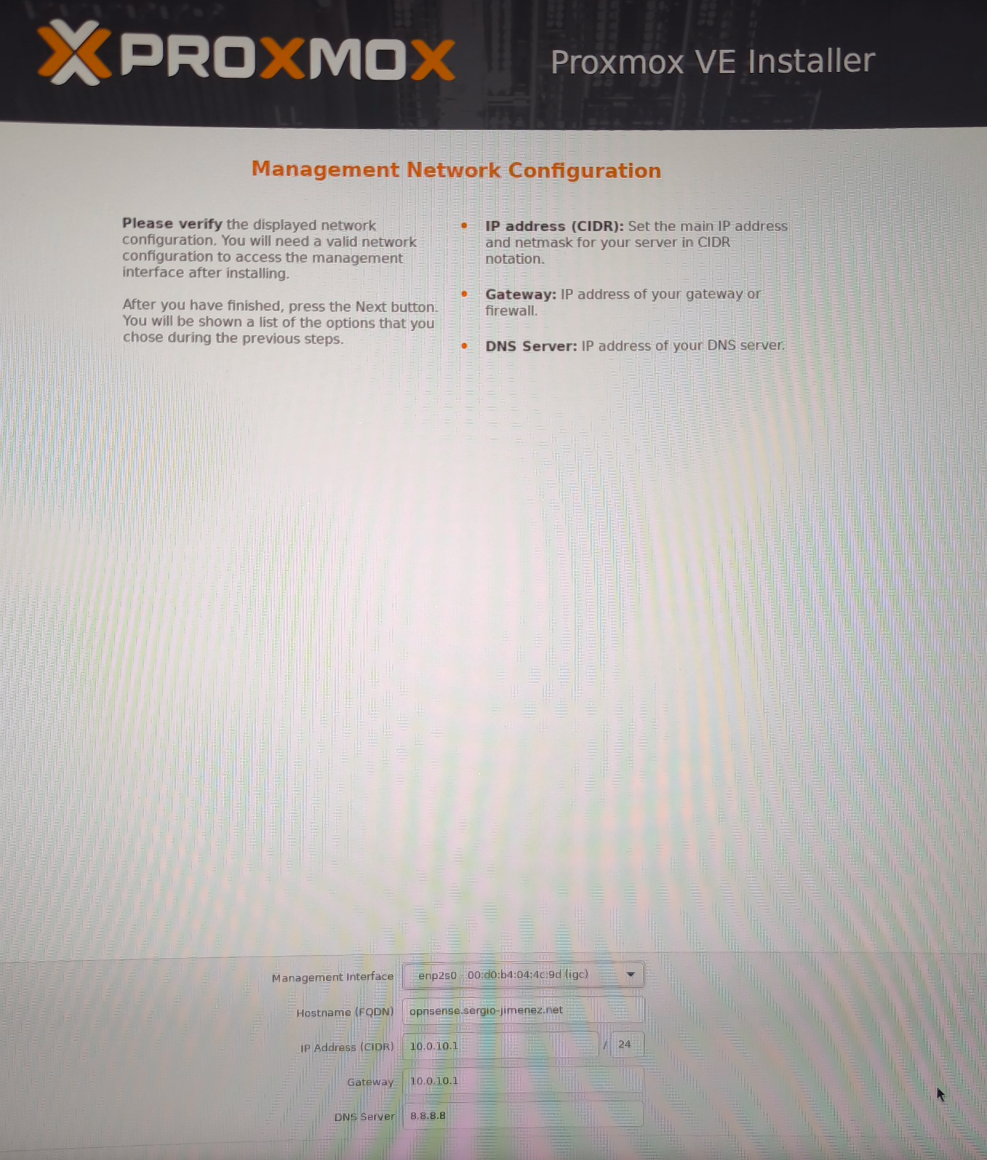
I omitted some simple configuraions like timezone and email (for notifications). After the wizard is complete, a summary page is shown and the device is automatically rebooted after clicking "Finish".
Accessing the Management Interface Post-Installation
After a successful installation and reboot of the system you can use the Proxmox VE web interface for further configuration.
I can access the GUI at http://10.0.10.1:8006
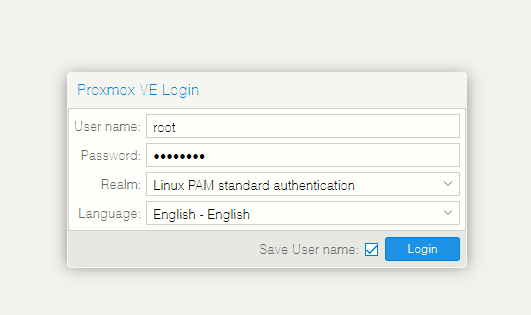
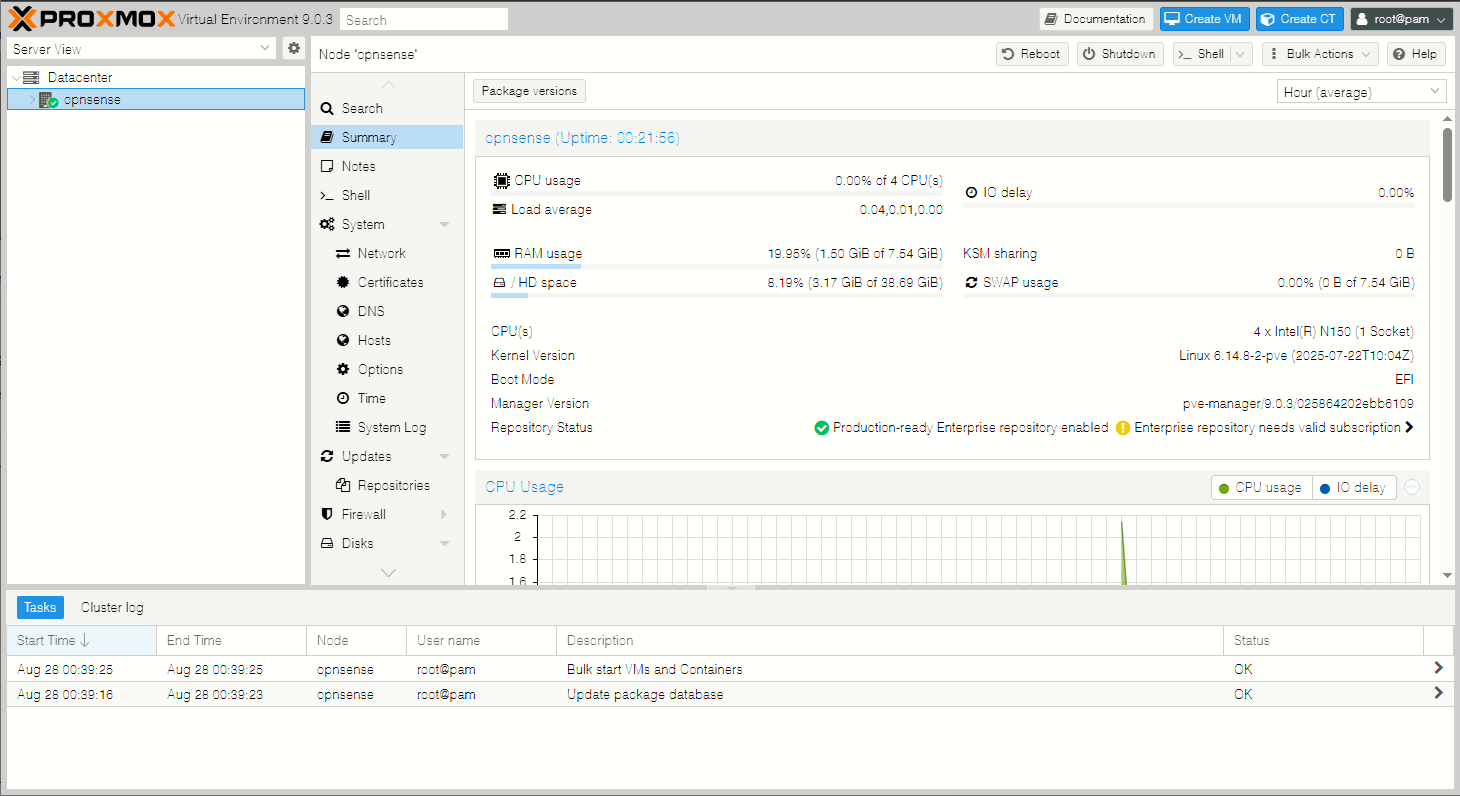
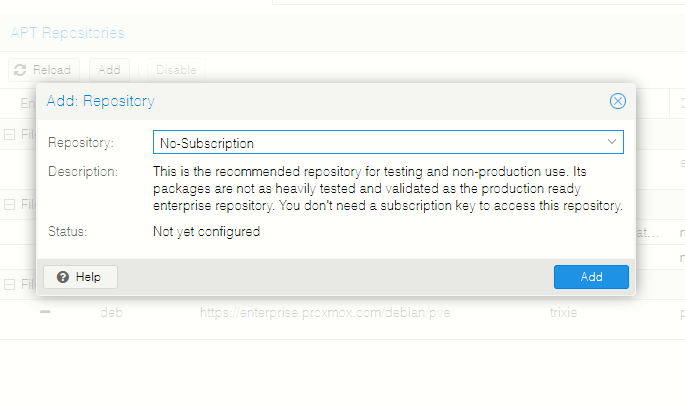
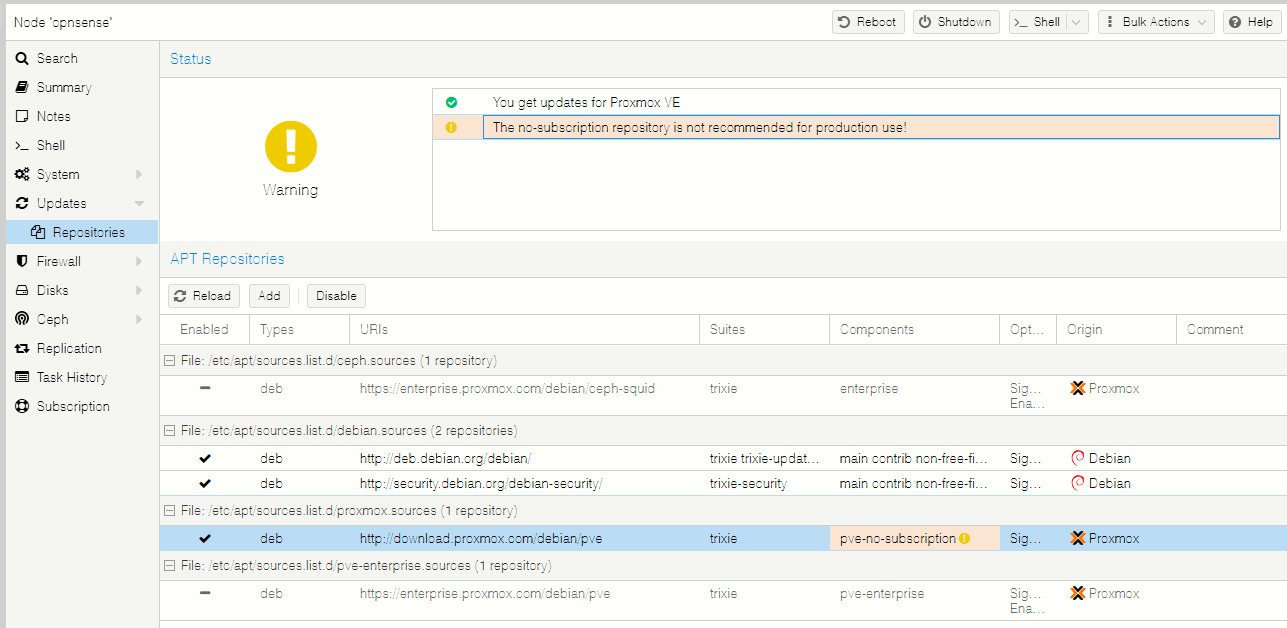
First thing I want to do after accessing the GUI is configuring the No-Subscription repository under opnsense > Updates > Repositories:
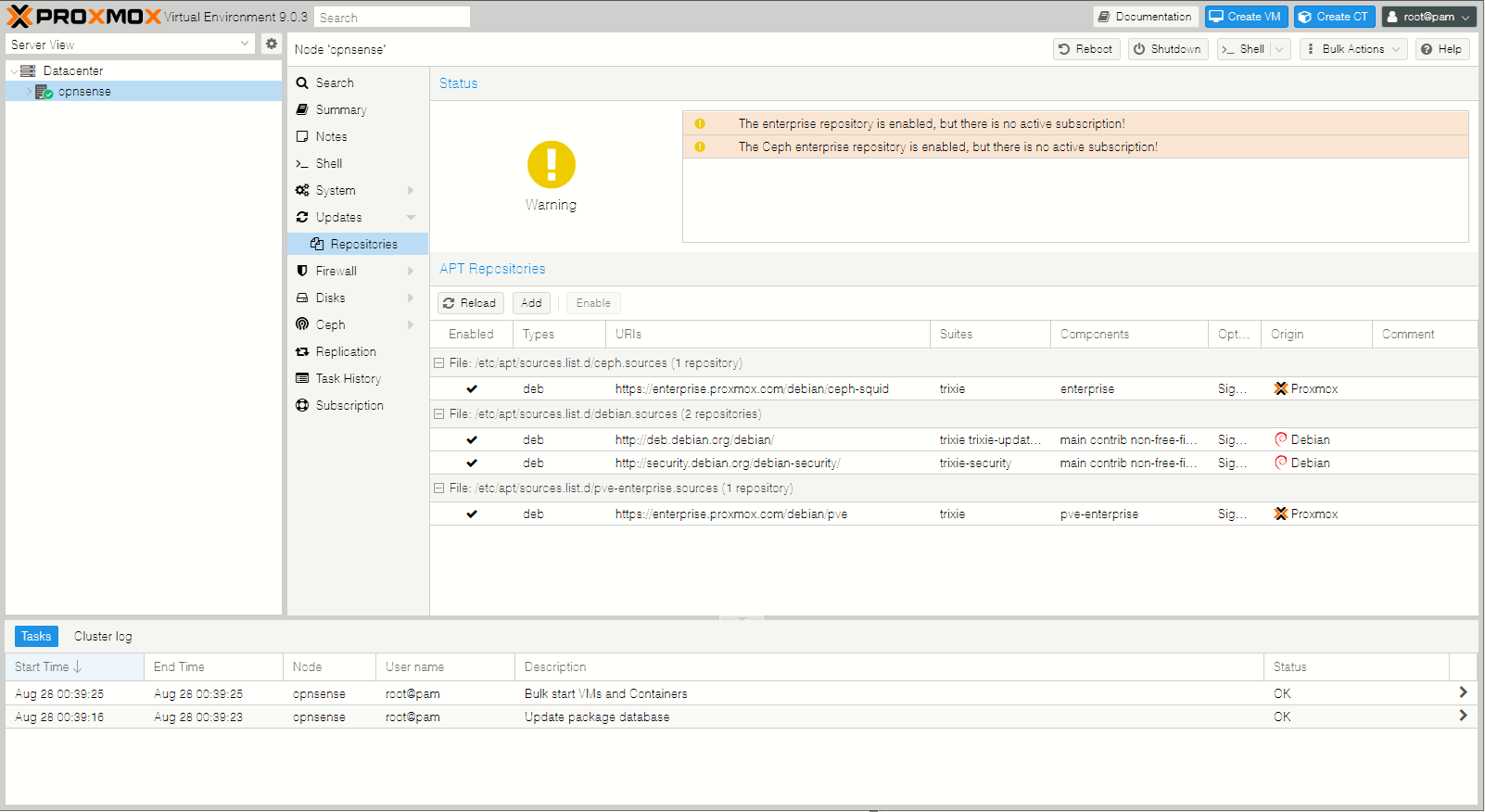
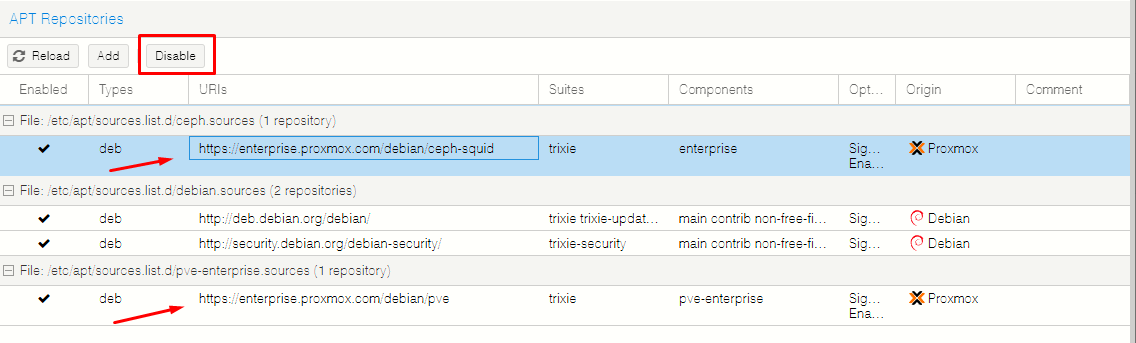
I will click on the enterprise and pve-enterprise repositories and disable both, then I will add the No-Subscription repository /etc/apt/sources.list.d/proxmox.sources
Setting Dark Mode
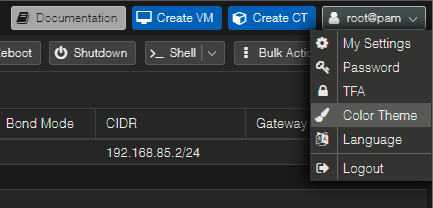
Color theme can be configured here:
Hostname Change
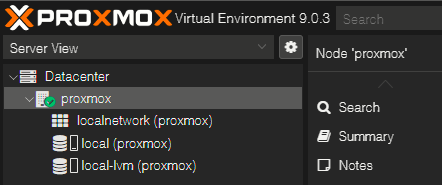
As you can see from the previous images of the installation, I incorrectly set the hostname to opnsense. This will be changed to proxmox.
I need to edit the /etc/hostname and /etc/hosts, change all the 'opnsense' to 'proxmox' and then reboot to apply. Nothing else needed.
Adding Sensor Readings at the Dashboard
apt-get install lm-sensors

sensors-detect

wget https://raw.githubusercontent.com/Meliox/PVE-mods/main/pve-mod-gui-sensors.sh

bash pve-mod-gui-sensors.sh install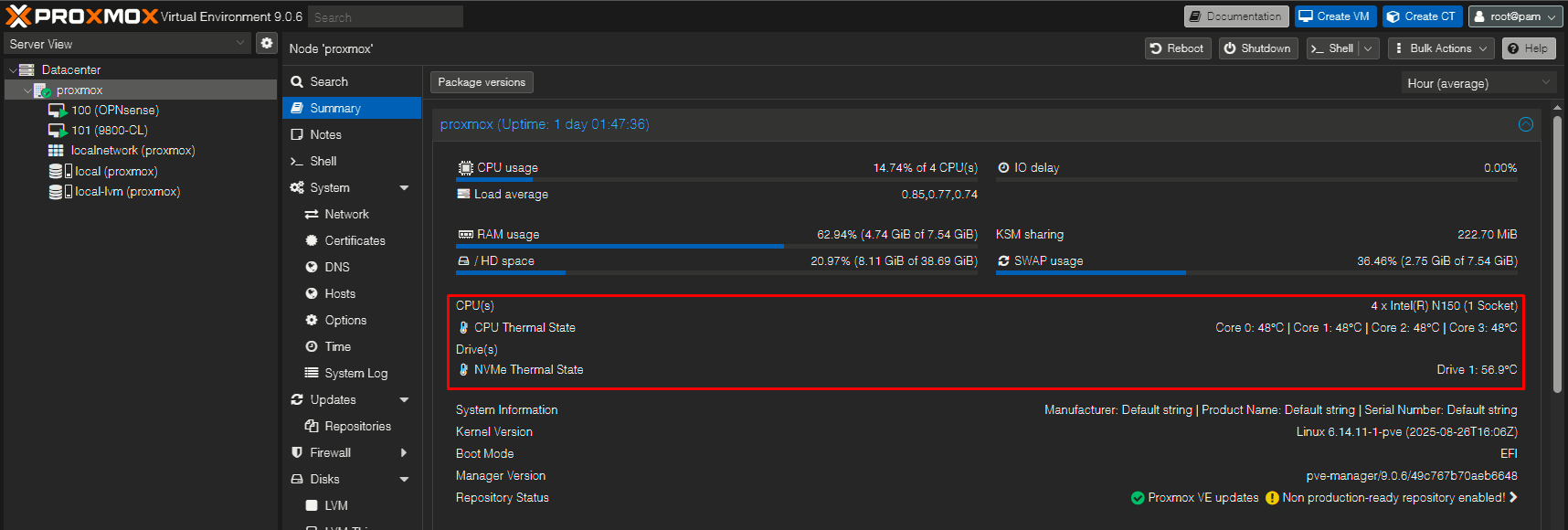
Sources
Proxmox VE Administration Guide
https://pve.proxmox.com/pve-docs/pve-admin-guide.html
Easiest way to install GUI for CPU temperature
https://www.reddit.com/r/Proxmox/comments/1ic536z/easiest_way_to_install_gui_for_cpu_temperature/