
9800-CL - Installation on Proxmox
Introduction
The Cisco Catalyst 9800-CL Cloud Wireless Controller is a virtual wireless controller that is deployed on a Cisco Unified Computing System (UCS) server as a virtual machine (VM) instance on a Linux-based 64-bit guest operating system. The supported private cloud providers are VMware ESXi, KVM, Hyper-V, and Cisco NFVIS (on ENCS).
The controller supports a subset of Cisco IOS XE software features and technologies, providing Cisco IOS XE features on a virtualization platform. When the controller is deployed as a VM, the Cisco IOS XE software functions as if it were deployed on a traditional Cisco hardware platform.
Ultra-Low Profile
From Cisco IOS XE 17.12.3 onwards, the Cisco Catalyst 9800 Wireless Controller for Cloud - Ultra-Low Profile is introduced as the low memory variant of the Cisco Catalyst 9800-CL Cloud Wireless Controller. This is what I will use.
This profile has the following limitations
-
Local mode AP deployment is not supported on the Cisco Catalyst 9800-CL Ultra-Low Profile. Only FlexConnect Local Switching is supported.
-
High Availability is not supported although configuration options will still be available on the controller.
|
Model Configuration |
Ultra-Low |
|---|---|
|
Minimum number of vCPUs (Hyperthreading is not supported) |
2 |
|
Minimum CPU Allocation (MHz) |
2000 |
|
Minimum Memory (GB) |
6 |
|
Required Storage (GB) |
16 |
|
Virtual NICs (vNIC) (*) 3rd NIC for High Availability (#) High Availability is not supported even though the configuration options are available. |
2/(3)*# |
Installing the Controller in Proxmox
Begin by downloading the ISO from: https://software.cisco.com/download/home/286322605/type/282046477/release/IOSXE-17.18.1
As of time of this writing, the latest version available is 17.18.1 (ED) and this is the one I will using at the lab.
Upload the ISO to Proxmox: Datacenter → <node_name> → local (storage) → ISO Images → Upload
Provision the VM in Proxmox
Open the Create VM wizard and configure the VM with the following options:
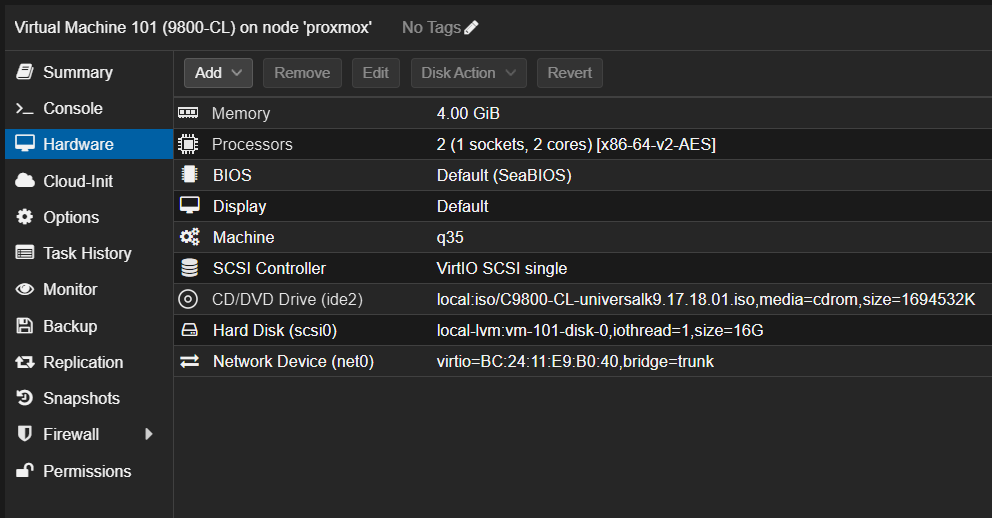
- BIOS: Default (SeaBIOS)
- Machine: q35
- SCSI Controller: VirtIO SCSI single
- Hard Disk: 16GB
- Processors: 2 (Ultra-Low Profile)
- RAM: 4GB (Ultra-Low Profile) - beware this is below Cisco recommended RAM for this profile (6GB)!
- Network Device: trunk (from ETH3 Topton port, to TP-LINK port 6). Firewall unchecked.
- CD/DVD Drive: C9800-CL-universalk9.17.18.01.iso (better to attach it after VM creation)
Using the wizard and webUI to initially configure the WLC
Let the IOS-XE software boot process finish:
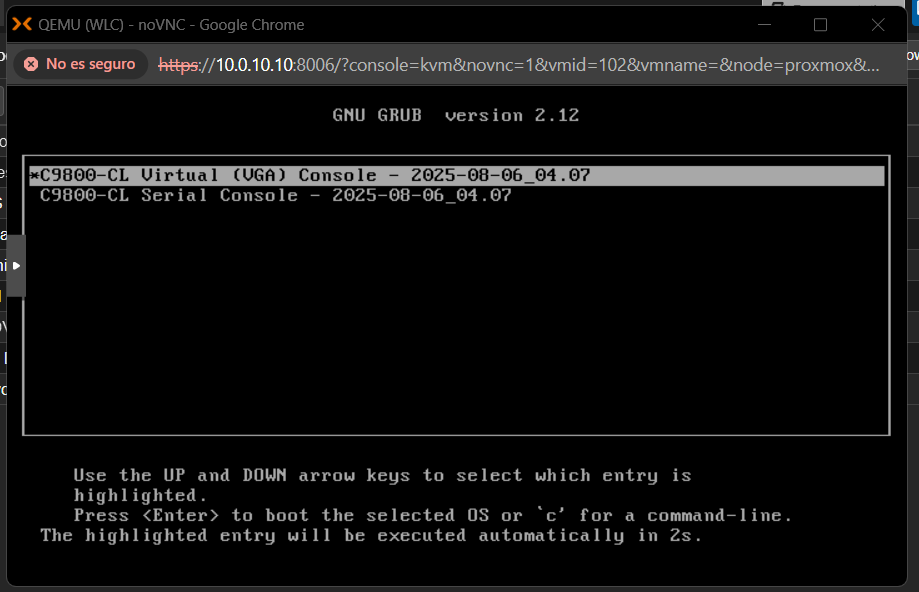
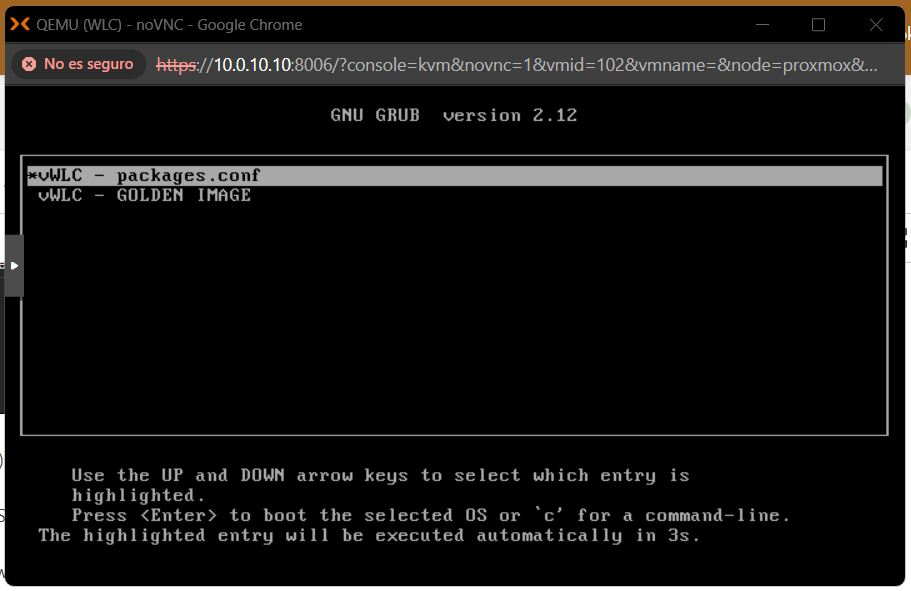
Then, after the controller finished booting up, autoinstall must be terminated (by pressing any key).
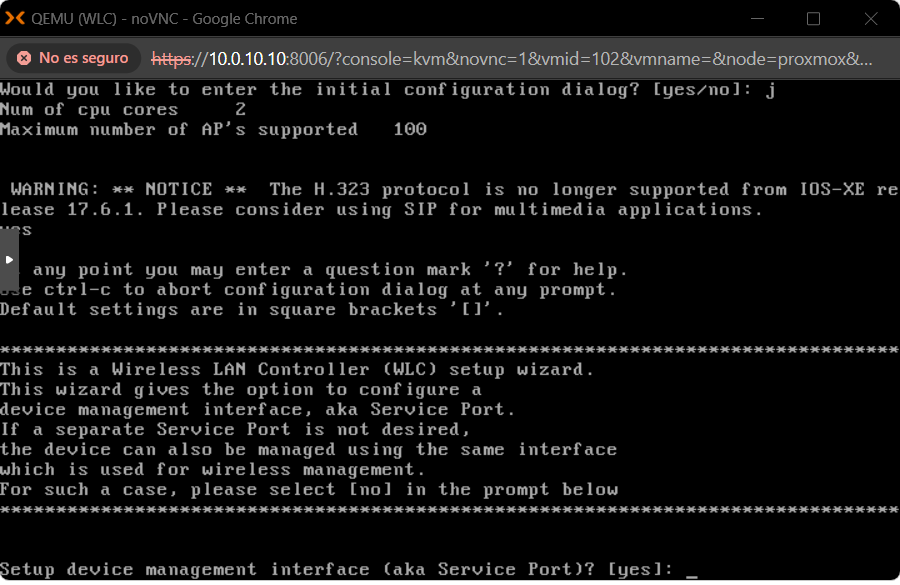
The WLC will then ask if you want to enter the initial setup. If you enter "Yes", the WLC setup wizard appears. Here I will fill the prompts as follow:
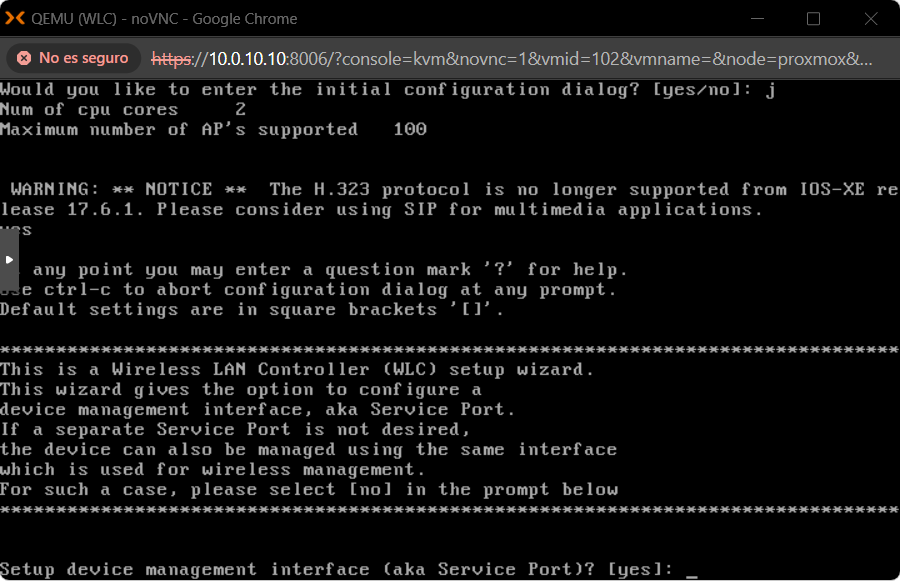
- Setup device management interface (aka Service Port)?: yes
- GigabitEthernet1
- VLAN 10
- IP address: 10.0.10.3/24
- Configure IPv6 address: no
- Configure static route: yes
- Destination: 0.0.0.0
- Mask: 0.0.0.0
- Forwarding router IP: 10.0.10.1
- Management username: <username>
- Password: <password> and reenter
Basic management setup will be complete after this, and at this point, it will be possible to save the above and continue wireless setup using the webUI. For this I will answer no at the "Would you like to continue with the wireless setup?" prompt.
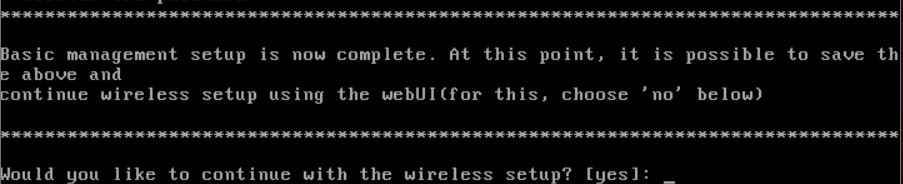
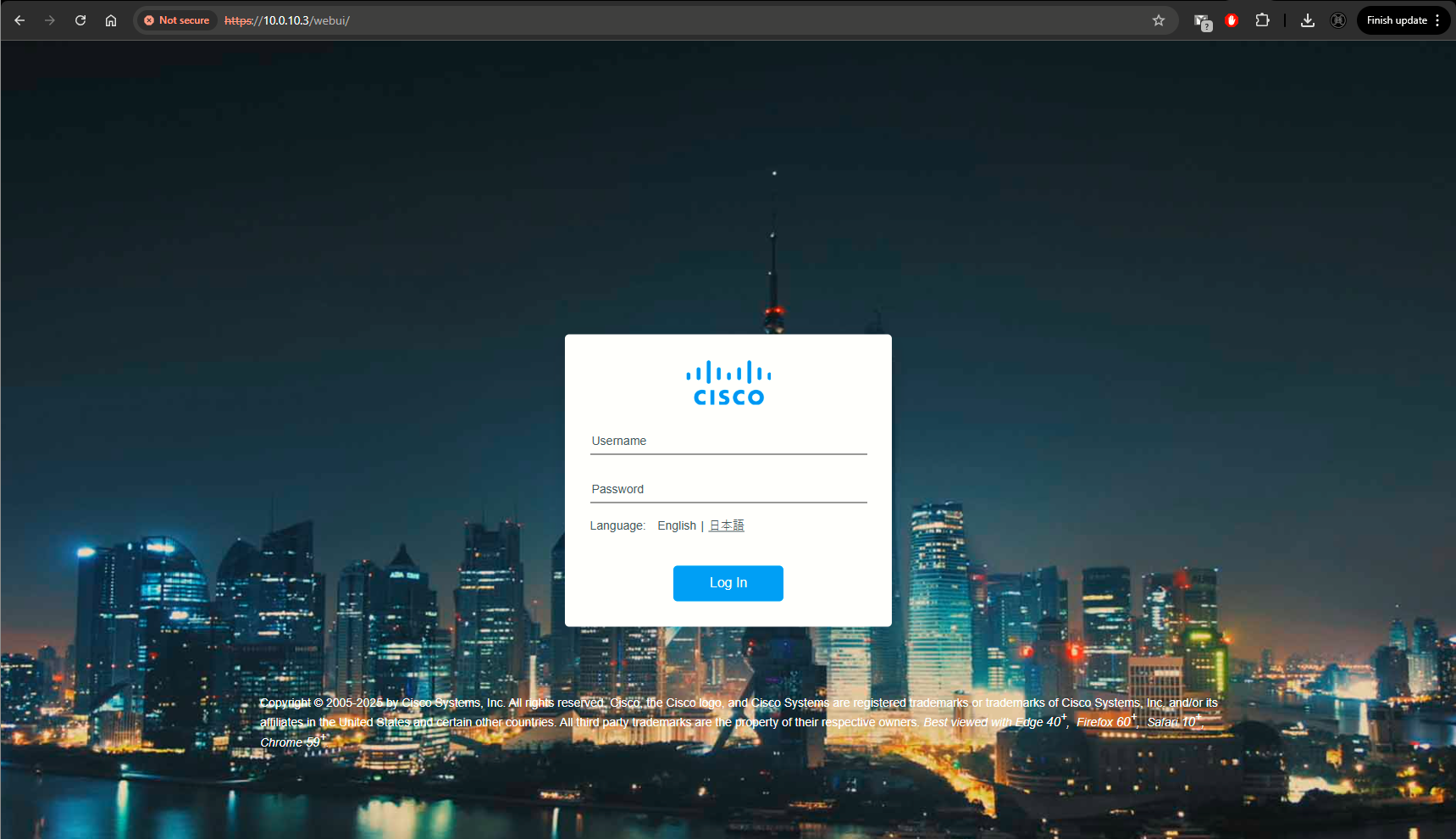
The config will be presented, after which I would press 2 in order to save config. Afer this, I can access the webUI at https://10.0.10.3
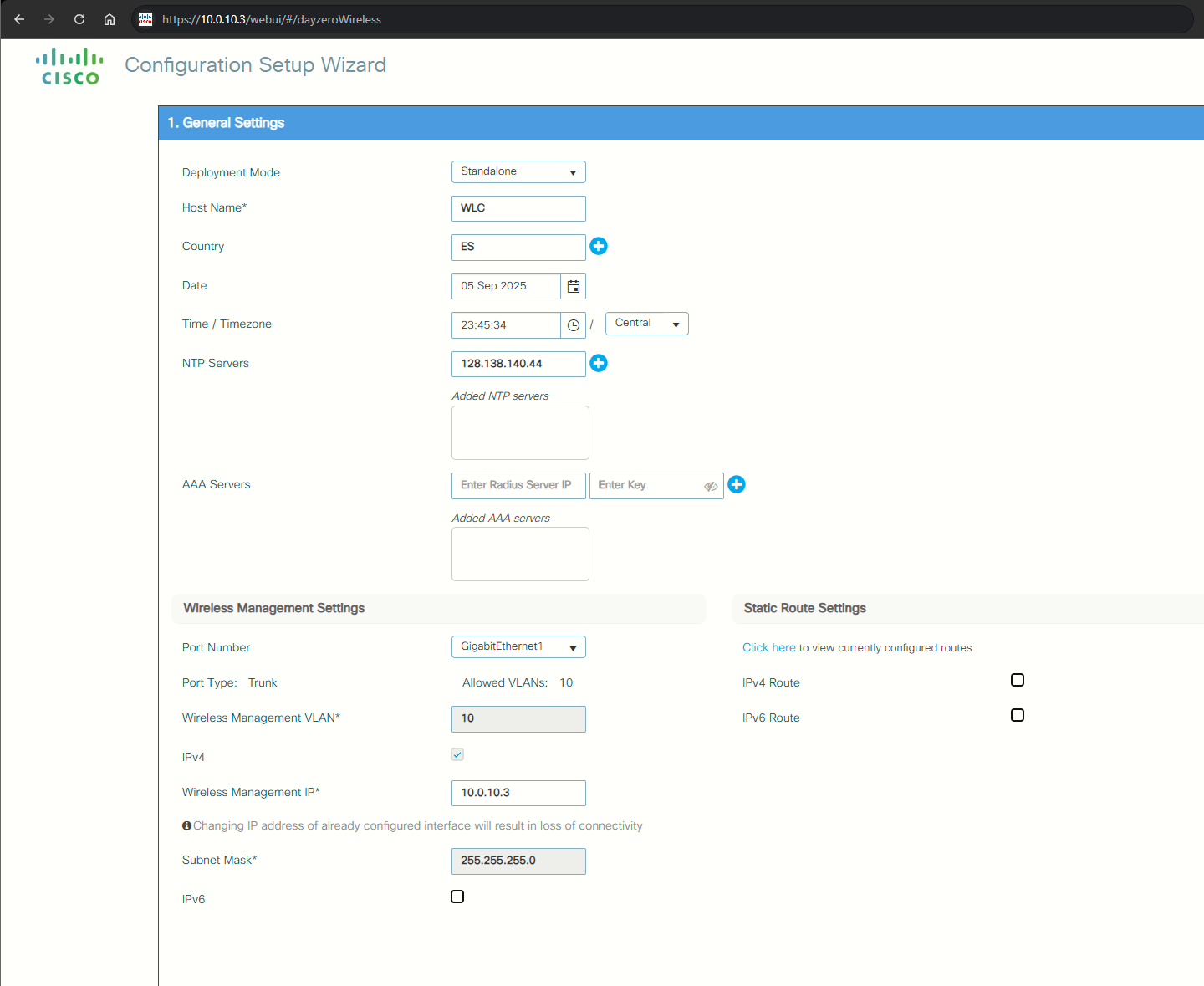
First step is to configure General Settings. I want to make sure that:
- Deployment Mode = Standalone
- Country: ES (in my case)
- NTP Server: 128.138.140.44 (time.nist.gov)
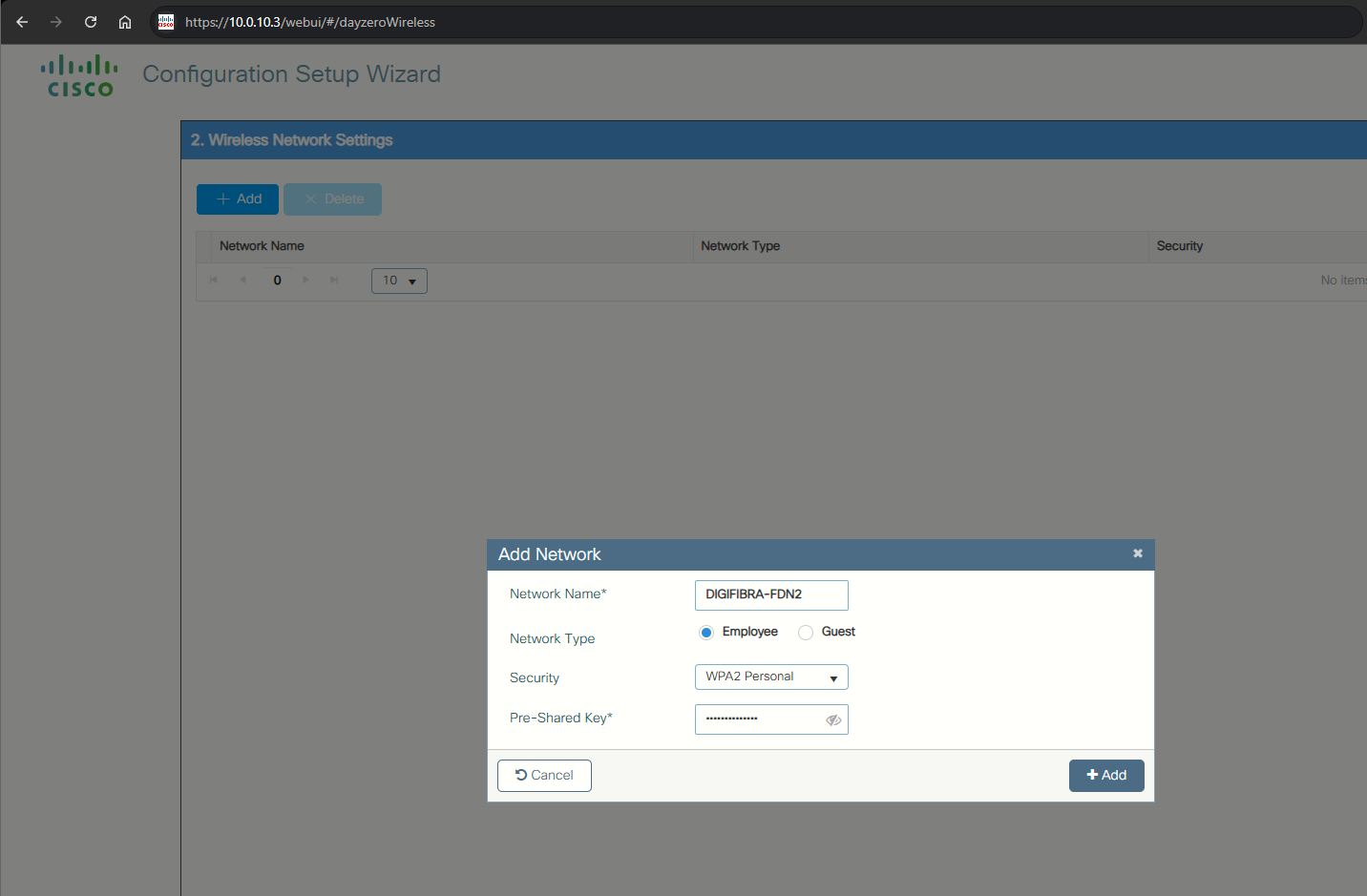
Second step is to create a WLAN. I will Add a network, select Employee as type, and configure WPA2-Personal security.
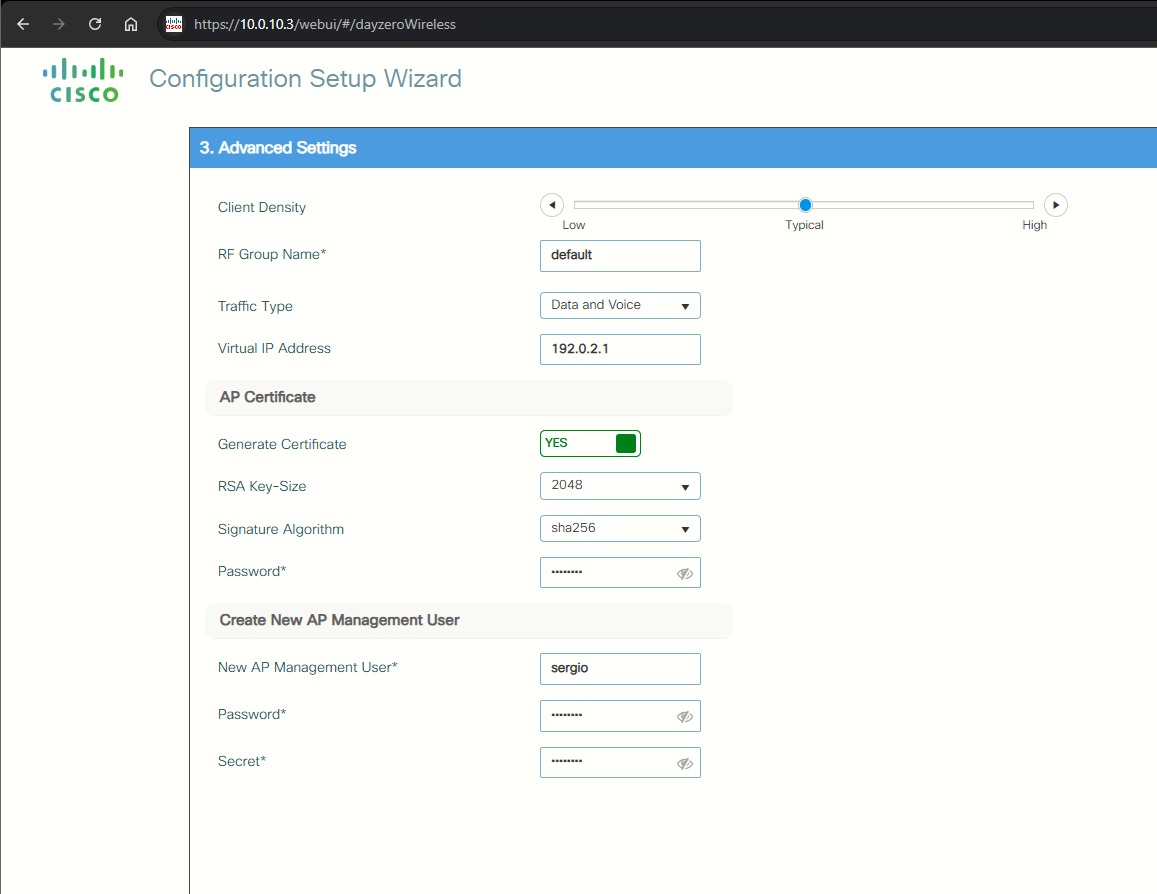
Final step, Advanced Settings, are some RF and AP-related settings, here I will make sure:
- Everything is kept as default for now. I will change the Signature Algorithm of the AP Certificate to sha256 and enter the password.
- Also, I want to enter the data for the New AP Management User
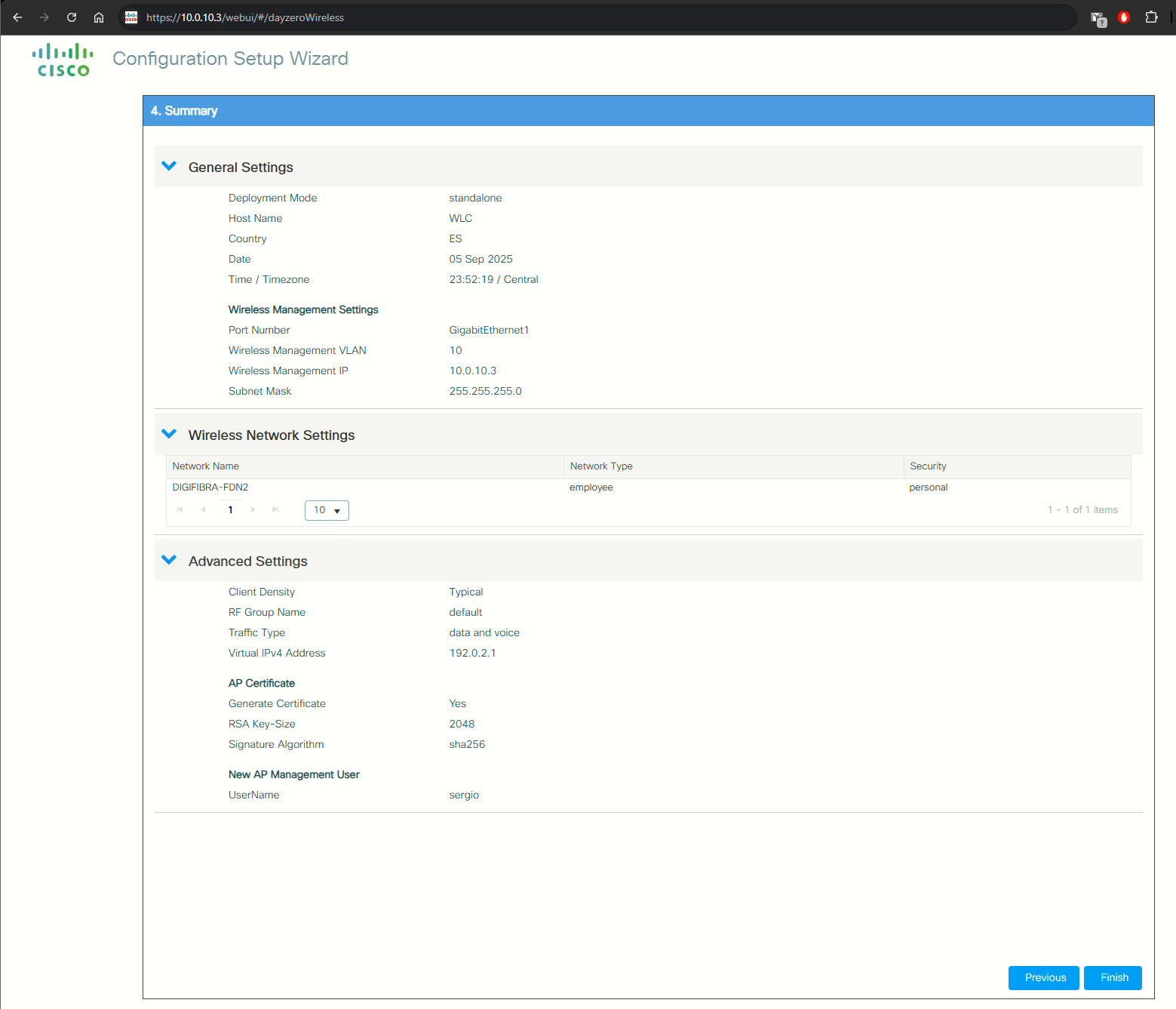
The summary page will show, I will just click Finish to apply the configuration.
Sources
Software Download - Cisco Systems
https://software.cisco.com/download/home/286322605/type/282046477/release/IOSXE-17.18.1
Cisco Catalyst 9800 Wireless Controller Series Web UI Deployment Guide
https://www.cisco.com/c/dam/en/us/td/docs/wireless/controller/9800/17-7/deployment-guide/c9800-webui-dg.pdf