OpenWRT - Using a 4G USB Modem as a WWAN for Internet Access (Pi 3 Model B)
Introduction
On the following page:
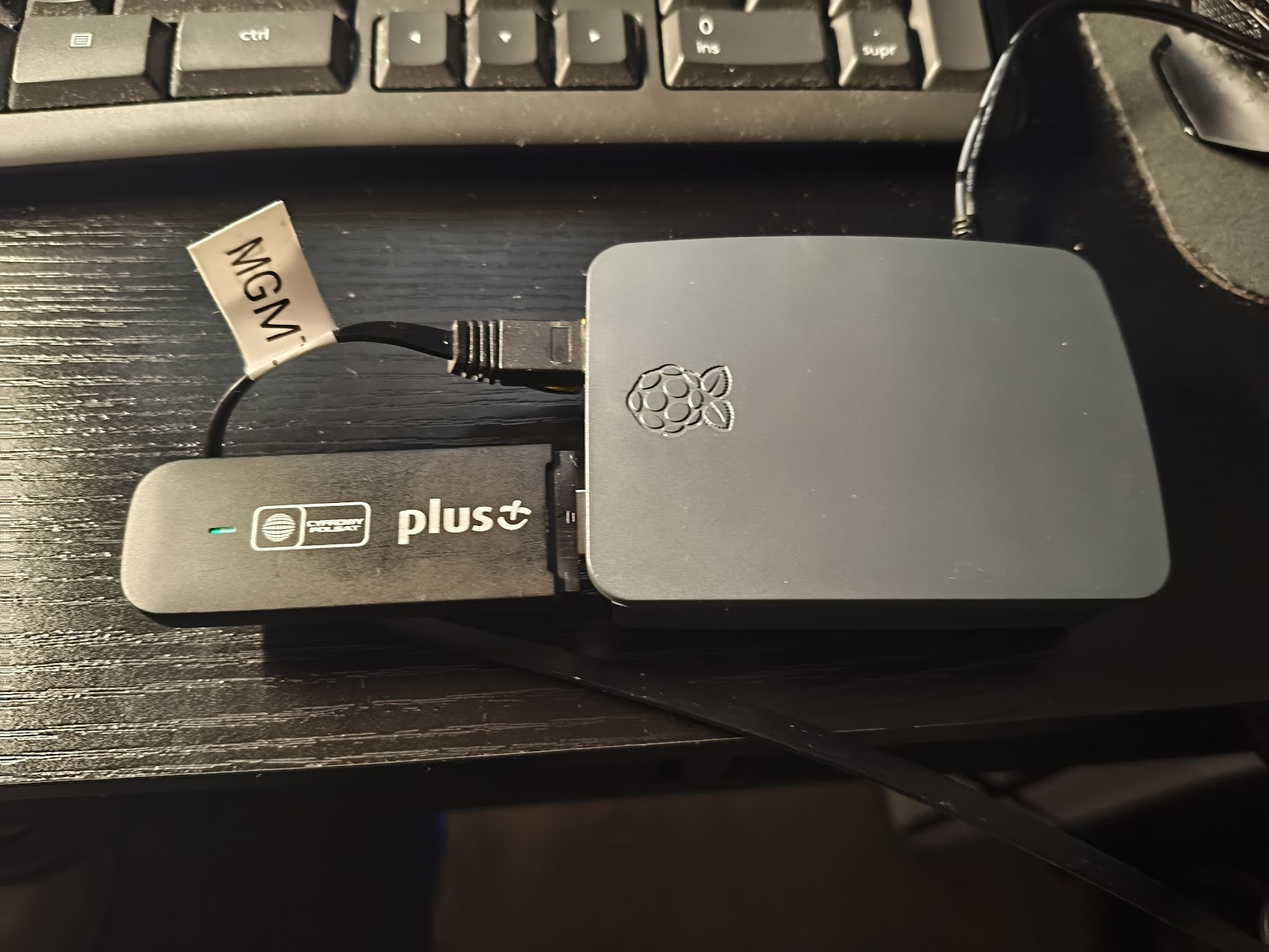
I explained how to prepare a Huawei E3372s-153 modem to work in stick mode, which means it can be used on OpenWRT installed on a Pi 3 Model B (i.e).
On this page I will explain how can we make this 4G modem work on a fresh OpenWRT install on a Pi 3 Model B, and use it as a WWAN serving Ethernet or WiFi clients connected to the OpenWRT LAN.
USB CDC-NCM (Network Control Model) is an USB device class for Ethernet over USB function (alternative to the older and simpler CDC-ECM (Ethernet Control Model).
Connecting to OpenWRT via SSH
We'll want to connect to OpenWRT via SSH in order to install the required components:
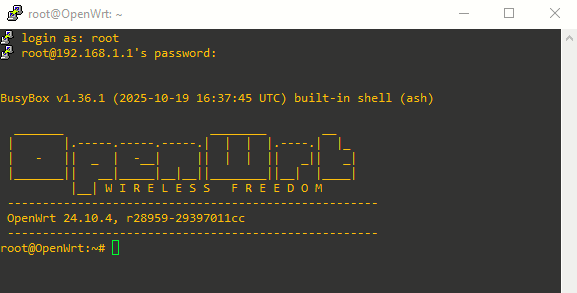
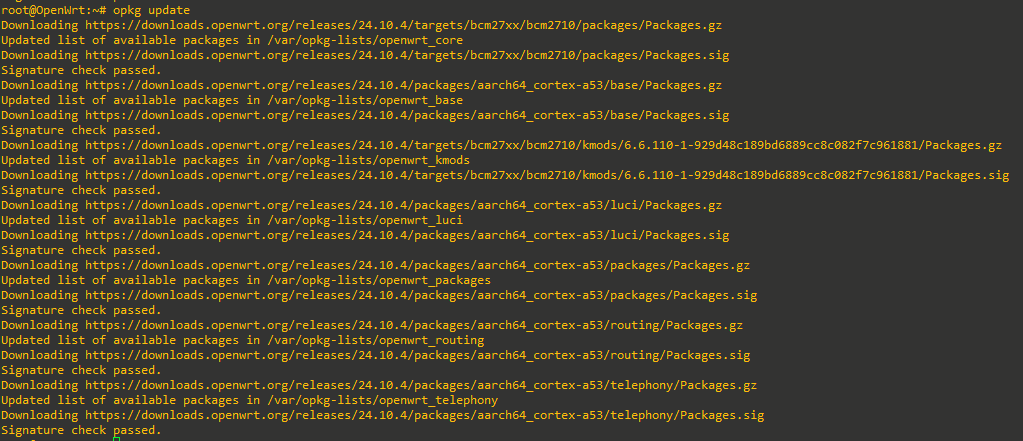
To update the list of available packages: opkg update
Installing the Required Packages
To configure a Huawei E3372s in NCM (Network Control Model) mode on OpenWrt, the following packages are required. This setup is preferred over legacy PPP because it allows the modem to function as a high-speed virtual Ethernet adapter, bypassing the overhead and speed limitations of serial emulation.
usb-modeswitch: Most 4G modems initially identify as a virtual CD-ROM containing Windows drivers (ZeroCD). This utility sends a specific "magic packet" to the device to switch its USB ID from storage mode to modem mode. Although I converted the E3372s-153 from HiLink to stick mode, many Huawei modems still initialize a tiny virtual CD-ROM partition upon a cold boot. This is a hardware-level behavior designed to present drivers to a host OS. usb-modeswitch acts as a watchdog. If it detects the storage ID, it immediately kicks the modem into its functional NCM/Serial mode.-
luci-proto-ncm: This package adds the "NCM" protocol option to the LuCI WebUI dropdown menu. Without it, the system might recognize the hardware, but you wouldn't be able to configure the APN or modem device settings through the web browser. kmod-usb-net-huawei-cdc-ncm: This is the core kernel module for the Huawei-specific implementation of the CDC-NCM protocol. It creates the actual network interface (typicallywwan0) used for high-speed data transfer.-
kmod-usb-serial-option: Provides the driver for the serial interfaces (e.g.,/dev/ttyUSB0). While the data flows through the NCM interface, these serial ports are still necessary for sending AT commands to the modem for initialization, signal monitoring, and APN configuration.
root@OpenWrt:~# opkg install luci-proto-ncm kmod-usb-net-huawei-cdc-ncm kmod-usb-serial-option usb-modeswitch
Installing luci-proto-ncm (26.129.30423~4361020) to root...
Downloading https://downloads.openwrt.org/releases/24.10.4/packages/aarch64_cortex-a53/luci/luci-proto-ncm_26.129.30423~4361020_all.ipk
Installing chat (2.5.1-r1) to root...
Downloading https://downloads.openwrt.org/releases/24.10.4/packages/aarch64_cortex-a53/base/chat_2.5.1-r1_aarch64_cortex-a53.ipk
Installing comgt (0.32-r36) to root...
Downloading https://downloads.openwrt.org/releases/24.10.4/targets/bcm27xx/bcm2710/packages/comgt_0.32-r36_aarch64_cortex-a53.ipk
Installing wwan (2019.04.29-r6) to root...
Downloading https://downloads.openwrt.org/releases/24.10.4/packages/aarch64_cortex-a53/base/wwan_2019.04.29-r6_aarch64_cortex-a53.ipk
Installing kmod-usb-serial (6.6.110-r1) to root...
Downloading https://downloads.openwrt.org/releases/24.10.4/targets/bcm27xx/bcm2710/kmods/6.6.110-1-929d48c189bd6889cc8c082f7c961881/kmod-usb-serial_6.6.110-r1_aarch64_cortex-a53.ipk
Installing kmod-usb-serial-wwan (6.6.110-r1) to root...
Downloading https://downloads.openwrt.org/releases/24.10.4/targets/bcm27xx/bcm2710/kmods/6.6.110-1-929d48c189bd6889cc8c082f7c961881/kmod-usb-serial-wwan_6.6.110-r1_aarch64_cortex-a53.ipk
Installing kmod-usb-serial-option (6.6.110-r1) to root...
Downloading https://downloads.openwrt.org/releases/24.10.4/targets/bcm27xx/bcm2710/kmods/6.6.110-1-929d48c189bd6889cc8c082f7c961881/kmod-usb-serial-option_6.6.110-r1_aarch64_cortex-a53.ipk
Installing kmod-mii (6.6.110-r1) to root...
Downloading https://downloads.openwrt.org/releases/24.10.4/targets/bcm27xx/bcm2710/kmods/6.6.110-1-929d48c189bd6889cc8c082f7c961881/kmod-mii_6.6.110-r1_aarch64_cortex-a53.ipk
Installing kmod-usb-net (6.6.110-r1) to root...
Downloading https://downloads.openwrt.org/releases/24.10.4/targets/bcm27xx/bcm2710/kmods/6.6.110-1-929d48c189bd6889cc8c082f7c961881/kmod-usb-net_6.6.110-r1_aarch64_cortex-a53.ipk
Installing kmod-usb-net-cdc-ether (6.6.110-r1) to root...
Downloading https://downloads.openwrt.org/releases/24.10.4/targets/bcm27xx/bcm2710/kmods/6.6.110-1-929d48c189bd6889cc8c082f7c961881/kmod-usb-net-cdc-ether_6.6.110-r1_aarch64_cortex-a53.ipk
Installing kmod-usb-net-cdc-ncm (6.6.110-r1) to root...
Downloading https://downloads.openwrt.org/releases/24.10.4/targets/bcm27xx/bcm2710/kmods/6.6.110-1-929d48c189bd6889cc8c082f7c961881/kmod-usb-net-cdc-ncm_6.6.110-r1_aarch64_cortex-a53.ipk
Installing kmod-usb-wdm (6.6.110-r1) to root...
Downloading https://downloads.openwrt.org/releases/24.10.4/targets/bcm27xx/bcm2710/kmods/6.6.110-1-929d48c189bd6889cc8c082f7c961881/kmod-usb-wdm_6.6.110-r1_aarch64_cortex-a53.ipk
Installing kmod-usb-net-huawei-cdc-ncm (6.6.110-r1) to root...
Downloading https://downloads.openwrt.org/releases/24.10.4/targets/bcm27xx/bcm2710/kmods/6.6.110-1-929d48c189bd6889cc8c082f7c961881/kmod-usb-net-huawei-cdc-ncm_6.6.110-r1_aarch64_cortex-a53.ipk
Installing comgt-ncm (0.32-r36) to root...
Downloading https://downloads.openwrt.org/releases/24.10.4/targets/bcm27xx/bcm2710/packages/comgt-ncm_0.32-r36_aarch64_cortex-a53.ipk
Package kmod-usb-net-huawei-cdc-ncm (6.6.110-r1) installed in root is up to date.
Package kmod-usb-serial-option (6.6.110-r1) installed in root is up to date.
Installing usb-modeswitch (2022.02.24~3c8595a4-r1) to root...
Downloading https://downloads.openwrt.org/releases/24.10.4/packages/aarch64_cortex-a53/base/usb-modeswitch_2022.02.24~3c8595a4-r1_aarch64_cortex-a53.ipk
Installing libatomic1 (13.3.0-r4) to root...
Downloading https://downloads.openwrt.org/releases/24.10.4/targets/bcm27xx/bcm2710/packages/libatomic1_13.3.0-r4_aarch64_cortex-a53.ipk
Installing libusb-1.0-0 (1.0.27-r1) to root...
Downloading https://downloads.openwrt.org/releases/24.10.4/packages/aarch64_cortex-a53/base/libusb-1.0-0_1.0.27-r1_aarch64_cortex-a53.ipk
Configuring chat.
Configuring kmod-usb-wdm.
Configuring libatomic1.
Configuring libusb-1.0-0.
Configuring kmod-mii.
Configuring kmod-usb-net.
Configuring kmod-usb-net-cdc-ether.
Configuring kmod-usb-net-cdc-ncm.
Configuring kmod-usb-net-huawei-cdc-ncm.
Configuring kmod-usb-serial.
Configuring kmod-usb-serial-wwan.
Configuring kmod-usb-serial-option.
Configuring comgt.
Configuring usb-modeswitch.
Configuring wwan.
Configuring comgt-ncm.
Configuring luci-proto-ncm.
After all the required packages are installed we'll restart the network services (we'll momentarily lost connection via SSH and to the WebUI), using the command /etc/init.d/network restart
Attaching the USB Modem and Verification
Checking upon connecting the modem to the Pi:
root@OpenWrt:~# dmesg | grep -E "huawei|cdc_ncm|ttyUSB"
[ 2814.706311] usbcore: registered new interface driver cdc_ncm
[ 2814.720726] usbcore: registered new interface driver huawei_cdc_ncm
[ 2924.763079] usb 1-1.4: GSM modem (1-port) converter now attached to ttyUSB0
[ 2924.779227] usb 1-1.4: GSM modem (1-port) converter now attached to ttyUSB1
[ 2924.855462] huawei_cdc_ncm 1-1.4:1.2: MAC-Address: 00:1e:10:1f:00:00
[ 2924.863081] huawei_cdc_ncm 1-1.4:1.2: setting rx_max = 16384
[ 2924.880968] huawei_cdc_ncm 1-1.4:1.2: NDP will be placed at end of frame for this device.
[ 2924.891129] huawei_cdc_ncm 1-1.4:1.2: cdc-wdm0: USB WDM device
[ 2924.898672] huawei_cdc_ncm 1-1.4:1.2 wwan0: register 'huawei_cdc_ncm' at usb-3f980000.usb-1.4, Huawei CDC NCM device, 00:1e:10:1f:00:00
root@OpenWrt:~# lsusb | grep HUAWEI
Bus 001 Device 005: ID 12d1:1506 HUAWEI_MOBILE HUAWEI_MOBILEroot@OpenWrt:~# ls -l /dev/cdc-wdm0 /dev/ttyUSB*
crw------- 1 root root 180, 176 May 13 23:16 /dev/cdc-wdm0
crw-rw---- 1 root dialout 188, 0 May 13 23:16 /dev/ttyUSB0
crw-rw---- 1 root dialout 188, 1 May 13 23:16 /dev/ttyUSB1-
/dev/cdc-wdm0: This is the management port the NCM driver uses to "dial" the connection. -
/dev/ttyUSB0: Typically the port used for signal monitoring and diagnostic AT commands.
root@OpenWrt:~# ip link show wwan0
5: wwan0: <BROADCAST,MULTICAST> mtu 1500 qdisc noop state DOWN qlen 1000
    link/ether 00:1e:10:1f:00:00 brd ff:ff:ff:ff:ff:ff
Network Configuration
This is the phase where we move from hardware recognition (Layer 2) to logical routing and internet connectivity (Layer 3). In OpenWrt, this is handled by creating a "Virtual Interface" that bridges the NCM driver and the Firewall.
Using Luci web interface: navigate to Network > Interfaces > Add new interface… > Protocol : NCM, Interface: “ttyUSB1”
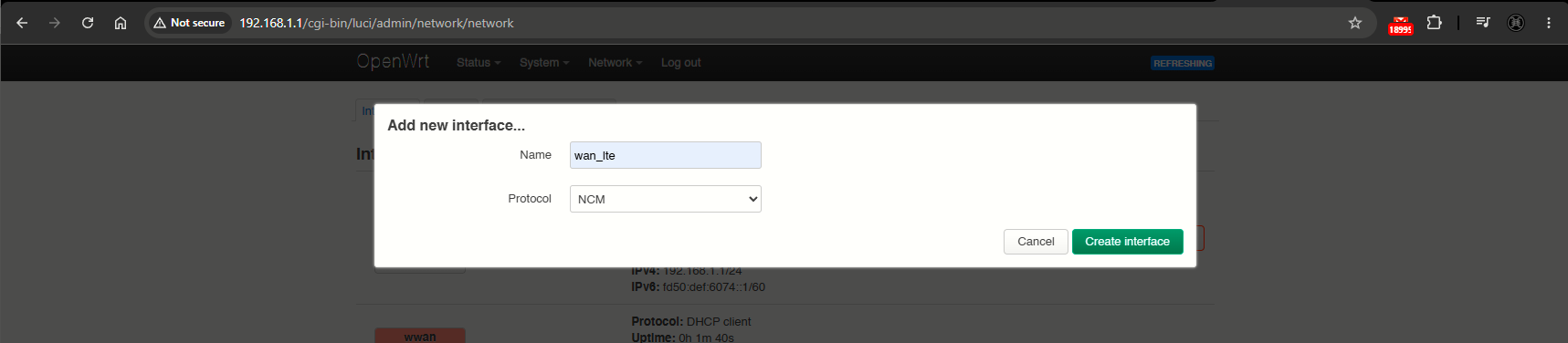
After clicking Create interface, we are presented with the interface configuration page for the modem. We must select the correct device, which in this case is /dev/cdc-wdm0. Also in Network Mode, I'll go with Prefer LTE. Enter the correct APN and move to the Firewall Settings tab, where we must assign the interface to the wan firewall zone, for the Pi to acs as a router and share the 4G connection with other devices (this automatically applies NAT, which allows traffic from the LAN to be translated to the public IP of the modem). Click Save, then Save & Apply.
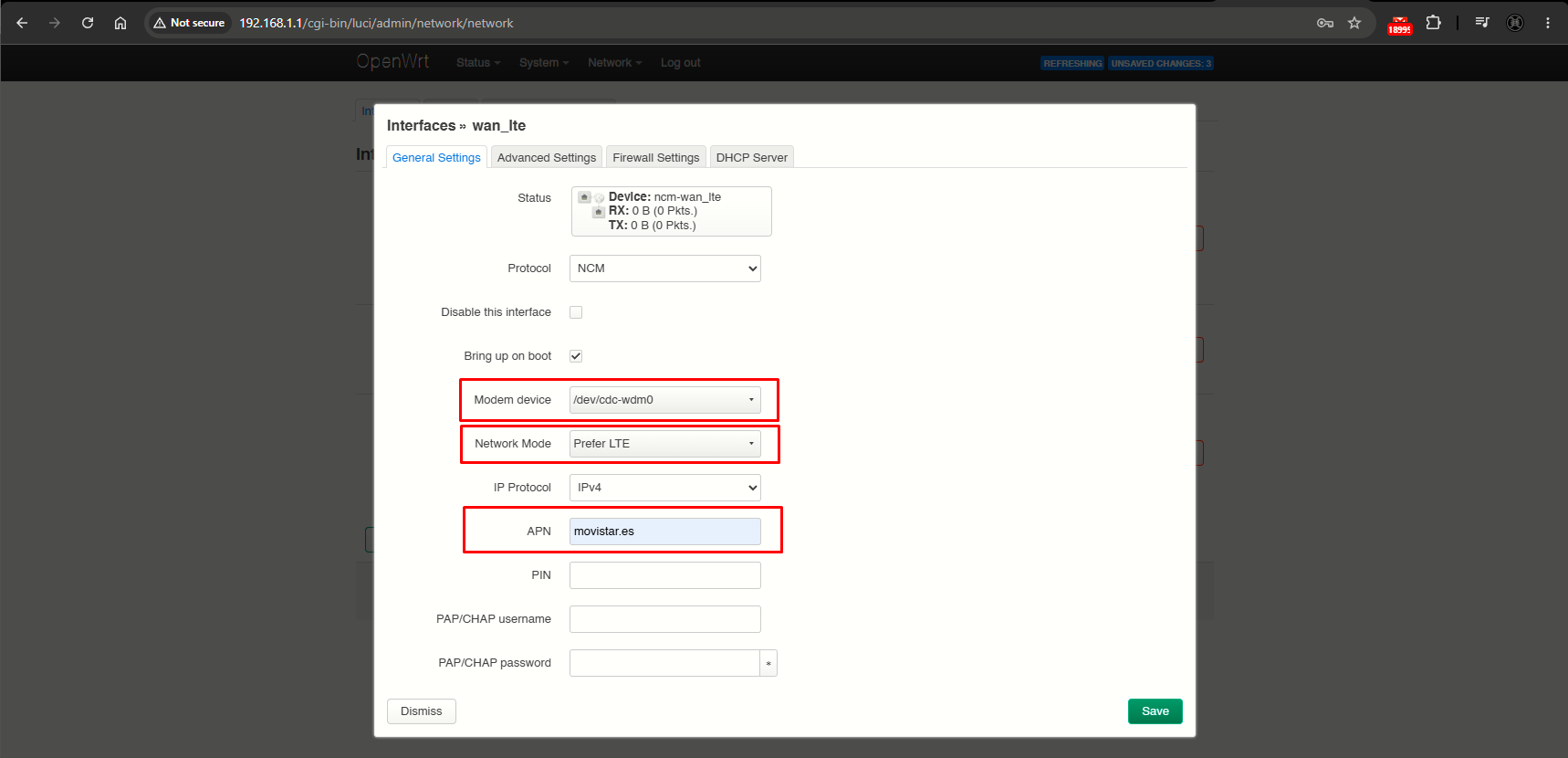
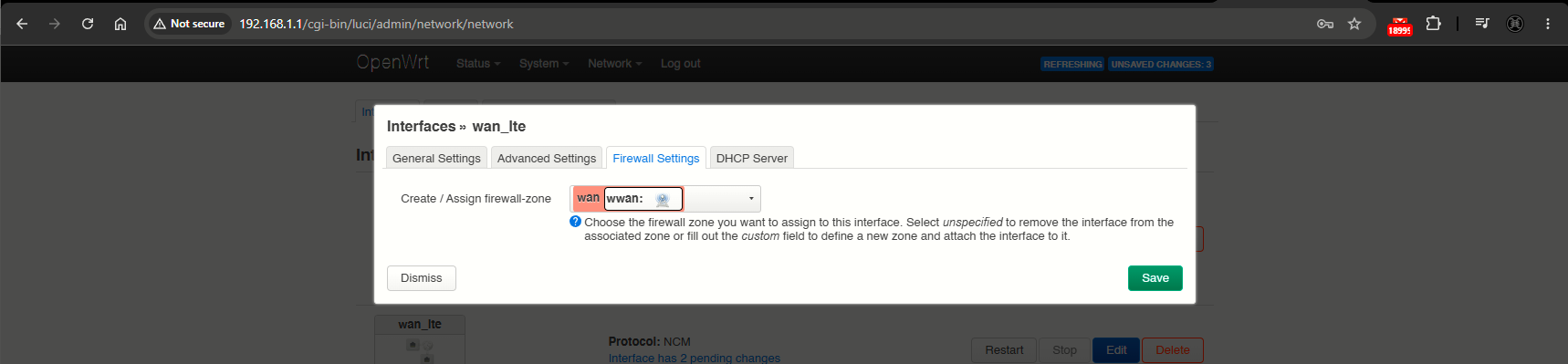
Also, we need to Stop the wwan WiFi interface, for the 4G WWAN interface to be preferred:
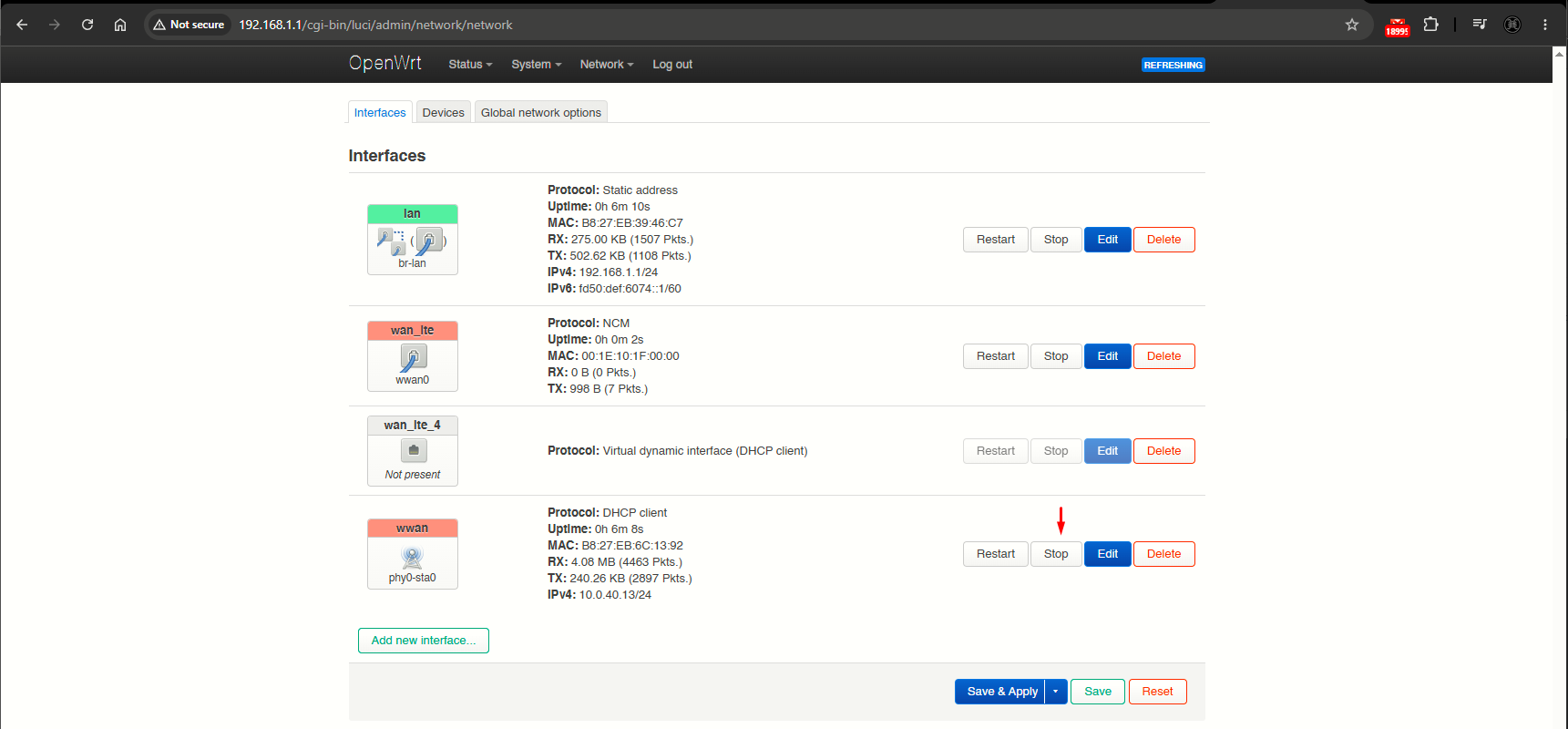
Test and Final Verification
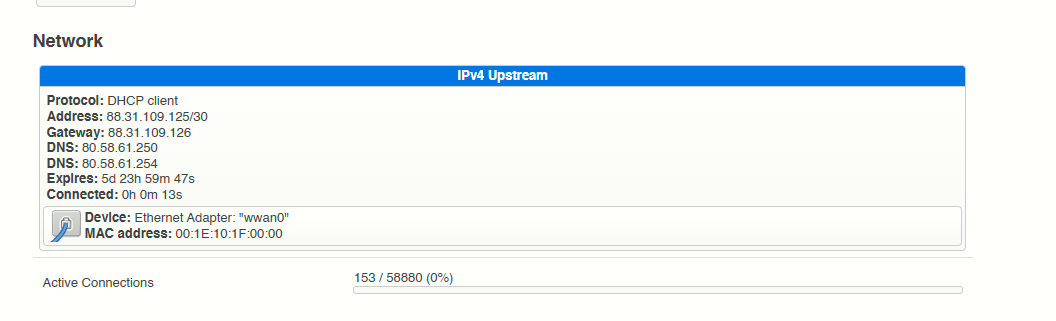
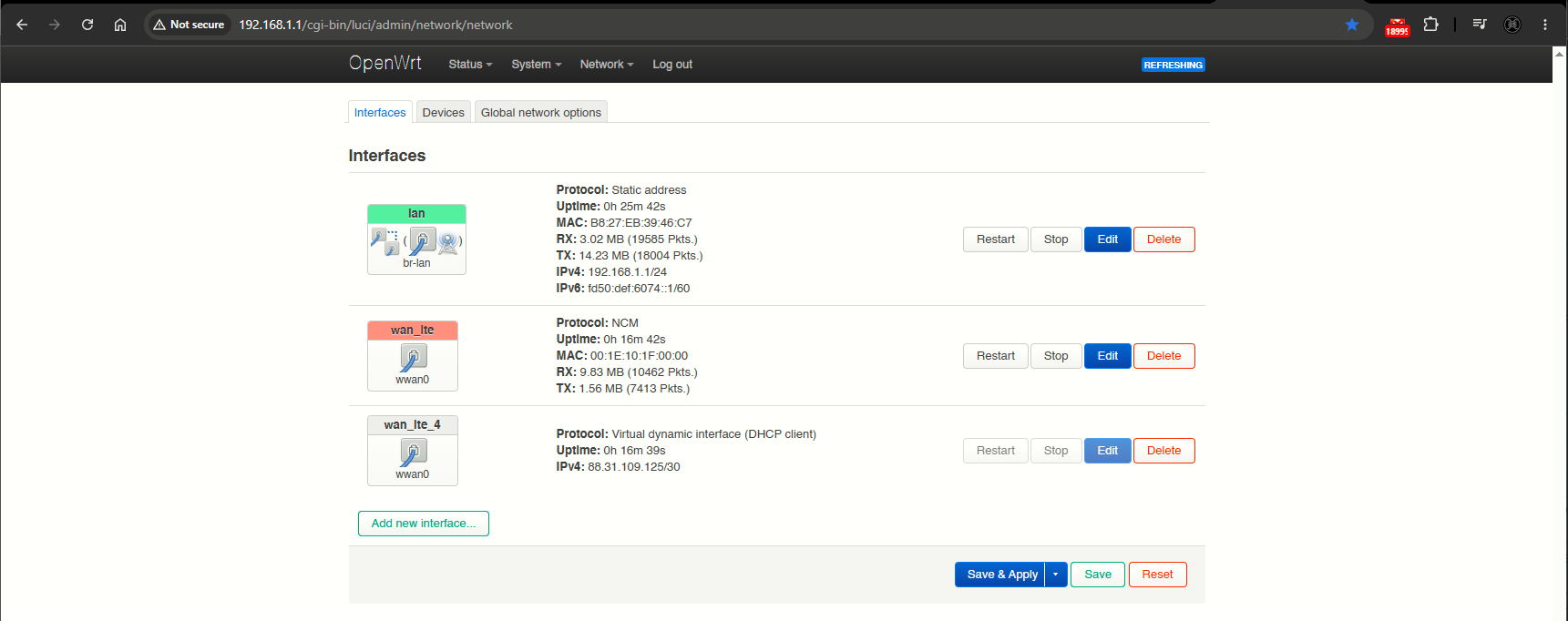
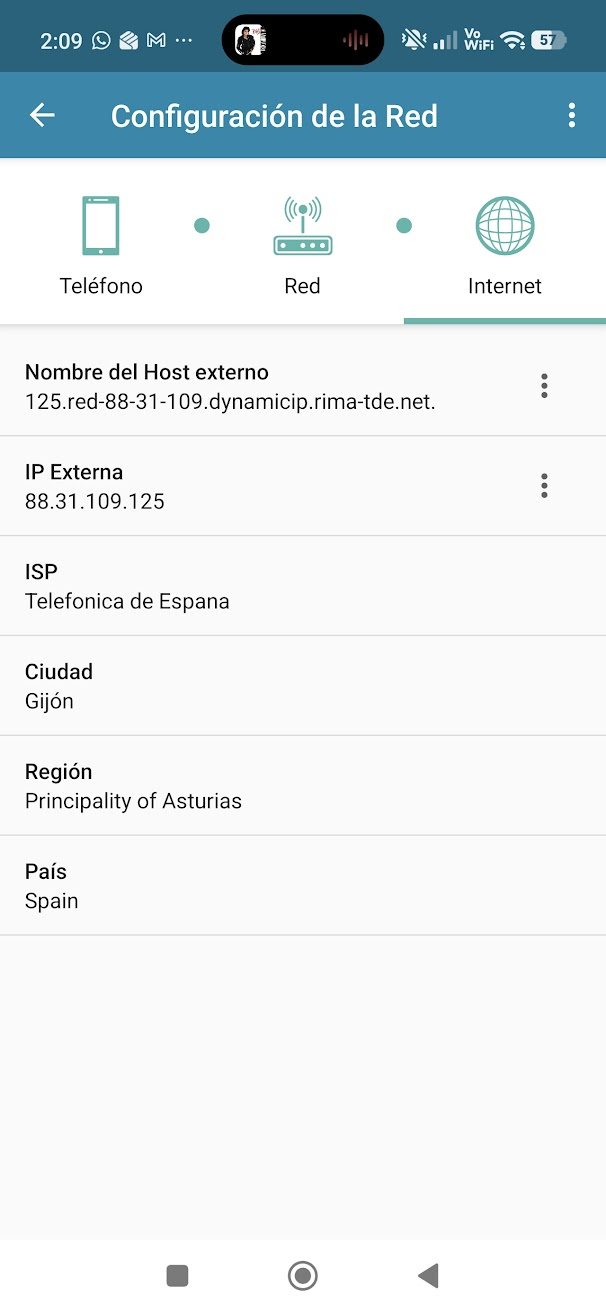
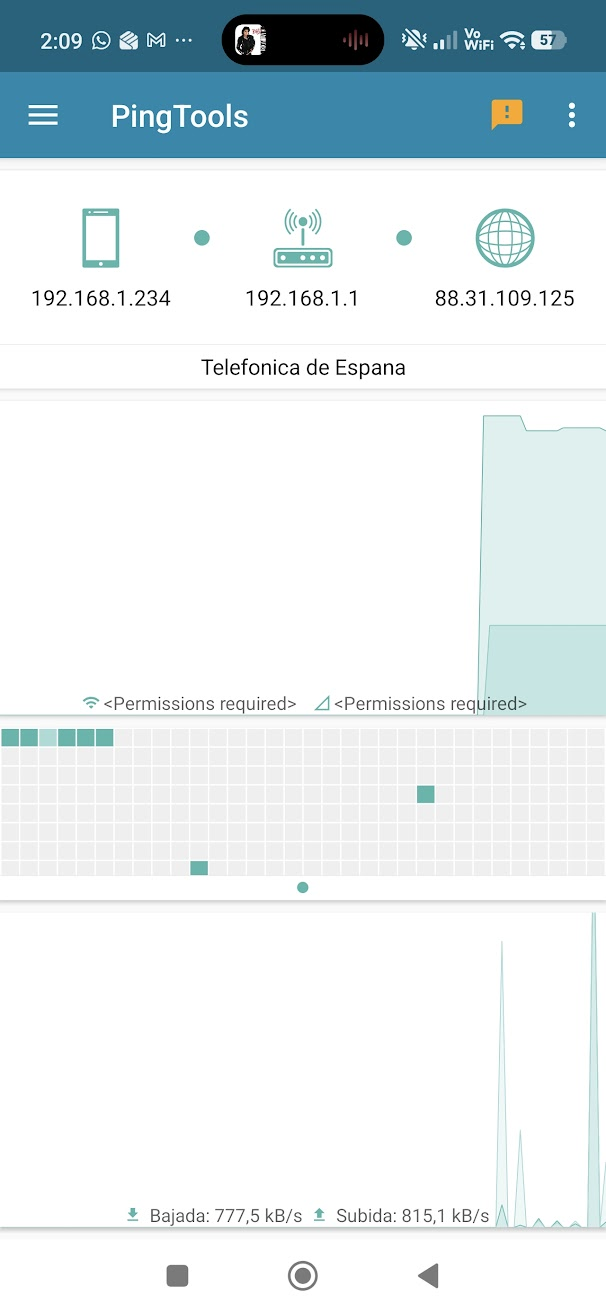
On the Overview tab we can verify the IPv4 Upstream is associated to the wwan0 Ethernet Adapter (the modem), which has been assigned public IP 88.31.109.125.
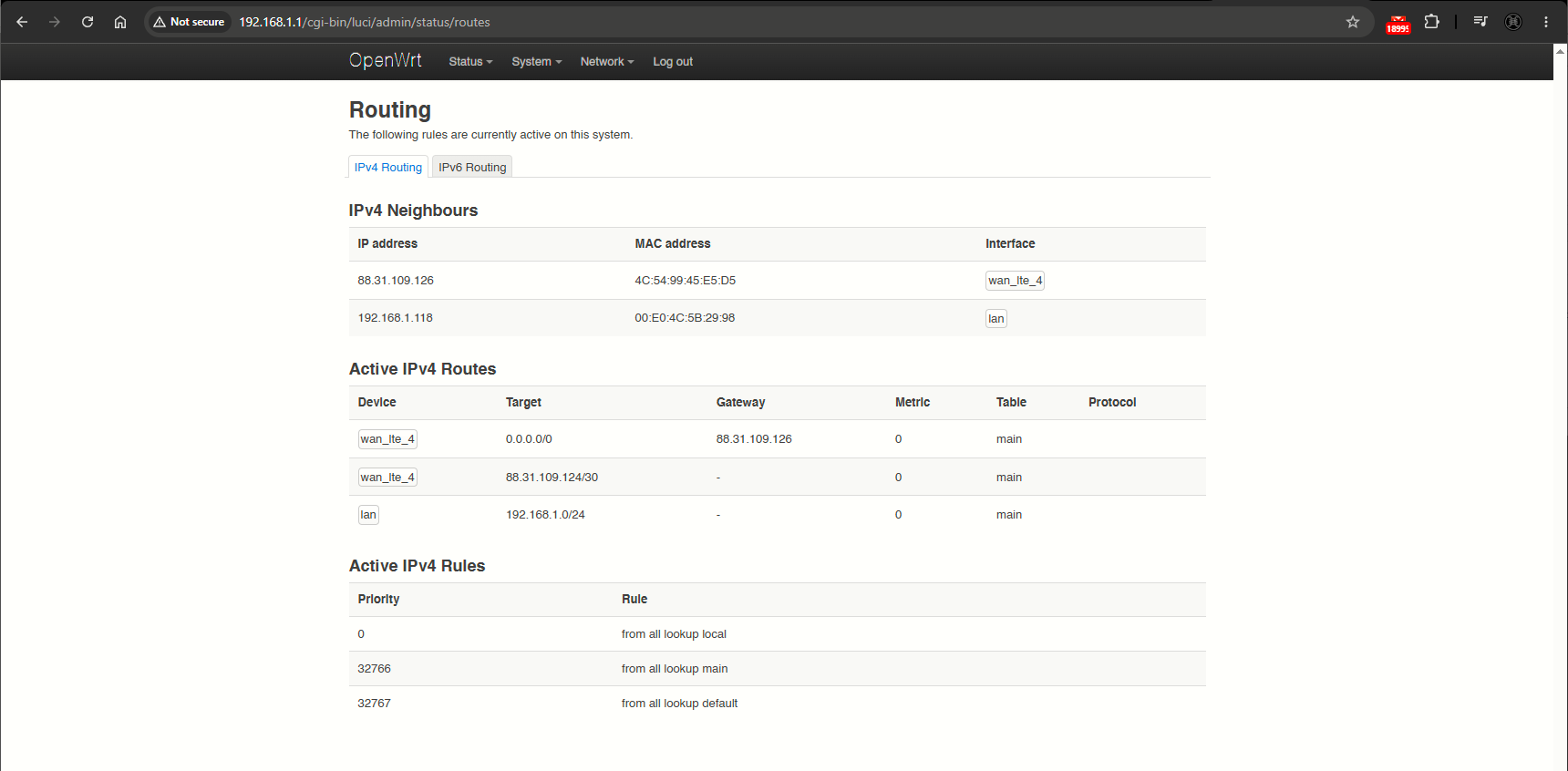
Also, on the Routing tab, we can check the upstream neighbor on the wan_lte_4 interface:
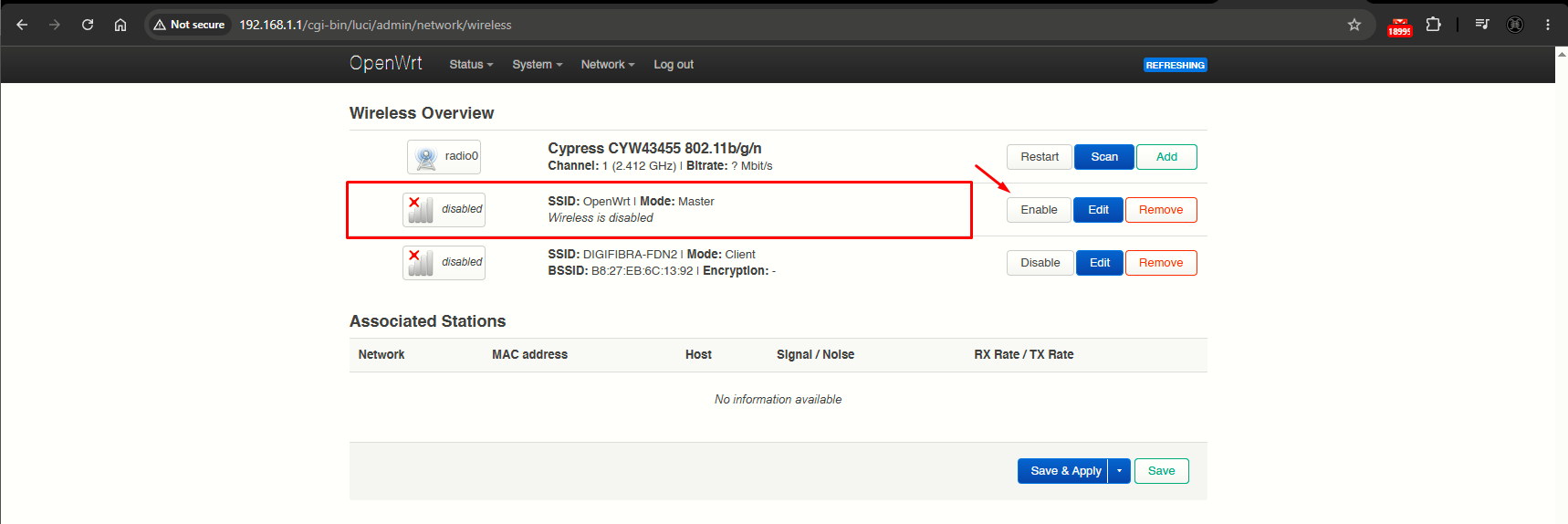
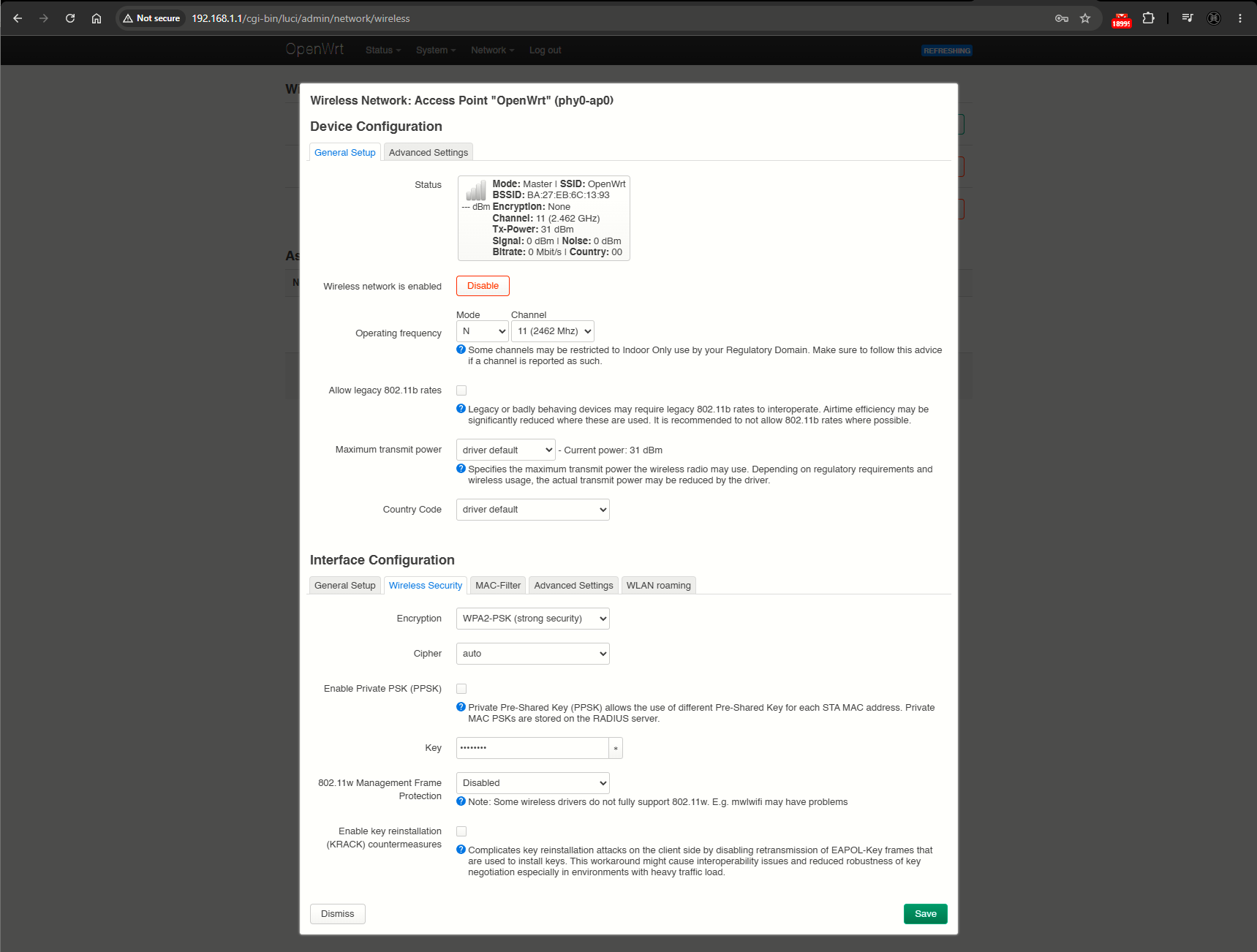
Now we can enable the WiFi Master interface, bridged to the LAN, to serve WiFi clients and make some tests. Go to Network > Wireless and click on Enable on the OpenWrt SSID Master mode interface:
The default configuration does not include any WiFi security (open authentication)!
To further edit this interface click on Edit, here I modified the SSID and the PSK. Also on the Network dropdown make sure lan interface is selected (this bridges the WiFi interface to the LAN interface):
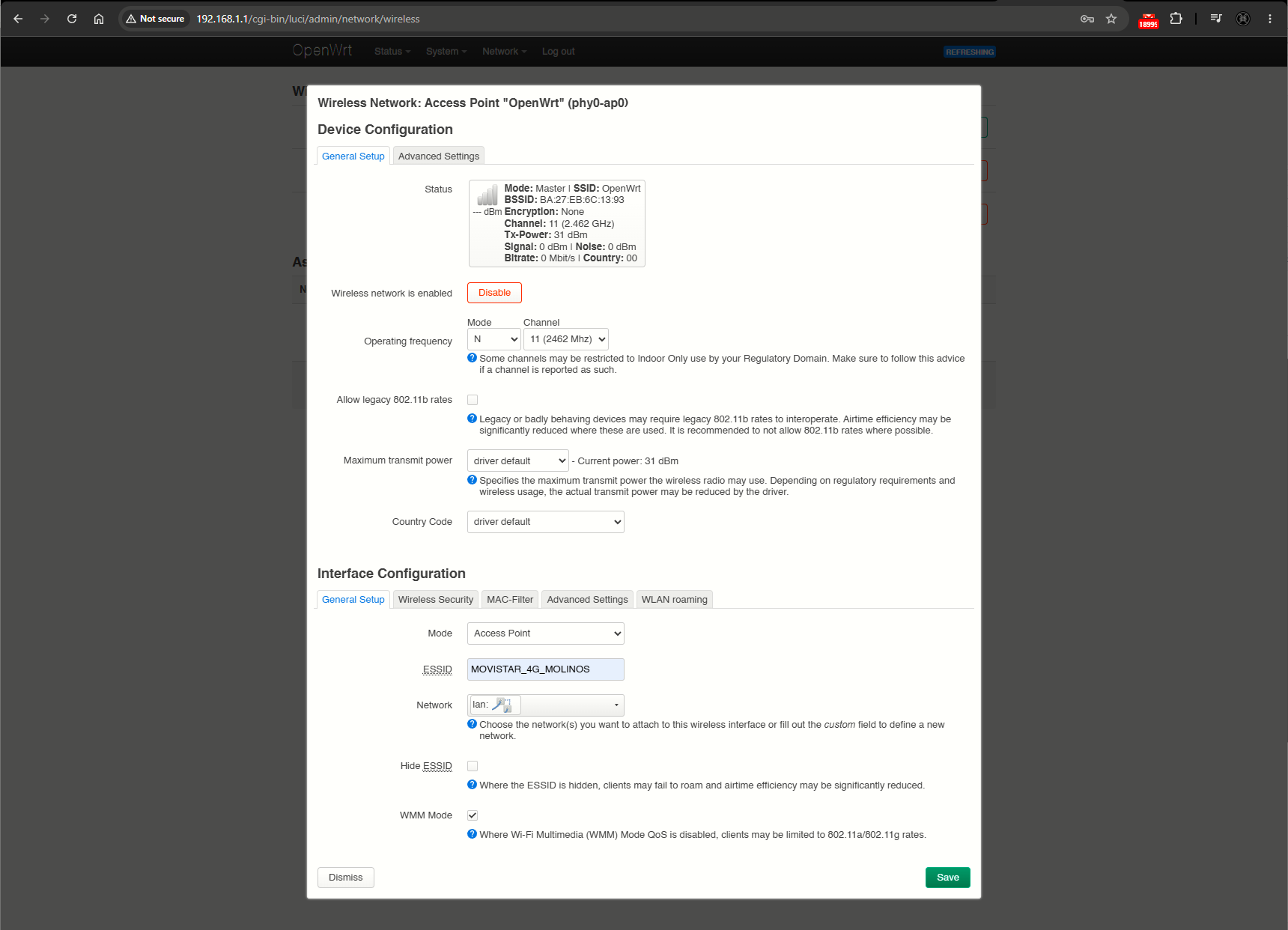
No further tuning needed at the Interfaces section:
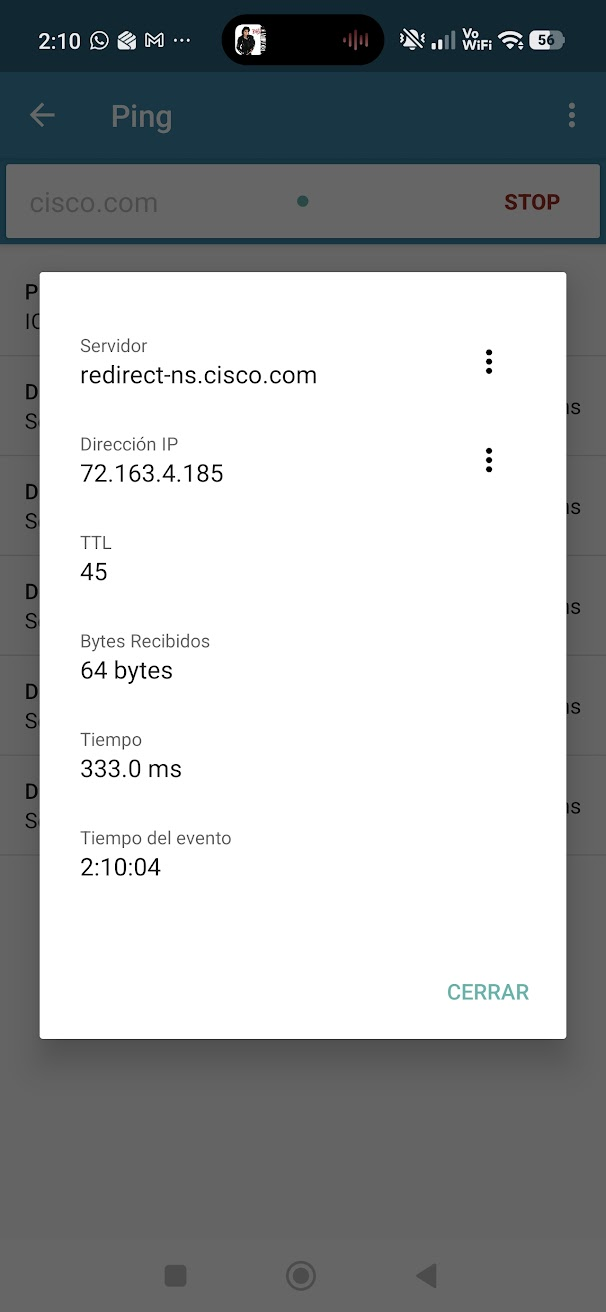
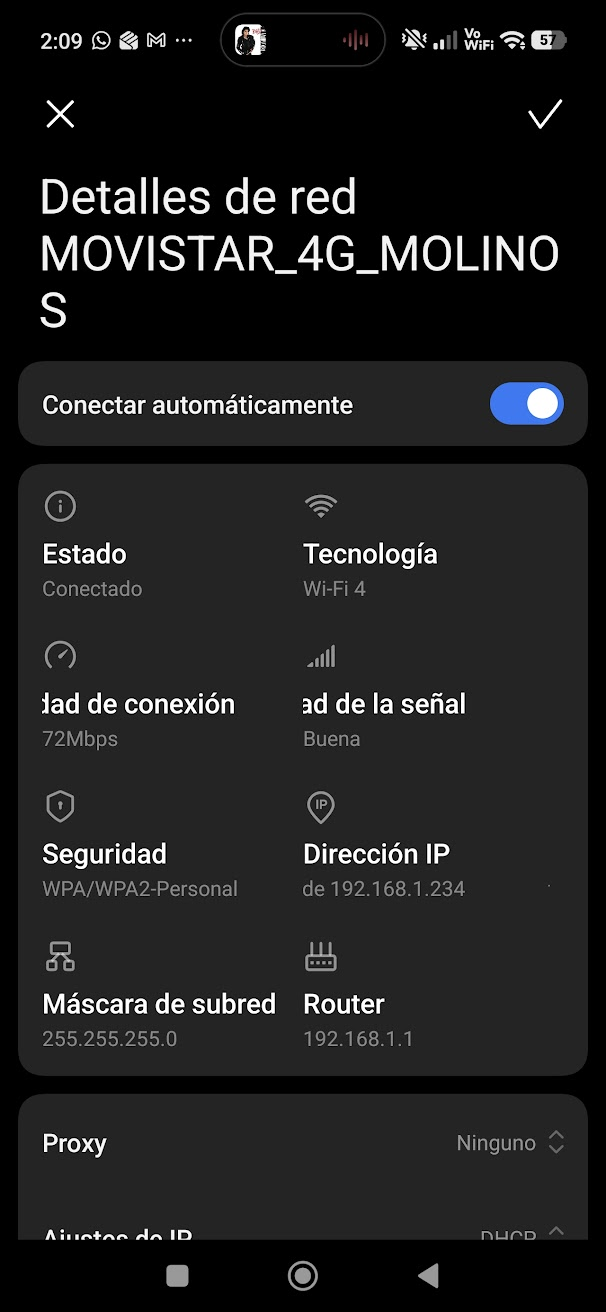
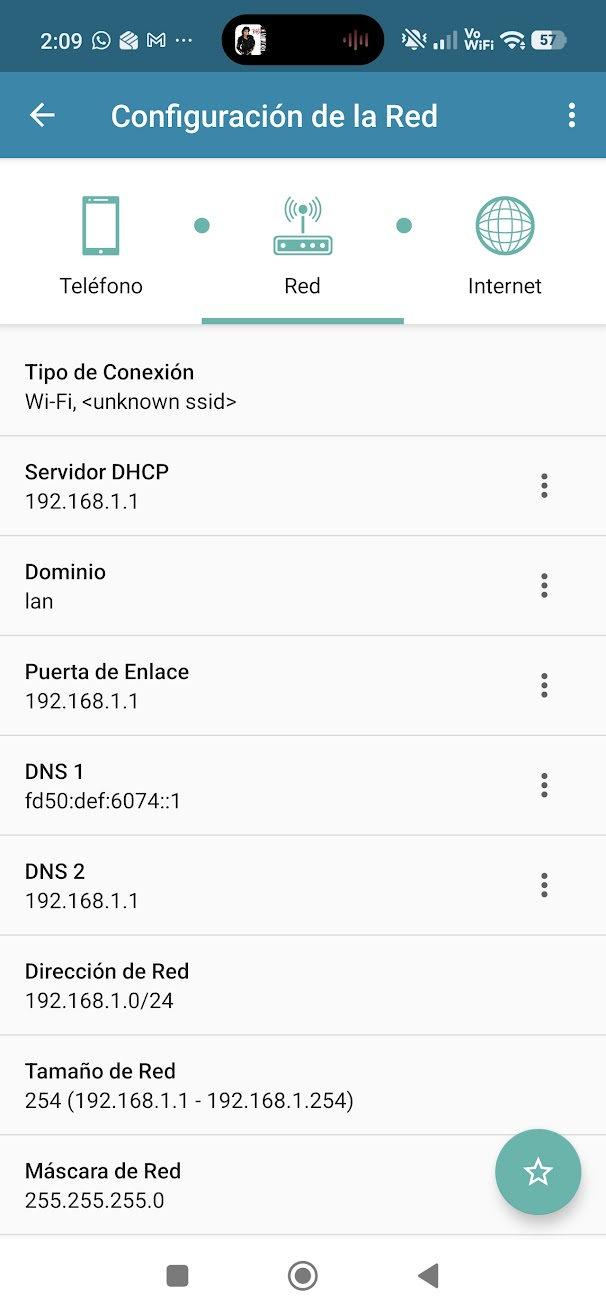
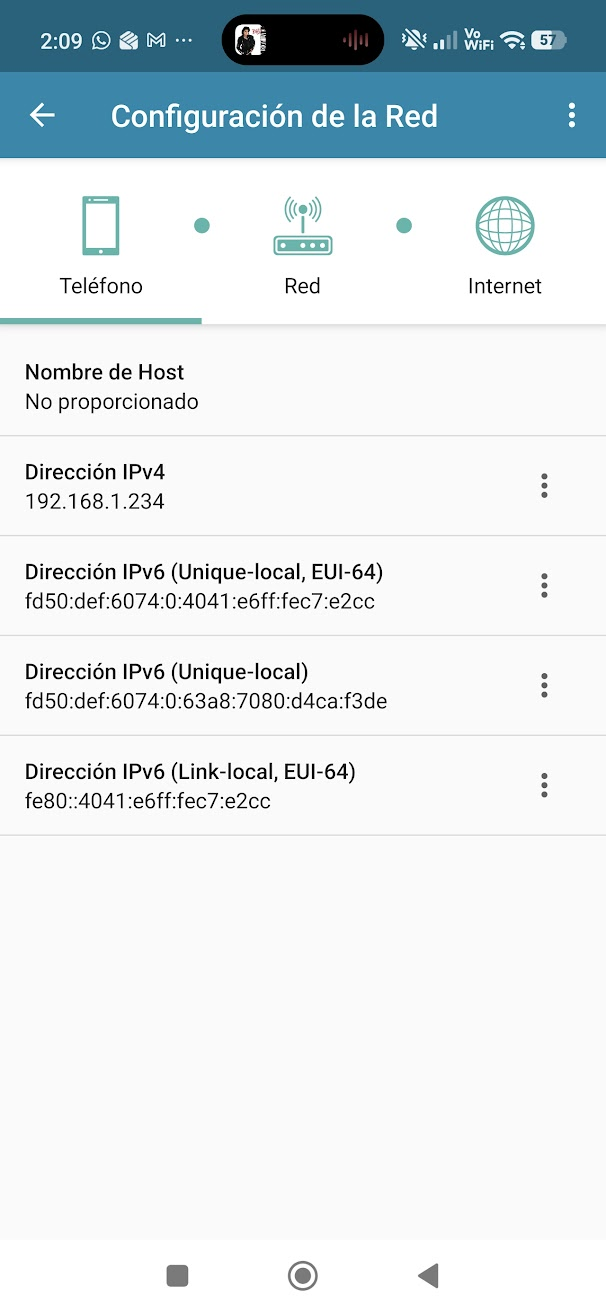
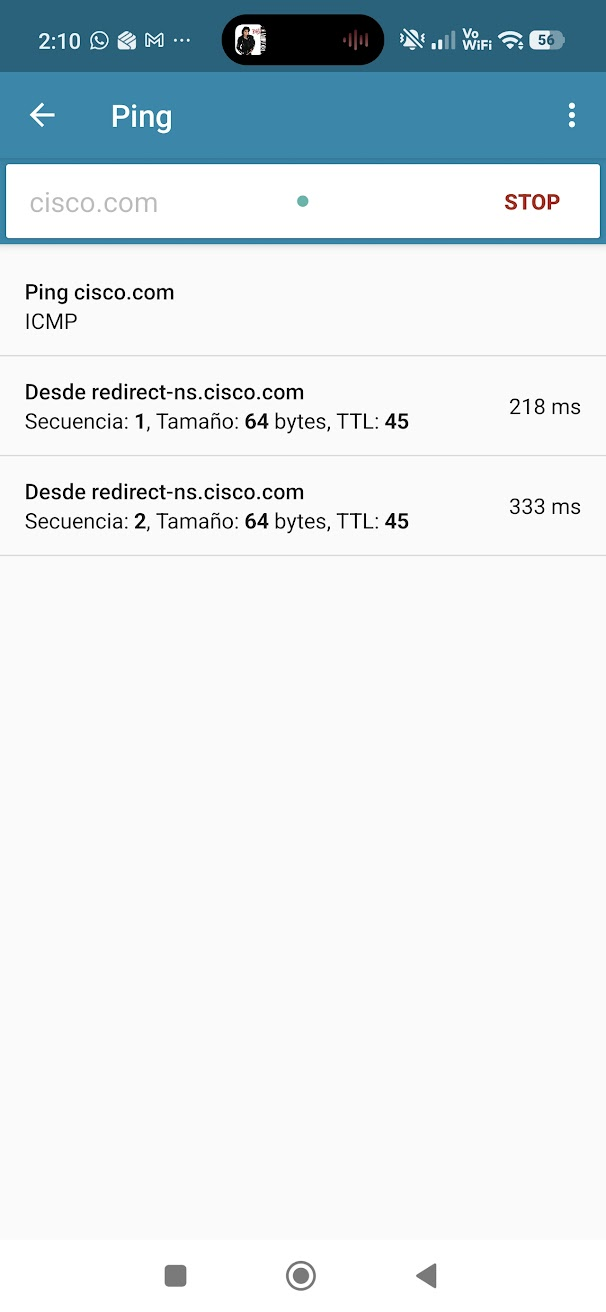
To make tests, I connected my Android phone to this WiFi network
|
|
|
|
|
|
|
|
|
|
|