4. Importing Images to EVE
Images must be uploaded and prepared before they can be used in labs. The best way to upload images is to use the WinSCP tool for Windows environment.
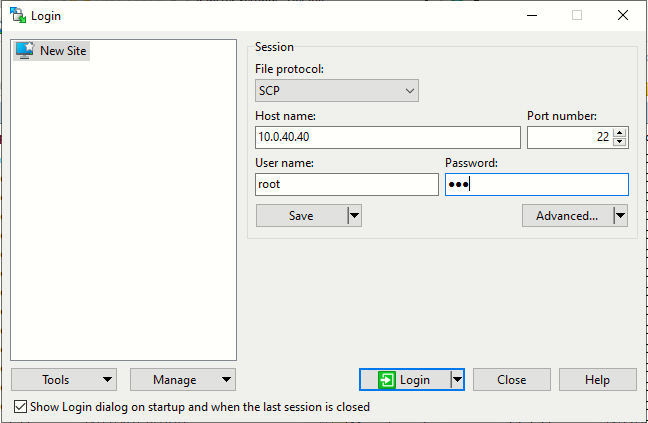
Accessing EVE via WinSCP
Connection parameters:
Supported images for EVE are stored in the three locations:
• IOL (IOS on Linux): /opt/unetlab/addons/iol/bin/
• Dynamips images: /opt/unetlab/addons/dynamips
• Qemu images: /opt/unetlab/addons/qemu
Transferring Images
Just drag and drop from PC to EVE-NG connected via SCP at the correct folder:
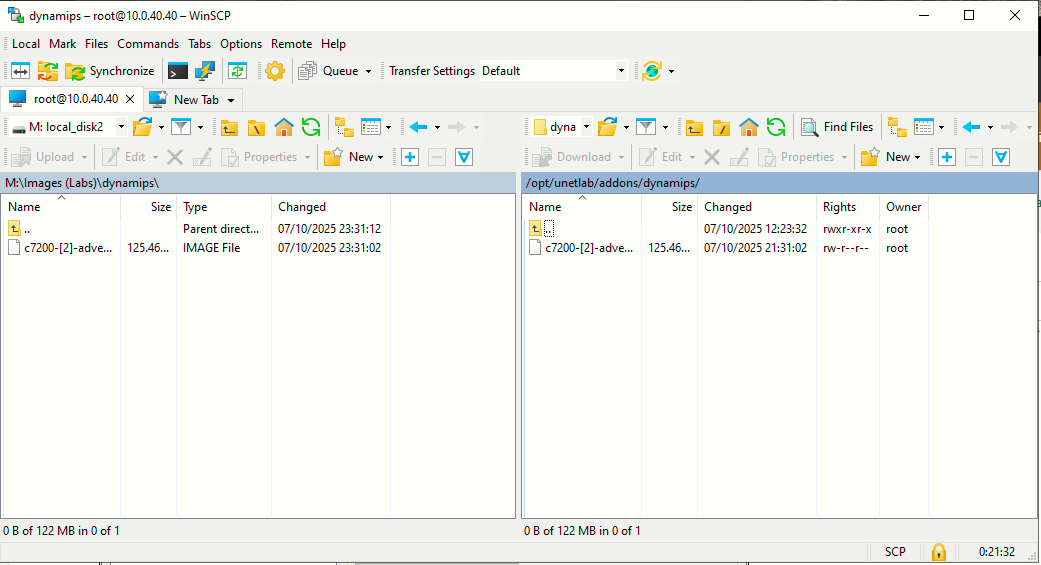
Dynamips
Once the .image is copied via WinScp to the correct dynamips folder on EVE, we have to execute the following command /opt/unetlab/wrappers/unl_wrapper -a fixpermissions:
-
unl_wrapperis a helper script in EVE-NG that manages permissions, file ownership, and some sanity checks. -
The
-a fixpermissionsoption fixes file/folder permissions and ownership recursively in the EVE-NG filesystem, especially in/opt/unetlab/addons/. -
This ensures that EVE-NG (running as
www-data) can read and execute the images properly.
Without running it, you may encounter:
-
Images not appearing in the EVE-NG GUI
-
Nodes failing to start with permission errors
-
Dynamips complaining it cannot read the IOS image
Now, we'll want to get IDLE PC value. In a nutshell, without an IDLE PC value set, dynamips attempts to emulate instructions one at a time as fast as it can, consuming up to 100% of the available CPU.
First time executing a dynamips image, it is recommended to check IDLE PC usage:
Run the image from main EVE cli with dynamips -P 7200 c7200-[2]-adventerprisek9-mz.152-4.M7.image (in this case):
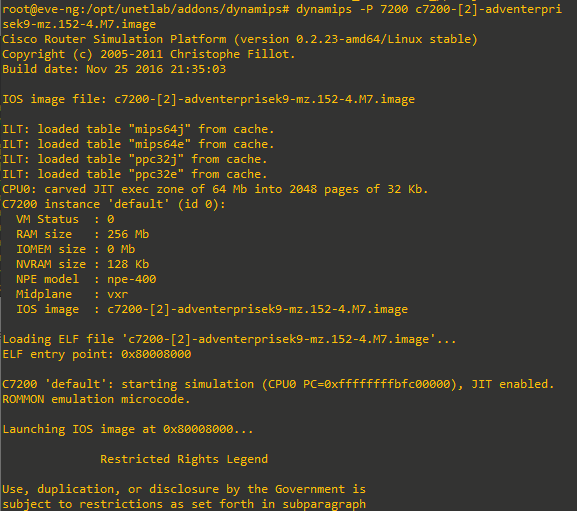
Wait till Router> prompt appears. At this point if we execute top command in a separate shell, dynamips process would likely be consuming 100% CPU as in the image below:
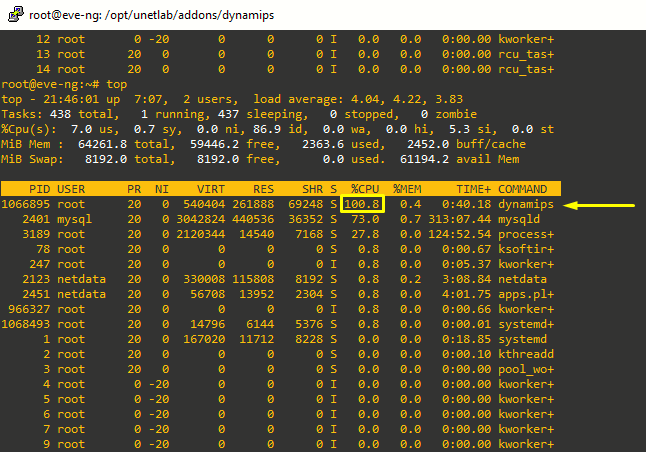
Back at the Router> shell, and with keyboard layout in ENG, press Ctrl + ] combination and inmediately I. Dynamips will calculate suggested IDLE PC values:
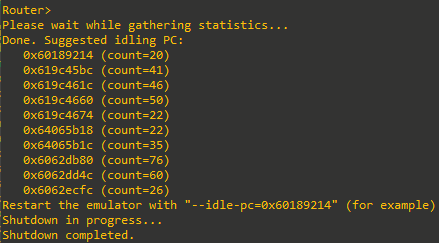
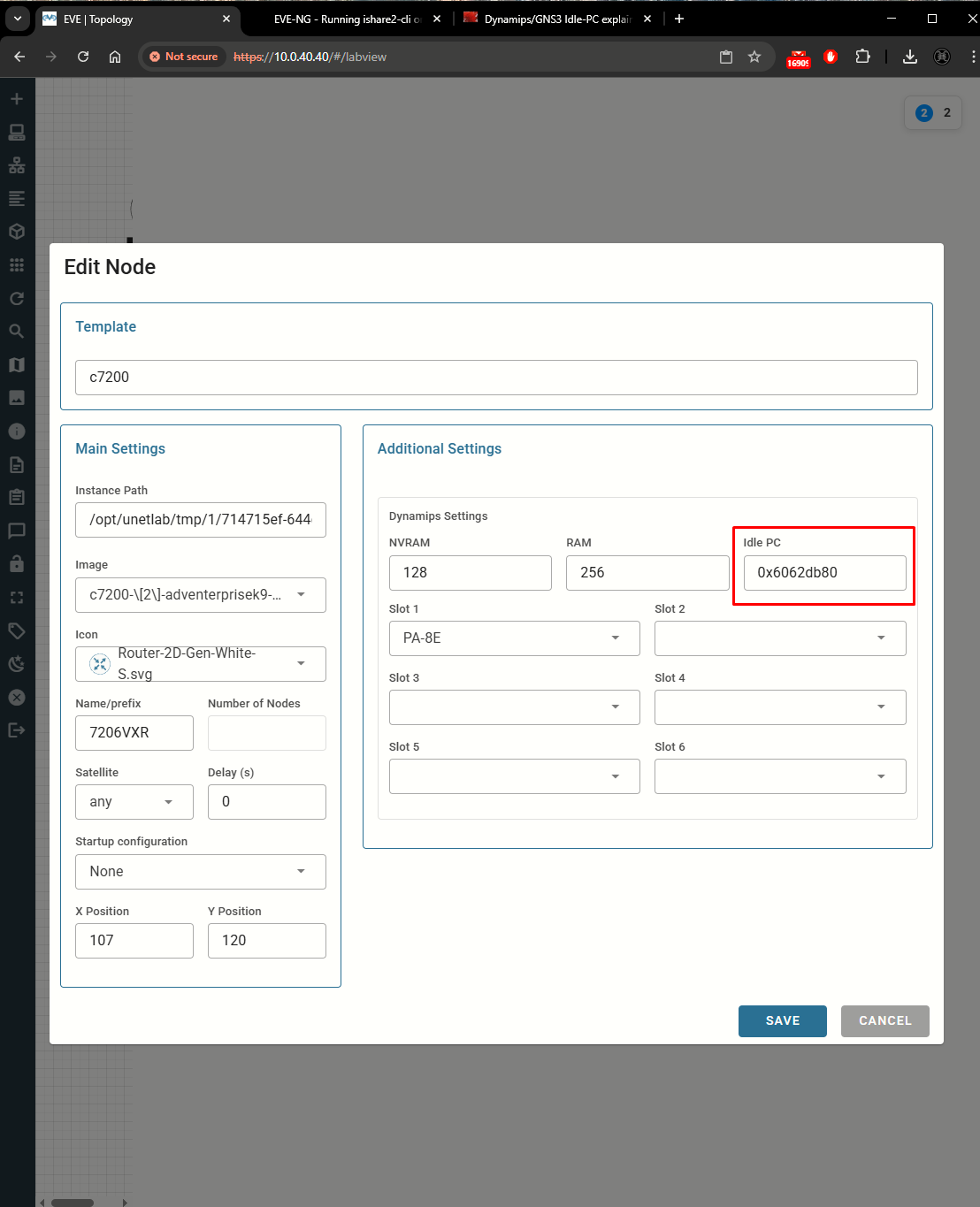
Usually the highest value of IDLE PC will best for your CPU. In the calculation above it is 76. Copy value of IDLE PC to the notepad keep as it can be used for all Dynamips node onwards.
The value can be used when adding a Dynamips node to the topology:
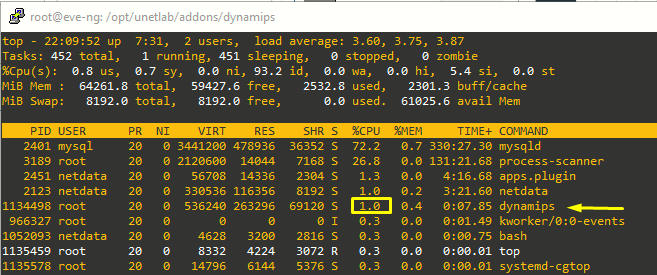
After the node is run, we can see dynamips process is using lot less CPU: