
Cisco Configuration Assistant 3.2.3: requirements, setup and how to use
Cisco Configuration Assistant (CCA), part of the Cisco Smart Business Communications System (SBCS) portfolio of products, simplifies the tasks of configuring, deploying, and administering Cisco network solutions, improves the security and performance of your network, and reduces the time needed for network deployment and configuration. Designed for small business networks from 8 to more than 100 users, this PC-based application with a Graphical User Interface (GUI) provides everything you need to set up a small office network.
Requirements
|
System Requirements |
|
|
Operating systems |
Windows XP Professional (Service Pack 2 or later), Windows Vista Ultimate (32 bit or 64 bit), or Windows 7 (32 bit or 64 bit) Microsoft Internet Explorer 8.0 or later recommended, with Adobe® Flash® Player 10 or later |
|
Mac OS support (requires virtualization software) |
• Mac OS: 10.5 or later
• Virtual OS: Parallels Desktop 3.0 or VMware Fusion 1.0
• Guest OS: Windows XP (Service Pack 2 or later) or Windows Vista Ultimate. Cisco Configuration Assistant also supports remote control through Virtual Network Computing (VNC) clients
|
|
Disk space |
400 MB recommended |
|
Hardware |
PC with Fast Ethernet or higher LAN port |
|
Memory |
2 GB or higher |
|
Processor |
1.8-GHz Intel Core 2 Duo or higher |
|
Screen resolution |
1280 x 1024 or higher recommended |
Complete Cisco Configuration Assistant data sheet is available here.
Installation
Due to the requirements shown above, it is somewhat complicated to install Cisco CCA on Windows 10 in 2025. Neither Internet Explorer nor Flash are supported nowadays, and the easiest way to get things up is spin up a Windows XP virtual machine and install the application there.
I will use a Windows XP SP3 x86 32-bit VM (recommended 4GB RAM and 2 vCPU).
- First step is to get install Flash Player 10 ActiveX (or later) per the requirements. We will use the latest available version of Flash Player ActiveX for Windows XP which is version 22.0.0.209 (Flash was discontinued in 2020). The version needed can be downloaded here.
A quick note on Flash Player versions. There were 3 types of Flash Player installers: ActiveX (_winax; used for IE and apps using IE engine like CCA), PPAPI (_winpep; used for Chromium-based browsers like early Chrome builds and Opera, not suitable for CCA), and combined/auto installer (which detects browsers and installs appropriate version: ActiveX, NPAPI or PPAPI).
On XP, the combined installer may install only NPAPI (default), which works with Firefox. For CCA we must install ActiveX version.
- We want to download the latest version available of Cisco Configuration Assistant which is version 3.2.3 (Cisco-config-assistant-win-k9-3_2_3-en.exe).
- Install Flash Player on the XP VM, followed by CCA. If prompted to add a Java exception when first executing CCA, hit Allow or Permit.
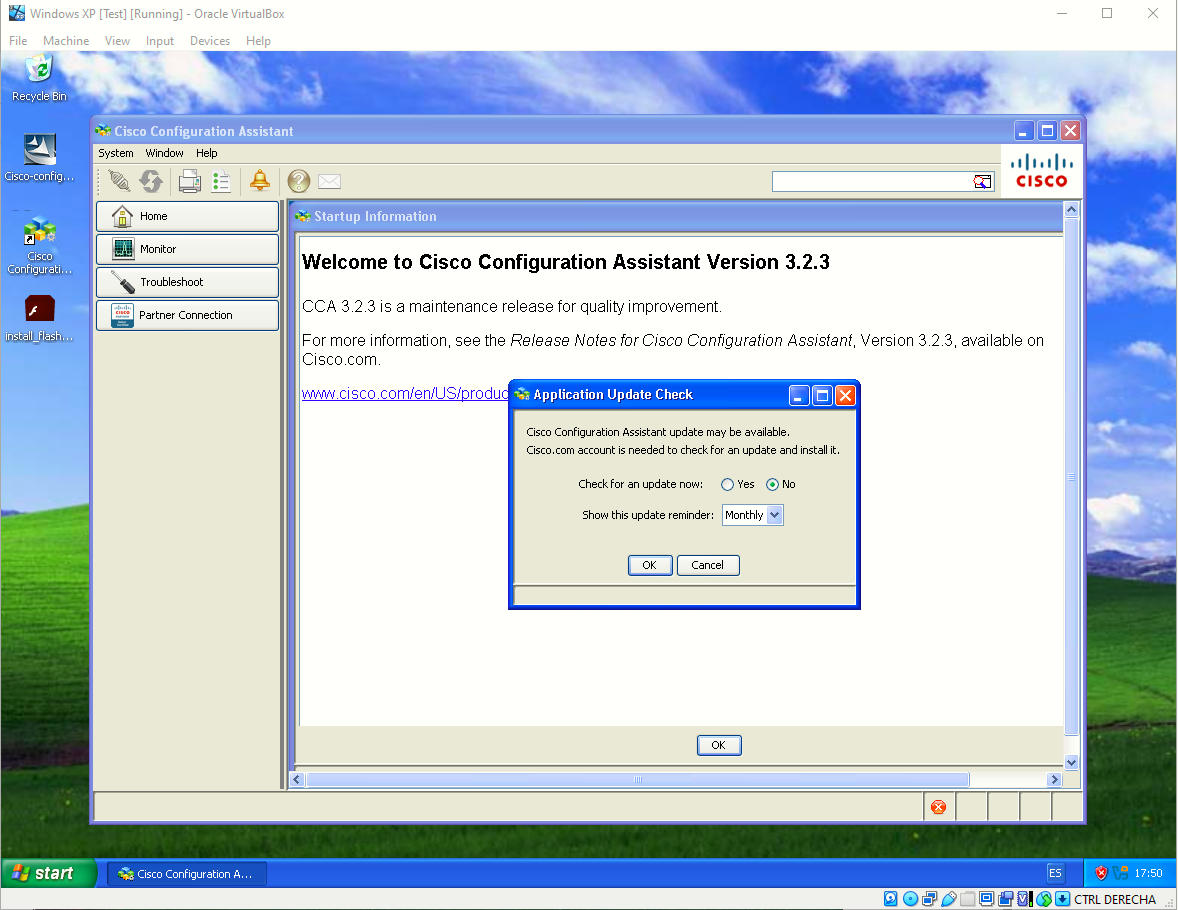
- CCA up and running:
Checking Flash Player version
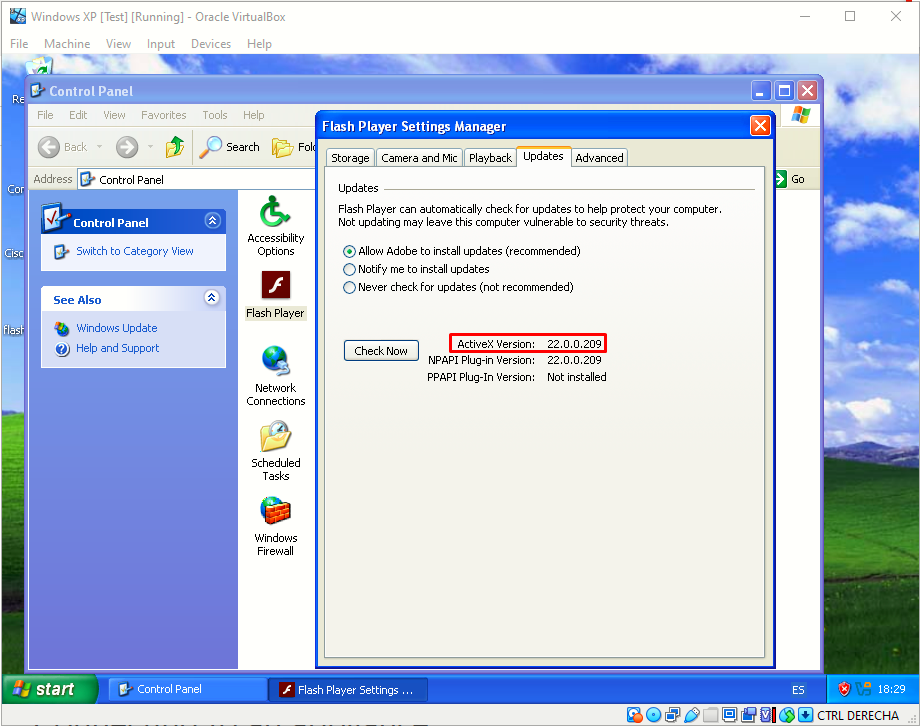
On the Control Panel > Flash Player, on the Updates tab, we can check the Flash Player versions installed. In this case we have the needed version (ActiveX), and also NPAPI plug-in which installs by default.
Connecting to an appliance
To add an appliance, we want to connect to it.
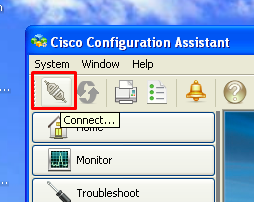
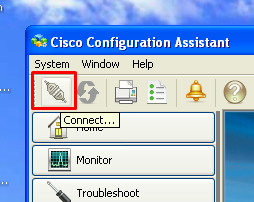
- First, hit the Connect button, on the upper left corner:
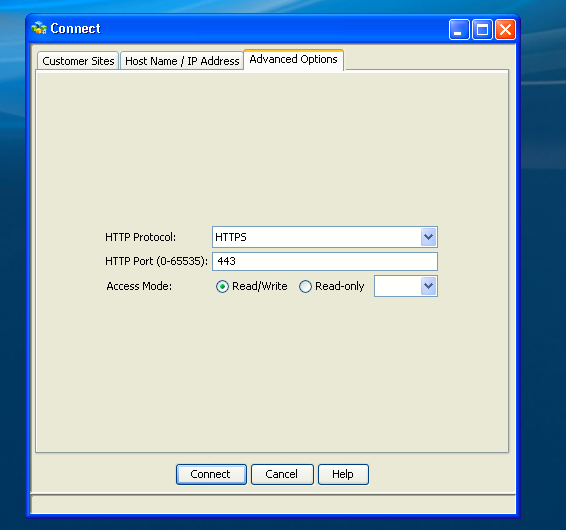
- On the Connect window, select the correct HTTP protocol and access mode on the Advanced Options tab:
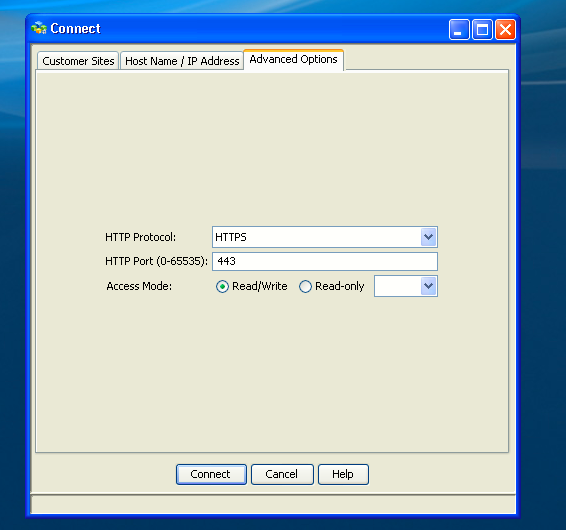
The appliance must be configured in order to accept HTTP or HTTPS connections (i.e with the ip http server or ip http secure-server commands).
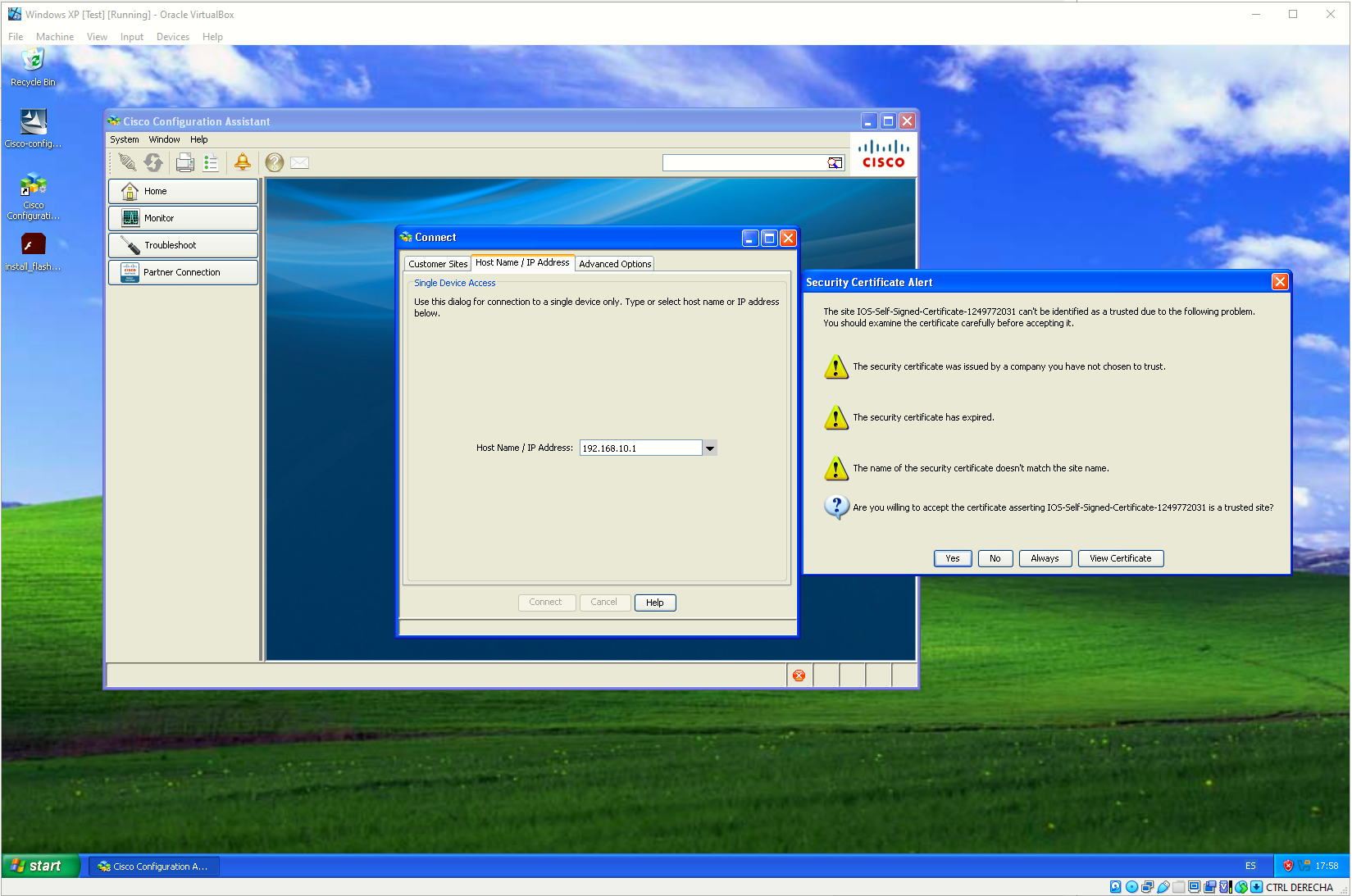
- On the Host Name / IP Address tab, enter the IP of the appliance and hit Connect:
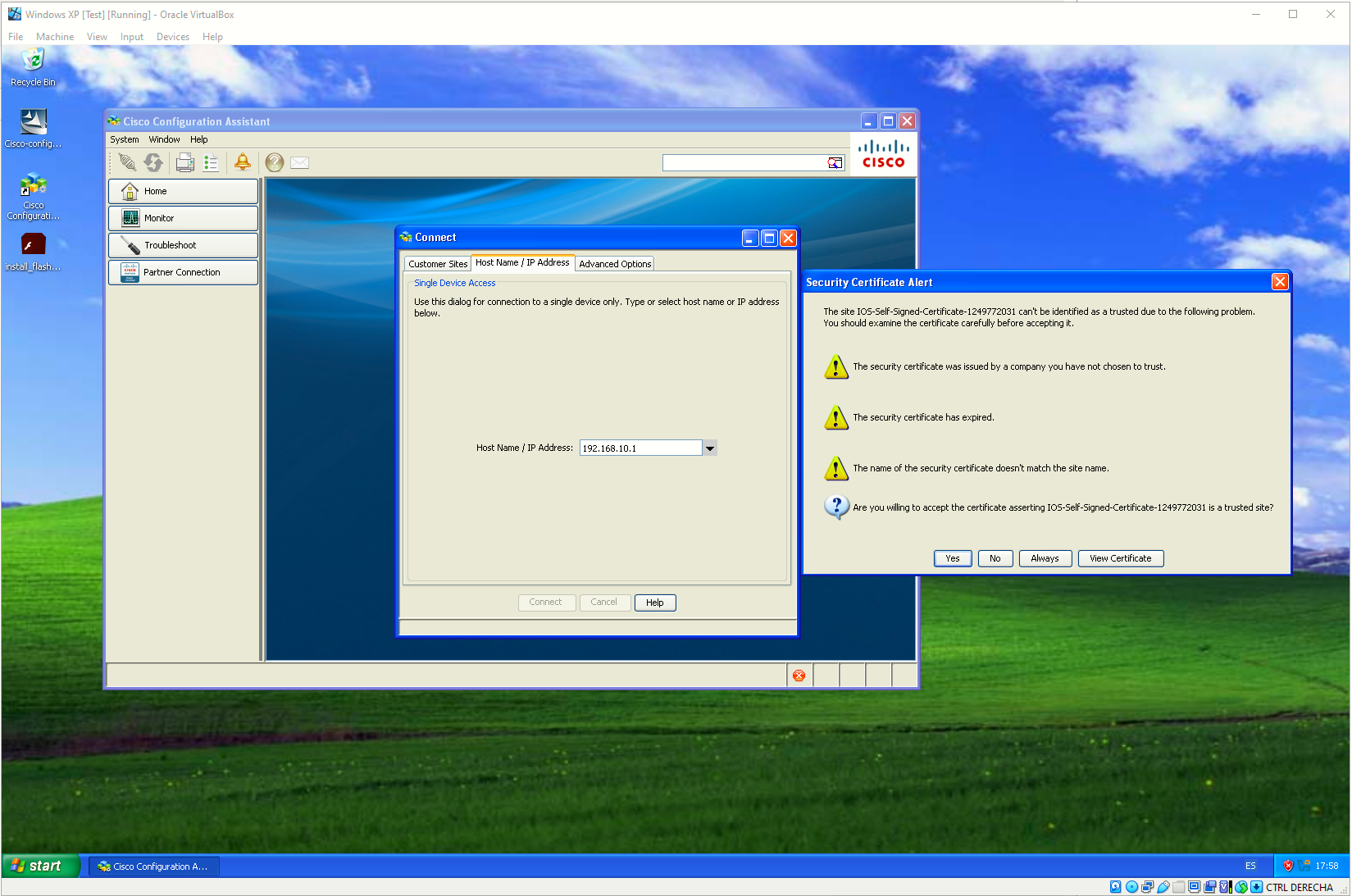
- When hitting Connect, I am presented with a certificate warning. I will hit Always since this is a contained lab.
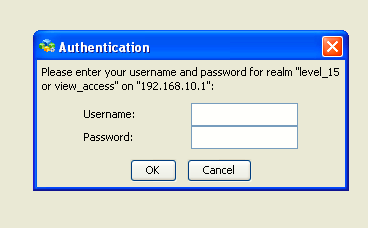
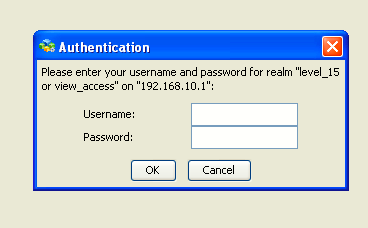
- I am shown next an authentication box. I will supply a privilege level 15 username and secret I had configured previously on this appliance (this is necessary for CCA to work in RW mode).
- CCA will begin discovering the device. In this example, using a Cisco UC500 appliance, I am presented with the Telephony Setup Wizard. While CCA is analyzing the device, I can see the current status on the progress bar:
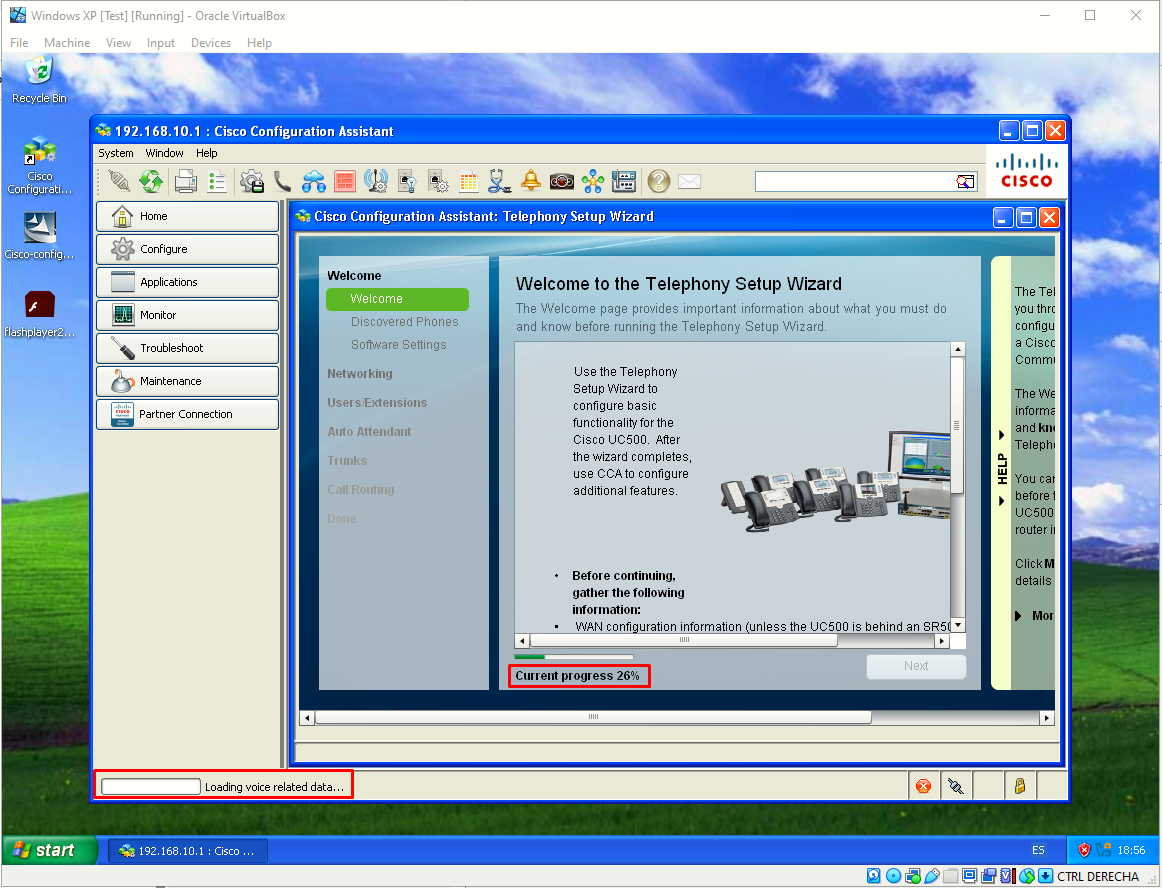
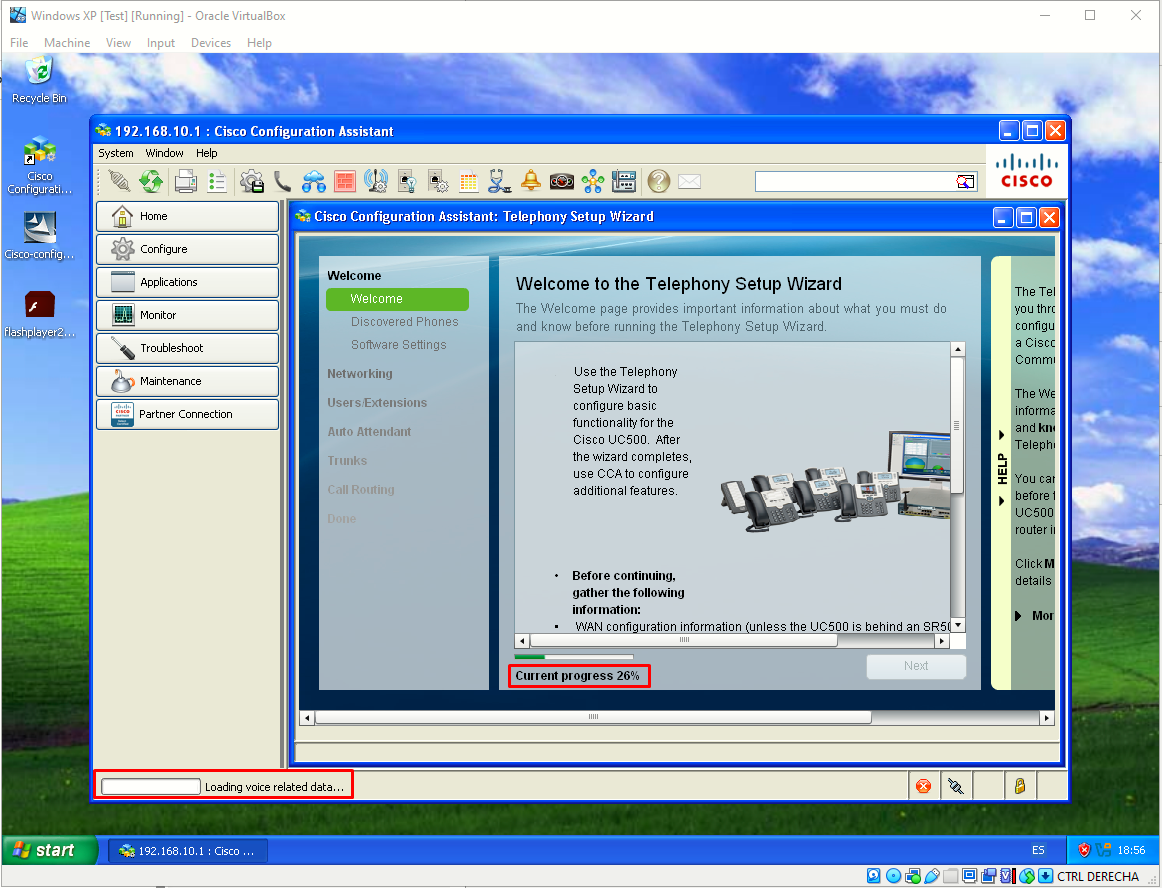
Once the progress bar hits 100%, we are ready to use CCA to configure the appliance.
More information about how to use CCA can be found here:
Cisco Configuration Assistant Release 3.2 SBCS - Administrator Guide
Release Notes for Cisco Configuration Assistant 3.2.3
Sources
Cisco Configuration Assistant (CCA) 3.x
https://www.cisco.com/c/en/us/support/cloud-systems-management/configuration-assistant-3-x/model.html#~tab-documents
Adobe Flash Player at archive.org
https://ia903201.us.archive.org/view_archive.php?archive=/18/items/flashplayerarchive/pub/flashplayer/installers/archive/fp_22.0.0.209_archive.zip
FlashPatch! (just for info on the README)
https://github.com/darktohka/FlashPatch
Cisco Configuration Assistant Data Sheet
https://www.cisco.com/c/en/us/products/collateral/cloud-systems-management/configuration-assistant-cca/data_sheet_c78-682273.html
Index of /repo/Cisco/
https://cdn.atraining.ru/repo/Cisco/https://cdn.atraining.ru/repo/Cisco/