
Xiaomi TV A 55 2025 - Introduction and basic optimization
Introduction
The Xiaomi TV A 55 2025 features a 55-inch 4K UHD display with HDR10/HLG support and MEMC technology for motion smoothing. It runs on a quad-core A55 CPU with 2GB RAM and 8GB ROM, integrating Google TV and Chromecast. Connectivity includes dual-band Wi-Fi, Bluetooth 5.0, and 20W speakers with Dolby Audio and DTS-X decoding.
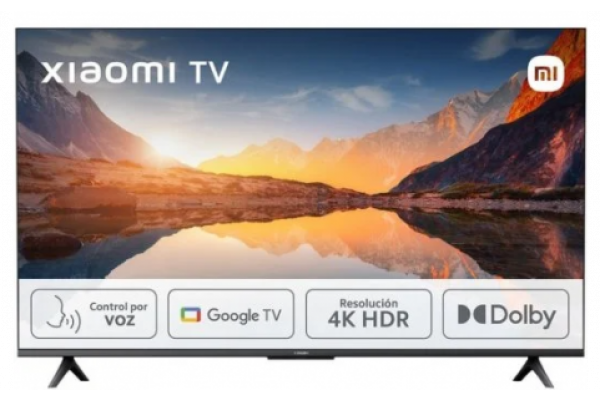
Full Specs
- Display Type: 4K UHD
- Resolution: 3840 × 2160
- Color depth: 1.07 billion
- Refresh rate: 60Hz
- MEMC: up to UHD 60Hz
- Viewing angle: 178°(H)/ 178°(V)
Speaker
- Speaker (Sound Output): 10W + 10W
- Supports Dolby Audio™, DTS-X and DTS® Virtual:X Sound
Operating System
- Google TV™
- CPU: Quad A55
- GPU: Mali G52 MC1
- RAM: 2GB
- ROM: 8GB
Connectivity
- Bluetooth 5.0
- Wi-Fi 2.4GHz/5GHz
- HDMI × 3 (1 port with eARC)
- USB 2.0 × 1
- Composite In (AV)
- Ethernet (Lan)
- Optical Digital Audio Out
- CI+ Slot*
- Broadcasting systemDVB-T2/C, DVB-S2*
*Vary by markets
Smart Home
- Google Assistant built-in
- Smart home control hub
- Chromecast built-in
- Supports Miracast
Simple Optimization
1. Enabling Developer Options
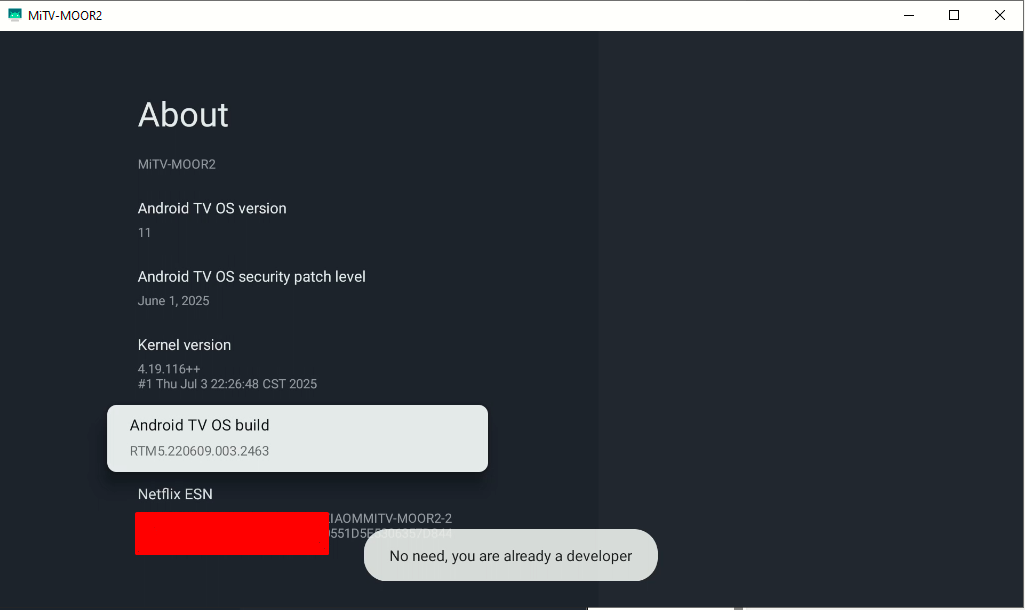
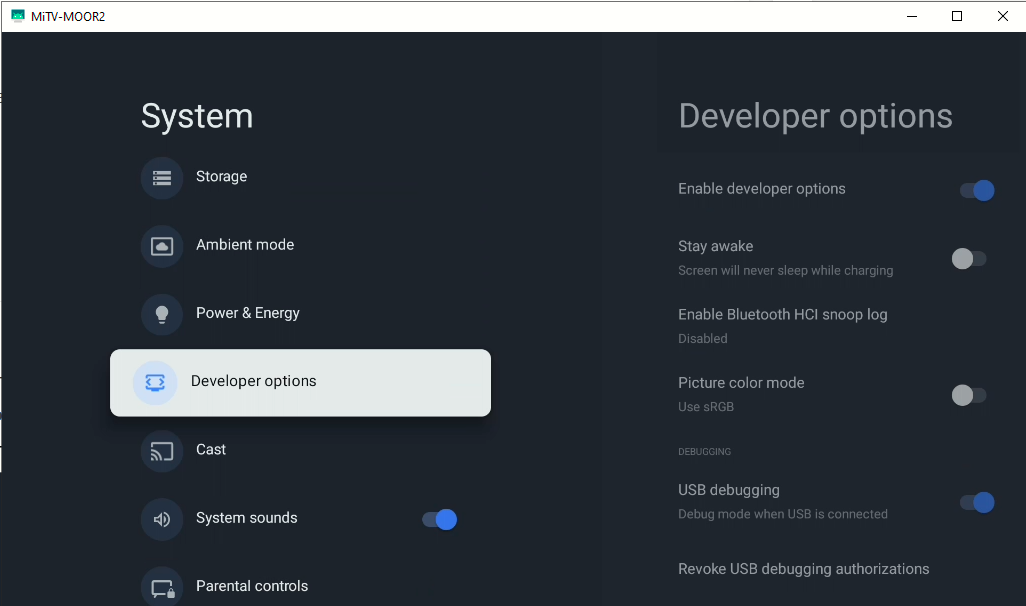
Go to System > About > Android TV OS build, press Enter 7 times to enable developer options
2. Disabling Animations
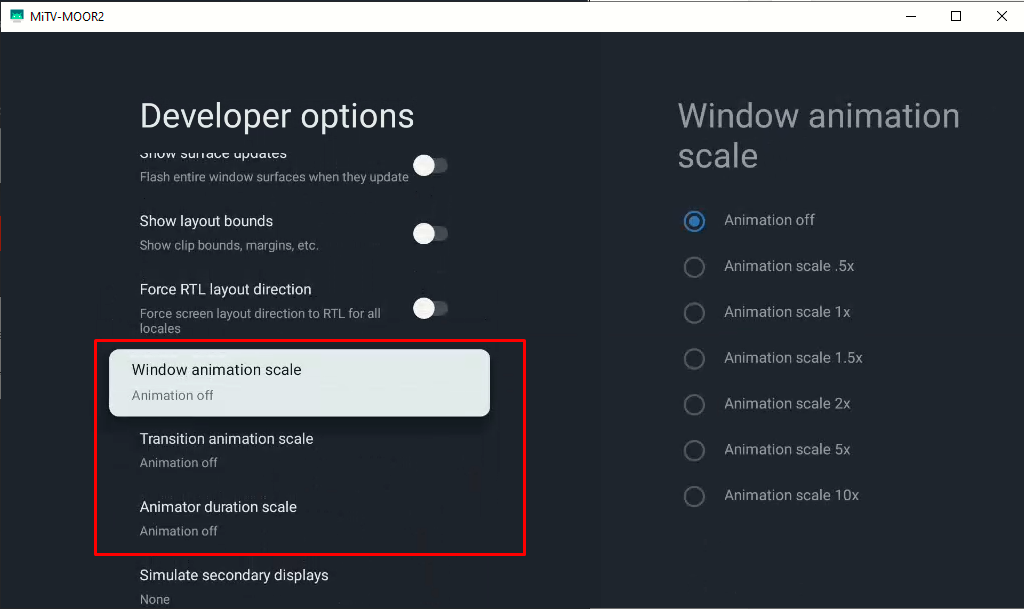
Go to Developer options > Window animation scale, Transition animation scale and Animator duration scale, set all of them to Animation off.
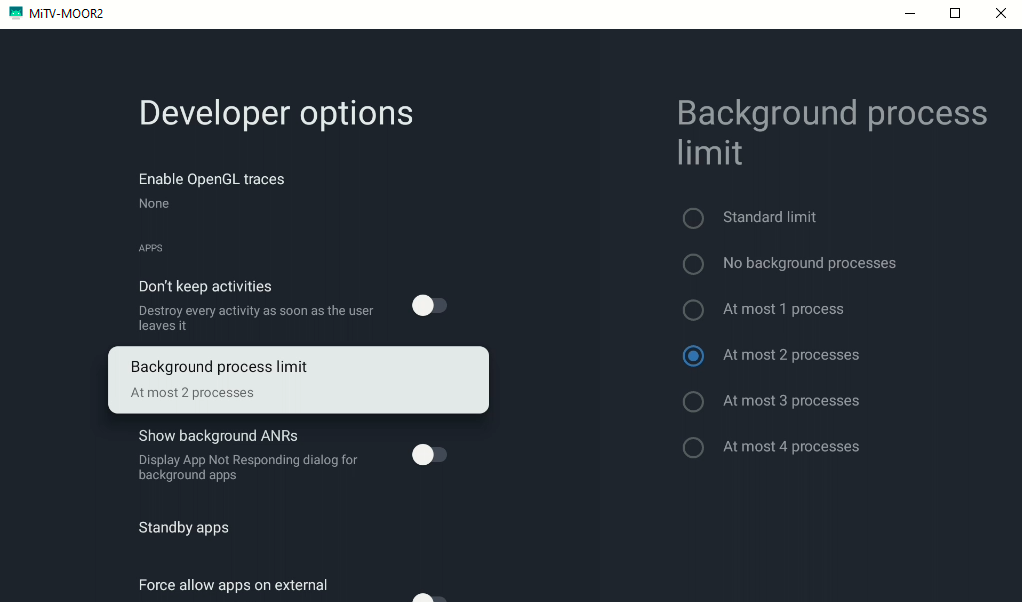
3. Background Process Limit
Go to Developer options > Background process limit, set it two At most 2 processes
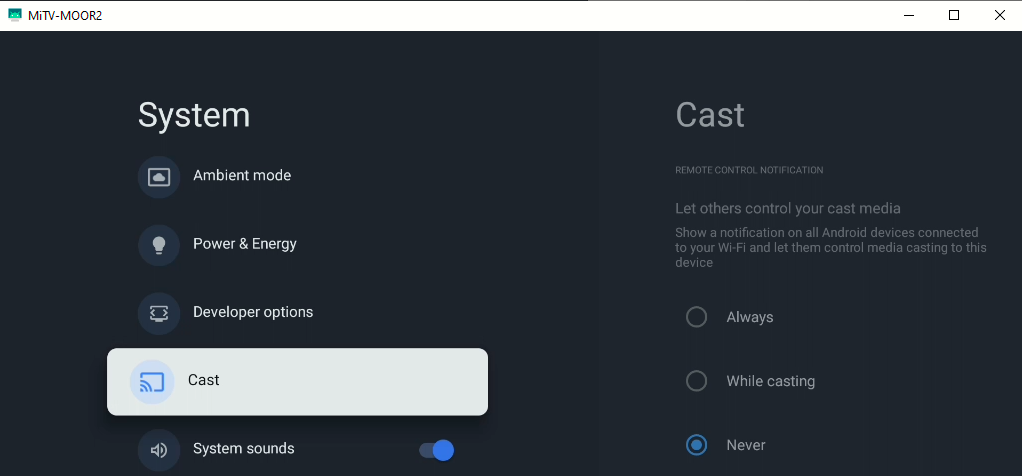
4. Disable Casting
(Optional) Go to System > Cast, set it to Never
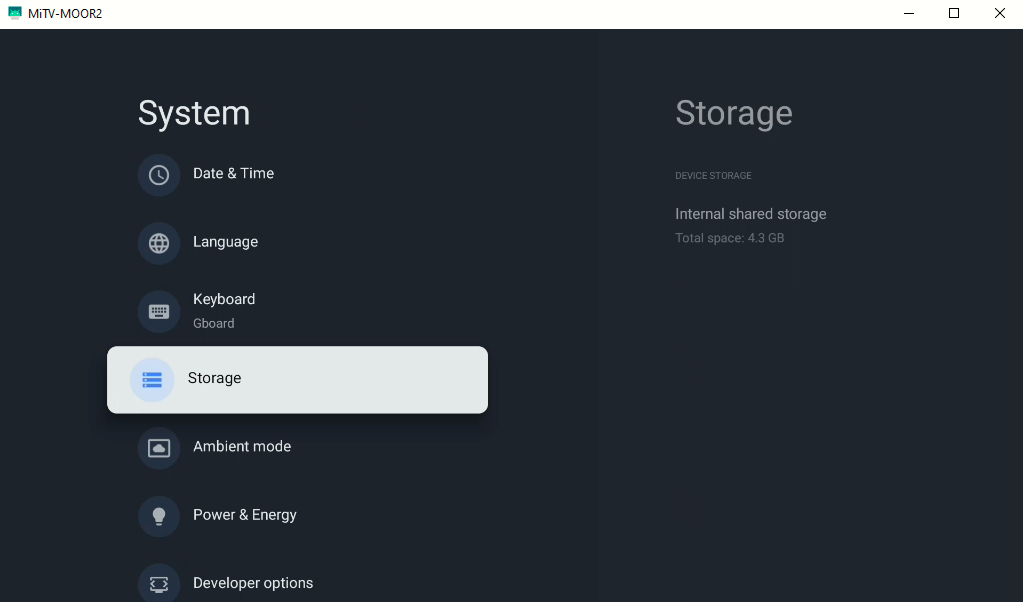
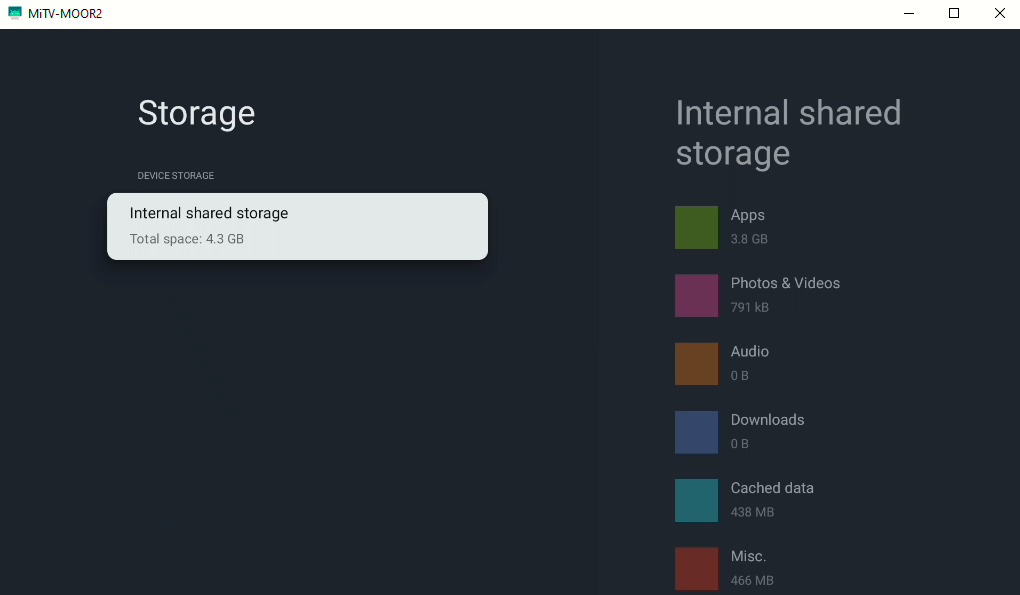
5. Delete Cache Periodically
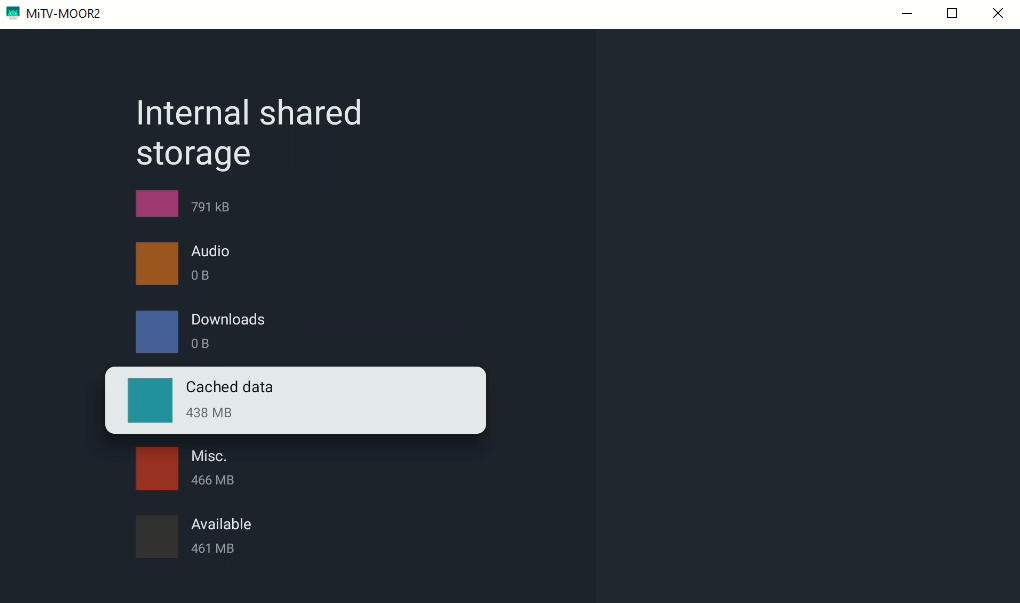
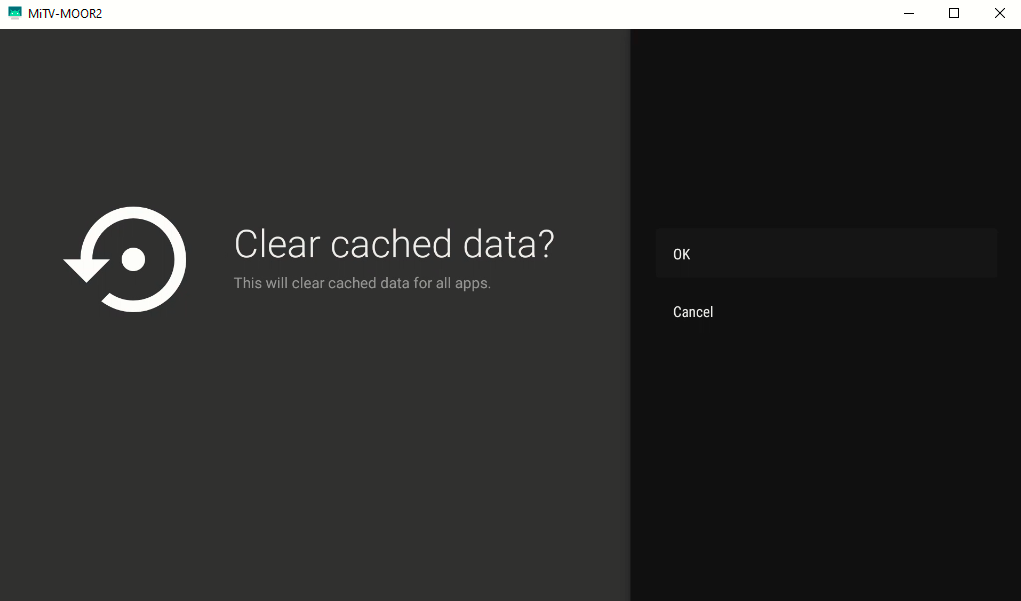
To do that, go to System > Storage > Internal shared storage > Cached data, press Enter, press OK
6. Ambient Mode Tuning
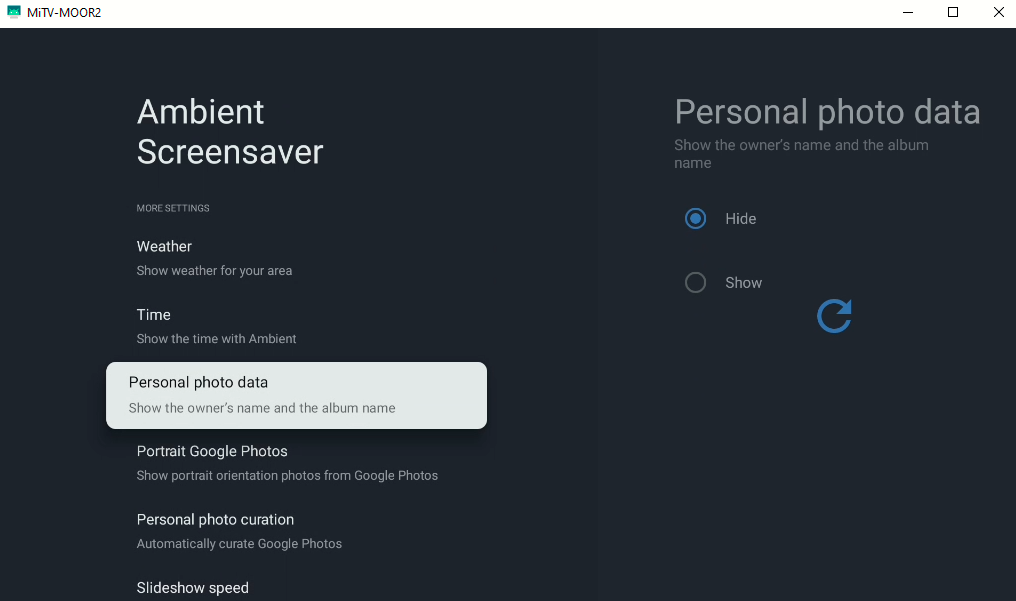
Go to System > Ambient Mode > Personal photo data and Portrait Google Photos, set to Hide
7. Update Apps
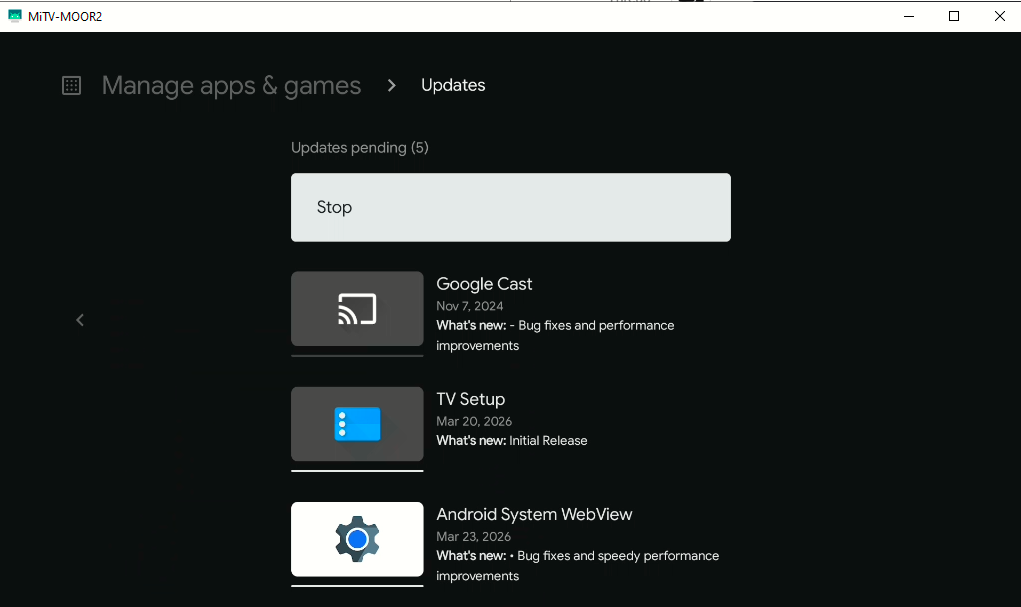
Go to Google Play Store > <Profile icon> > Manage apps & games > Updates, Update all
Maybe some more tweak can be added but this is basically it. At a normal user level, just navigating through available Android settings, there's nothing much left to modify to optimize a bit the TV.
In the next pages, I'll explore how to connect to the TV via adb from a Windows PC to do more advanced debloating.