
Mi Box S 3rd Gen - Introduction and Debloatting
Introduction
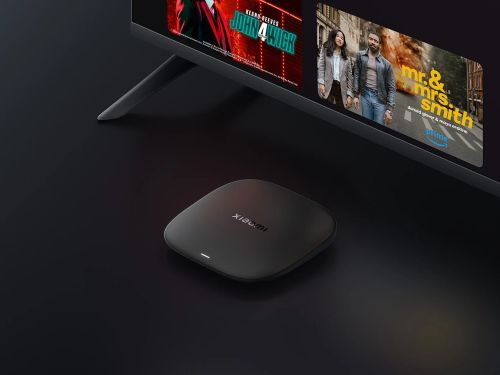
The Xiaomi TV Box S 3rd Gen is a compact 4K multimedia streaming player designed to turn standard TVs into Smart TVs. Running on modern Android TV (Google TV) architecture, it serves primarily as a dedicated media center for streaming high-definition video content, running media applications, and casual entertainment. Compared to its predecessor, its most notable upgrades are a significantly faster processor, increased internal storage, and updated wireless connectivity standards.
Main Characteristics
-
Operating System: Android TV / Google TV (ships with versions scaling up to Android TV 14).
-
Processor (CPU): Amlogic S905X5M 64-bit quad-core ARM Cortex-A55 processor (clocking up to 2.5GHz).
-
Graphics (GPU): ARM Mali-G310 V2.
-
Memory (RAM): 2 GB.
-
Internal Storage (ROM): 32 GB (a substantial upgrade from the 8 GB found on the 2nd Generation).
-
Wireless Connectivity: Wi-Fi 6 (Dual-band: 2.4GHz / 5GHz)
-
Bluetooth 5.2
-
-
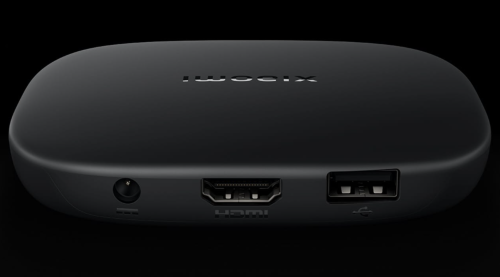
Physical Ports: 1 x HDMI 2.1
-
1 x USB 2.0
-
Power Input
-
-
Video & Audio Support: 4K resolution playback at 60 FPS
-
Dolby Vision® and HDR10+
-
Dolby Audio® and DTS:X
-
Expected support for QMS-VRR (Quick Media Switching - Variable Refresh Rate)
-
-
Physical Dimensions: 97 x 97 x 17 mm
-
Weight: 91.2 g
|
|
|
Android Options
- Display and sound
- HDMI-CEC -> Disabled
- Match content frame rate -> Always
- Advanced display settings
- Allow game mode -> Disabled
- Preferred dyanmic range format -> Match content dynamic range
- Allow dynamic range formats -> Automatic
- Network and Internet
- Scanning always available -> Disabled
- Privacy
- Location
- Location status -> Off
- Scanning always available -> Disabled
- Camera
- Camera access -> Disabled
- Manage updates
- Auto-update apps -> Disabled
- Location
- System
- Power and energy
- Energy modes -> Low
- About
- Android TV OS build -> Tap several times to enable Developer Options
- Developer options
- USB debugging -> Enable
- Wireless debugging -> Enable (resets to Disabled after every reboot)
- Window animation scale -> Animation off
- Transition animation scale -> Animation off
- Animator duration scale -> Animation off
- Power and energy
Connecting to the Box via Wireless ADB
The Mi Box and the Windows PC must be on the same network. ADB must be installed on a Windows 10 PC, and optionally added to the PATH system variable for easier use.
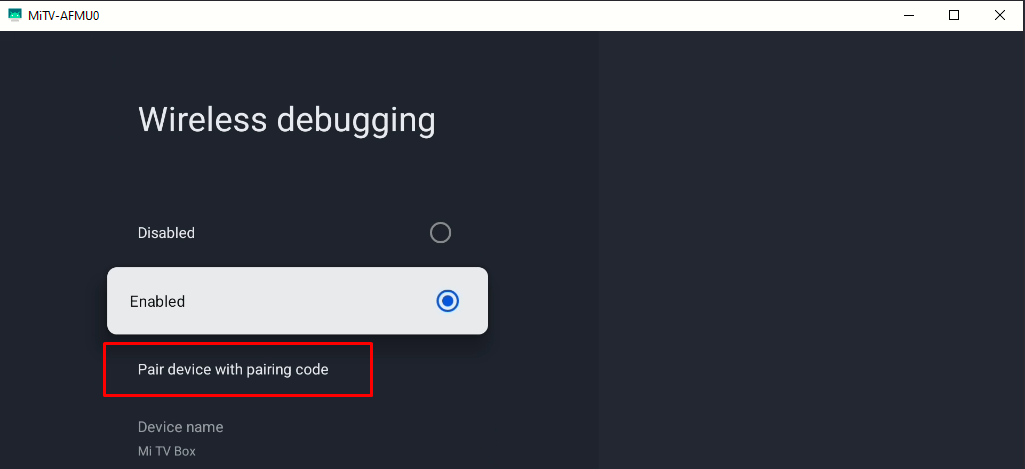
On the Mi Box, go to Settings > System > Developer options > Wireless debugging, set it to Enabled and enter the Pair device with pairing code submenu
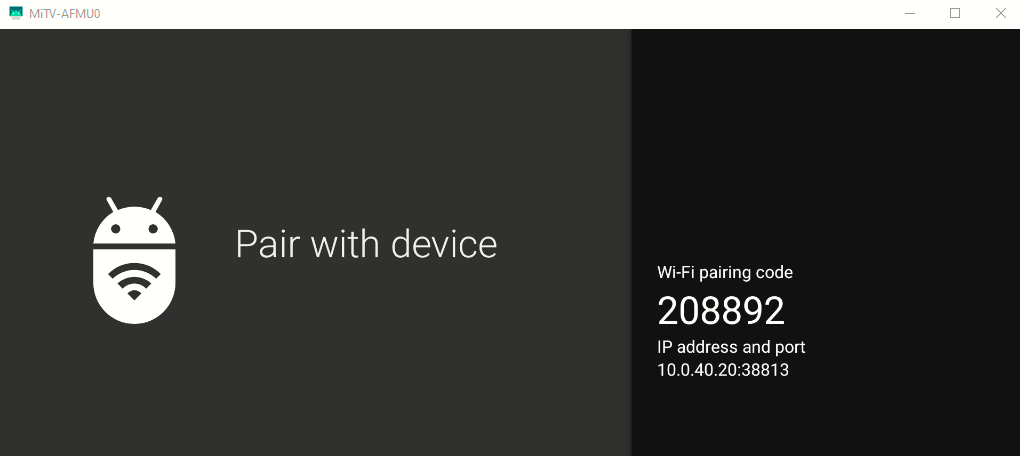
On the Windows host, open cmd and enter the following command:
adb pair <Box IP>:<Port as seen on the Box>
Once paired, issue the following command:
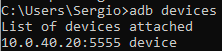
adb connect <Box IP>Followed by the command adb devices, which should list the Box in the device state:
Debloatting the Box with UAD and Shizuku + Canta
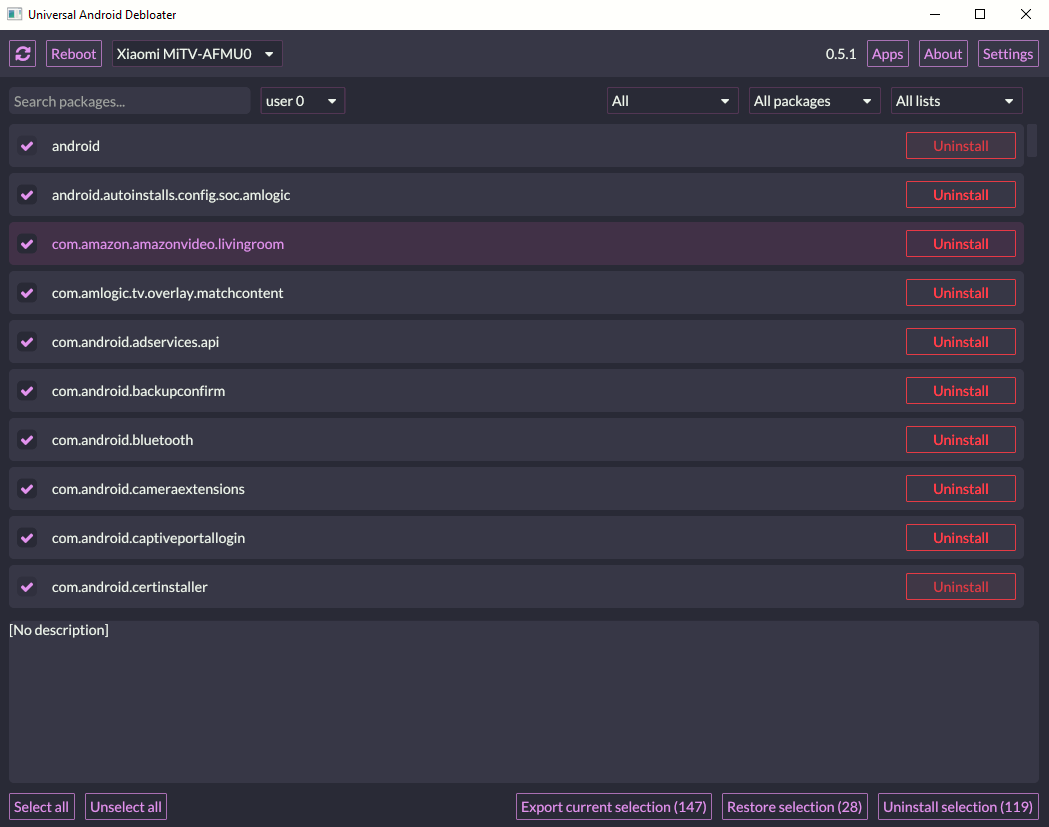
Universal Android Debloater (UAD) is a desktop-based, open-source tool used to remove unwanted pre-installed software (bloatware) from Android devices via a USB connection. It acts as a user-friendly interface for ADB (Android Debug Bridge) and features a community-driven database that categorizes system packages by safety levels (from "Recommended" to "Unsafe"). This allows you to safely disable or uninstall manufacturer-specific bloatware to free up storage and RAM without needing root access.
Shizuku + Canta is a combination that achieves the same debloating result entirely on the device, without needing a computer. Shizuku acts as an on-device bridge that uses wireless debugging to grant elevated system-level permissions to other apps. Canta is the actual uninstaller app that leverages Shizuku's access to instantly freeze or uninstall stubborn system apps directly from your phone, using UAD's safety database to prevent you from breaking essential phone functions.
|
|
|
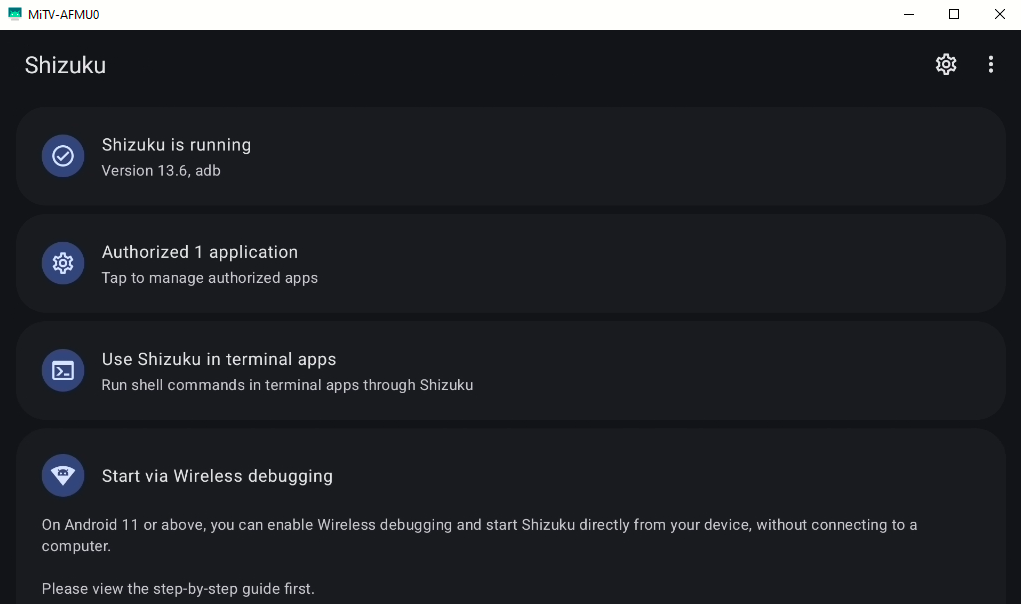
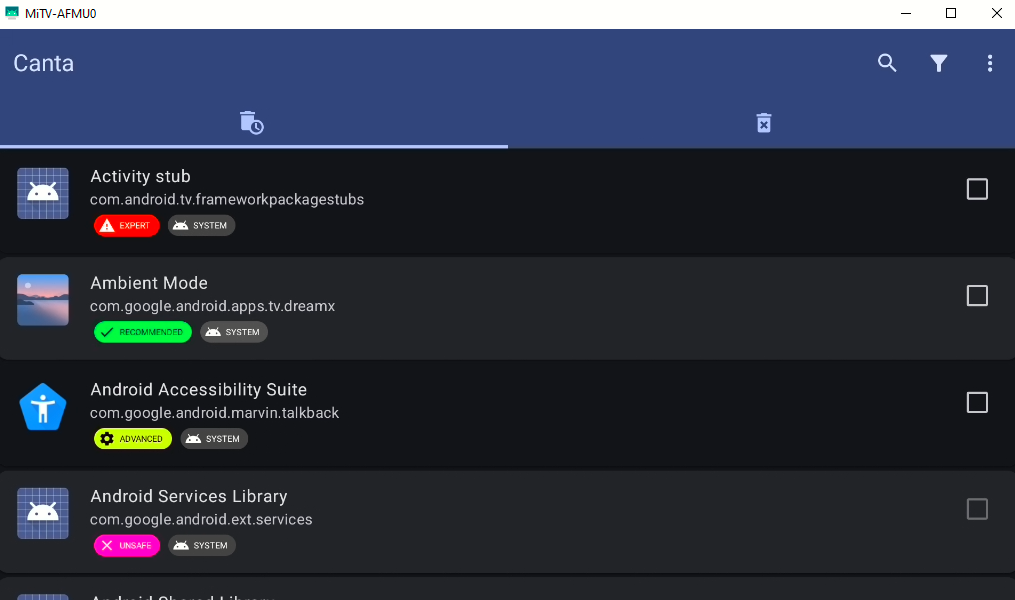
Download the Shizuku app from the current active fork (link). Next, download the Canta app (link).
Since we are already connected via ADB to the Box, we can install the APKs via cmd:
adb install shizuku-v13.6.0.r1318-thedjchi.apk
adb install app-release.apk
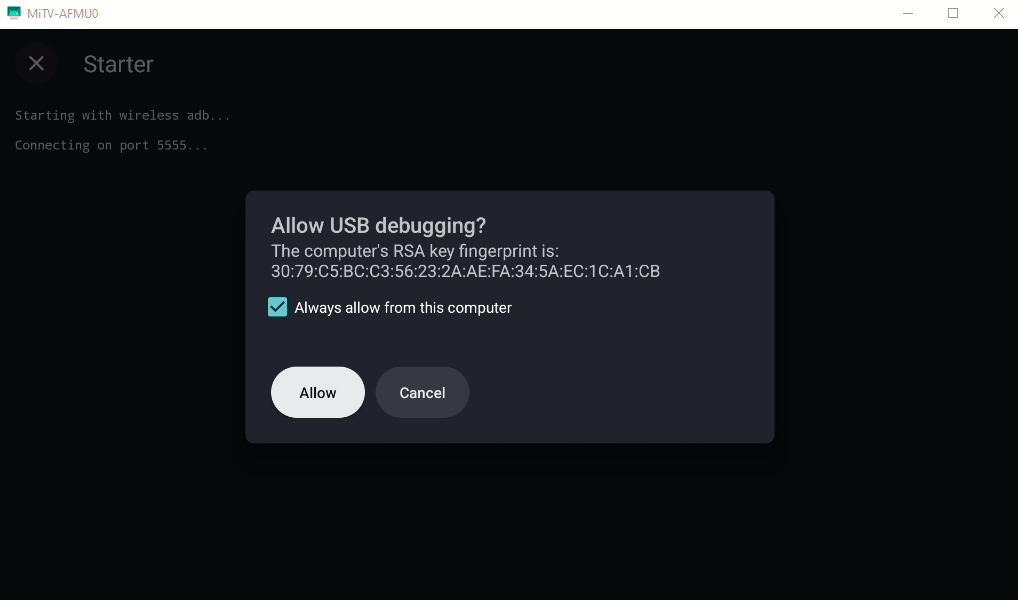
Next, we'll open the Shizuku app and since we are already connected via ADB, we'll go straight to Start:
|
|
 |
|
|
|
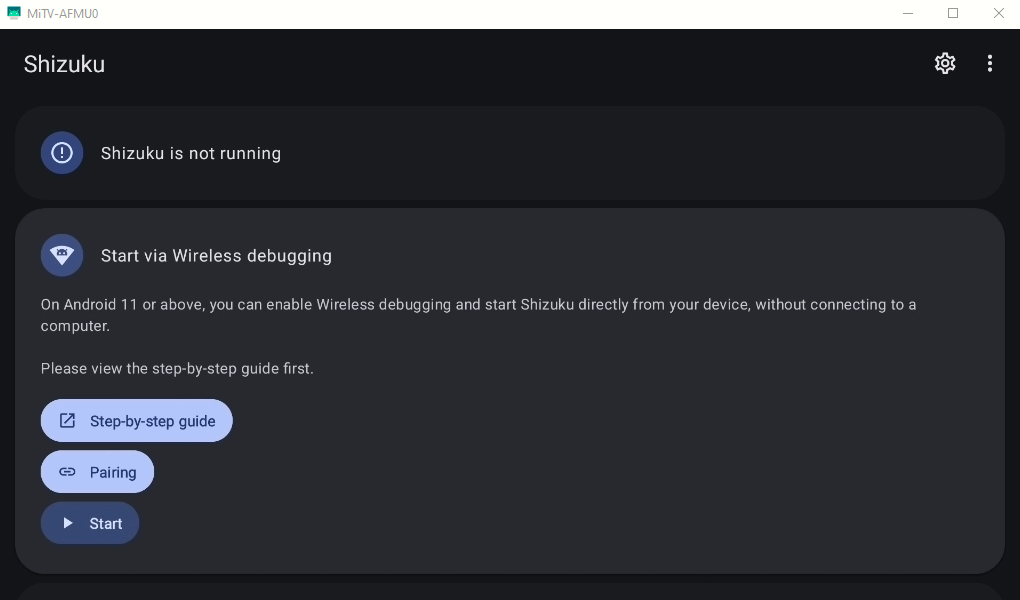
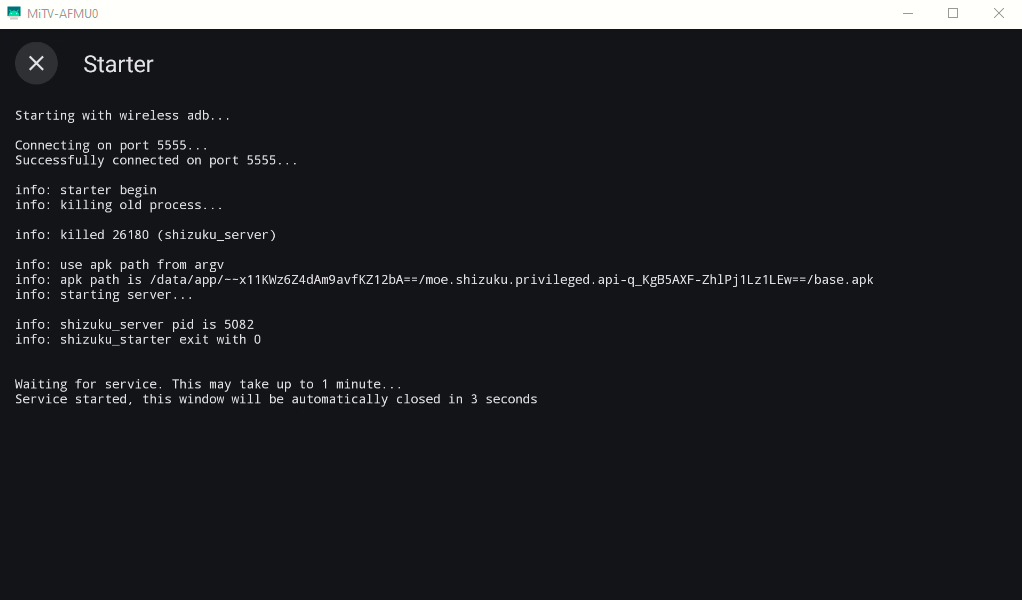
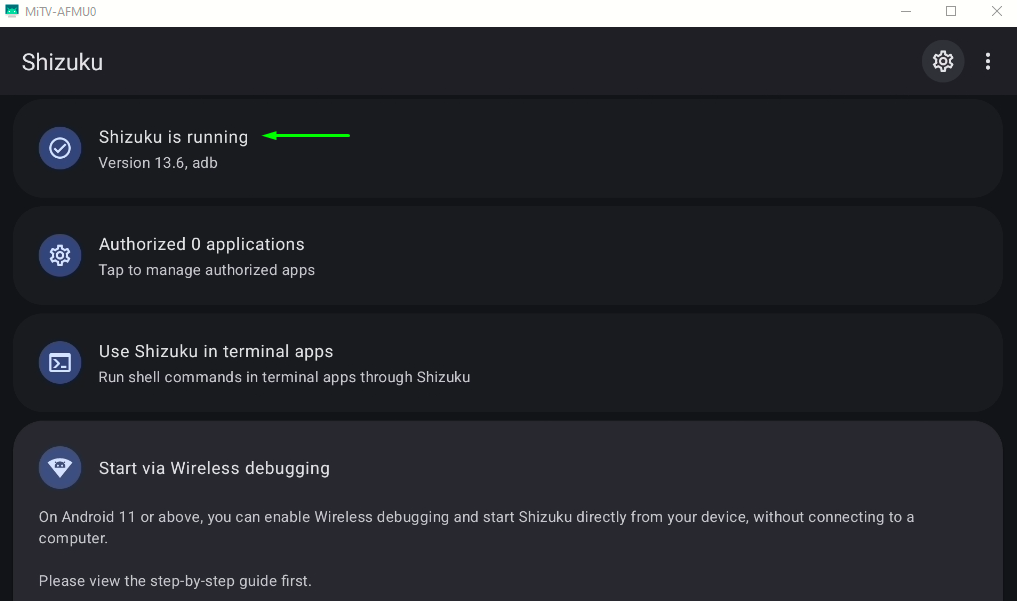
Now, we'll open Canta. Best thing about Canta is that it contains info on what function each package does and whether it is safe to remove it. Usually, we'll filter by the Recommended apps, and those are the ones that are safe to uninstall.
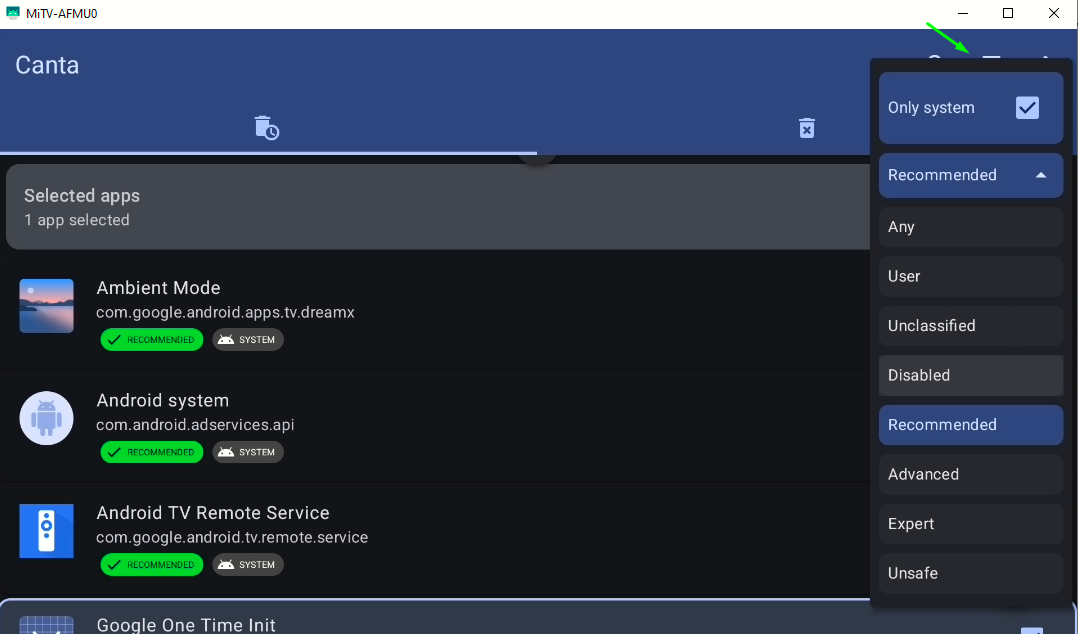
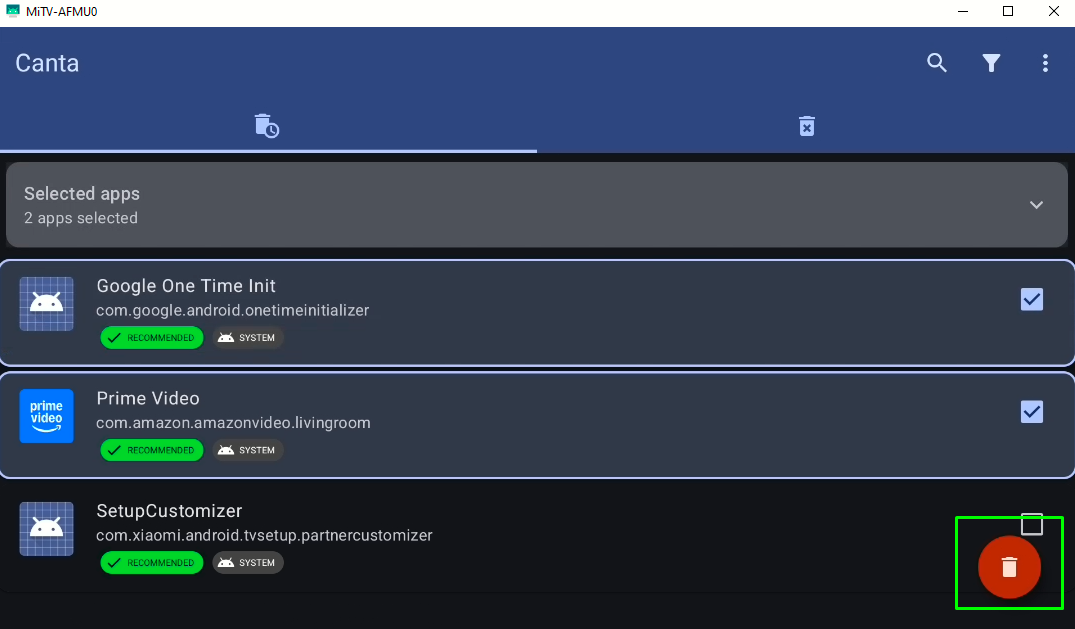
Then we would select each app and when we are done, just click the trash button:
Using UAD its easier since it's all done from the PC (download link). At the moment the app is opened, it detects the devices connected via ADB:
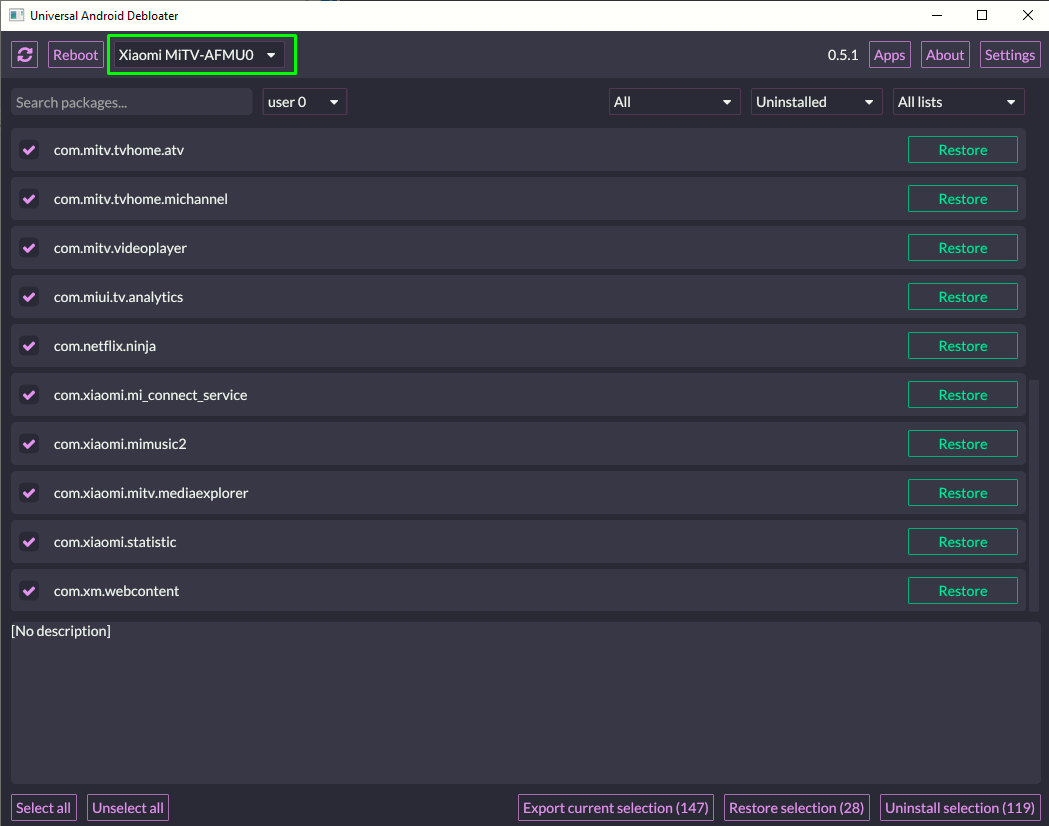
As with Canta, we can filter by Recommended apps to uninstall, however UAD is an app that has not been updated since 2023, and lacks the descriptions and updated list of information that Canta has.
Following is the full list of apps I debloated. I finally did it via ADB commands on cmd:
# --- XIAOMI ADWARE, ANALYTICS & TELEMETRY ---
adb shell pm uninstall --user 0 -k com.miui.tv.analytics
adb shell pm uninstall --user 0 -k com.xiaomi.statistic
adb shell pm uninstall --user 0 -k com.xiaomo.tv.milegal
adb shell pm uninstall --user 0 -k com.xm.webcontent

# --- XIAOMI PATCHWALL STOCK LAUNCHER LAYERS ---
adb shell pm uninstall --user 0 -k com.mitv.tvhome.atv
adb shell pm uninstall --user 0 -k com.mitv.tvhome.michannel
adb shell pm uninstall --user 0 -k com.mitv.tvhome.mitvplus
adb shell pm uninstall --user 0 -k com.mitv.tvhome.oemtab

# --- XIAOMI STOCK MEDIA & CONNECTIVITY ---
adb shell pm uninstall --user 0 -k com.mitv.gallery
adb shell pm uninstall --user 0 -k com.mitv.videoplayer
adb shell pm uninstall --user 0 -k com.xiaomi.mi_connect_service
adb shell pm uninstall --user 0 -k com.xiaomi.mimusic2
adb shell pm uninstall --user 0 -k com.xiaomi.mitv.mediaexplorer

# --- GOOGLE AD TRACKING & TELEMETRY ---
adb shell pm uninstall --user 0 -k com.android.federatedcompute.services
adb shell pm uninstall --user 0 -k com.android.ondevicepersonalization.services
adb shell pm uninstall --user 0 -k com.android.tv.feedbackconsent
adb shell pm uninstall --user 0 -k com.google.android.feedback

# --- UNUSED SYSTEM PROVIDERS & MOBILE LEFTOVERS ---
adb shell pm uninstall --user 0 -k com.android.nearby.halfsheet
adb shell pm uninstall --user 0 -k com.android.printspooler
adb shell pm uninstall --user 0 -k com.android.providers.calendar
adb shell pm uninstall --user 0 -k com.android.providers.contacts

# --- STREAMING APPS & PLAY GAMES ---
adb shell pm uninstall --user 0 -k com.google.android.play.games
adb shell pm uninstall --user 0 -k com.google.android.youtube.tv
adb shell pm uninstall --user 0 -k com.google.android.youtube.tvmusic
adb shell pm uninstall --user 0 -k com.netflix.ninja
adb shell pm uninstall --user 0 -k com.netflix.tokenmanager