
Mi Box S 3rd Gen - Installing a Custom Launcher
Introduction
After successfully setting up and debloating the Mi Box S in the previous step, the device is now running significantly leaner with unnecessary background processes and stock clutter stripped away. However, to completely get rid of the ad-heavy, resource-intensive default interface, the next logical step is replacing the user interface itself. In this guide, we will walk through the installation and configuration of aLauncher—a lightweight, minimal custom launcher that will give us complete control over our home screen and keep the system running at peak performance.
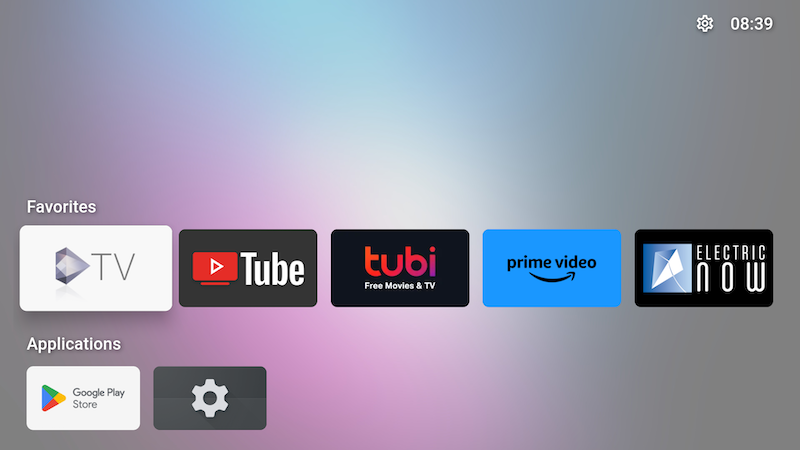 aLauncher sample menu
Downloading and Installing aLauncher
To download aLauncher click here. Once we have the APK file we can install it via ADB as we learned on the previous page.
adb install app-armeabi-v7a-release.apkOnce installed, on the Mi Box official launcher go to Applications and open the aLauncher app.
While on aLauncher, we'll disable the official launcher via ADB with this commands:
adb shell pm disable-user --user 0 com.google.android.apps.tv.launcherx
adb shell pm disable-user --user 0 com.google.android.tungsten.setupwraith
Now test with the Home button on the remote that the Google TV launcher is not being loaded. It should stay at the aLauncher.