
Reverse telnet theory + practical example
When a user telnets to a router, he is “logged on” directly to the router. Cisco adds a special twist: if you telnet to a special port on the router, the router redirects the incoming telnet connection back out a selected asynchronous line, rather than internally accepting the incoming connection. This is called “reverse telnet.”
Here are two telnet commands you might give on your Unix or Windows workstation:
#telnet router1
               Telnet directly into router1
#telnet router1 2001
               Telnet to port 2001 on router1
The first telnet command connects to the standard telnet port (TCP port 23; remember that we’re now talking about TCP ports, not the router’s physical ports) and initiates a virtual terminal session with the router.
The second command is tricky. It connects to TCP port 2001; the router maps this port to one of its asynchronous lines. The router performs any login requirements, then connects the telnet session to the mapped line. The mapping is simple: just subtract 2000 from the port used for the telnet connection. So in this example, the user would be connected to asynchronous line 1 (tty1). Line 2 (tty2) would be 2002, and so on. If a modem is connected to tty1, the user would be talking directly to the modem.
Reverse telnet requires that the TTY line be configured to allow outbound connections. Here’s how to do it:
Router(config)#line tty2
Router(config-line)#modem inout
The modem inout command allows both incoming and outgoing connections. Another way to configure the line is:
Router(config)#line tty2
Router(config-line)#modem callout
The modem callout command allows only outgoing connections.
Another useful command for reverse telnet is ip alias. This command lets you assign an IP address to a reverse telnet connection. In other words, the router associates an IP address with a reverse telnet port. If you telnet to this address, the router will connect you directly to the specified port. For example, assume that a router has an Ethernet interface with an address of 10.1.1.1. The following commands configure it to route incoming telnet connections for the addresses 10.1.1.2, 10.1.1.3, and 10.1.1.4 to asynchronous ports 1 through 3:
interface ethernet0
 ip address 10.1.1.1 255.255.255.0
 no shutdown
!
! Now configure our reverse telnet IP address
ip alias 10.1.1.2 2001
ip alias 10.1.1.3 2002
ip alias 10.1.1.4 2003
Now, when you telnet to 10.1.1.2, you will be connected to the device that is connected to port 1.
Practical example
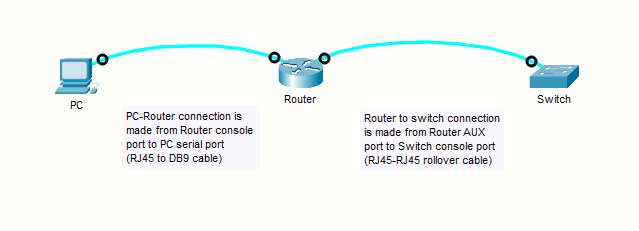
Starting with the above topology in a lab environment, we have connected the PC to a router via console (using the router console port).
Say we have a switch behind this router without any type of remote access, but we need to access this switch remotely. We can do this using reverse telnet from the router to the switch, using the AUX port connection.
- Get an RJ45 to RJ45 rollover cable [How to make an RJ45 to RJ45 rollover cable]
- Connect one end on the router AUX port and the other end on the switch console port
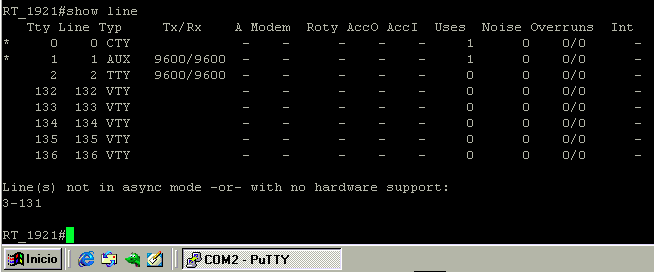
- Boot up both router and switch, and from the router CLI verify the cable is detected on the AUX port and note the line number:
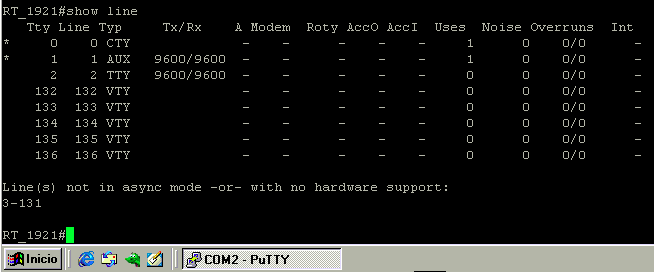
- As we can see from the
show linecommand output above, the AUX line number is 1 - The router needs an IP address configured. Easiest way is to configure a loopback address:

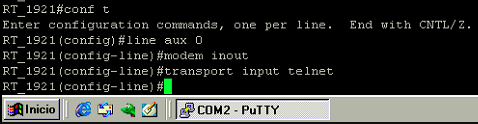
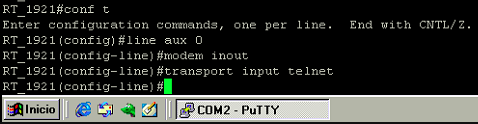
- The AUX line needs to be configured as follows (see theory above). Using
transport input telnetto accept incoming Telnet connections.
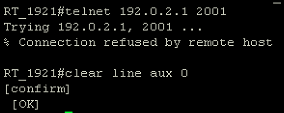
- Now we can telnet to the configured loopback IP address and port 2001 (2000 + AUX line number, which is 1 in this case):
We may get a Connection refused error. To solve this, we must clear the connections on line aux 0 as follows with the command
clear line aux 0
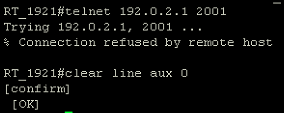
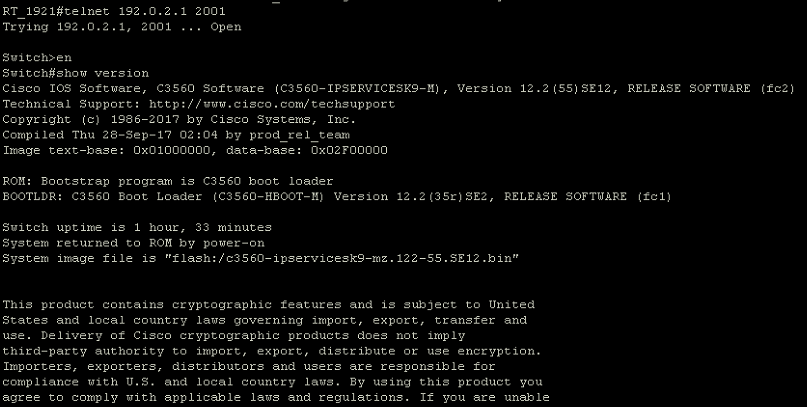
After clearing the line, we have gained access to the switch via AUX port: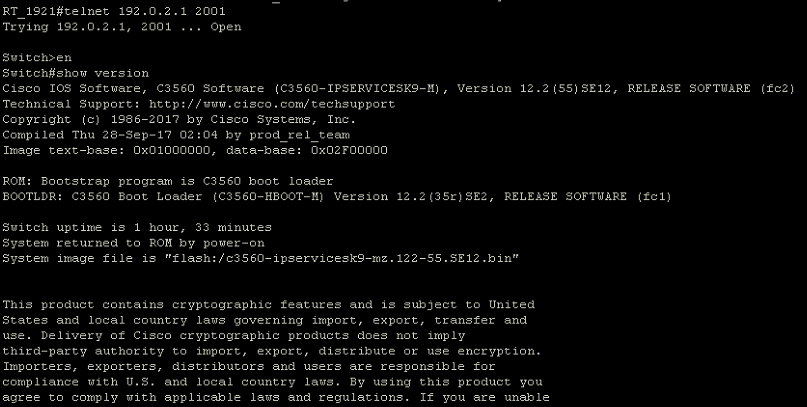
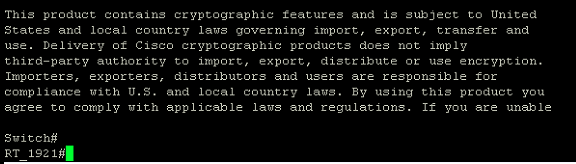
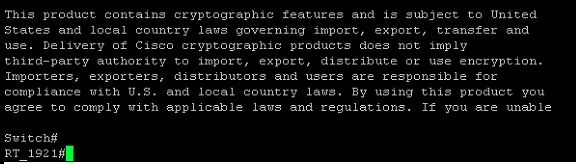
- To get back to the router prompt, we have to press Ctrl+Shift+6 and then the X key (in two sequences):

Issues observed
I have noticed that at some point doing the lab, the show line command would output a large number of overruns on the AUX line:
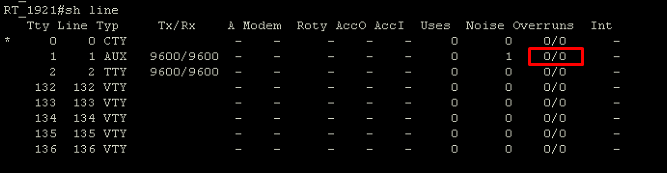
Reconnecting the rollover cable on the AUX port seemed to do nothing, so I had to reboot the switch to regain access to the switch via reverse telnet. EDIT: This was due to a wrong configuration on the Cisco ATAs connecting the modems.

Sources
What is Reverse Telnet and how do I configure it?
https://www.tek-tips.com/faqs.cfm?fid=1312
Access to the console via AUX port
https://www.ciscozine.com/access-to-the-console-via-aux-port/
show line
https://www.oreilly.com/library/view/cisco-ios-in/156592942X/ch04s07.html
Quick Guide To Using Cisco Aux Port As Reverse Console Port
https://www.linkedin.com/pulse/quick-guide-using-cisco-aux-port-reverse-console-beau-ralph/
Establishing a Reverse Telnet Session to a Modem
https://mail.employees.org/univercd/Feb-1998/cc/td/doc/product/software/ios113ed/113ed_cr/dial_c/dcprt6/dcrtelnt.htm